Implementation Blueprint

How to Implement Web Filtering in Schools

A filter that goes live badly loses the staffroom in a week. This playbook lays out how to implement web filtering in schools the calm way — a planning phase, a pilot, then a phased district rollout — so most districts move from decision to full coverage inside a single term, without a single day of blocked lesson plans.

2 PhasesPlan, then roll out
30/60/90Days to full coverage
1 BuildingIs where you start
0 AppliancesNeeded for cloud deployment
CIPA Compliant
E-Rate Eligible
120M+ Domains Classified
16,328+ AI Tools Tracked
Cloud or On-Premise
Daily Updates
Roadmap Overview

The four chapters of a calm rollout

Treat the rollout as a change-management project with a technical component, not the other way round. A 30/60/90-day mindset works well: thirty days to plan and pilot, sixty to tune and extend across buildings, ninety to reach take-home devices, training and reporting.

01

Plan Before You Block

The technical part of turning on a school web filter is genuinely small — a DNS change, an agent pushed through your device-management console, or a router pointed at a new resolver. What actually determines success is everything around that switch: teacher warnings, sensible first policies, and an exception workflow.

02

Pilot, Then Extend

Rushing everything into a weekend is the single most common way districts end up with an over-blocking reputation the filter never shakes off. Start with one building, tune from real teacher feedback, then roll out ring by ring.

03

Cover Take-Home Devices

In a 1:1 district, the majority of browsing hours happen off campus — evenings, weekends, holidays — precisely when no teacher is nearby and risk concentrates. Make policy a property of the device, not the network.

04

Operationalize & Report

Go-live is the midpoint, not the finish line. Staff training, parent communication, digital citizenship lessons, exception workflows, and termly policy reviews keep the filter trusted and the compliance file current.

Already building your case? This guide assumes you have already made the case for filtering itself. If you are still building that argument for your board, start with why schools need web filtering and the legal backdrop in our plain-English CIPA guide. What follows is the how: two phases, nine concrete steps, and the traps to route around.
Project Schedule

The 30/60/90 build, laid out like a job schedule

Three overlapping work packages, each with its own gate. Nothing below is a hard deadline — it is the pacing that keeps a rollout from either stalling or steamrolling the staffroom.

Plan & pilot
Days 1–30
Day 30
Tune & extend
Days 1–60
Day 60
Full coverage
Days 1–90
Day 90
Gate 1: pilot signed off Gate 2: policy tuned, buildings live Gate 3: take-home + reporting live
Phase 1 — Plan

Four steps before anything gets blocked

Everything in this phase happens on paper and in meetings. It is tempting to skip straight to configuration; every hour spent here removes a fire later.

01
02
03
04
01
Foundation

Inventory your devices, users and networks

Count what will actually pass through the filter: managed Chromebooks and laptops, lab desktops, staff machines, guest Wi-Fi, and any BYOD segments. Note which devices go home and which never leave the building. Then convene the people the rollout touches — principals, a librarian, a couple of classroom teachers, your SpEd and counseling leads — because they will surface use cases (health research, current-events units, career sites) that a purely technical plan misses.

02
Compliance

Review your CIPA obligations and internet safety policy

If your district receives E-Rate discounts, you are certifying that a technology protection measure blocks obscene material, child sexual abuse material and content harmful to minors, that you monitor minors' online activity, and that students are educated on appropriate online behavior. Check that your internet safety policy and your acceptable use policy say what the filter will actually do — the paperwork and the configuration need to match before an audit, not after.

03
Architecture

Choose your deployment model

Decide where filtering decisions will physically happen: in the cloud, on an appliance inside your network, or at the DNS layer. The comparison table below walks through the trade-offs. The honest summary is that districts without a dedicated network team almost always land on cloud, and districts with strict data-residency rules or existing rack capacity sometimes prefer on-premise — the same categorized database of 120M+ domains drives either.

04
Blueprint

Draft policy by grade band, not district-wide

Write three starter policies — elementary, middle, high — before you touch the admin console. Working from the filter's content categories (57+ of them, from adult content and gambling to self-harm and malware), mark each category allow, block or allow-with-SafeSearch per band. Getting sign-off on this one-page matrix from curriculum and building leadership now means the pilot starts from consensus rather than from complaints.

The big decision

Cloud, on-premise or DNS-level filtering?

All three enforce the same idea — a policy applied to a categorized view of the web — but they differ in who runs the machinery, what hardware you need, and how far coverage reaches. Our filtering deploys as cloud or on-premise, and the category data also feeds DNS-level setups.

ConsiderationCloud filteringOn-premise applianceDNS-level filtering
Who manages the machineryThe provider; your team manages only policyYour IT staff patch, back up and scale itMinimal — you point resolvers and manage policy
Hardware requiredNoneA server or appliance per site or data centerNone
Speed to first deploymentHours — enroll devices or point trafficDays to weeks, including procurementHours — a resolver change on the network
Off-campus coverage for 1:1 devicesYes — the agent travels with the deviceOnly via VPN back-haul, which students noticeOnly if the device's DNS is managed off-network
GranularityPer user, group, grade band and devicePer user and network segmentPer network or per configured device; coarser
Best fitMost districts, especially 1:1 programsDistricts with data-residency rules or existing rack investmentSmall schools and libraries wanting fast, simple coverage

Design the policy ladder: strict early, open gradually

A kindergartner and a senior taking dual-credit courses should not browse under the same rules. Elementary policy is comfortably strict: core learning and reference categories open, nearly everything social, commercial and entertainment-oriented closed. Middle school opens research breadth while keeping social media and games tight. High school opens progressively toward the real internet students will meet in a year — with the legally required categories and clearly harmful material blocked at every band.

Two decisions deserve their own line in the matrix. First, SafeSearch: enforce it on every band, on search engines and video platforms alike, because it quietly removes the worst results before category rules are even consulted. Second, AI tools. The bundled blocklist tracks 16,328+ AI-tool domains sorted into categories, so you can permit, say, a supervised chatbot for a high-school computing class while blocking essay writers, homework solvers, deepfake and face-swap tools, voice cloning and AI companion chat everywhere — a policy decision, not a game of whack-a-mole.

  • One policy matrix per grade band, signed off before the pilot
  • SafeSearch enforced for every user group, no exceptions
  • AI-tool categories decided deliberately: instructional allow-list, integrity block-list
  • Staff policy separated from student policy from day one

A starter ladder, category by category

Elementary: walled garden Middle: guided research High: supervised open web
Example row — "Streaming media":
Elementary: Block · Middle: Allow in class hours only · High: Allow with SafeSearch
Example row — "Essay writers (AI)":
All bands: Block · Exception: teacher-requested pilot group in one high-school course
Phase 2 — Roll out

Five steps from pilot to district-wide coverage

Now the switch gets flipped — deliberately, one ring at a time, with a feedback channel open the whole way.

05
06
07
08
09
05
Groundbreaking

Pilot with one building or lab

Pick a site with an engaged principal and point it at the filter with your drafted grade-band policy. Run it for one to two weeks of normal instruction. The goal is not to catch students doing anything — it is to confirm that the sites teachers rely on every day pass cleanly, and to find the surprises while they affect thirty classrooms instead of three hundred.

06
Inspection

Tune categories and exceptions with teacher feedback

Give pilot teachers a one-click way to report a wrongly blocked page and commit to a same-day answer. Most reports resolve into one of three actions: relax a category for that grade band, add a site-level allow exception, or explain why the block stands. Because domains carry multiple category labels, you can usually fix the specific case without opening a whole category.

07
Framing

Extend district-wide, one ring at a time

Roll the tuned policy out by building or by grade band — whichever maps to your support capacity — rather than everywhere at once. Each ring inherits the fixes from the last, so by the third building the exception list is mostly settled and go-lives become non-events. Announce each ring to its staff a week ahead with a short note on what changes and where to report problems.

08
Envelope

Push policy to managed take-home devices

Use your device-management console to deploy the filtering agent or configuration to every school-issued Chromebook and laptop, so the same grade-band policy applies on a kitchen table as in a classroom. Verify with a simple test: take a managed device to an unfiltered network and confirm blocked categories stay blocked. This is the step CIPA-minded auditors and parents both care about most.

09
Final Walkthrough

Turn on SafeSearch enforcement and HTTPS handling

Enforce SafeSearch across search engines and video platforms as a network-level setting rather than a per-browser preference students can undo. Confirm the filter is categorizing encrypted traffic correctly — nearly the whole web is HTTPS now, so a filter that only sees unencrypted requests is effectively blind. Spot-check a handful of known-bad and known-good sites from a student account to close the loop.

What you are deploying

The data doing the work behind your rollout

Every step above leans on one thing: an accurate, continuously refreshed classification of the web your students will actually meet.

9
Steps completedFrom inventory to SafeSearch enforcement
120M+Domains already classified before day one
57+Categories to build grade-band policy from
DailyUpdates while your rollout is underway
16,328+AI-tool domains in the bundled blocklist
Make it stick

Six habits that turn a rollout into a program

Go-live is the midpoint, not the finish line. These are the practices that keep the filter trusted and the compliance file current.

Train the staff who live with it

A forty-five-minute session per building covers what the filter blocks and why, how to read a block page, and how to request an exception. Teachers who understand the system defend it; teachers surprised by it work around it.

Communicate with parents early

Send a plain-language note before take-home enforcement begins: what is filtered, that policy follows the school device at home, and whom to contact with questions. Parents overwhelmingly support filtering — when they hear about it from you first.

Teach digital citizenship alongside

CIPA expects education on appropriate online behavior and cyberbullying awareness, not just blocking. Pair the technical rollout with age-appropriate lessons so students understand the rules they are browsing under.

Run a real exception workflow

Publish one channel for unblock requests, one owner, and one service-level promise — same-day for teachers is achievable. Log every decision; the log becomes both your tuning history and your audit evidence.

Report at category level

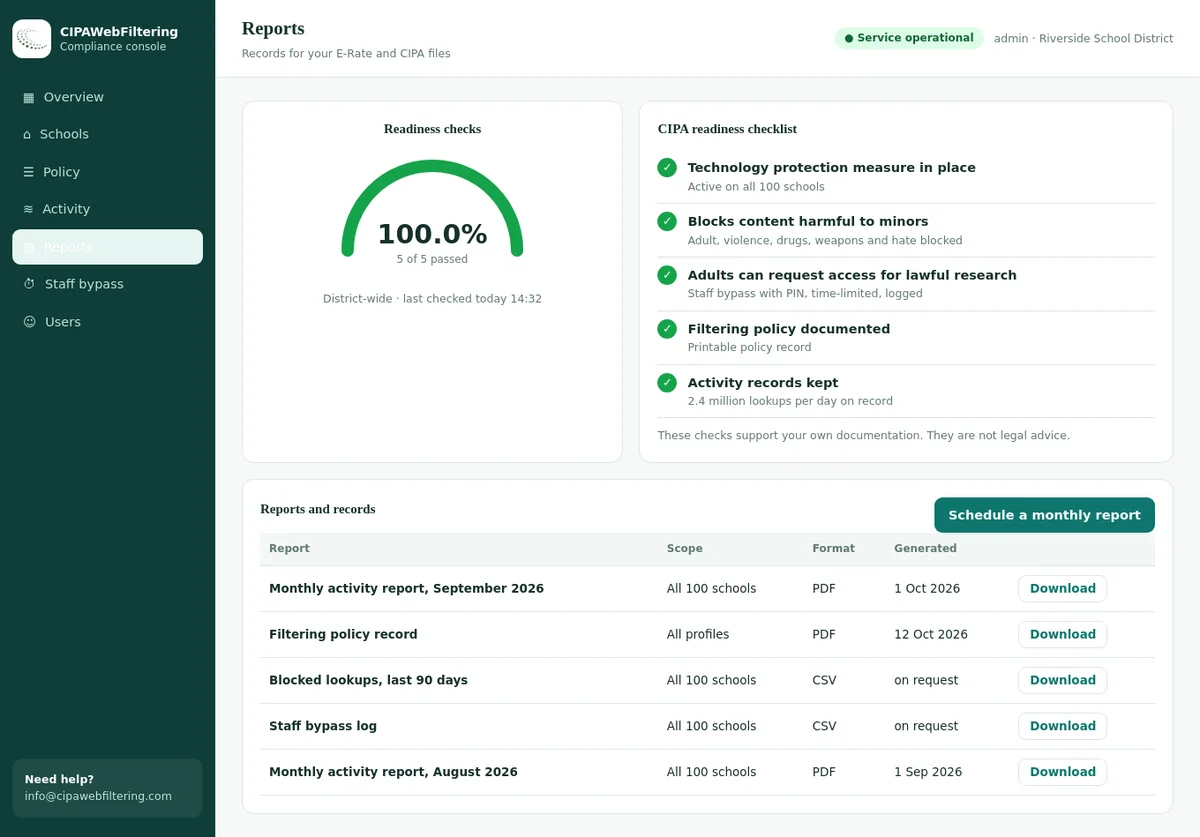
A monthly category-level report — what was blocked, in which bands, with what trend — gives your board a readable picture and gives E-Rate reviewers exactly the enforcement evidence they ask for.

Review policy every term

Curricula change, new tools launch, and last year's block decisions age. A one-hour termly review of the exception log and category reports keeps policy matched to instruction instead of frozen at go-live.

Where the school day actually ends

Campus: filtered network Bus Wi-Fi: often unmanaged Home: no filter at all Café hotspot: no filter at all
The test that settles it: take one managed Chromebook to a phone hotspot and open a site from a blocked category. If it loads, your implementation covers buildings — not students.

Take-home devices are the half of the job most rollouts skip

In a 1:1 district, the majority of a device's browsing hours can happen off campus — evenings, weekends, holidays — precisely when no teacher is nearby and risk concentrates. An implementation that filters the building network and stops there protects the Wi-Fi, not the child, and leaves the district's duty of care resting on whatever each home network happens to enforce, which is usually nothing.

The fix is to make policy a property of the managed device rather than the network it sits on. Deployed through your management console, the filter travels with the Chromebook or laptop: the same grade-band categories, the same SafeSearch enforcement, the same logging, on any network. Build this into the rollout plan as a first-class phase with its own verification, not a someday item.

  • Agent or policy deployed via the device-management console, not per-device hand-setup
  • Off-network enforcement verified on a hotspot before parents are notified
  • Loaner and summer-checkout devices included in the same policy group
  • Parent notice sent before take-home filtering switches on
Critical Warnings

The four pitfalls that sink school filtering rollouts

Over-blocking on day one

The instinct to launch with everything locked down feels safe and costs you the faculty. A teacher whose lesson dies in front of thirty students remembers it all year, and the filter's reputation never recovers. Start from the sensible grade-band matrix you drafted, let the pilot find the genuinely missing blocks, and tighten from evidence rather than fear.

No exception workflow at launch

If the first wrongly blocked page has nowhere to go, it goes to the superintendent. The request channel, its owner and its response promise must exist before the pilot starts — it is the pressure-release valve for the entire project.

Forgetting guest and BYOD networks

Districts filter the student VLAN meticulously and leave guest Wi-Fi wide open in the same building — where students promptly take their personal phones. Put every network a student can plausibly reach under age-appropriate policy, even if the guest policy is simpler.

Treating go-live as the end

A filter nobody reviews drifts out of step with curriculum within a year — blocking this semester's legitimate tools, missing this month's new risks — until staff quietly route around it. The termly review is what keeps the implementation alive.

The quiet failure mode: treating go-live as the end. A filter nobody reviews drifts out of step with curriculum within a year — blocking this semester's legitimate tools, missing this month's new risks — until staff quietly route around it. The termly review is what keeps the implementation alive.
Scoping note: this playbook deliberately covers rollout, not product selection. If you are still comparing filters, work through how to choose a school web filter first, and see our web filtering software for schools for what the category database and AI-tools blocklist look like in practice.
Key Takeaways

Three principles behind every successful rollout

Change management first, technology second

The technical part of turning on a school web filter is genuinely small — a DNS change, an agent pushed through your console, or a router pointed at a new resolver. What determines whether the project succeeds is everything around that switch: whether teachers were warned, whether the first policy was sensible for each age group, and whether somebody owns the inevitable exception requests.

Pilot, tune, extend — never big-bang

Rushing all of a rollout into a weekend is the single most common way districts end up with an over-blocking reputation the filter never shakes off. A 30/60/90-day mindset works well: thirty days to plan and pilot, sixty to tune and extend across buildings, ninety to reach take-home devices, training and reporting.

Device-level policy, not network-only

An implementation that filters the building network and stops there protects the Wi-Fi, not the child, and leaves the district's duty of care resting on whatever each home network happens to enforce, which is usually nothing. Make policy a property of the managed device rather than the network it sits on.

Related Guides

Continue your research

This playbook deliberately covers rollout, not product selection. If you are still comparing filters, work through the guides below.

Rollout Questions

What technology directors ask before they start

With a cloud deployment, the technical setup is measured in hours; the honest project timeline is a term. A realistic 30/60/90 pattern: thirty days for planning, stakeholder sign-off and a one-building pilot; sixty to tune policy and extend building by building; ninety to cover take-home devices, finish staff training and stand up reporting. Small single-site schools compress this dramatically — a library or small school can be fully covered in a week.

Not for cloud or DNS-level deployment — there is no appliance, and existing devices enroll through the management console you already use. On-premise deployment does require a server or appliance inside your network, which is exactly why it suits districts that already run their own data-center footprint and want filtering decisions kept in-house.

Three habits cover nearly all of it: start from grade-band category policy rather than maximum lockdown, pilot in a real building where teachers exercise the sites they genuinely use, and lean on multi-category classification — a site labeled both "Health" and "Video" can be allowed for the health content without opening entertainment broadly. The remainder is handled by a fast site-level exception process.

One named owner on the technology team for policy changes and exception decisions, with building principals as the escalation path for disputes about what should be allowed. The workload after tuning settles is modest — a category-based filter with automatic classification of new domains needs decisions from a human only at the edges, which is what makes single-technician districts viable.

Publish a single request channel with a same-day response target, and resolve each request as one of three outcomes: allow the site as an exception, adjust the category rule for that grade band, or explain the refusal with the category and reason attached. Log all three outcomes. The log doubles as tuning history and as evidence of an actively managed policy when anyone — parent, board member, auditor — asks how decisions get made.

Evidence that the certification you signed is true in practice: an adopted internet safety policy, a filter demonstrably blocking the CIPA categories — obscene material, child sexual abuse material, and material harmful to minors — monitoring of minors' online activity, and student education on appropriate online behavior. Category-level reports are the practical proof: they show which categories are enforced, for whom, over time, without dumping raw URL logs on a reviewer.

Plan your rollout with someone who has done it before

Bring your device counts and your grade bands — we will walk through deployment options, a starter policy matrix, and a phased timeline that fits your term calendar.