Every district runs a web filter, yet few people outside the IT office could explain what it actually does. This guide walks through how school web filtering works — the database behind it, the rules that decide what students see, and the ways it reaches devices at school and at home — in language written for administrators, not engineers.
School web filtering is a system that sits between students and the internet and decides, for every website request, whether that site is appropriate to show. It makes the decision by looking up the site's categoryDefinitionA label describing the type of content a domain contains — e.g. Education, Gambling, Adult, Games — assigned ahead of time by a classification database. and comparing it against rules the school has chosen.
The first is a giant, continuously updated database that assigns categories to websites — ours classifies more than 120 million domains. The second is a policy: the school's own list of which categories are allowed, which are blocked, and for whom. The filter checks each request against those two things, fast enough that nobody notices.
See also: What Is CIPA?
A student types an address or clicks a search result. Before the page loads, the request passes through the filter — which may live in the cloud, on a server at the district, or as software on the device itself. The student sees nothing unusual at this point; the check happens in the background.
The filter asks one question: what kind of site is this? It consults a database that has already classified the domain into one or more of 57+ content categories — Education, News, Games, Adult, Gambling, Self-harm, Malware and so on. Because the classification was done ahead of time, the answer comes back instantly.
Next the filter asks: what do this school's rules say about those categories, for this particular user? A sixth grader, a senior and a teacher can each be covered by a different policy, so the same website can be blocked for one group and open for another.
Three outcomes are possible. The page is allowed and loads normally; the page is blocked and the student sees a clear notice explaining why; or the page is allowed with conditions — most commonly a search engine that is forced into SafeSearchDefinitionA restricted mode built into major search engines that suppresses explicit results, images and video previews. mode so explicit results never appear.
Finally, the decision is recorded: which category was requested, what the policy said, and what happened. Those logs power the reports administrators use to monitor activity, answer parent questions, and demonstrate compliance during an E-Rate review.
How does school web filtering work in practice? Every page a student opens triggers the same five-part sequence, completed in a few milliseconds.
The category lookup is a single fast database check, orders of magnitude quicker than loading the page itself. Students cannot tell filtered browsing from unfiltered browsing by speed.
The same website can be blocked for one group and open for another — grade band, building, or role determines what each user sees.
Everything above depends on one thing being true: when the filter asks "what kind of site is this?", the database has a good answer. The web adds enormous numbers of new domains every day, and a database that goes stale starts missing exactly the sites that matter most — the brand-new ones nobody has heard of yet.
Our approach is to classify the web itself rather than maintain lists of known-bad addresses. More than 120 million domains carry category labels, the labels are refreshed daily, and newly registered domains are classified as they appear, so a site that went live this morning is already covered this afternoon.
One detail matters more than any other for schools: a single site can hold several categories at once. A large platform might be labeled both "Video" and "User-Generated Content." Multi-category labeling lets internet filtering in schools make sensible calls about mixed sites instead of crude all-or-nothing ones.
The same request from a teacher's account, or from the same student after the school day ends, could be allowed — the database answer never changes, but the policy applied to it does.
On a managed device, the filtering policy is part of the device itself rather than the building's network. The student's evening homework session is covered by the same categories and the same SafeSearch enforcement as their morning class — with no action required from parents.
Historically, filtering was a property of the school building: traffic passed through the district network, the district network had a filter, done. The moment schools began sending Chromebooks and laptops home, that model broke. A building-based filter cannot see a device sitting on a family's home Wi-Fi.
Modern school web filtering solves this by putting policy on the managed device, so the rules ride along wherever the device connects — home, a relative's house, a coffee shop. For districts, this is usually the single most important deployment question to get right, because evening and weekend hours are when unsupervised browsing is most likely. The boundary is the word managed — the school's filter covers school-managed devices, not a student's personal phone on a cellular plan.
The filter governs school-managed devices and the school network. It does not monitor students' personal phones, a family's home computer, or anything happening outside the school's own equipment. Its logs record categories of sites requested on managed devices — compliance records, not dossiers.
A persistent myth holds that CIPA forces schools to block social platforms. It does not. CIPA requires blocking obscene material, child sexual abuse material, and content harmful to minors; whether to restrict social media beyond that is a local policy choice each district makes for itself.
A filter is the technical half of internet safety. The human half is an acceptable use policy plus the education on appropriate online behavior that CIPA calls for. Districts that pair tech with clear expectations find the technology rarely tested.
The quality of every allow-or-block decision traces back to the freshness and reach of the categorization behind it.
Content filtering for K-12 can be enforced at three different points between the student and the website. All three consult the same categorized database; they differ in where the check happens and what that makes possible.
When the device asks "what address is this site at?", the filter intercepts and checks. Lightest setup — often a settings change, no hardware. Covers whole sites at domain level. Fast baseline for the whole network, covering every device including guest phones on school Wi-Fi.
Traffic passes through a checkpoint on the network. Moderate setup — network configuration or an appliance. Can see more context about each request for deeper inspection on campus. Covers guest and personal devices automatically, but only while on the school network.
Software installed on each device, pushed through management tools. Full detail, per device and per user. The filter travels with the device — ideal for 1:1 programs and take-home coverage. Only covers devices with the agent installed.
This is rarely an either/or decision. A common district pattern is DNS filtering as the network-wide baseline — covering every device that joins school Wi-Fi, including guest phones — with an endpoint agent on school-issued Chromebooks and laptops so the same policy holds when those devices go home.
| What you care about | DNS filtering | Proxy / gateway | Endpoint agent |
|---|---|---|---|
| Where the check happens | When the device asks "what address is this site at?" | At a checkpoint the traffic passes through on the network | In software installed on each device |
| Setup effort | Lightest — often a settings change, no hardware | Moderate — network configuration or an appliance | Moderate — pushed to devices through management tools |
| Level of detail | Whole sites (domain level) | Can see more context about each request | Full detail, per device and per user |
| Covers take-home devices | Only with agent or managed settings on the device | Only while on the school network | Yes — the filter travels with the device |
| Covers guest & personal devices on school Wi-Fi | Yes, automatically | Yes, automatically | No — only devices with the agent installed |
| Typical role | Fast baseline for the whole network | Deeper inspection on campus | 1:1 programs and take-home coverage |
Beyond the basic allow-or-block decision, these are the capabilities that make internet filtering in schools workable day to day.
A kindergartner and a senior should not see the same internet. Policies attach to grade bands, buildings or user groups, so one system enforces age-appropriate rules everywhere without separate installations.
Search engines and video platforms are where filtered content most often leaks through — as thumbnails and previews. The filter forces major search engines into their restricted modes so explicit results are suppressed at the source.
Nearly every website now uses HTTPS, which scrambles the page contents in transit. Filtering still works because the decision is made on the domain and its categories — no need to break open students' encrypted traffic.
Category rules do the heavy lifting, but a teacher will occasionally need one specific site opened — or one closed. Allow and block lists sit on top of the categories and override them for exactly the sites you name.
Essay writers, homework solvers, image generators and AI chat companions now need their own rules. A bundled blocklist of 16,328+ AI-tool domains, updated daily, lets you permit classroom AI while holding back the rest.
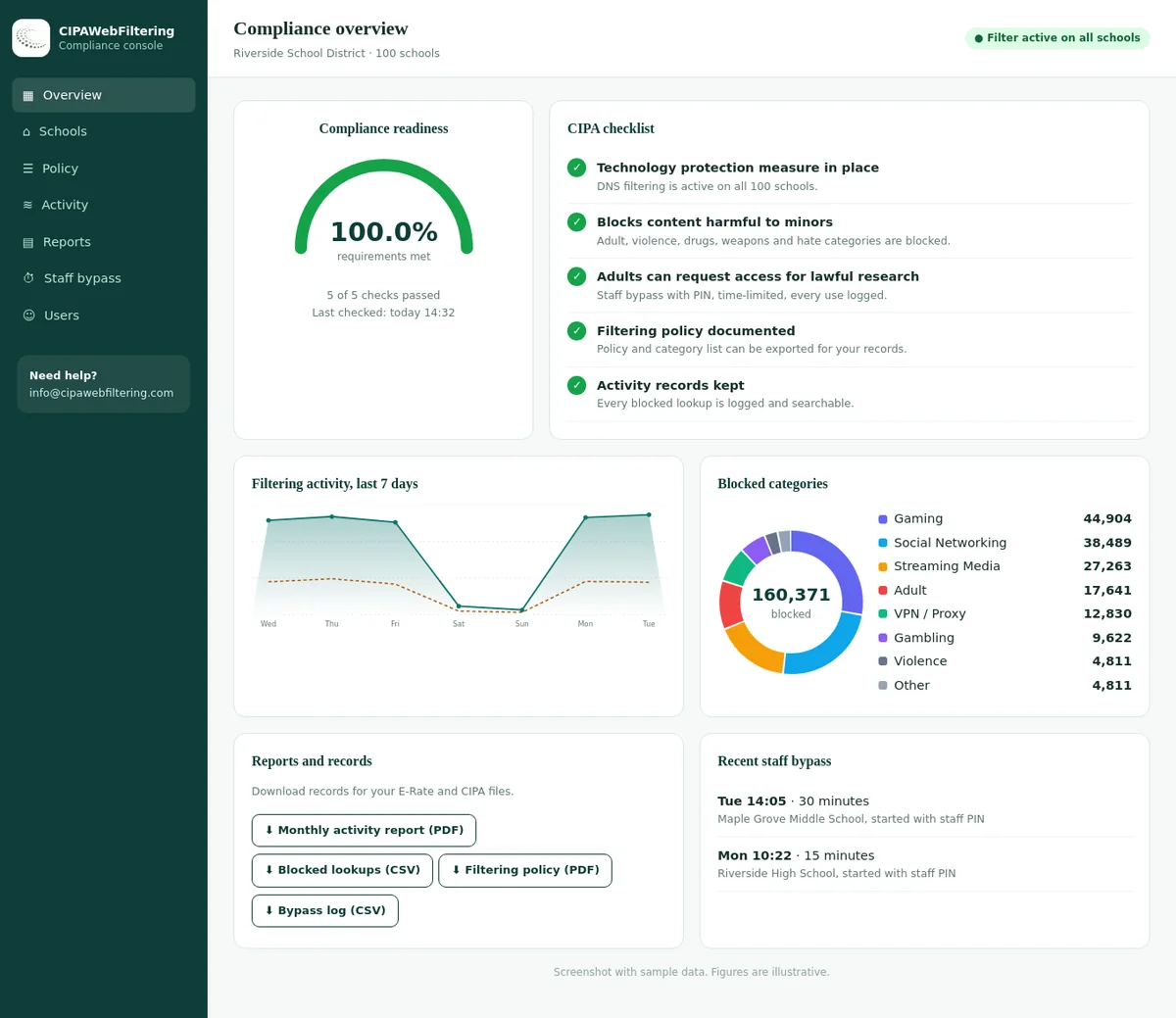
Every decision is logged by category, which turns compliance from a scramble into a report: show what was blocked, for whom, and under which rule — the evidence an E-Rate review or a school board asks for.
Bring a list of the sites your students visit most and we will walk you through exactly how each one is categorized, what a grade-band policy looks like, and the reports your next E-Rate review will want.