Web Filtering vs Monitoring vs Classroom Management: What Schools Need
Schools buy three kinds of tools that all seem to watch the internet. They do different jobs, see different data and carry different privacy weight.
This guide separates the three layers, shows how they work together and gives you a decision matrix for your own district.
What each layer is, in one view
Think of them as a gate, a set of smoke detectors and a teacher at the front of the room. Each is useful, and none replaces the others. Most confusion comes from vendors bundling two or three layers under one product name.
Web filtering
The gate. A request arrives, the filter checks the site's category against the user's policy and allows or blocks it.
- Main job
- Prevent access to harmful or off-policy sites before they load.
- When it acts
- In real time, on every request, all day.
- Who sets it
- District IT, following the board-approved policy.
- Scope
- Whole network and, with agents, managed devices off campus.
- CIPA role
- The technology protection measure itself.
Monitoring
The smoke detector. It reviews online activity and raises alerts when something suggests risk to a student.
- Main job
- Detect safety concerns such as self-harm signals, bullying or threats.
- When it acts
- During or after activity, then alerts staff.
- Who reviews it
- Designated safety staff, counsellors or administrators.
- Scope
- School accounts and managed devices, depending on the product.
- CIPA role
- One way to meet the duty to monitor minors' online activities.
Classroom management
The teacher at the front. It shows a class's screens and lets the teacher steer the lesson.
- Main job
- Keep students on task and share resources during a lesson.
- When it acts
- Only while a class session is running.
- Who uses it
- The classroom teacher.
- Scope
- The students in that class, for that period.
- CIPA role
- Supports supervision, but is not a filter on its own.
The filtering layer, and only that layer
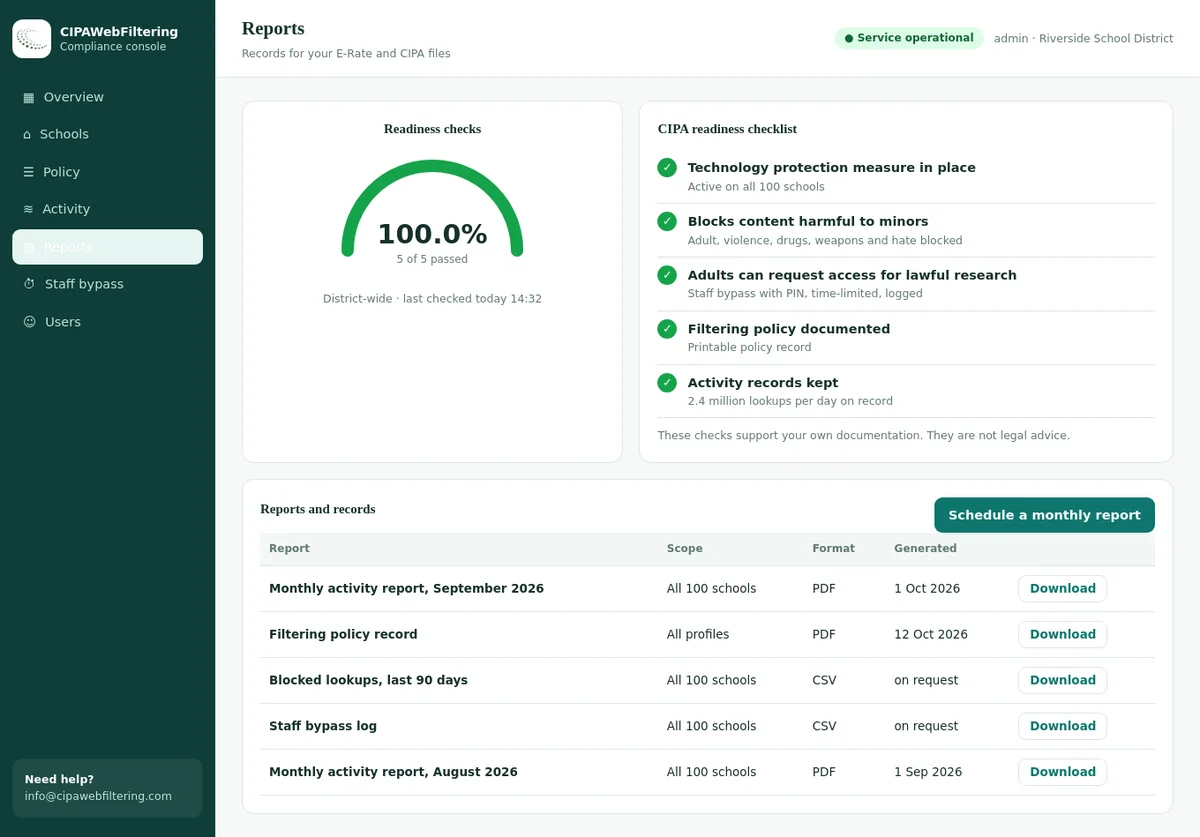
The hosted CIPA filter is the one that meets the filtering duty, working from domain categories. It is not a monitoring or classroom screen tool, so it never watches a child's screen.
- It sits at the network edge and uses a private encrypted link for devices that leave.
- It answers with a block or an allow and keeps the activity record at school level.
- It works next to a classroom tool without overlapping with it.
What each layer sees and what it can do
The biggest practical difference is visibility. A filter usually knows which site was requested. Monitoring and classroom tools may see much more.
| Capability | Web filtering | Monitoring | Classroom management |
|---|---|---|---|
| Sees which site was visited | Yes, domain or full URL | Yes | Yes, for the current class |
| Sees page content or text typed | Usually not, unless deep inspection is on | Often, depending on the product | Sees the live screen |
| Blocks before a page loads | Yes, its core job | Rarely | Can limit a class to chosen sites |
| Alerts staff about risk | Basic alerts on blocked categories | Yes, its core job | Only what the teacher notices |
| Works outside lesson time | Yes | Yes | No |
| Works off campus | With agents or cloud filtering | On managed accounts or devices | Usually only in school sessions |
| Main data it produces | Category logs and block counts | Alerts, flagged items, case notes | Session views, often not stored |
| Typical daily user | IT team | Safety or counselling team | Teachers |
Want to see your own filter layer in action? Run the school web filter test on a student device. For the basics of the filter layer, read what school web filtering is.
Privacy implications of each layer
More visibility means more responsibility. The gauge shows how much student data each layer typically touches, from lightest to heaviest.
Web filtering
- Logs usually hold user, time and site category
- Category level reports can avoid naming individuals
- HTTPS inspection raises the data level, so scope it carefully
- Set a short, written log retention period
Monitoring
- May process messages, documents and search terms
- Alerts can reach sensitive health or family matters
- False alarms can label a student unfairly
- Needs clear rules on who reviews alerts and when
Classroom management
- Teachers see live screens during the lesson
- Students should know when a session is active
- Screenshots or recordings, if stored, need retention rules
- Should end automatically when the class ends
For the full privacy picture, see student data privacy and FERPA in web filtering.
How the three layers work together on a school day
Follow one student request through the stack. Each layer adds something the others cannot.
Student opens a site
During a history lesson, a student types a game site address into the browser on a district Chromebook.
Filter checks the category
The domain is labelled Gaming. The secondary student policy blocks it during school hours, so a block page appears.
Teacher refocuses
The classroom tool shows the block, and the teacher pushes the lesson resource to the whole class.
Monitoring stays quiet
A blocked game is not a safety concern, so no alert is raised. A search about self-harm would be treated very differently.
Where filtering alone falls short
A filter sees that a student visited an allowed document site. It cannot see a worrying message typed inside that document.
Where monitoring alone falls short
Monitoring can flag an adult site after the fact. CIPA expects that content to be blocked for minors in the first place.
Where classroom tools alone fall short
A teacher can lock a class to three sites, but nobody watches at lunch, after school or at home.
Where filtering is too blunt
Blocking every video site stops a lesson clip. A teacher-controlled allow list for one period is often the better tool.
Classroom apps and the categories filters see
Real lookups for tools teachers use daily. A filter needs these labelled correctly so classroom tools keep working while distractions stay closed.
| Website | Categories in our data |
|---|---|
| zoom.us | Webinars/E-learning, Web-based Applications, Business |
| kahoot.com | Education/Reference, Webinars/E-learning |
| quizlet.com | Education/Reference, Webinars/E-learning |
| discord.com | Email and Messaging, Social Networking, Gaming |
| reddit.com | Social Networking, Forums / Message Boards, Community Sites |
| twitch.tv | Streaming Media, Gaming |
Where category data sits underneath all three
Every layer needs to know what a website is. That knowledge comes from a category database, and its quality shows up in every tool built on it.
Coverage of new sites
Students find new proxies and game mirrors fast. Each new domain is checked again after a week and after a month, because many sites add content after launch.
Several labels per site
A domain can carry several categories ranked by how much of the site they describe. That helps every layer avoid treating a mixed site as all good or all bad.
Measured accuracy
Regular manual validations measure accuracy, and licence holders receive validation reports for the CIPA categories.
One taxonomy across tools
When filter, monitoring and classroom tools share one taxonomy, reports line up. See the web filtering categories taxonomy.
Edtech vendors building any of these layers can license the category database. Districts can look up a single site with the domain category checker.
Which layers does your school need?
Use the matrix for typical settings, then tick your own situation below for a suggested mix. It is a starting point for discussion, not a rule.
| Situation | Web filtering | Monitoring | Classroom management |
|---|---|---|---|
| Any school or library receiving E-Rate for internet access | Needed | Some form of oversight | Optional |
| Elementary school with shared device carts | Needed | Usually light | Recommended |
| Secondary school with 1:1 take-home devices | Needed, on and off campus | Recommended | Recommended |
| Public library patron computers | Needed for minors | Rarely appropriate | Not relevant |
| Small private school without E-Rate | Strongly recommended | Optional | Optional |
| District with limited safety staff | Needed | Only if alerts can be reviewed | Recommended |
| Exam and assessment periods | Tighter policy | No change | Lock to test site |
Tick what applies to your district
Suggested mix
- Web filteringNeeded
- MonitoringOptional
- Classroom managementOptional
Every school benefits from a filter. Tick your situation to see how the other two layers fit.
Nothing you tick leaves this page.
Common mix-ups between the layers
These misunderstandings come up in almost every district conversation about student internet safety.
A rollout plan for a layered approach
Start with the layer the law requires, then add the others where they solve a real problem.
Get filtering right
Set grade band and staff policies, cover take-home devices and confirm the CIPA categories are blocked. Our guide to implementing web filtering in schools walks through it.
Add classroom tools
Give teachers focus controls for lessons and tests. Train them on when to use a session and when to end it.
Decide on monitoring
Only add alerting if trained staff can respond quickly. Write who sees alerts, what happens next and how long data is kept.
Review each year
Check each layer against your CIPA compliance checklist, privacy rules and teacher feedback.
Budgeting for the layers? Read how much a school web filter costs, including which add-on modules you may not need.
Keeping the filter out of monitoring territory
The filter decides by domain, not by page, and reports describe the policy rather than a person. Staff can use a PIN for 15, 30 or 60 minutes for adult research, and each use is logged.
How the balance shifts from elementary to high school
The same three layers apply at every age, but the weight on each one changes as students grow more independent online.
Elementary
Young students need a tight, predictable environment.
- Filtering
- Strict policy, often close to an allow list for the youngest grades. Block social, gaming, chat and AI tools by default.
- Monitoring
- Usually light, because the filter already limits what students can reach.
- Classroom tools
- Very useful for guiding a class to one activity on shared devices.
Middle school
Curiosity and bypass attempts both rise sharply.
- Filtering
- Category policy with VPN and proxy blocking taken seriously. Open more research categories.
- Monitoring
- Worth considering for take-home devices, with clear review rules.
- Classroom tools
- Help teachers manage focus during lessons and quizzes.
High school
Students need wider access for research and real-world skills.
- Filtering
- Broader access, CIPA categories and bypass tools still blocked. Approved AI tools may be opened.
- Monitoring
- Often used for safety signals, with careful privacy scope.
- Classroom tools
- Mainly for tests and focused work periods.
Questions to ask about each layer
Whether you buy one product or three, these questions show how well each layer will fit your district.
For the web filter
How fresh are categories for new domains? Can policies differ by grade and by staff group? Does it cover devices at home and handle HTTPS sites? What reports support CIPA records?
For monitoring
Exactly which data does it read? Who receives alerts, and how fast? How are false alarms handled? How long is flagged data stored, and can families ask what was kept?
For classroom management
Do sessions end automatically? Can students see when a teacher is viewing their screen? Are screenshots stored? Does it work on every device type you use?
Across all three
Do the layers share one category taxonomy so reports line up? Can each be switched off without breaking the others? Who in the district owns each layer day to day?
Filtering, monitoring and classroom tools compared
The roles are different, and the filter covers one of them.
| Job | Monitoring and classroom tools | Hosted CIPA filter |
|---|---|---|
| Meet the CIPA filtering duty | Not designed for it | Yes, blocking by category |
| View or steer a student screen | Yes, that is the point | No, it does not look at screens |
| Install on devices | Often an agent or extension | Nothing installed on computers |
| Block sites by category | Limited or none | CIPA preset and optional categories |
| Work off campus | Varies | Private encrypted link keeps the same rules |
| Records | Alert or session logs | Reports, policy record, log export |
Filtering, monitoring and classroom management FAQ
What is the difference between web filtering and monitoring in schools?
Web filtering decides in real time whether a site may load, based on its category and the user's policy. Monitoring reviews what students do online so staff can spot safety concerns. Filtering prevents; monitoring detects.
Is classroom management software the same as a web filter?
No. Classroom tools let a teacher see screens, open or lock tabs and focus a class during a lesson. A web filter applies district policy all day, on and off campus.
Which layer does CIPA require?
CIPA requires a technology protection measure, which in practice is a web filter, plus an internet safety policy, monitoring of minors' online activities and online safety education. Start with what CIPA requires.
Do schools need all three layers?
Every CIPA school needs filtering. Many add classroom management and some add monitoring. The right mix depends on age group, devices, staff capacity and community privacy expectations.
What data sits underneath all three layers?
A category database that labels domains such as Education, Gaming, Adult or VPN. Filters block with it, monitoring summarises with it and classroom tools build allow lists with it.
Related guides
- Student Online Monitoring: What Schools Can and Cannot See
- Can Schools Tell If Students Use ChatGPT? What They Can See
- Student Data Privacy, FERPA and Web Filtering
- Safe Web Browsing for Schools
- Chromebook Web Filtering for Schools: Policy That Follows the Device
- Web Filtering for School Safety and Counseling Teams: The Limits
Pricing depends on the number of schools and devices, and we send a quote within one business day. A pilot on one site lets you see where the filtering layer ends and the other two begin.
Building the right safety stack?
Tell us about your devices, grade bands and current tools. We will show where our hosted filter and category data fit, and which layers you can keep as they are.
Trademark notice: Chromebook and other product names mentioned on this page are trademarks of their respective owners. They are used only to identify the products discussed. CIPA Web Filtering is not affiliated with, sponsored or endorsed by these companies.