A hosted web filter for schools and libraries
Point your network's DNS at us. We block the categories CIPA expects, give staff a simple PIN for adult research, and keep the records for your files.
Request a pilot See how it works
Nothing to install on computers. One setting on your router or firewall.
Everything a small IT team needs, nothing it doesn't
The filter runs on our servers. You choose what to block and see what happened, from one dashboard.
Blocks by category
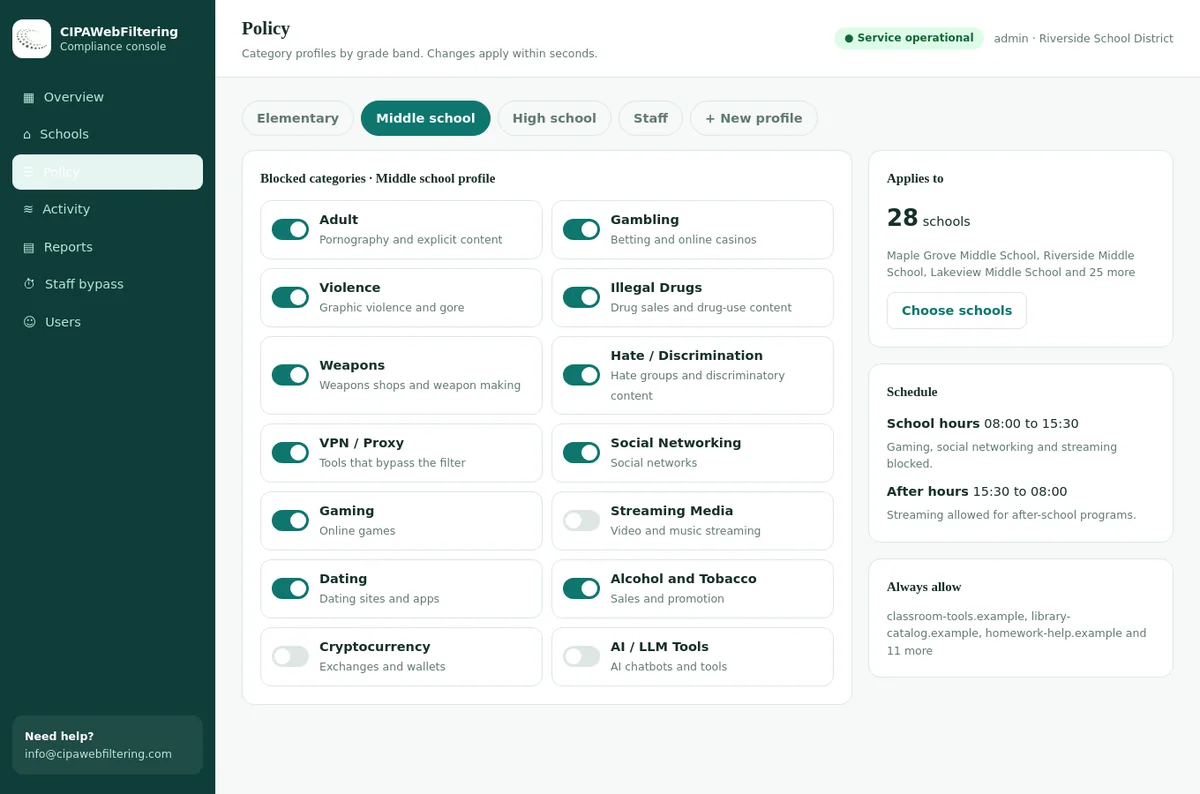
Switch categories on or off. A CIPA preset blocks adult content and proxy tools. Add gambling, weapons and other categories with a switch.
Staff bypass for research
Staff enter a PIN and unblock adult content for 15, 30 or 60 minutes. It switches back on by itself.
Records for your files
Print an activity report or a policy record, or download the logs as a spreadsheet.
One console, many sites
Manage every school or branch library in one place, each with its own settings and staff PIN.
See it working
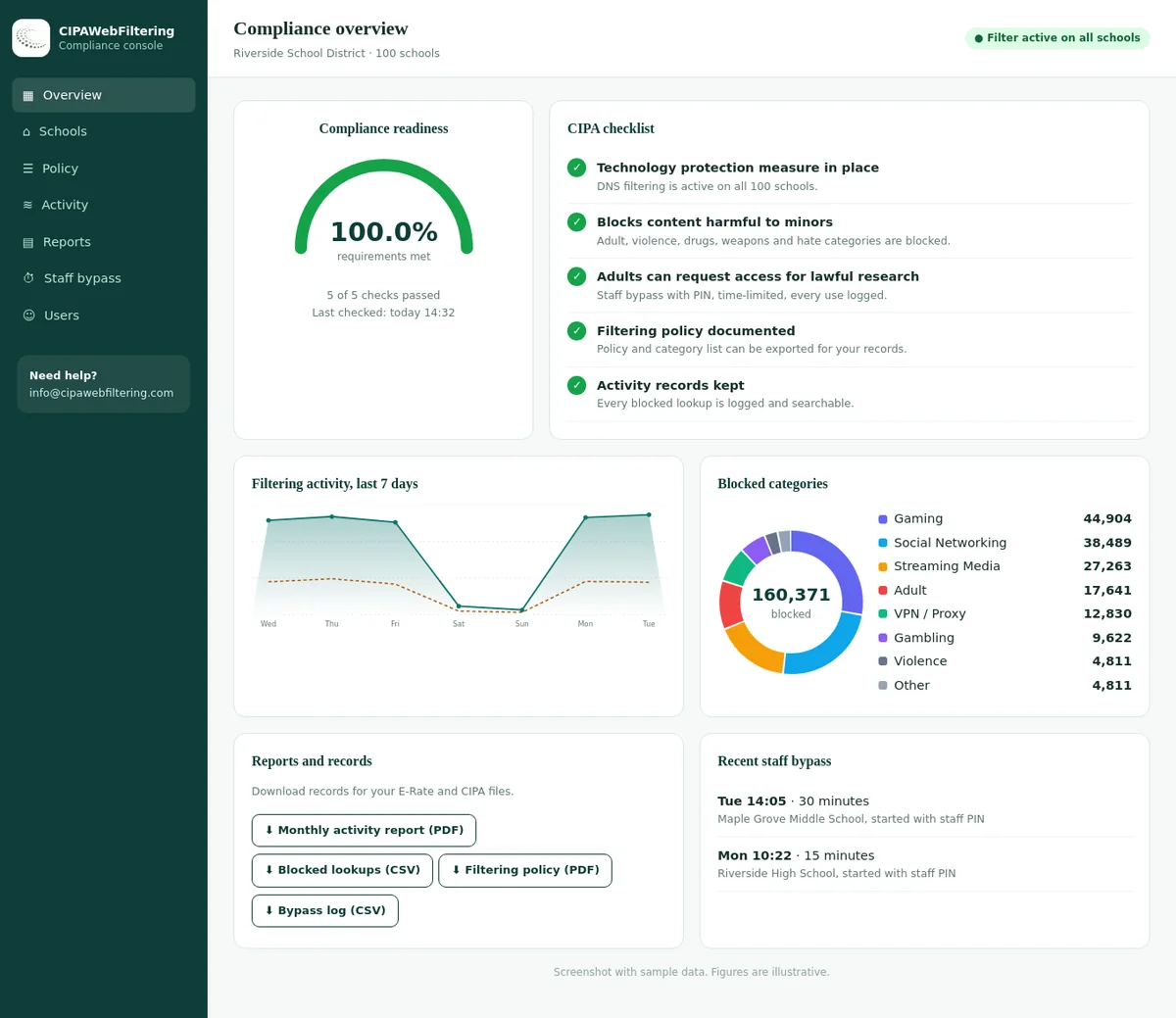
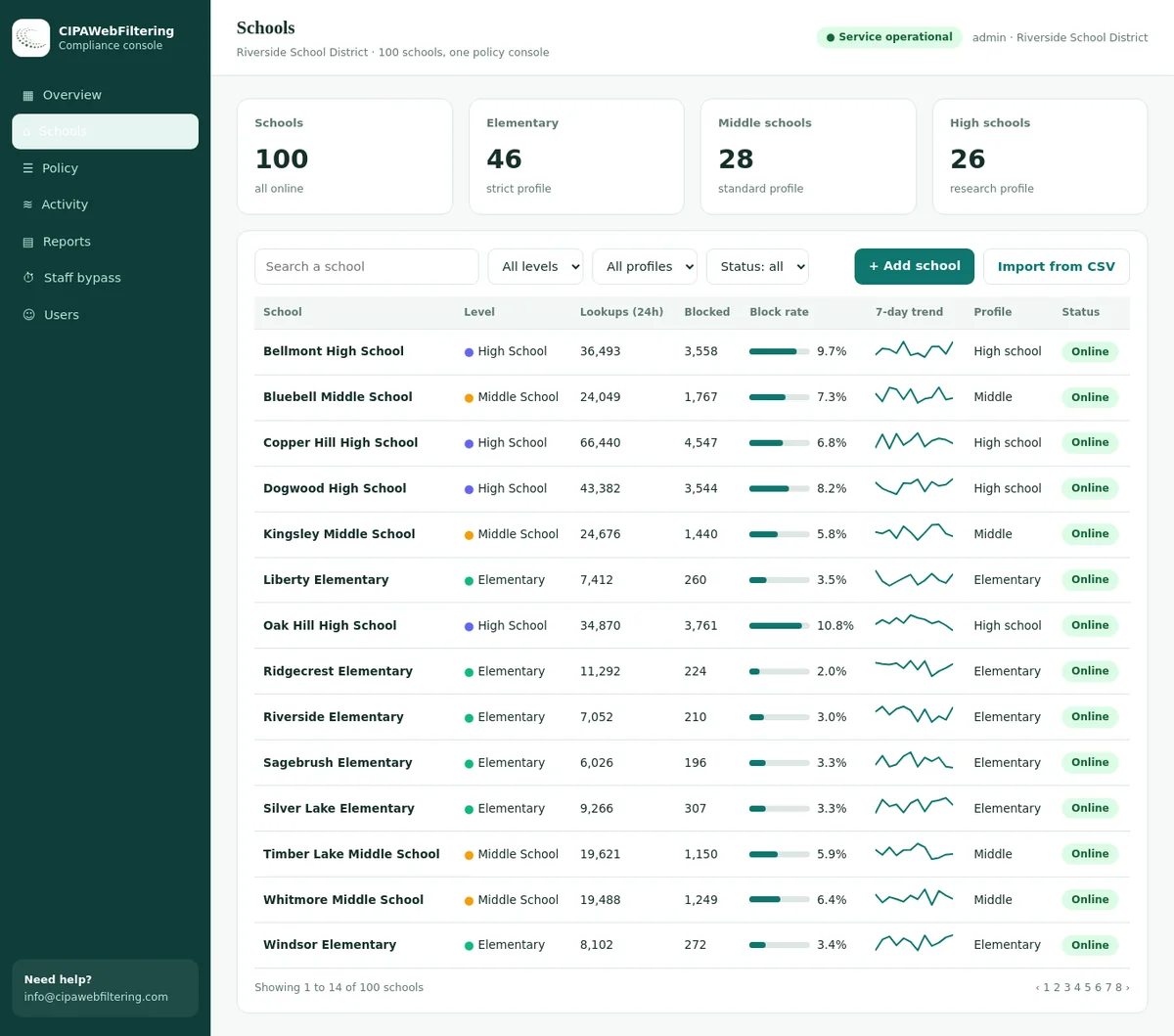
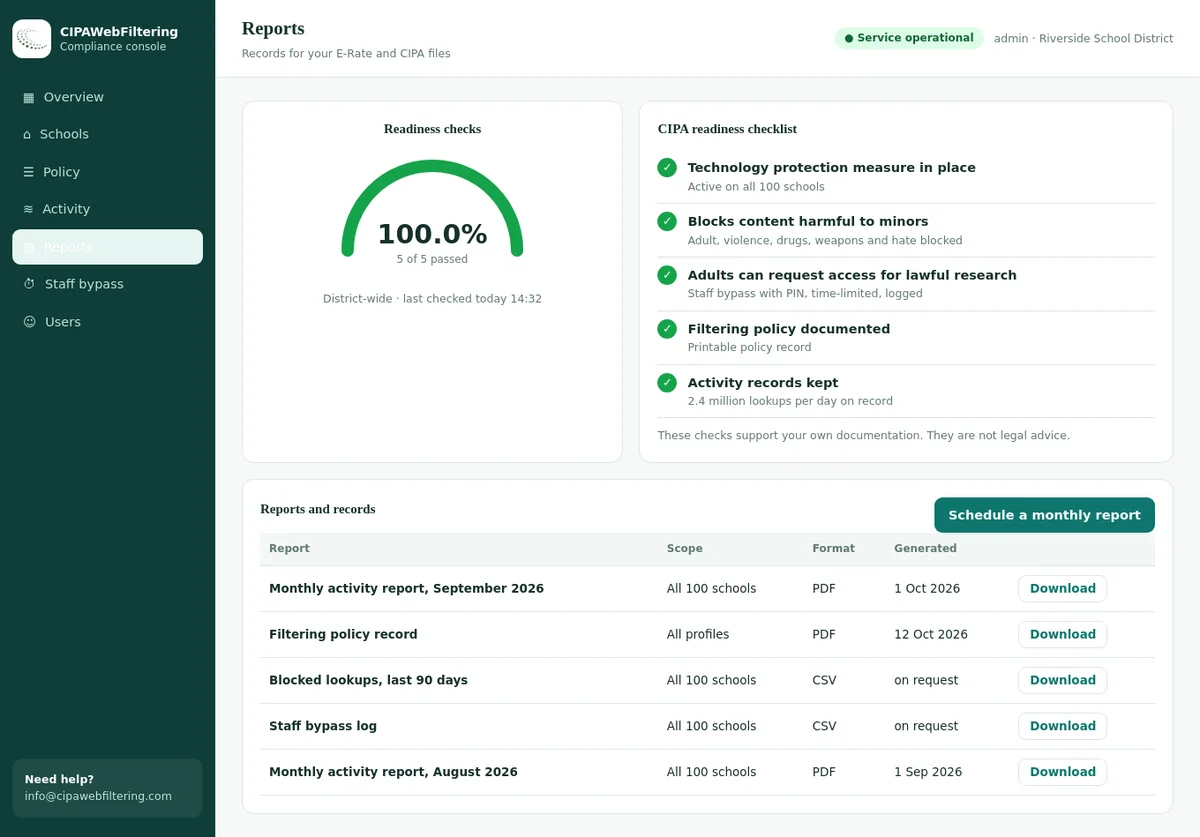
Screens from the dashboard, shown here with sample data for a district of 100 schools.
How it works
Three steps, and your own router setting is the only change on your side.
Point your DNS at the filter
On your router or firewall, set the DNS server we give you. Devices on the network are filtered automatically.
Choose what to block
Start from the CIPA preset and adjust it. Add your own always-allow and always-block lists.
Review and keep the records
Check activity in the dashboard. Print or download reports whenever you need them for your files.
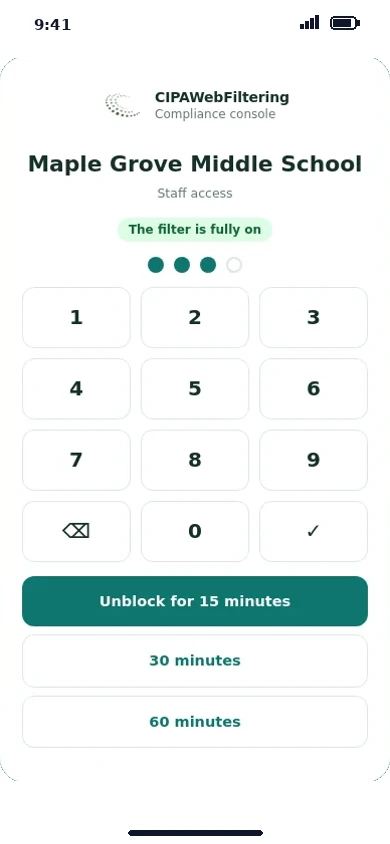
A staff bypass that takes seconds
When an adult needs to research a blocked topic, staff open one page on any phone or computer, enter the PIN and choose how long.
The filter switches back on by itself when time is up, and every use is logged. Other blocked categories stay blocked.
For laptops and phones that leave your network, a private encrypted link keeps the same rules in place.
A DNS filter we run for you
Every website visit starts with a DNS lookup. The hosted filter answers those lookups for your network and stops the ones that lead to blocked categories, before the page loads.
Filters the whole network
Library PCs, staff laptops, tablets and guest wifi are covered at once. Nothing has to be installed on each computer.
Answers only your networks
The filter responds only to the network addresses registered for your sites. Lookups from anywhere else are refused.
Your rules, per site
Each school or branch has its own category settings, allow list, block list and staff PIN, all in one dashboard.
Stops common workarounds
Public encrypted DNS services and built-in browser settings that skip the network filter are blocked by default, so the rules hold.
Changes apply in seconds
Switch a category or add a site, and the new rule is live almost at once. Some browsers keep an old answer for about a minute.
Built on our category data
Decisions come from the same category data used by filter vendors, covering 120 million domains, with new domains added every day.
Good fit
- Public libraries and library systems with a small IT team
- Schools that want network filtering without new hardware
- Sites where staff handle adult research requests
- Districts that want one console across several buildings
Good to know
- DNS filtering decides by domain, not by individual page or video.
- On encrypted (HTTPS) sites, a blocked page shows a browser warning instead of the site. That is normal for DNS filters.
- It is not a monitoring or classroom screen tool.
For the technical difference between the two approaches, see web filtering vs DNS filtering and our overview of CIPA DNS filtering for education.
How the filter handles CIPA categories
CIPA asks for a technology protection measure against visual depictions that are obscene, child pornography, or harmful to minors. The filter turns that into category switches you control.
| Category | In the CIPA preset | Why it matters | Staff PIN unblocks it? |
|---|---|---|---|
| Adult | On | Covers the explicit content the statute is aimed at | Yes, for adults, for a set time |
| VPN / Proxy / Anonymizers | On | Stops users from hiding traffic from the filter | No, stays blocked |
| Lingerie / Swimsuits / Intimate Apparel | Optional | Revealing imagery; some general retailers carry it, so it is off by default | Yes, together with Adult |
| Gambling | Optional | Common in school and children's area policies | No, stays as you set it |
| Weapons | Optional | Often added for student and children's networks | No, stays as you set it |
| Your always-block list | Always | Sites you choose to block whatever their category | No |
| Your always-allow list | Always | Sites you choose to keep open, which beats any category | Not needed |
Start narrow
The preset is kept tight on purpose, so libraries do not block lawful information by accident. Add categories only where your policy calls for them.
Public sites stay open
Category lists are reviewed so that common library, government and education sites are not caught by the preset.
Check any site
Before you change a rule, look the domain up with the school web filter check to see its categories.
The filter covers the technology part of CIPA. The written policy is yours to adopt, and our guides to the CIPA internet safety policy and the public library internet filtering policy help with that.
Laptops and phones that leave the building
Network filtering stops at the door. For devices that go home or on the road, a private encrypted link sends their lookups to the same filter, with the same rules.
- Set once on the router or firewall
- Covers every device that joins the network
- Best for library PCs, labs and guest wifi
- Needs a network address we can register, ideally a fixed public IP
- Set per device or browser, using the link from your dashboard
- Keeps the same category rules at home or on public wifi
- Works where the router cannot be changed
- Useful for a separate policy, such as a stricter children's PC
Reports and records for your files
Auditors and boards ask two questions: is the filter on, and is the policy followed? The dashboard keeps the records that answer both.
Activity overview
Lookups and blocks over time, blocked categories, and the most blocked sites.
Sites table
Lookups, blocks and status for every school or branch in one view.
Searchable activity log
Find a domain or a time window, and see whether it was allowed or blocked.
CSV export
Download the log as a spreadsheet for your own analysis or records.
Printable activity report
A summary you can print and keep with your compliance documents.
Policy record
Which categories and lists were in force, to show what the filter was set to do.
Staff bypass log
Every PIN use with its time and length, without recording what the adult then read.
Readiness checklist
A simple list of what is in place and what is still open on your side.
Pair these with the board and hearing records from our CIPA compliance checklist and keep everything in one folder.
Start with a pilot on one or two sites
A pilot lets you see the filter on your own network before you decide. We test on a staff machine first, so the public is never the first to notice a change.
- 1
Short call or email
Tell us how many sites, public computers and staff you have, and how your network connects to the internet.
- 2
We set up your account
We register your network address, apply the CIPA preset and create a staff PIN for each pilot site.
- 3
Test on one machine
One staff computer uses the encrypted link first. You try blocked and allowed sites and the PIN unblock.
- 4
Switch the network
When you are happy, change the DNS setting on the router. Every device on that network is then filtered.
- 5
Review together
We look at the activity, blocked sites and any staff feedback with you, and adjust lists and categories.
- 6
Decide
Continue with more sites, change the set-up, or stop. Changing the DNS setting back ends filtering at once.
What we need from you
- A contact who can change the router or firewall DNS setting
- The public IP address of each pilot site, if fixed
- A list of sites staff must always reach
- Any old filter block lists you want carried over
What you get during the pilot
- The full dashboard for your pilot sites
- Staff PIN page for adult research requests
- Set-up help for the router and the test machine
- Reports to share with your director or board
Ready to plan one? Contact us about a pilot and tell us about your sites. Building your own filter product instead? See the CIPA category database.
How set-up differs for libraries and schools
The same filter serves both, but the rules people expect are different.
| Topic | Public library | School |
|---|---|---|
| Main users | Adults and children of all ages | Students, with staff on separate rules |
| Adult unblocking | Central: staff PIN at the desk for research requests | Mostly for staff, handled by IT |
| Category settings | Kept narrow to protect access to lawful information | Often broader, by local policy |
| Separate networks | Staff, public PCs, children's area, guest wifi | Staff, student and guest networks |
| Take-home devices | Loaned laptops and hotspots | 1:1 student devices |
More background in our pages on web filtering for libraries and web filtering for school districts.
An adult research request, start to finish
CIPA lets an authorized person disable the filter for an adult doing bona fide research or other lawful work. Here is how that looks at a library desk with the hosted filter.
- 1
Patron asks
An adult at a public PC finds a site blocked and asks at the desk. No form and no explanation of the topic is needed.
- 2
Staff open the page
Any staff member opens the bypass page on a phone or desk computer and enters the site's PIN.
- 3
Choose the time
Pick 15, 30 or 60 minutes. Adult content opens for that site's network; proxy tools stay blocked.
- 4
Patron continues
The patron reloads the page. Some browsers remember the old answer for about a minute, so a short wait can help.
- 5
Filter returns
When the time is up, the filter switches back by itself. Nobody has to remember to turn it on.
- 6
Record kept
The bypass log shows when the PIN was used and for how long, which shows the adult access process exists.
Typical layouts we see
Every site is different, but most fit one of these four patterns. Tell us which is closest when you get in touch.
Single library
One building, public PCs and guest wifi on one connection, a staff PIN at the desk, and the CIPA preset.
Library system
Several branches in one console, each with its own address, PIN and lists, and shared reports for the director.
Single school
Staff and student networks registered apart, a broader student policy, and the encrypted link on loaned laptops.
Small district
Every school in one console, a common category policy, local allow lists per building, and one IT contact.
Rules that fit how your schools and libraries work
All of these are in the dashboard today. Tell us what you need and we set it up with you, at no extra charge for most requests.
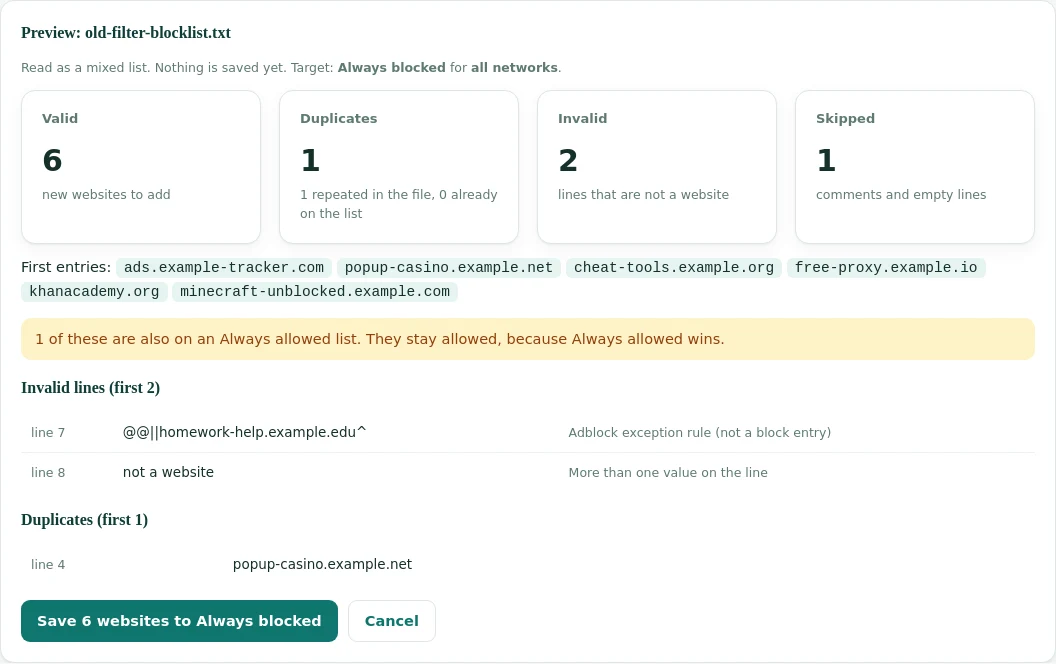
Always allowed list
Sites on this list are never blocked, whatever the category, schedule or profile.
Import from your old filter
Upload your current allow and block lists as a plain list, hosts file or CSV. Check the preview, then save.
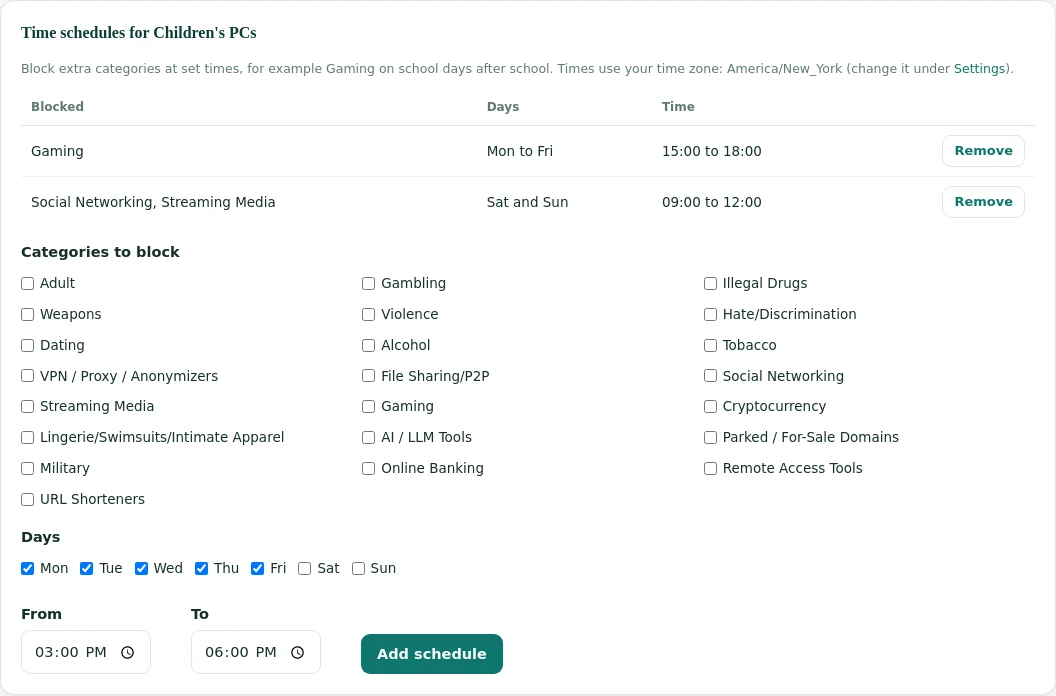
Stricter rules for children's PCs
A children's profile adds more categories, forces SafeSearch and turns on YouTube Restricted Mode.
Staff and public Wi-Fi apart
Each network gets its own profile, so staff, students and guests can follow different rules.
Time schedules
Block games or social media at set times, for example on school days after 3 pm, in your own time zone.
Your own block page
Your name, logo and contact details on the page people see when a site is blocked.
Monthly reports
A report for the whole system and one per branch or school, ready to print or download as CSV.
A staff PIN per branch
Each branch has its own staff page and PIN, and a bypass only opens that branch's network.
Plans
Pricing depends on the number of computers and sites. Tell us what you have and we will send a quote.
Library
One library or branch with public computers.
- Category blocking with a CIPA preset
- Staff PIN bypass for adults
- Activity report and policy record
School
One school, with staff and student networks.
- Everything in Library
- Separate always-allow and block lists
- Searchable activity log and CSV export
District or library system
Many schools or branches, one console.
- One console for every site
- Settings and staff PIN for each site
- Help with setup across your sites
A pilot on one or two sites is available before you decide.
Questions
Short answers to the common ones.
What do we need to start?
A router or firewall where you can set the DNS server, ideally with a fixed public IP address. If you cannot change the router, devices can use a private encrypted link instead.
Does it make us CIPA compliant?
It covers the technology side: blocking, a way for adults to request access for lawful research, and records. Your internet safety policy and procedures remain your own responsibility.
Can staff turn it off for adult research?
Yes. Staff enter a PIN and unblock adult content for 15, 30 or 60 minutes. It switches back on by itself and each use is logged.
What if a site is blocked by mistake?
Add it to your always-allow list in the dashboard, and tell us so we can look at the category.
Can we run a pilot before we decide?
Yes. We offer a pilot on one or two sites before you commit. Contact us and we will set it up.
Will patrons or students notice the change?
Allowed sites load as before. Blocked sites do not open; on encrypted sites the browser shows a warning page instead, which is how DNS filters behave.
Can we have different rules for the children's area or student network?
Yes. Each network you register, or each encrypted link, can carry its own category settings and lists. A common set-up is one policy for staff and adults and a stricter one for children's PCs.
Does the staff PIN unblock everything?
No. It opens adult content for the time chosen. Proxy tools and your own block list stay blocked, and the filter switches back by itself.
Can we bring our old block lists?
Yes. Send us the lists from your current filter during the pilot and we will load them as your always-block list.
Who can see the activity log?
Only the accounts you set up for your organization, and us when you ask for help. The staff bypass log records when the PIN was used, not what the adult read.
What happens if we stop?
Change the DNS setting on your router back to what it was, or remove the encrypted link from devices. Filtering stops at once.
Try it on one library or school
Tell us how many computers and sites you have. We will reply with a pilot plan.
Request a pilot