How to Block ChatGPT on School Chromebooks, Grade by Grade
Few districts want the same AI rule for a first grader and a senior in a research class. This guide sets out a grade-based policy, then shows how to enforce each level on managed Chromebooks with the Google Admin console, AI tool categories and a few supporting settings.
Why schools block or limit ChatGPT
The reasons for limiting chatbots differ from the reasons for blocking social media. Safety matters, but academic integrity, age limits and student data carry more weight in most district discussions.
Academic integrity
Students can generate essays and answers in seconds. Teachers want time to redesign assessments before open access.
Age terms
The platform's terms set a minimum age of 13 and require a parent or guardian's permission for users under 18.
Student data
Students may paste personal information into prompts. Districts must weigh that against their student privacy commitments.
Accuracy and content
Chatbots can produce wrong or unsuitable answers with confidence. Younger students are least able to judge that.
There is also a strong case for some access. Older students will meet AI tools in college and work, and teachers want to show how to check an answer rather than pretend the tools do not exist. A grade-based policy lets a district hold both views at once.
The aim is not a permanent ban. It is a clear, age-appropriate starting point that the district can loosen as teachers redesign assignments and as tools for schools mature.
Turn a grade-by-grade AI rule into school-level switches
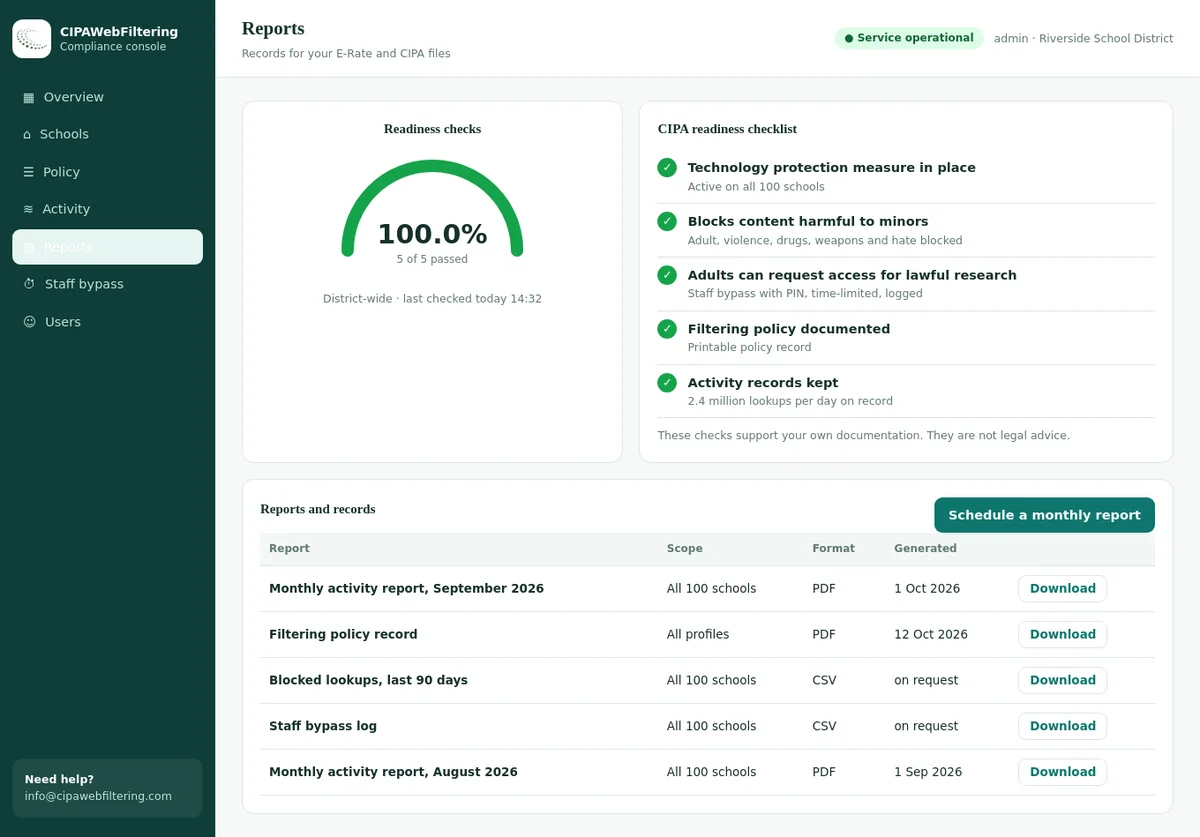
Our hosted CIPA filter lets each school or branch hold its own settings in one console. An elementary school can keep AI chat blocked while a high school allows the tool your teachers approved.
- AI / LLM Tools is a category, so chatbots you have not heard of yet are already inside it.
- An approved tool goes on an always-allow list for one school, not for the whole district.
- The rule stays on a Chromebook that goes home, through a private encrypted link.
A grade-based AI policy matrix
This matrix is a starting point many districts adapt. Each row maps to an organizational unit in the Admin console, so the policy and the technical setup stay in step.
| Grade band | Access level | Chatbot websites | AI apps and extensions | Built-in AI features | Typical rationale |
|---|---|---|---|---|---|
| K to 2 | Level 1 Blocked | Blocked, plus allow-only browsing | None installed | Off for the unit | Below every platform's age terms; focus on foundational skills |
| 3 to 5 | Level 1 Blocked | Blocked by AI category | None installed | Off for the unit | Still below age terms; teachers may demonstrate AI from staff accounts |
| 6 to 8 | Level 2 Teacher-led | Blocked for students | Blocked | Off or limited, per district review | Teaches what AI is and how it errs, without unsupervised use |
| 9 to 10 | Level 3 Supervised | Approved tools only; others blocked by category | Approved list only | On where the district has reviewed terms | Structured tasks with disclosed AI use |
| 11 to 12 | Level 4 Allowed with rules | Allowed with logging; exam windows locked | Approved list only | On, under the AI use policy | Preparation for college and work, with parental consent where required |
| Staff | Level 4 Allowed | Allowed | Approved list | On | Lesson planning and professional use under staff guidance |
Map the policy to organizational units
Settings in the Admin console flow down the unit tree. Build the tree so each access level has a clear home, with the strictest settings closest to the youngest students.
Place AI blocks low in the tree
Put blocks on the student sub-units, not the district top level. Staff then keep access without exceptions.
Copy entries into override units
A child unit that overrides URL blocking replaces the parent list for that setting. Repeat your other blocks there.
Keep a testing unit
Move devices or accounts into a locked testing unit during exam windows, rather than editing the everyday units.
Name units after levels
Clear names help auditors and new staff understand which policy each student gets.
Block ChatGPT in the Google Admin console
For level 1 and level 2 units, combine the URL blocklist with app and extension control. Level 3 units get the same blocks, with exceptions for the approved tools.
URL blocking
Open Devices › Chrome › Settings › Users & browsers › Content › URL blocking, select the unit and add the domains below to Blocked URLs.
Android app
In Devices › Chrome › Apps & extensions › Users & browsers, allow only approved apps for the unit, or add the ChatGPT app to the blocked list.
Extensions
Set the Chrome Web Store to approved extensions only. Many AI writing helpers are extensions that call chatbots from inside any page.
Save, log, test
Record the change and check it on a test device before the next school day. Labels are from October 2026; use the settings search if a menu has moved.
| Domain | What it serves | Notes |
|---|---|---|
chatgpt.com | The main ChatGPT web app | The primary entry to block |
chat.openai.com | The older ChatGPT address | Still redirects and is worth listing |
openai.com | Company site, sign-in and other services | Blocking the whole domain also covers sign-in hosts |
oaistatic.com | Static files for the web app | Helps stop partial page loads |
oaiusercontent.com | Files and images users upload or generate | Stops shared files and images loading |
Where ChatGPT and its neighbours sit in the category data
One category covers the whole family, which is why blocking only chatgpt.com leaves gaps. Here are lookups for the chatbots students mention most.
| Chatbot domain | Category in the database |
|---|---|
| chatgpt.com | AI / LLM Tools |
| openai.com | AI / LLM Tools |
| claude.ai | AI / LLM Tools, Web-based Applications |
| deepseek.com | AI / LLM Tools, Computers & Technology |
| grok.com | AI / LLM Tools |
| perplexity.ai | AI / LLM Tools |
Beyond ChatGPT: other chatbots, extensions and built-in AI
Blocking one chatbot by name leaves dozens of others. A grade-based policy only holds if it covers the three places AI shows up on a Chromebook.
Other chatbot websites
- New chat tools launch every week.
- Turn on the AI / LLM Tools category for level 1 and 2 units.
- For level 3, block the category and allow the approved tools as exceptions.
AI extensions and apps
- Writing, summarizing and homework helper extensions.
- Approved-only extension and app settings stop installs.
- Review the approved list each term.
Built-in AI features
- The Admin console has generative AI settings for Google's own AI tools.
- Check them per unit under the Generative AI section.
- Defaults have changed over time, so verify your current settings.
Off-campus coverage and exam windows
Homework happens at home, so an AI policy that only applies in the building does not do much. At the same time, exams need tighter rules than ordinary lessons.
Policies on the account
URL and app settings follow the school account on enrolled Chromebooks, on any network. Network-only blocks stay at school.
Restrict sign-in
Allow only school accounts on student devices and disable guest mode, so a personal account cannot skip the AI policy.
Locked exam mode
For tests, use your assessment platform's locked mode or a kiosk-style testing unit with an allow-only list.
Time-based rules
The Admin console list is not time based. If you want AI open after school for level 3 students, use a filter that supports schedules.
Proxy, VPN and workaround handling
Students who want a chatbot during a blocked lesson have several options. Each has a matching control, and none needs daily list editing.
| Workaround | How it looks | Control |
|---|---|---|
| Chatbot clones and wrappers | Sites that put a chatbot behind a new name | AI / LLM Tools category; new domains categorized daily |
| AI inside other apps | Chat features in note, writing or study sites | Review those sites by category and in your approved tools list |
| Web proxies | A page that loads any site through its server | Block VPN / Proxy / Anonymizers for all students |
| VPN tools | Extensions or Android apps that tunnel traffic | Approved-only extensions and apps |
| Personal accounts | Signing in with a non-school account | Sign-in restricted to the school domain |
| Phone at the desk | Using AI on a personal phone | Classroom phone policy, not a device setting |
Technical controls only go so far with AI. Assessment design and clear disclosure rules matter as much. Our guide on whether schools can tell if students use ChatGPT covers what logs and detection can and cannot show.
Proxies stay blocked and staff exceptions stay short
The VPN/Proxy/Anonymizers category is blocked in the CIPA preset, even when a staff PIN is in use. That PIN opens adult research for 15, 30 or 60 minutes and then switches back on its own.
Test each access level
Create one test student account per unit and use an enrolled Chromebook. Check every level after setup, and again after major ChromeOS or Admin console changes.
Blocked
- ChatGPT site blocked
- Another chatbot blocked
- App not installable
Teacher-led
- Student blocked
- Teacher account allowed
- Display works for demos
Supervised
- Approved tool opens
- Unapproved chatbot blocked
- Extensions limited
Allowed
- Access works
- Activity logged
- Proxy still blocked
Exam mode
- Only exam site loads
- All AI blocked
- Exit returns normal policy
chrome://policy, reload policies and confirm the URL entries show status OK before you start. Then add these checks to our school web filter test so AI coverage is reviewed with everything else each term. To see how a specific AI tool is categorized, use the domain category checker.How to approve an AI tool for supervised grades
Levels 3 and 4 depend on an approved tools list. A short, repeatable review keeps that list defensible when a parent or board member asks why one tool is open and another is not.
| Review question | What to look for | Who answers |
|---|---|---|
| What does the tool do? | A clear learning purpose that fits a named course or task | Curriculum lead |
| What age do its terms allow? | Minimum age and any parental permission requirement | Privacy lead |
| What happens to student data? | Data use, retention and whether prompts train models, per the vendor's terms | Privacy lead |
| Can students sign in with school accounts? | School sign-in avoids personal accounts and keeps access manageable | IT |
| Does it have content safeguards? | Filters for unsuitable output and settings for younger users | IT and curriculum lead |
| Which domains does it need? | The hosts to add as exceptions for the unit | IT |
Communicate the AI policy to parents, teachers and students
AI policies attract strong opinions in both directions. A clear grade-by-grade summary makes the decision easier to accept, even for families who would have chosen differently.
Parents
Share the matrix for their child's grade, what the school device allows and how consent works for older students.
Make clear that home devices are the family's decision.
Teachers
Explain what students can reach at each level and how to request a tool for a supervised task.
Offer guidance on assessment design and disclosure.
Students
Tell students what is allowed, when and why. Older students respond better to rules they understand.
Connect it to your academic integrity policy.
Sample summary for families: On school Chromebooks, AI chatbots are blocked for kindergarten through grade 8. Middle school teachers may demonstrate AI tools in class.
From grade 9, students may use district-approved AI tools for set tasks, and from grade 11 more widely under our AI use policy, with your permission.
During tests, all AI tools are blocked. Questions can go to the school office.
Publish the summary on your district website as well as in the family message, and update both together whenever the matrix changes. A single public version prevents mixed messages between schools.
Record the matrix in your acceptable use policy so the rules have a clear home.
Grade-based AI rules: by hand or hosted
Rules that differ by grade multiply the editing work if everything lives in a list.
| Part of the policy | Admin console lists alone | Hosted CIPA filter on top |
|---|---|---|
| Other chatbots beyond ChatGPT | Add each domain after it appears | Whole AI / LLM Tools category switched on |
| Different rules for elementary and high school | Separate units copied by hand | Separate settings for each school in one console |
| One approved classroom tool | Exception that reaches the full unit | Always-allow entry limited to one school |
| Chromebooks at home | Account policies only | Private encrypted link carries the filter rules |
| Reporting to the board | Notes assembled manually | Activity reports and a policy record with log export |
ChatGPT blocking FAQ
How do I block ChatGPT on school Chromebooks?
Add chatgpt.com, chat.openai.com and the related domains to the URL blocklist for the right student units, block the Android app in Google Play settings, and turn on the AI / LLM Tools category to cover other chatbots.
Should we block ChatGPT for every grade?
Many districts use a grade-based approach instead: blocked for younger students, teacher-led in middle school, supervised or allowed with rules in high school. The platform's terms set a minimum age of 13 and require parental permission under 18.
Does blocking ChatGPT stop all AI use on Chromebooks?
No. Other chatbots, AI extensions and built-in AI features remain. Use the AI category, extension allowlisting and the Admin console generative AI settings together.
Can the block apply only during tests?
The Admin console URL list is not time based. For exams, use locked testing modes, a testing unit, or a filter that supports schedules.
Will the ChatGPT block work at home?
Yes, while the student is signed in with the school account on an enrolled Chromebook. Network-only blocks at school do not travel home.
Is blocking ChatGPT required by CIPA?
No. CIPA does not mention AI tools. It is a district policy decision, usually driven by academic integrity, age terms and student data privacy.
Can teachers use ChatGPT while students are blocked?
Yes. Keep staff in their own organizational unit without the AI block. Teachers can then demonstrate tools on the classroom display, which is what the teacher-led level relies on.
What about AI features in Google Workspace for students?
The Admin console has separate generative AI settings for Google's own AI features, set per organizational unit. Review them alongside your chatbot blocks so the same grade rules apply.
How often should we revisit the grade-based AI policy?
At least once a year, and whenever a major tool or state guidance changes. AI tools change faster than most policies, so schedule the review rather than waiting for a complaint.
The quote reflects how many schools and devices you have, and we reply within one business day. Beginning with one school gives your teachers a chance to see the grade rules working before you extend them.
Enforce a grade-based AI policy without chasing new tools
We help districts add AI tool categories behind their Chromebooks, so each grade band gets the right access as new chatbots and AI sites appear.
Talk to us about your district See the AI tools blocklistChatGPT and OpenAI are trademarks of OpenAI. Google, Google Admin console, Chrome, ChromeOS, Chromebook, Google Play and Android are trademarks of Google LLC. These names are used here only to identify the products discussed. CIPAWebFiltering.com is not affiliated with, sponsored or endorsed by OpenAI or Google LLC.