How to Block Websites on School Chromebooks in Google Admin
Managed Chromebooks can block or allow specific sites through a single policy in the Google Admin console. This guide walks school IT teams through setting it up per organizational unit, testing it on real devices and knowing when a URL list is no longer enough.
Before you start: what you need in place
URL blocking only reaches Chromebooks that are enrolled in your domain and users who sign in with school accounts. Spend ten minutes on these checks first, because most "the block does not work" tickets trace back to one of them.
The right admin role
You need a role with rights to manage Chrome settings for users and devices. A super admin has this by default; delegated admins may need the privilege added.
Enrolled devices
Chromebooks must be enterprise enrolled in your Google domain. A personal Chromebook signed in with a school account behaves differently from a school-owned, enrolled one.
A licence that covers device management
Managing Chromebooks centrally relies on a Chrome Education Upgrade or a similar device management licence. Confirm each student device has one assigned.
A sensible OU structure
Policies attach to organizational units. If every student sits in one flat unit, you cannot treat a second grader differently from a senior.
An agreed policy
Know what your acceptable use policy for schools says before you build lists. Blocks should reflect a decision, not a guess by one technician.
A test account and device
Create one test student account in each unit you plan to change. You will use it to confirm every change before students see it.
Block a whole category instead of pasting URL after URL
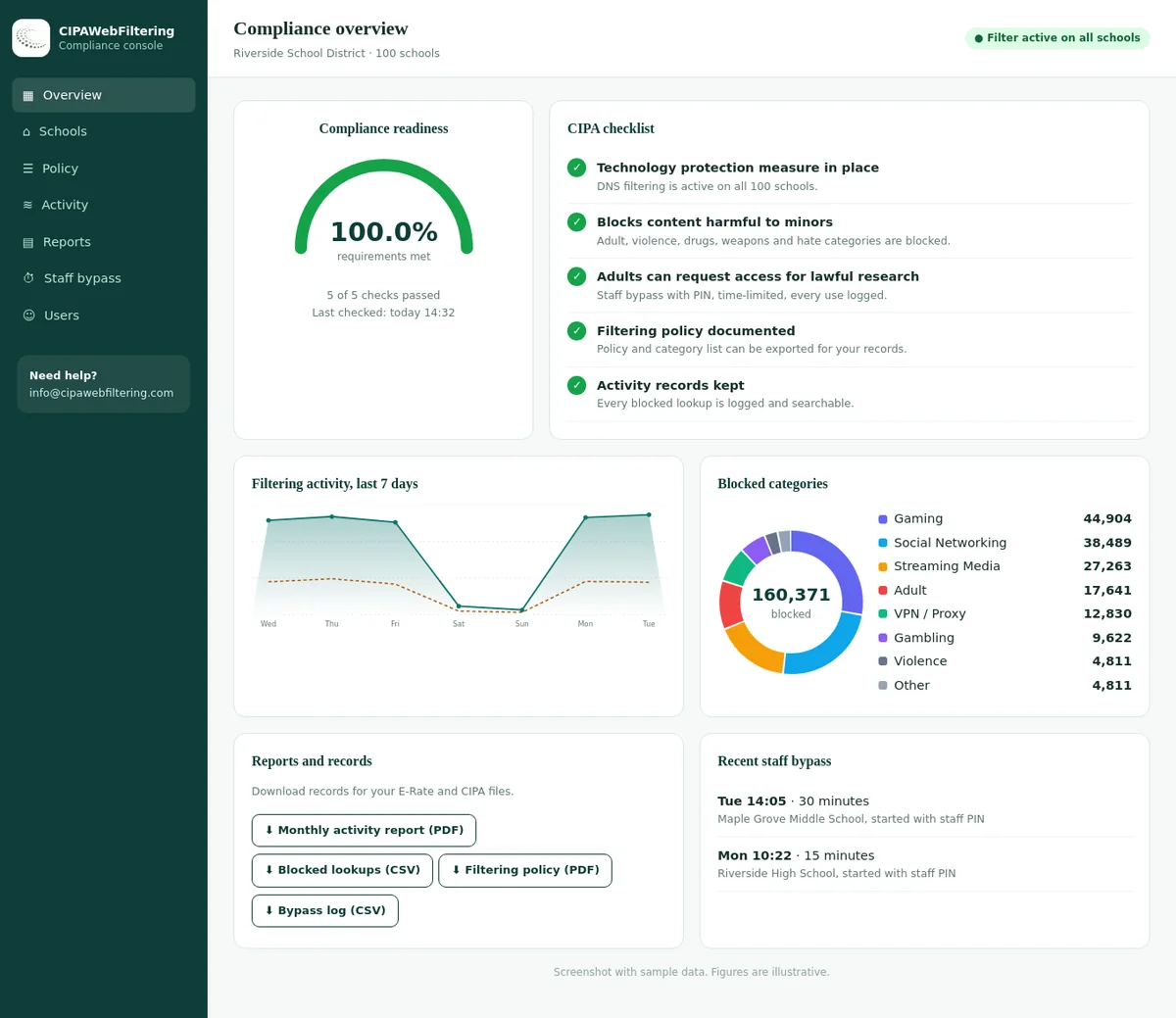
The Admin console is good at holding a list, but someone still has to write it. Our hosted CIPA filter blocks by category, so one switch covers thousands of sites you would never have typed in.
- The CIPA preset has Adult and VPN/Proxy/Anonymizers switched on from day one
- Always-allow and always-block lists sit on top for the odd exception
- Each school can keep its own settings in one console
Plan organizational units around who needs what
Settings flow down from the top-level unit to every child unit unless a child overrides them. Build the tree so the strictest settings sit lowest, close to the youngest students.
- District (top level)baseline: malware, adult, proxy sites
- Studentsadds social media, games during school hours
- Elementary K to 5allowlist mode
- Middle 6 to 8blocklist plus extras
- High 9 to 12lighter blocklist
- Testing kiosksexam site only
- Staffinherits baseline only
- Library and guest devicespublic settings
- Studentsadds social media, games during school hours
| Design choice | Why it matters |
|---|---|
| Split by grade band | Lets elementary use an allow-only list while high school students reach research sites freely. |
| Keep staff separate | Teachers need video and social sites for lessons that students should not browse unsupervised. |
| Use configuration groups sparingly | Groups can override unit settings, which is powerful but hard to audit later. Document every group you create. |
| Put shared carts in their own unit | Cart devices often run in a managed guest session, which follows device settings rather than user settings. |
Step by step: set the URL blocklist in the Admin console
These steps apply the policy to users who sign in on enrolled Chromebooks. The same setting exists for managed guest sessions under the matching settings tab.
Sign in to the Admin console
Use your administrator account, not a personal or student one. If you manage several domains, confirm you are in the school domain.
Open the Chrome settings page
Menu › Devices › Chrome › Settings
The page opens on the user and browser settings tab. This tab controls what signed-in users can do in Chrome on managed devices.
Pick the organizational unit
Select the unit in the left panel before you touch any setting. Changing the top level by mistake is the most common way a block reaches staff accounts.
Find URL blocking under Content
Content › URL blocking
You can also type "URL blocking" in the settings search box to jump straight to it.
Add entries to Blocked URLs
Enter one pattern per line, such as a domain name. Start with the sites your policy names and avoid pasting long lists you have not reviewed.
Add entries to Blocked URL exceptions if needed
Exceptions win over blocks. Use them to open one subdomain or path inside a blocked domain, such as a district page on a site that is otherwise blocked.
Override or inherit, then save
On a child unit, choose Override to set its own value or Inherit to fall back to the parent. Save, and note the change and the reason in your records.
Let devices pick up the policy
Chromebooks fetch policy in the background, and some changes apply only after Chrome restarts. Plan changes outside lesson time and check them on your test device.
URL pattern syntax: what each entry actually matches
Entries follow a simple shape: an optional scheme, a host, an optional port and an optional path. Small differences in how you write an entry change how much it covers.
| Entry | What it covers | Typical school use |
|---|---|---|
example.com | The domain and every subdomain under it, on any scheme. | The default way to block a whole site. |
.example.com | Only the exact host, with no subdomains. The leading dot switches subdomain matching off. | Blocking a bare domain while leaving its subdomains to separate rules. |
games.example.com | That one subdomain and anything under it. | Blocking a games section while the rest of the site stays open. |
example.com/videos | Paths that begin with /videos on that domain. Paths are case sensitive. | Narrow blocks on large mixed sites. |
http://example.com | Only unencrypted requests to that domain. | Rarely useful now that most sites use HTTPS. |
* | Every site. | The first line of an allow-only setup, paired with exceptions. |
chrome://settings | A built-in Chrome page. The asterisk alone does not cover these. | Hiding settings pages students should not change. |
Blocklist mode or allowlist mode?
The same two fields support two very different approaches. Pick per unit, not for the whole district.
Blocklist mode
Everything open except what you list- Fits middle and high school, where students research across the open web.
- Blocked URLs holds named sites; exceptions are rare.
- Weak spot: any site you did not list is reachable, including new ones.
- Needs a category filter behind it to cover adult, gambling and proxy sites at scale.
Allowlist mode
Everything closed except what you list- Fits early grades and testing kiosks with a short list of approved tools.
- Blocked URLs holds a single asterisk; exceptions hold the approved sites.
- Weak spot: learning sites load assets from other domains, which then fail.
- Expect a period of tuning as teachers report broken pages.
Building a workable allowlist for young students
Ask teachers first
Collect the sites each grade uses in a typical week. The list is usually shorter than people expect.
Add the supporting domains
Sign-in pages, content delivery hosts and video players often live on separate domains. Open each tool on a test device and note what fails.
Keep sign-in working
Students must still reach your Google sign-in and your learning platform. Test logging out and back in, not only browsing.
Offer a request route
Give teachers a simple form to request a new site. Review it within the week so the allowlist does not become a reason to skip lessons.
Review each term
Remove tools no one uses any more. Shorter lists are easier to reason about and stay well under the entry cap.
Check unknown domains
When a page breaks because of an unfamiliar host, look it up with a domain category checker before you allow it.
Sites that usually top an admin's blocked URL list
These are lookups from our database. Each one is already filed under a category, so you could block it without ever typing the address.
| Address | Category in our data |
|---|---|
| roblox.com | Gaming |
| minecraft.net | Gaming |
| tiktok.com | Social Networking, Streaming Media |
| reddit.com | Social Networking, Forums / Message Boards, Community Sites |
| pinterest.com | Social Networking |
Related Chrome settings that close common gaps
A blocklist is only as strong as the settings around it. Search the settings page for each of these by name, read the current description and set it per unit.
Incognito mode
Decide whether students may open incognito windows. Many districts turn it off for student units so browsing stays under policy and history is reviewable.
Guest mode and sign-in restriction
Device settings can stop guest browsing and limit sign-in to your domain. Without these, a personal account sidesteps your user policies.
Apps and extensions
Control which extensions students can install. An unchecked web store lets students add tools that change how pages load.
SafeSearch and YouTube restrictions
Enforce SafeSearch and pick a YouTube restriction level for students. See our guide to YouTube and streaming filtering in schools.
Developer tools
Most student units do not need browser developer tools. Restricting them reduces tinkering with page content and policy.
Android apps
Many Android apps do not respect the Chrome blocklist. Approve apps deliberately rather than relying on URL entries to cover them.
Test the policy on a real Chromebook
Never assume a saved setting reached the device. A short, repeatable test after each change saves days of confused tickets.
Sign in as the test student
Use an enrolled Chromebook and the test account for the unit you changed.
Open chrome://policy
Choose Reload policies. Look for URLBlocklist and URLAllowlist with the values you entered and an OK status.
Run your test matrix
Try each blocked site, each exception and a few sites that must stay open. Record pass or fail.
Repeat in a sibling unit
Confirm the change did not leak into units that should be unaffected, especially staff.
| Test | Expected | Result |
|---|---|---|
| Blocked domain, home page | Block page shown | Pass |
| Blocked domain, subdomain | Block page shown | Pass |
| Exception path inside blocked domain | Page loads | Pass |
| Learning platform sign-in | Signs in normally | Pass |
| Video embedded in lesson page | Plays | Fail: player host missing |
| Staff account on same device | Unaffected | Pass |
The limits of URL lists versus category filtering
The Admin console blocklist is a precise tool for named sites. It was not designed to be a district's whole CIPA content filtering layer, and the numbers show why.
A hand-built URL list
- Capped at about 1,000 entries across block and allow lists.
- Knows nothing about sites you have not typed in.
- Misses mirror sites and lookalike domains created every day.
- No reporting on what students tried to reach.
- Every change is manual, per unit, by an admin.
Category-based filtering
- One switch covers every domain in a category, such as Adult or Gambling.
- Newly registered domains land in categories without anyone listing them.
- Proxy and VPN sites are grouped so they can be blocked together.
- Logs show attempts by category, useful for safety reviews.
- Your Admin console list stays short, for local exceptions only.
No quarterly pruning when the categories are kept for you
New domains are categorized every day and the service applies changes in seconds, so your block does not age the way a hand-made list does. Policy stays per school, and the decision is made by domain.
Where category filtering fits on Chromebooks
Districts add categories to Chromebooks in three main ways. Each one can sit alongside the Admin console list you just built.
| Approach | How it reaches the device | Works off campus? | Read more |
|---|---|---|---|
| Filtering extension | Force-installed from the Admin console to student accounts | Yes, travels with the signed-in user | Chromebook 1:1 device filtering |
| DNS filter | Network or device DNS settings point to a filtering resolver | Only if the device is configured for it off site | CIPA DNS filter for education |
| Proxy or cloud gateway | Traffic is routed through an inspecting service | Yes, when the device is configured to use it everywhere | cloud-based web filtering for schools |
Keeping the blocklist healthy over the school year
Lists drift. Teachers leave, tools change domains and a block added for one incident lingers for years. A light routine keeps the list trustworthy.
Keep a record of changes
Record who asked, why, which unit and when. It answers parent questions and helps at audit time.
Prune quarterly
Remove entries for tools the district no longer uses. Old exceptions are a quiet source of risk.
Share ownership
Let curriculum leads approve teaching sites, and IT handle syntax. Decisions stay educational, changes stay consistent.
Link to your safety policy
Your CIPA internet safety policy should describe how blocks are decided and reviewed.
Re-test after updates
Run the test matrix after major ChromeOS releases or Admin console changes.
Fold it into compliance
Add the Chromebook list and test results to your CIPA compliance checklist review.
Admin console URL list next to a hosted category filter
For the job of keeping students off the wrong sites, here is how the two approaches compare.
| What you need | Blocked URLs in Google Admin | Hosted CIPA filter |
|---|---|---|
| Block a new game site today | Find it, then add the pattern | Already inside the Gaming category |
| Cover a school's non-Chrome devices | Not reached | Anything using the network DNS |
| Different rules per building | Organizational units | Separate settings for each school or branch |
| Teacher needs an adult research page | Edit exceptions and wait | Staff PIN for 15, 30 or 60 minutes, logged |
| Show an auditor the policy | Export from the console | Policy record, activity reports and log export |
Questions school admins ask
Where is URL blocking in the Google Admin console?
Open Menu, then Devices, then Chrome, then Settings. On the user and browser settings tab, find the Content section and open URL blocking. You need an admin role that can manage Chrome settings.
How many URLs can a Chromebook blocklist hold?
Google currently documents a combined limit of 1,000 entries across the blocked list and the exceptions list. Check the current Google guidance, since limits can change.
Does a blocked URL exception override the blocklist?
Yes. An exception is reachable even if a broader block would match it. That is what makes an allow-only setup possible: an asterisk in the blocked list, approved sites as exceptions.
How do I check that a Chromebook received the new blocklist?
Sign in on a test device in the right unit, open chrome://policy, reload policies and confirm URLBlocklist and URLAllowlist show your values with an OK status.
Is a Google Admin blocklist enough for CIPA?
A list of up to 1,000 entries cannot keep pace with the millions of adult, gambling and proxy domains in existence. Most districts pair it with category-based filtering, the usual form of a technology protection measure.
Do Chromebook URL blocks apply to Android apps?
Not reliably. Many Android apps ignore the Chrome blocklist, so control which Android apps students can install and treat app access as its own policy.
Why does a blocked site still open for one student?
Check that the student is in the unit you changed, that the device is enrolled and that a configuration group is not overriding the unit. Then reload policies on that device.
Related guides
We price by the number of schools and devices, and your quote arrives within one business day. Running the filter on one school first lets you compare its blocks and reports with your current URL list.
Need categories behind your Chromebook policy?
We help districts add category-based filtering for adult, gambling, proxy and AI tools domains, so the Admin console list can stay short and local. Tell us how your Chromebooks are managed and we will suggest a fit.
Google, Google Admin console, Chrome, ChromeOS, Chromebook, YouTube and Android are trademarks of Google LLC. They are used here only to identify the products discussed. CIPAWebFiltering.com is not affiliated with, sponsored or endorsed by Google LLC.