Block X (Formerly Twitter) on School Chromebooks
The platform renamed itself, but the old name never fully went away. A block that covers only one of the two names, or forgets the media and link domains, leaves students a way in.
This guide covers every surface: the website under both names, the Android app, short links, embedded posts on news sites and the district account your communications team still needs.
The short version for busy admins
If you only have ten minutes before a board meeting, these three points are the whole plan.
Block both names
Add x.com, twitter.com, twimg.com and t.co to the student URL blocklist in the Google Admin console.
Close the app door
Set Google Play to approved apps only for students, so the Android app cannot be installed on Chromebooks.
Back it with categories
Block Social Networking and VPN / Proxy / Anonymizers on the filter that follows the device home, and test from a student account.
Let the Social Networking category carry the X block for you
The platform answers to two web addresses and plenty of look-alikes. Our hosted filter works from category data, so you make the call once and it applies to every address that belongs there.
- Switch Social Networking off for the schools that want X closed
- Leave it on where older students use the platform for class
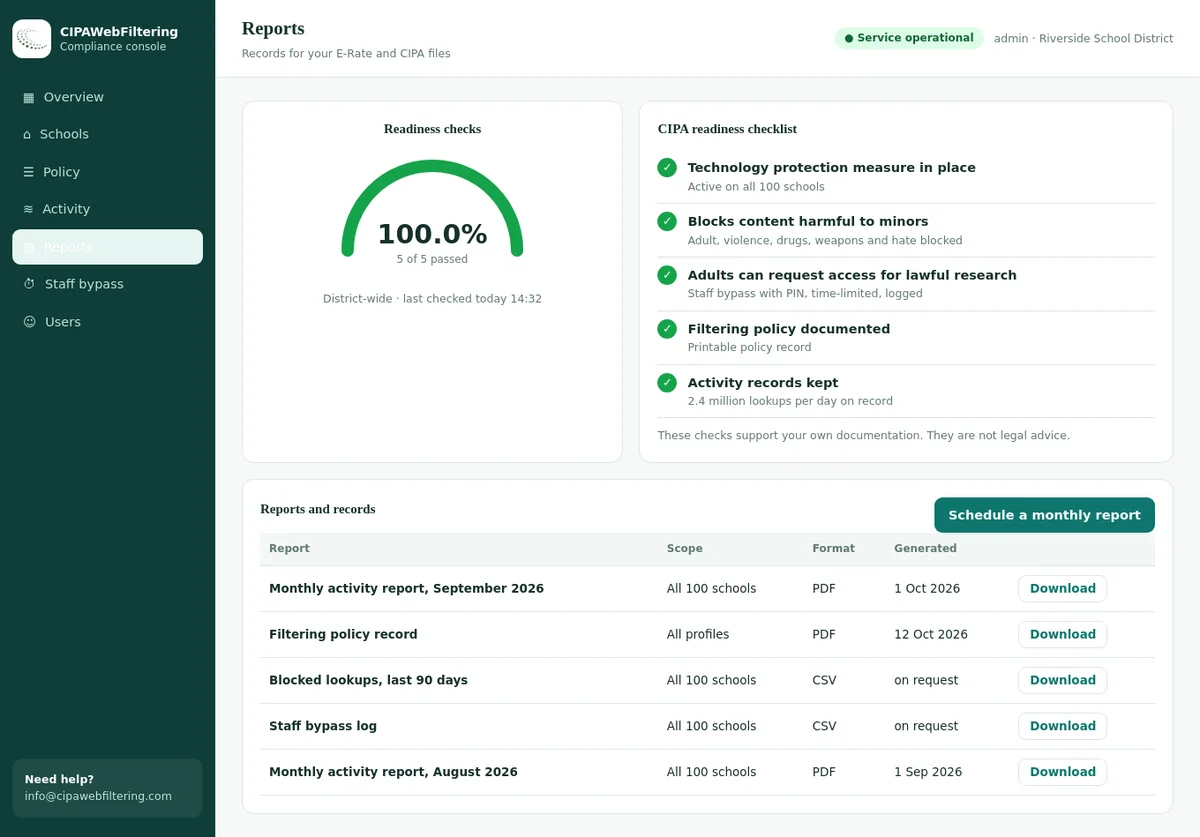
- Check the reports afterwards to see what was actually blocked
Why districts block X for students
X is different from most social networks students use, and that difference is the main reason it is on so many district block lists.
Content rules
- The platform's own rules permit consensual adult content, labelled as sensitive, rather than banning it.
- Sensitive media warnings depend on users and settings, which a school cannot control.
- Graphic news footage can spread before moderation reaches it.
Student wellbeing
- Open replies and direct messages allow contact from strangers.
- Pile-ons and harassment can follow a student from school into the evening.
- The platform sets a minimum age of 13 in its terms, above most elementary students.
For CIPA, the important point is the first column. Because adult images are allowed under the platform's rules, X is a realistic route to material harmful to minors. That makes it a CIPA-relevant decision, not only a distraction issue. Our page on CIPA content filtering explains the categories the law covers.
Two names, one platform: the domains to cover
There is no official list for network administrators, and domains change over time. These are the well-known ones, which is enough for a URL blocklist; category rules handle the rest.
| Domain | What it does | If you skip it |
|---|---|---|
x.com | Current main address for the site and web app | The platform loads normally under its new name. |
twitter.com | Former main address, still used by many links | Old links, bookmarks and redirects keep working. |
twimg.com | Images, video and scripts | Media from posts loads inside embeds on other sites. |
t.co | Link shortener used inside posts | Not a big risk on its own, but blocking it stops links from posts being followed. |
A common report from admins: they block twitter.com and the site still loads on x.com, or the other way around. Always list both, and test both by typing each address directly.
X, its old name and the platforms students move to
Real lookups, including the older address and a few alternatives. Not every related domain is in the data, so we show only the ones that are.
| Domain | What we call it |
|---|---|
| x.com | Social Networking |
| twitter.com | Social Networking |
| t.co | Advertising/Marketing, Cloud Storage / File Hosting, Social Networking, URL Shorteners |
| bsky.app | Social Networking, Web-based Applications |
| threads.net | Social Networking |
Where X shows up beyond its own website
Blocking the website is only part of the picture. Posts travel into other pages that students are allowed to visit.
Embedded posts on news sites
News articles often embed posts. With X domains blocked, embeds fall back to plain text or an empty frame, while the article itself stays available. That is usually the right outcome for students researching current events.
Screenshots in other apps
Screenshots of posts travel through every other platform. No filter can stop an image of a post on another site, which is why digital citizenship lessons matter as much as rules.
Search results
Search engines index public posts. With SafeSearch enforced the risk is lower, and the post itself will not open on a blocked device.
The policy layer stack
Think of the block as layers. Each one catches what the layer above it misses. A complete setup on a 1:1 Chromebook fleet uses all five.
The playbook: six moves to block X
Admin console labels change from time to time. If a menu looks different, search the setting name in the console or check Google's current help pages.
Chrome URL blocking
- Open Devices > Chrome > Settings > Users & browsers.
- Select the student organizational unit.
- Under Content, open URL blocking and add x.com, twitter.com, twimg.com and t.co.
- Save and reboot a test Chromebook.
Details on syntax and the allowlist are in blocking websites on Chromebook with Google Admin.
Android app control
- Open Devices > Chrome > Apps & extensions > Users & browsers.
- Allow only approved apps from Google Play for students.
- Block the X app if it was installed earlier, then confirm removal.
If your fleet has Google Play turned off for students, this layer is already closed.
Category rule
- Block Social Networking for student policies on your filter.
- Keep Adult and Lingerie/Swimsuits/Intimate Apparel blocked as the safety floor.
- Check how any address is categorized with the domain checker.
A category covers new mirror and viewer sites that a domain list will never include.
DNS on school networks
- Send student and guest Wi-Fi to your filtering resolver.
- Block the same category or domains there.
- Block outbound DNS to other resolvers at the firewall.
Windows and Mac labs
- Apply the DNS rule to lab VLANs.
- Push a browser URL blocklist through your device management tool.
- Restrict app store installs for student accounts.
Scope for staff
- Keep the communications team in a staff unit without the rule.
- Decide whether teachers in general need access, or only named staff.
- Document the decision in your policy review file.
Who needs X, and who does not
Most districts have at least one account on X for news and closures. That shapes the group structure.
| Group | Suggested rule | Notes |
|---|---|---|
| Students, all grades | Blocked at all times on school devices | Content rules make a school-hours-only rule hard to justify. |
| Journalism or media class | Blocked, teacher demonstrates | Teachers show posts from a staff device; students analyse screenshots. |
| Communications office | Allowed | Needs posting access for alerts, closures and events. |
| Teachers and staff | Local choice | Many districts allow it; some block it on the staff network for focus. |
| Guest Wi-Fi | Blocked or allowed by policy | Visitors are often adults; check whether minors use the guest network. |
Off-campus coverage
A Chromebook that goes home leaves the school DNS and firewall behind. Only device controls stay with it.
Travels with the device
Yes: Admin console URL blocking, Google Play app control, filtering extensions and agents, enforced browser DNS settings.
Stays at school
No: the school DNS resolver, the firewall application rules, and any proxy that only exists on the campus network.
What to decide
Whether the X block is full time. Given the content rules, most districts keep it on at home as well as on campus.
Read how to enforce CIPA on off-campus student devices and our overview of Chromebook 1:1 device filtering.
Bypass handling
The aim is to cover the categories of bypass, not to chase each site. These are the patterns school admins see most.
| Pattern | What it looks like in logs | Control |
|---|---|---|
| Alternative viewer sites | Unfamiliar domains showing posts and profiles | Social Networking category; viewers are categorized as they appear. |
| Web proxies | Requests to proxy pages with odd paths | VPN / Proxy / Anonymizers category. |
| VPN extensions | New extension installs, then traffic that stops appearing in logs | Extension allowlist and Chrome Web Store restricted. |
| Encrypted DNS | Lookups missing from the resolver for a device | Manage browser DNS-over-HTTPS settings and block public resolvers. |
| Phone hotspot | Device disappears from campus network logs | Device-level rules still apply; phone policy covers the rest. |
Workarounds and take-home laptops on the same policy
VPN/Proxy stays blocked even after a staff PIN, and a private encrypted link keeps the school rules on laptops used at home. Browser settings and public encrypted DNS that skip the filter are blocked by default.
Testing checklist
Run every test from a student test account. Keep a dated copy of the results with your CIPA records.
- Type x.com in the address barExpect the block page
- Type twitter.com in the address barExpect the block page, not a redirect that loads
- Open a news article with an embedded postArticle loads, embed shows text or nothing
- Search Google Play for the X appNot installable
- Connect a personal phone to student Wi-FiSite blocked by DNS
- Take the Chromebook homeStill blocked
- Sign in as communications staffPosting works
Then run the school web filter test to check the wider category set.
Teaching current events without opening X to students
Social studies and journalism teachers sometimes push back on the block, because breaking news often appears on X first. These approaches keep the lesson and the safety rule.
Teacher-curated screenshots
The teacher captures the posts needed for the lesson from a staff device and shares them in the learning platform. Students analyse the content without any live feed, replies or recommendations around it.
Projected live view
The teacher displays a search or thread from a staff account on the classroom screen, after checking it first. The class can discuss what they see, and the teacher controls what loads next.
Work from news reports
Most significant posts are quoted in news coverage within hours. Students compare how different outlets report the same post, which builds the source-checking skills the lesson is aiming for.
Media literacy units
Use the block itself as a teaching point. Ask students why a school might block a platform, what moderation means, and how they would check whether a viral post is real.
When harmful content gets through anyway
No filter is perfect. A short, rehearsed response helps staff act calmly when a student sees something they should not have.
If the content could involve child sexual abuse material, follow your district's legal reporting procedure immediately and do not copy or view the material further.
Evidence for your annual review
E-Rate certification and board reviews go smoother when you can show what you blocked, for whom and how you tested it.
Policy record
The decision, the date, who approved it, and the groups it applies to. Link it to the internet safety policy section on social networking.
Configuration snapshot
A screenshot or export of the URL blocklist, app settings and category rules for each student unit, saved with the date.
Test results
The testing checklist above, filled in for each school or device model, plus a note of any gaps you fixed.
Our CIPA compliance checklist and the guide to E-Rate and CIPA funding show where this evidence fits.
Communicating with parents
Parents often follow the district on X, so expect the question "why can my child not see your posts?"
Suggested message
X is blocked on school devices for students because the platform allows adult content and open messaging that we cannot control on a school device.
Our district news is also published on our website and sent by email and text, so families and students do not miss anything.
Mirror every alert
If a closure or emergency is posted on X, post the same message on the district website and through your notification system. Never make X the only channel.
Explain the scope
Make clear the rule covers school devices and school networks. It does not change anything on family phones or home computers.
How category data keeps the block current
X changed its main domain once already. Viewer sites and mirrors come and go weekly.
120 million domains
Categorized and reviewed, with the most visited 20 million covering 99.99% of web traffic.
Daily new domains
About 300,000 new domains are categorized each day and checked again after a week and after a month.
Runs in your stack
Delivered as files that run inside your own systems, with a lookup API included with licences.
See the category database, the social media filtering options for schools, or the master guide to blocking social media at school. For Meta's platforms, read blocking Facebook on school Chromebooks.
Keeping X closed: manual blocks or a managed filter
This is what changes when the platform is handled by category rather than by address.
| When this happens | Blocking addresses yourself | Hosted CIPA filter |
|---|---|---|
| A related domain appears | You notice it and add it | Categorized in the data feed |
| A high school wants X for journalism | Separate exception work | Different setting for that school |
| A teacher needs a post for a lesson | Unblock for everyone | Staff PIN for 15, 30 or 60 minutes |
| Principal asks what was blocked | Dig through firewall logs | Activity reports |
| Students on a school laptop at home | Depends on the device | Private encrypted link carries the rules |
FAQ: X and Twitter on school devices
Do I need to block both x.com and twitter.com?
Yes. The platform answers on both names, and older links still point to twitter.com. Block x.com, twitter.com, twimg.com for media and t.co for short links, or use a Social Networking category rule that covers all of them.
Why do X posts still appear on news websites?
News sites embed posts using scripts and images from X domains. When those domains are blocked, the embed usually shows as plain text or an empty box while the article itself still loads.
Our district posts on X. Will blocking it stop that?
Not if you scope the rule. Apply the block to student groups only and keep communications staff in a group without the rule.
Is X covered by CIPA?
CIPA does not name any platform. It requires filtering of obscene images, child sexual abuse material and material harmful to minors. X allows adult content under its own rules, so many districts decide that blocking it for students is the simplest way to meet that duty.
Should we block t.co if we block everything else?
Yes, for completeness. On its own t.co only redirects to the destination, but blocking it stops students following links from posts that reach them through screenshots, messages or embeds, and it costs nothing in teaching value.
Can students read X without an account?
Public posts can sometimes be viewed without signing in, and third-party viewer sites show posts too. That is why the block targets the domains and the Social Networking category, not only the login page.
What about the X app on student phones?
Personal phones on mobile data are outside the school filter. On school Wi-Fi, the DNS filter blocks the app's domains. Beyond that, the school phone policy decides when phones can be used.
Does the Chromebook block work at home?
Google Admin URL blocking, Play app controls and filtering extensions follow the managed Chromebook. School network rules such as DNS and firewall policies do not.
What you pay is set by your school and device count, and the quote is with you inside one business day. A pilot at one school makes the X block and its reports visible before the wider rollout.
Talk to us about your district
Tell us about your Chromebook fleet, networks and groups. We will show how category data can keep social networks and the CIPA categories blocked for students on and off campus.
Talk to us about your districtX and Twitter are trademarks of X Corp. Google, Chromebook, ChromeOS and Google Play are trademarks of Google LLC. These names are used here only to identify the products discussed. CIPA Web Filtering is not affiliated with, sponsored or endorsed by these companies.