Give students and staff their own rules without a second system
The hosted CIPA filter blocks by category, so the same category list can be tuned per school and adjusted for the people who need more room. A staff member who has to research an adult topic uses a PIN instead of a permanent hole in the policy.
- Start from the CIPA preset, with Adult and VPN/Proxy/Anonymizers on, then add the optional categories you want.
- Always-allow and always-block lists are kept per site, so a library or an office can differ from a classroom building.
- Nothing is installed on the computers that staff and students use.
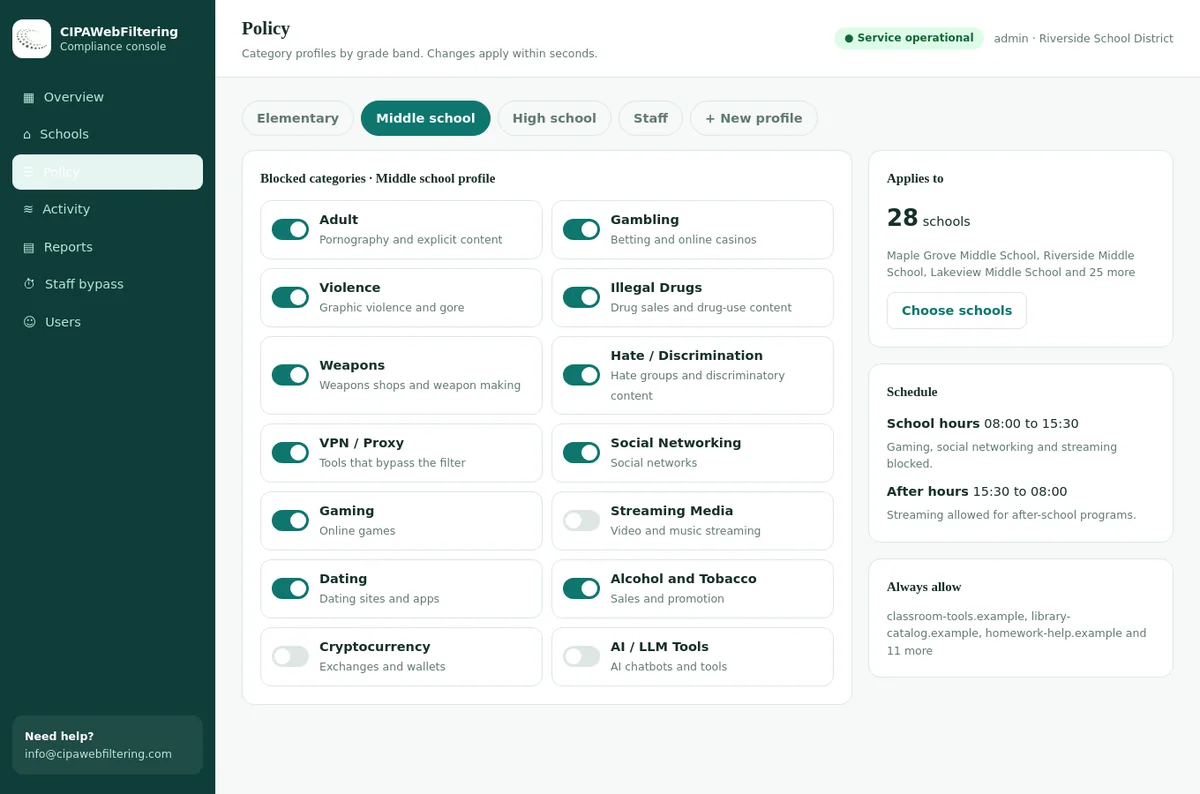
Staff vs Student Web Filtering Policies
A filter tuned for a seven-year-old will frustrate a chemistry teacher, and a filter tuned for teachers is wrong for a seven-year-old. CIPA expects schools to treat adults and minors differently. This guide shows how to set separate policies without opening gaps.
It is written for district IT staff, technology directors and E-Rate coordinators who own the filter configuration.
Student policies
- Block all three CIPA content types
- Tighter by grade band
- Bypass tools always blocked
- Teacher can open sites for a lesson
Staff policies
- Obscene material and child abuse material always blocked
- Broader access for teaching and research
- Role-based extras for counselors and IT
- Documented route for research access
What CIPA says about adults and minors
The law draws the line clearly. Some content is blocked for everyone; some only for minors; and authorized people can relax filtering for adults doing lawful work.
Obscene material and child sexual abuse material
The technology protection measure must protect against access by adults and minors to these visual depictions. Staff policies keep these blocked, always.
Material harmful to minors
This category applies to users under 17, the age CIPA uses for a minor. Staff policies can allow it where there is a work reason, as the local policy decides.
Disabling for bona fide research
An administrator, supervisor or other authorized person may disable the measure for an adult during bona fide research or other lawful purposes. Write down who can authorize this and how.
The roles most districts filter differently
Five groups cover most districts. Keep the number of policies small; every extra policy is something to maintain and explain.
Map each group to a directory group that already exists, such as a staff organizational unit or a grade-level class list, so new accounts land in the right policy automatically.
Elementary students
Narrowest access. Most chat, social and game sites blocked; video limited.
Secondary students
Broader research and news access; bypass, adult and gambling sites always blocked.
Teachers and aides
Video, social media and most categories open; CIPA adult core blocked.
Counselors and admins
Access to sensitive topics needed for student support and investigations.
IT and security
Access to remote tools and security research sites, under logged use.
A category matrix for staff and student policies
A starting point that many districts adapt. Block Allow Local choice. Categories follow our 58-category set.
| Category | Elementary | Secondary | Teachers | Counselors and admins | IT |
|---|---|---|---|---|---|
| Adult | Block | Block | Block | Block | Block |
| Malware / Phishing / Suspicious | Block | Block | Block | Block | Lab only |
| VPN / Proxy / Anonymizers | Block | Block | Block | Block | Local |
| Gambling | Block | Block | Local | Local | Local |
| Weapons, Illegal Drugs, Violence | Block | Block | Local | Allow | Local |
| Hate/Discrimination | Block | Block | Local | Allow | Local |
| Dating, Alcohol, Tobacco | Block | Block | Allow | Allow | Allow |
| Social Networking | Block | Local | Allow | Allow | Allow |
| Streaming Media | Local | Local | Allow | Allow | Allow |
| Gaming | Educational only | Local | Allow | Allow | Allow |
| AI / LLM Tools | Approved only | Approved only | Approved list | Approved list | Approved list |
| Remote Access Tools | Block | Block | Block | Block | Allow |
| Health & Medicine | Allow | Allow | Allow | Allow | Allow |
Sites where staff and students often get different answers
These lookups come from our category data. The last column is a common starting choice that you can change per school.
| Website | Categories in our data | A common starting point |
|---|---|---|
| roblox.com | Gaming | Blocked for students, usually blocked for staff too |
| discord.com | Email and Messaging, Social Networking, Gaming | Often blocked for students, reviewed for staff |
| linkedin.com | Social Networking, Job Search/Careers, Business | Often allowed for staff, a decision for older students |
| jstor.org | Education/Reference, Science | Allowed for both, research content |
| plannedparenthood.org | Health & Medicine | Health content, reviewed by age group |
| chatgpt.com | AI / LLM Tools | A policy choice for each group |
Six principles for staff and student policy design
The matrix above is a starting point. These principles help you adapt it without losing the logic behind it.
Start from one base policy
Build every policy on a shared base that blocks the CIPA adult core and malware for everyone. Each role then adds or removes categories from that base, which keeps them consistent.
Loosen with age, not by exception
Let access grow steadily from elementary to secondary to staff. If you keep adding exceptions to a younger policy, the grade band settings probably need adjusting.
Bypass tools stay blocked
Proxies, anonymizers and VPNs stay blocked for students and most staff. One open route undoes every other setting. See blocking proxy sites in schools.
Do not over-block information
Health, news, science and reference should be open for all, including young students. Over-blocking these hurts learning and gains nothing under CIPA.
Name the special groups
Broader access for counselors, investigators or IT should go to named people, not whole departments. Review the list each term.
Write the reason down
For every local-choice category, record why it is blocked or allowed for each group. It makes parent questions and audits much easier to answer.
Three ways to tell staff from students
The filter has to know who is browsing before it can apply the right policy. Most districts mix these methods.
By user account
The filter reads the signed-in user from the directory and applies the policy for their group. This is the most accurate and follows the person to any device.
Best for: 1:1 devices, staff laptops, shared computers with sign-in.
By device
Each managed device carries a policy. Classroom computers, library terminals and student devices are set to student policy regardless of sign-in.
Best for: shared machines, kiosks, displays used in front of students.
By network
Separate SSIDs or VLANs for staff, students, BYOD and guests, each with its own policy. Simple, and works for devices you do not manage.
Best for: personal devices and guests. See BYOD filtering in schools.
Unblock requests and teacher overrides
A fast, fair way to open a blocked site is what keeps staff from looking for workarounds. Here is a workflow that most districts can run.
Block page
The block page names the category and offers a request button.
Request
Staff give the site and a short reason. Students ask their teacher.
Review
A named reviewer checks the category and the site, ideally the same day.
Decision
Allow for one class, one group, or everyone; or keep blocked with a reason.
Record
Every exception is logged and reviewed each term.
Time-limited classroom access
Let teachers open a blocked video or site for their class for a single period. It reverts automatically, so exceptions do not pile up.
Research access for adults
For CIPA's bona fide research provision, record who authorized it, for whom, for how long and why. Keep it with your CIPA records.
A timed PIN instead of a permanent exception
Staff can use a PIN to open adult research for 15, 30 or 60 minutes, and the filter switches back afterwards with the use logged. VPN/Proxy stays blocked even with the PIN.
Where staff and student policies collide
Most incidents happen at the boundary, when a staff session or device ends up in front of students.
None of these are filter failures in the strict sense. The filter did what its policy said; the wrong policy was simply in front of the wrong audience. Fixing them is mostly about device settings, group membership and a little staff training, so it costs very little.
Projected screens
A teacher's broader policy shows on a classroom display. Use safe search and restricted video on staff devices in classrooms, even when the category is allowed.
Unlocked staff laptops
Students use a teacher's open session. Short lock timers and training help more than any filter rule.
Shared classroom computers
A teacher signs in on a student machine and the policy follows them. Set shared devices to student policy by device.
Shared staff Wi-Fi password
The staff network password reaches students. Use account-based sign-in for staff Wi-Fi rather than a shared key.
Student workers and aides
Students working in offices or as aides are still minors. Put them in a student policy, whatever their duties.
Substitute teachers
Temporary accounts often land in the wrong group. Create a substitute group with a sensible staff policy.
Staff privacy and transparency
Staff browsing on district networks is usually logged. Being open about it avoids distrust and disputes later.
Tell staff plainly
- Which networks and devices are filtered and logged.
- How long logs are kept, and when they are deleted.
- Who can view an individual's history, and under what circumstances.
- That obscene material and child sexual abuse material are blocked for everyone, as CIPA requires.
- How to request access for research or teaching.
Keep it proportionate
- Use category reports for routine oversight, not individual browsing reviews.
- Restrict individual lookups to defined reasons, such as a reported concern or security incident.
- Log every lookup of a staff member's history.
- Follow employment agreements and state laws that apply to staff monitoring.
- Apply the same transparency standard you apply to students. See what schools can see when they monitor.
Governance: writing the policies down
The filter configuration is not the policy. The policy is the document your board adopted. The configuration should match it, and someone should check that each year.
What to put in the internet safety policy
- A statement that the filter applies to all users, with the CIPA core blocked for everyone.
- That minors are additionally protected from material harmful to minors.
- Who may authorize disabling filtering for adult research, and how it is recorded.
- That different policies apply by grade band and role, set by the technology department within board guidance.
- How staff and students request a review of a blocked site.
An annual policy review
- Export each policy's category settings and compare with the matrix you approved.
- Review the exception log: remove stale allows, promote common ones.
- Check group membership: substitutes, student workers, new roles.
- Spot test each policy with a test account using our school web filter test.
- File the results with your CIPA records before the Form 486 certification.
Rolling out a policy change without surprises
Draft
Write the change against the matrix, with the reason for each category moved.
Pilot
Apply it to a small group of teachers or one school and collect feedback.
Announce
Tell staff what changes, when, and how to request a review of a blocked site.
Deploy
Switch on district-wide, ideally at the start of a week, with IT on hand.
Review
Check block reports and requests. Adjust anything that is catching legitimate teaching sites.
Teaching scenarios that test your staff policy
Run through these with a few teachers before the school year. If the answer is "submit a ticket and wait a week", the policy needs work.
Teaching about extremism
A history teacher needs examples of propaganda for a lesson. The staff policy may allow the material for preparation, while the class sees curated excerpts.
Sex education and health
Health teachers and nurses need reputable health sites. Health information should be open for staff, and mostly for students too.
Drug and chemistry content
A chemistry or health lesson on drug harms touches a blocked category. A time-limited class override solves it without a policy change.
Art history images
Classical art includes nudity. Art sites are usually categorized as Arts, not Adult, but check specific museum sites your teachers use.
School social accounts
Staff running the school's social media need access on staff devices, while students stay blocked on school devices.
Counselor investigations
A counselor following up a student report needs to see the site involved. That belongs in the counselor policy, with logged use.
Keeping two sets of rules by hand or in one console
Here is what the staff and student split looks like in practice.
| Task | Separate lists on each device or box | Hosted CIPA filter |
|---|---|---|
| Student rule set | Copied between devices | Category switches set per school |
| Staff exceptions | Permanent holes in the policy | PIN bypass for 15, 30 or 60 minutes, then it reverts |
| Proof of who changed what | Scattered notes | Policy record and log export for CIPA files |
| Changing a rule | Touch every device | Applies in seconds |
| Adult research by staff | Disable the filter | Logged bypass, VPN/Proxy still blocked |
| More than one school | Several consoles | One console, separate settings per school |
Staff and student filtering FAQ
Does CIPA require filtering for school staff?
Yes, in part. CIPA requires the technology protection measure to protect against access by adults to visual depictions that are obscene or child sexual abuse material. The harmful-to-minors category applies to minors, so staff policies can be broader for that and for local-choice categories.
Can the filter be turned off for a teacher?
CIPA allows an administrator, supervisor or other authorized person to disable the technology protection measure for an adult during use for bona fide research or other lawful purposes. Most districts handle this by giving staff a broader policy and a documented request process, rather than switching filtering off entirely.
Should teachers have YouTube and social media unblocked?
Many districts allow both for staff, because teachers use video and school social accounts in their work. The risk is screens shown to students, so pair broad staff access with safe settings on classroom displays and clear guidance.
How do we stop students using a teacher's open session?
Set short screen lock times on staff devices, discourage sharing staff devices with students, and filter shared classroom computers by device as student machines regardless of who signs in.
Should counselors and administrators have a different policy from teachers?
Often, yes. Counselors may need sites on self-harm, drugs or abuse for support work, and investigators may need to view sites students reported. A small, named group with broader access and logged use works well.
Can staff browsing be monitored?
Districts usually log staff browsing on district networks and devices for security and policy enforcement. Tell staff plainly what is logged, how long it is kept, and who can review it, and follow any applicable employment agreements and state laws.
Do librarians need a different policy from teachers?
School librarians often help students research sensitive topics, so many districts give them the teacher policy plus quick classroom overrides. Library terminals used by students should still run the student policy by device.
What policy should substitute teachers get?
Create a substitute group with a standard staff policy and no specialist extras. Make sure temporary accounts land in that group automatically, so substitutes are neither locked out nor given counselor-level access.
How many filtering policies should a district have?
Most districts manage well with four to six: elementary, secondary, staff, a specialist group for counselors and investigators, IT, and guest. More policies mean more maintenance and more room for mismatches.
Can students be given staff-level access for a project?
Students remain minors, so the harmful-to-minors protection must stay in place. A teacher can open specific sites for a class for a set time, which is safer than moving students into a staff group.
Pricing follows the number of schools and devices you have, and a quote arrives within one business day. If you want to see staff and student rules working, a pilot on one site shows the blocks and the reports first.
Separate policies, one category set
Our category filtering lets you set elementary, secondary, staff and specialist policies from the same 58 categories, so every group gets the right access.