Block apps on the iPads and phones you manage
App Control turns your rules into ready block lists for your device management. Pick a preset for students, children or adults, check the most popular apps it blocks and why, then download a file for Jamf, Intune, Apple School Manager or Google Admin. Blocked apps disappear from managed devices, in the building and at home.
Ask about App ControlSee how it works
An add-on to any hosted filter plan. In your dashboard it is the Mobile/iPad blocking page, next to AI tools.
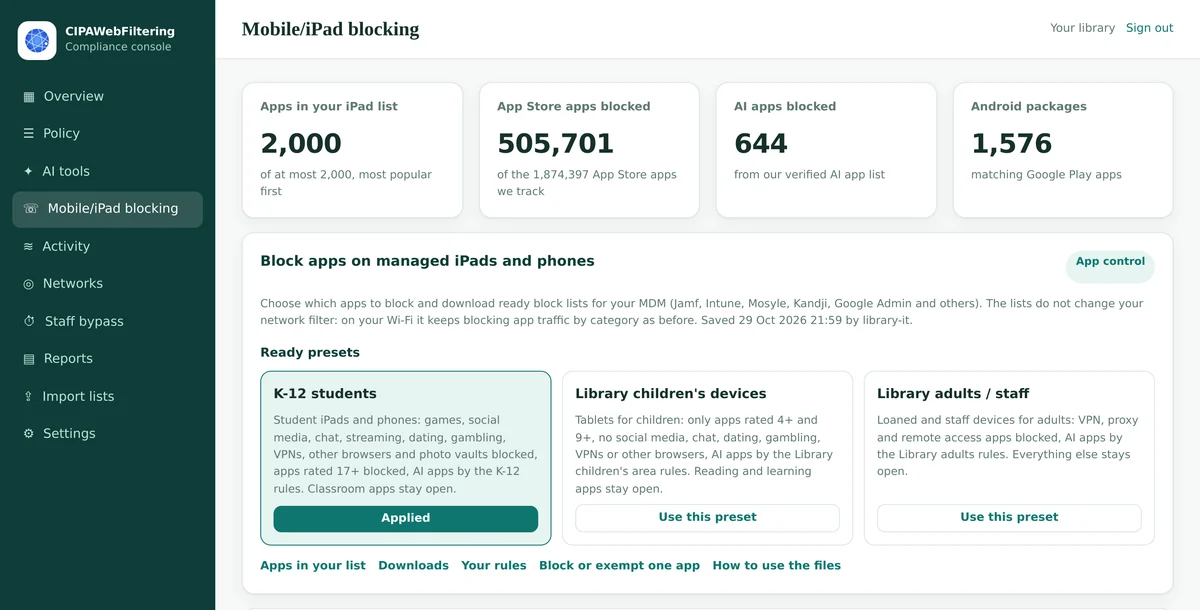
Your rules, turned into lists your MDM understands
Your network filter decides which sites and app servers can be reached on your Wi-Fi. App Control works on the device itself. It tells your device management which apps to hide and refuse to open on supervised iPads and iPhones, and gives Android tools the matching package list.
Three ready presets
K-12 students, Library children's devices and Library adults / staff. One click sets the category, age and AI rules together.
Groups of well-known apps
Social media, chat, streaming, VPN and proxy apps, other browsers, dating, gambling, hidden photo vaults and remote access, each with one switch.
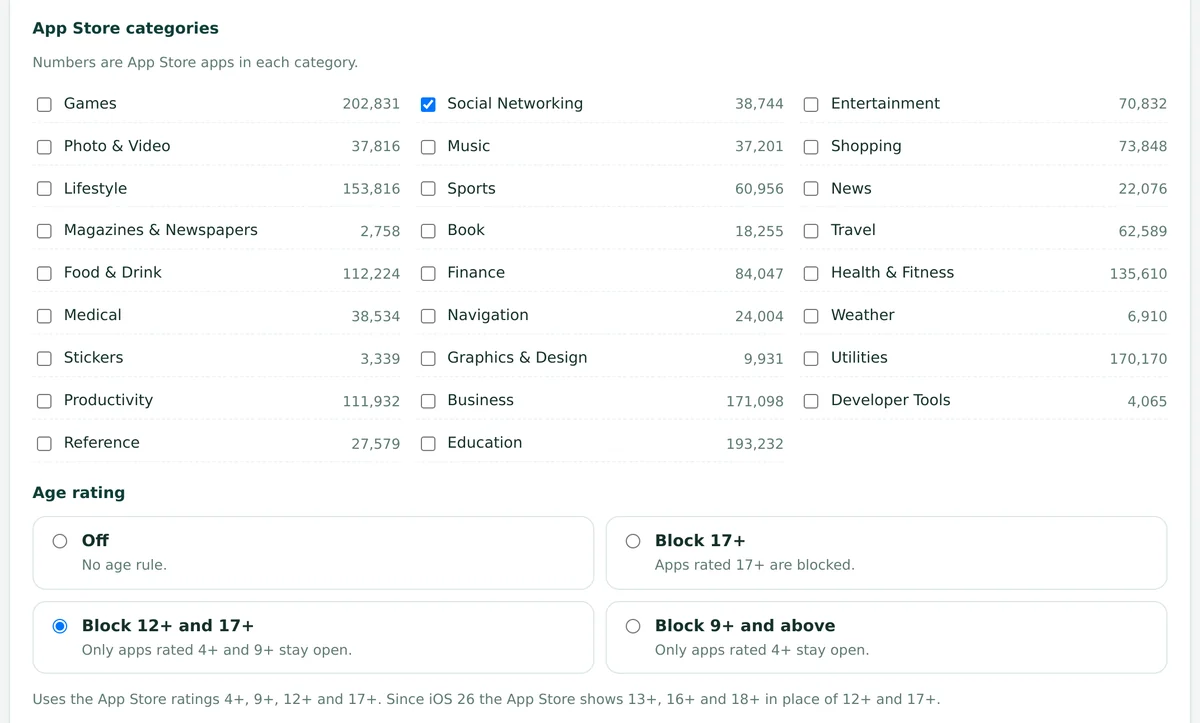
All 26 App Store categories
Tick Games or Social Networking and the apps in that category go on your list, starting with the most used.
Age rating rules
Block apps rated 17+, block 12+ and up, or block 9+ and up so only apps rated 4+ stay on a young child's tablet.
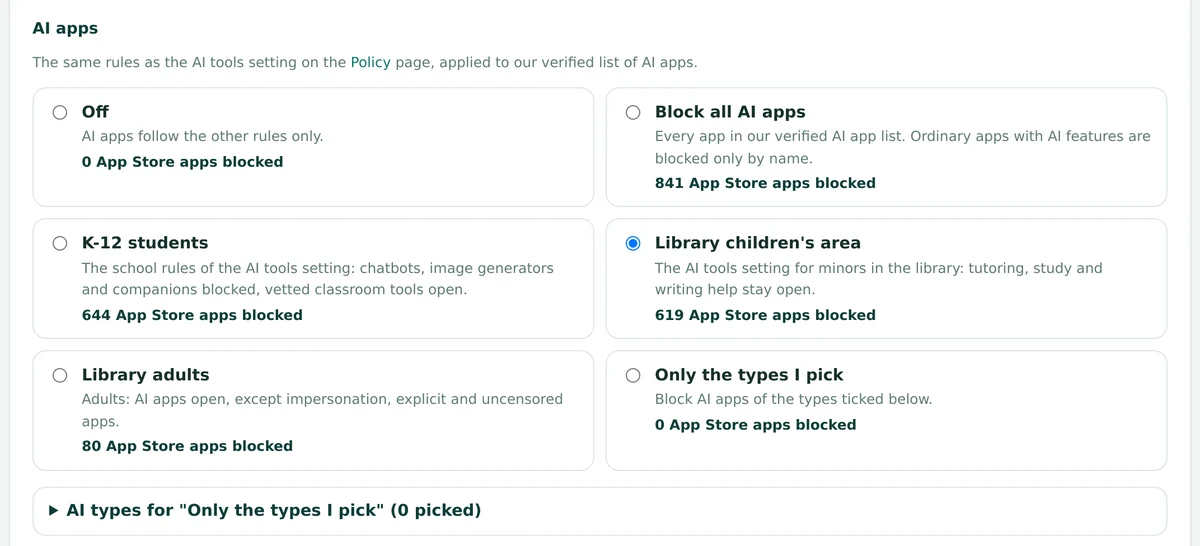
AI apps, your way
Off, block all, follow the same policy as your AI tools setting, or block only the AI types you pick.
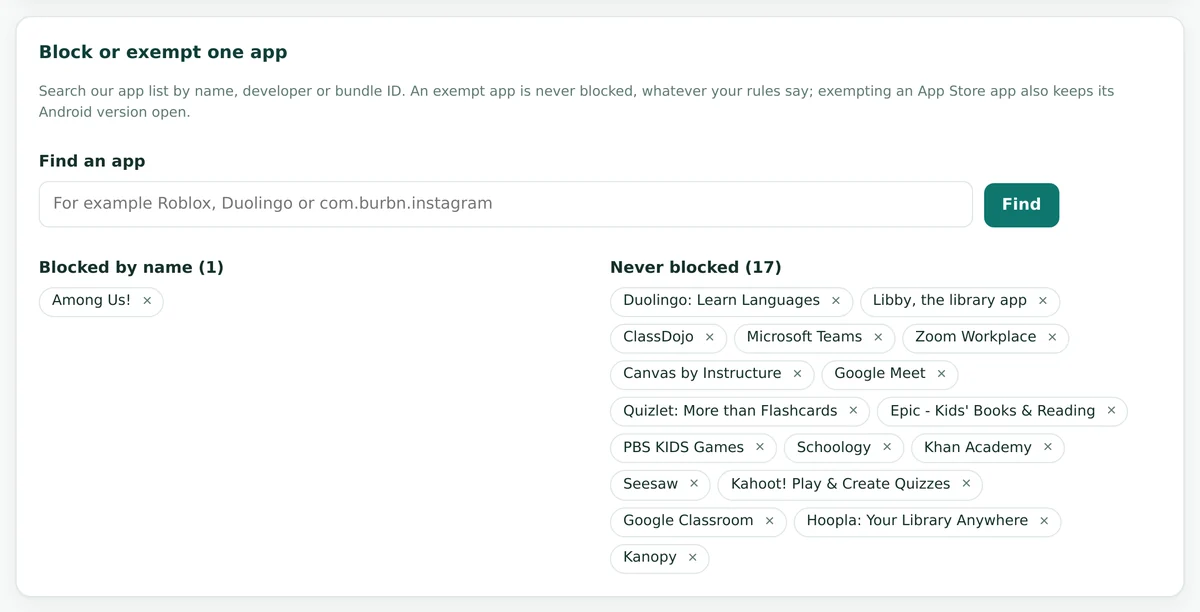
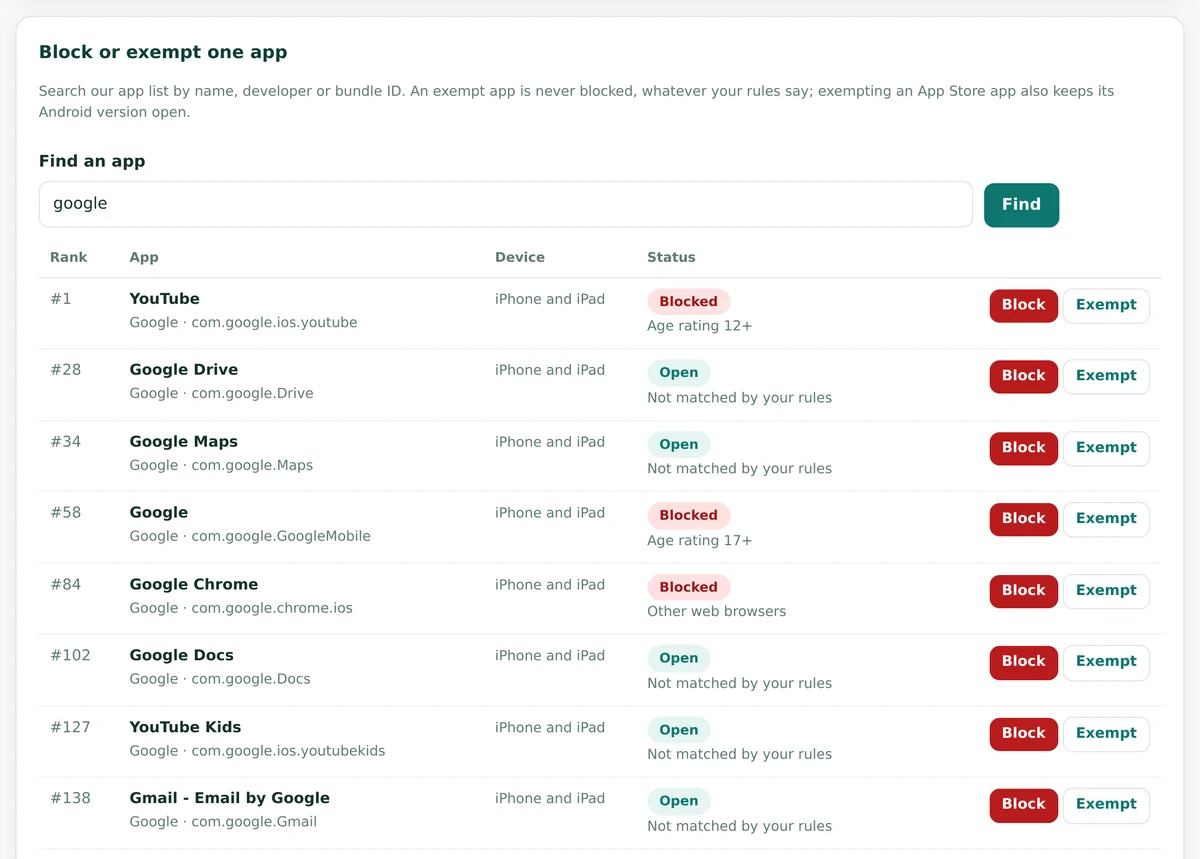
One app by name
Search by name, developer or bundle ID. Block a single app, or exempt one that a teacher or librarian relies on.
Start from a preset that fits the device
Each preset fills in every rule at once. You can change any rule afterwards. Apps you blocked or exempted by name stay where they are when you switch presets.
K-12 students
Student iPads, 1:1 devices and class carts.
- App Store categories Games and Social Networking
- All nine groups, from social media and chat to VPN apps, other browsers and photo vaults
- Apps rated 17+ blocked
- AI apps by the K-12 rules: chatbots, image generators and companions blocked, vetted classroom tools open
- Classroom apps kept open
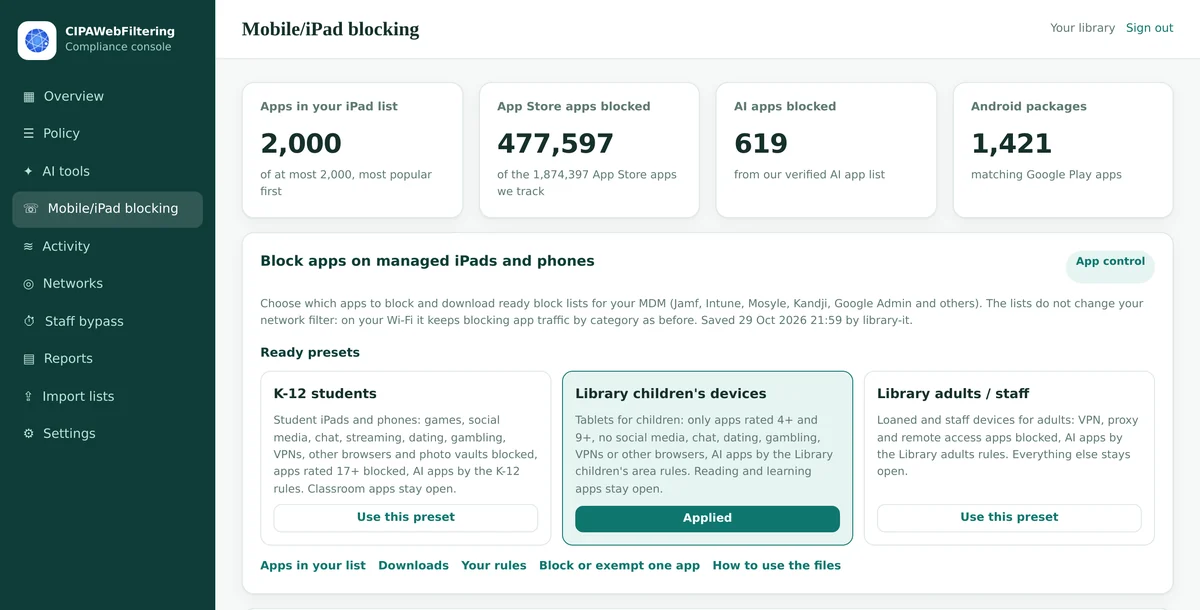
Library children's devices
Tablets in the children's area or on loan to families.
- App Store category Social Networking
- Every group except video and music streaming
- Only apps rated 4+ and 9+ stay open
- AI apps by the children's area rules: tutoring, study and writing help stay open
- Reading and learning apps kept open
Library adults / staff
Lending iPads for adult patrons and staff devices.
- VPN and proxy apps blocked
- Remote access apps blocked
- AI apps by the adults rules: open, except impersonation, explicit and uncensored apps
- No category or age rules
- Everything else stays open for lawful use
What each preset covers
Counts across the whole App Store catalogue, taken from the dashboard on 30 October 2026. Your iPad file holds the most popular of these apps, up to the list size you pick.
| Preset | App Store apps its rules block | AI apps blocked | Kept open |
|---|---|---|---|
| K-12 students | More than 500,000 | 644 | 15 classroom and library apps on the exempt list |
| Library children's devices | More than 470,000 | 619 | The same 15 apps, plus anything rated 4+ or 9+ that no other rule catches |
| Library adults / staff | About 270 | 80 | Everything except VPN, proxy, remote access and the riskiest AI apps |
Classroom and library apps the presets keep open
The K-12 and children's presets add these apps to your exempt list, so a broad rule such as an age limit never takes them away. You can remove any of them, or add your own.
- Google Classroom
- Canvas by Instructure
- Schoology
- Seesaw
- ClassDojo
- Khan Academy
- Quizlet
- Kahoot!
- Duolingo
- Epic
- PBS KIDS Games
- Libby
- Microsoft Teams
- Zoom Workplace
- Google Meet
Or build the rules yourself
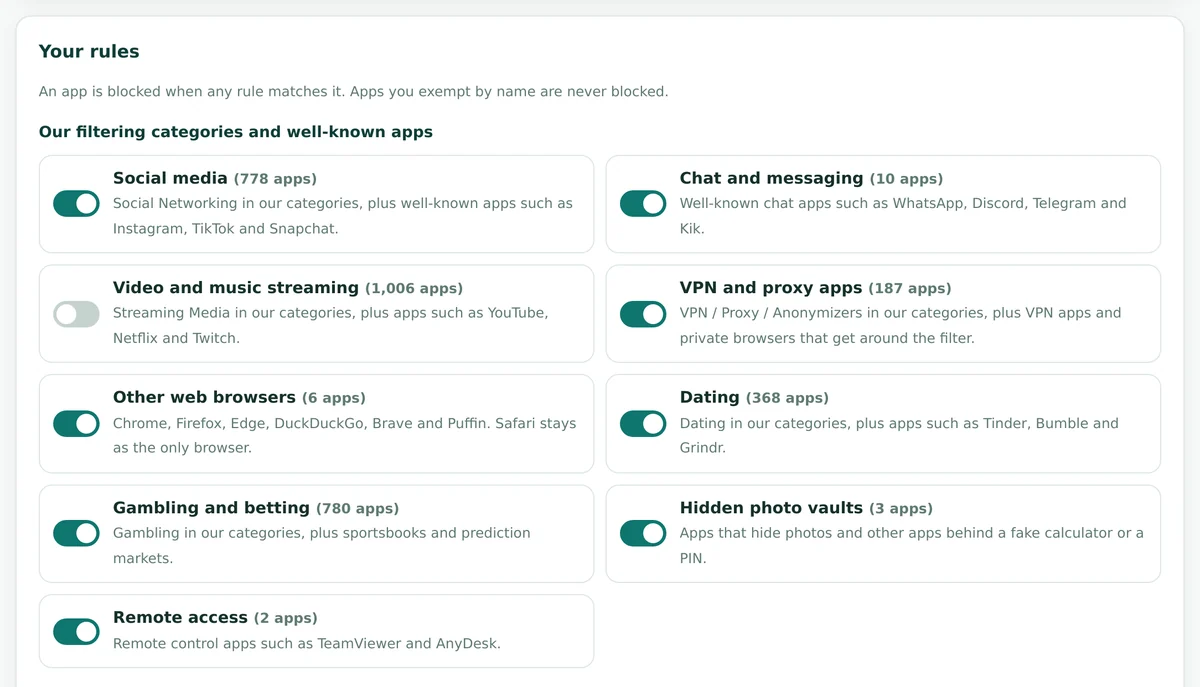
An app is blocked when any of your rules matches it. Rules add up, and an app on your exempt list stays open whatever the other rules say.
Groups of well-known apps
Each group combines our own filtering categories with hand-picked apps of that kind, so the big names are always caught.
| Group | Examples | Why it is blocked |
|---|---|---|
| Social media | Instagram, TikTok, Snapchat, Facebook, X | Distraction, and contact with strangers |
| Chat and messaging | WhatsApp, Messenger, Discord, Telegram, Kik | Private chats outside school or library oversight |
| Video and music streaming | YouTube, Netflix, Twitch, Spotify | Screen time and bandwidth during lessons |
| VPN and proxy apps | VPN apps and private browsers | They hide traffic from the network filter |
| Other web browsers | Chrome, Firefox, Edge, DuckDuckGo, Brave, Puffin | Safari stays as the one browser on the device |
| Dating | Tinder, Bumble and similar apps | Adult services on a child's device |
| Gambling and betting | Sportsbooks, casino apps, prediction markets | Age-restricted by law |
| Hidden photo vaults | Apps behind a fake calculator or a PIN | They hide photos and other apps from staff and parents |
| Remote access | TeamViewer, AnyDesk | Someone outside could control the device |
All 26 App Store categories
Tick a category and its apps join your list, most used first. Games alone holds more than 200,000 apps, so the list size you choose decides how many reach the file.
- Games
- Social Networking
- Entertainment
- Photo & Video
- Music
- Shopping
- Lifestyle
- Sports
- News
- Magazines & Newspapers
- Book
- Travel
- Food & Drink
- Finance
- Health & Fitness
- Medical
- Navigation
- Weather
- Stickers
- Graphics & Design
- Utilities
- Productivity
- Business
- Developer Tools
- Reference
- Education
Age rating
The age rule reads the App Store rating of every app. It is the quickest way to make a young child's tablet safe without listing apps one by one.
| Setting | Stays open | Blocked | Typical use |
|---|---|---|---|
| Off | All ratings | Nothing by age | Adult lending iPads, staff devices |
| Block 17+ | 4+, 9+ and 12+ | 17+ | Middle and high school iPads |
| Block 12+ and 17+ | 4+ and 9+ | 12+ and 17+ | Children's area tablets, elementary grades |
| Block 9+ and above | 4+ only | 9+, 12+ and 17+ | Early learning and story time devices |
Since iOS 26 the App Store shows 13+, 16+ and 18+ in place of 12+ and 17+. The dashboard explains this next to the setting.
AI apps
The AI rules match the AI tools setting of your hosted filter, applied to our verified list of AI apps. A chatbot blocked on your network is then also blocked as an app on your iPads.
| Choice | What it does | App Store apps blocked |
|---|---|---|
| Off | AI apps follow your other rules only | 0 |
| Block all AI apps | Every app in the verified AI app list. Ordinary apps that merely have AI features are blocked only if you name them | 841 |
| K-12 students | Chatbots, image generators and companions blocked, vetted classroom tools open | 644 |
| Library children's area | Tutoring, study and writing help stay open for minors | 619 |
| Library adults | AI apps open, except impersonation, explicit and uncensored apps | 80 |
| Only the types I pick | Tick AI types such as Image & Visual or Lifestyle & Entertainment | Depends on your choice |
Which rule wins
When several rules touch the same app, this order decides, and the dashboard shows the first rule that matched as the reason.
- 1
Exempt by name
Never blocked. An exempt App Store app also keeps its Android version open.
- 2
Blocked by name
Always blocked, and always in the file ahead of the popular apps.
- 3
AI rule
The AI choice you made, shown as for example "AI app (K-12 students rules)".
- 4
Groups
Social media, chat, VPN and the other groups you switched on.
- 5
App Store category
The categories you ticked, such as Games.
- 6
Age rating
Anything at or above the rating you block.
See what will be blocked, and why
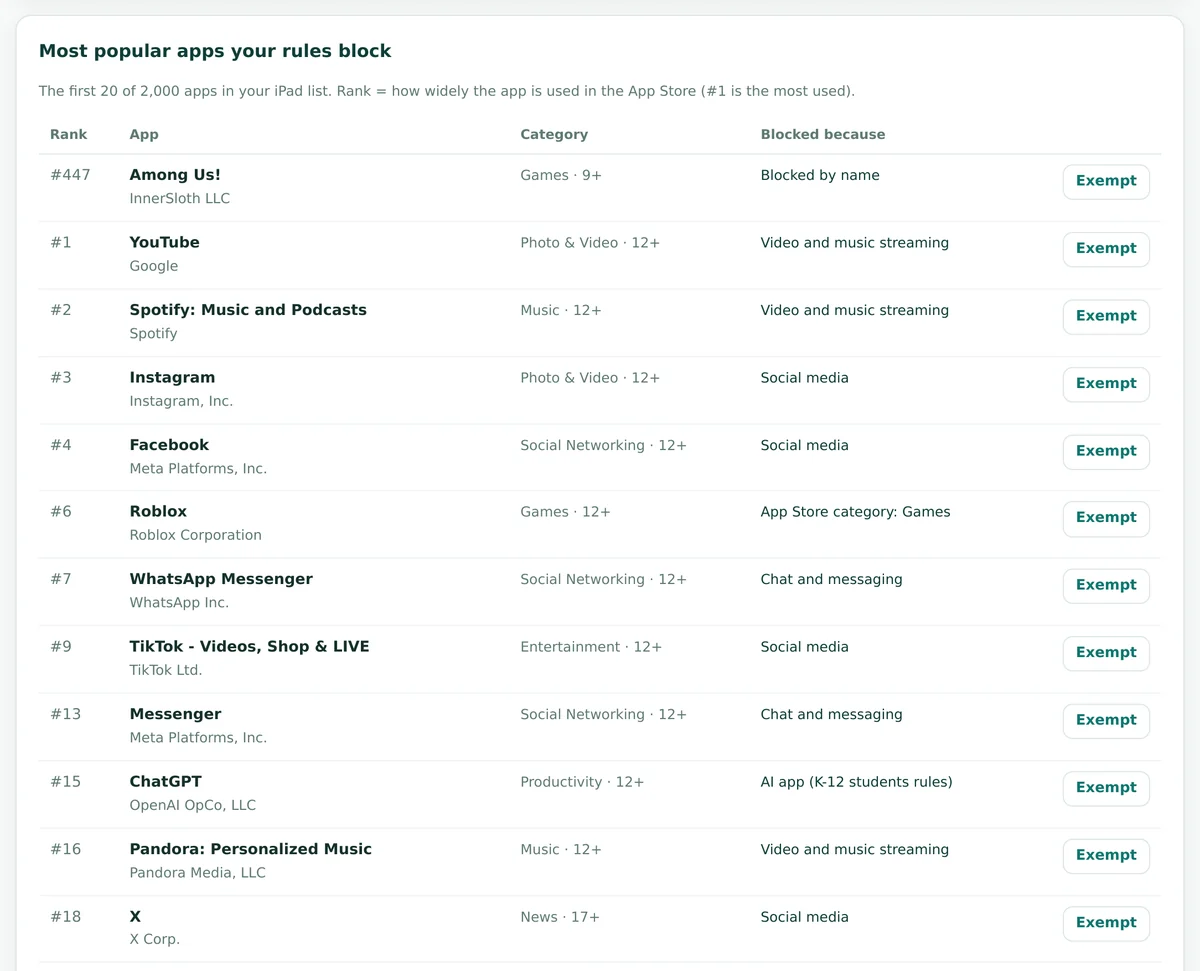
The page counts what your rules cover and lists the most popular apps they block, each with its reason. Nothing reaches a device until you download a file and upload it to your MDM, so you can try rules freely.
Apps in your iPad list
How many apps the file will hold, up to the list size you picked.
App Store apps blocked
Everything your rules cover across the whole catalogue of more than 1.8 million apps.
AI apps blocked
How many apps from the verified AI app list your AI rule blocks.
Android packages
The matching Google Play apps that go into the Android file.
Reasons you will see
- Blocked by name
- AI app (K-12 students rules)
- Social media, or Chat and messaging
- App Store category: Games
- Age rating 17+
Ranked by real use
- Each app carries a popularity rank, #1 is the most used
- The table shows the first 20 apps of your list
- An Exempt button sits on every row
- The name list CSV holds the full list with reasons
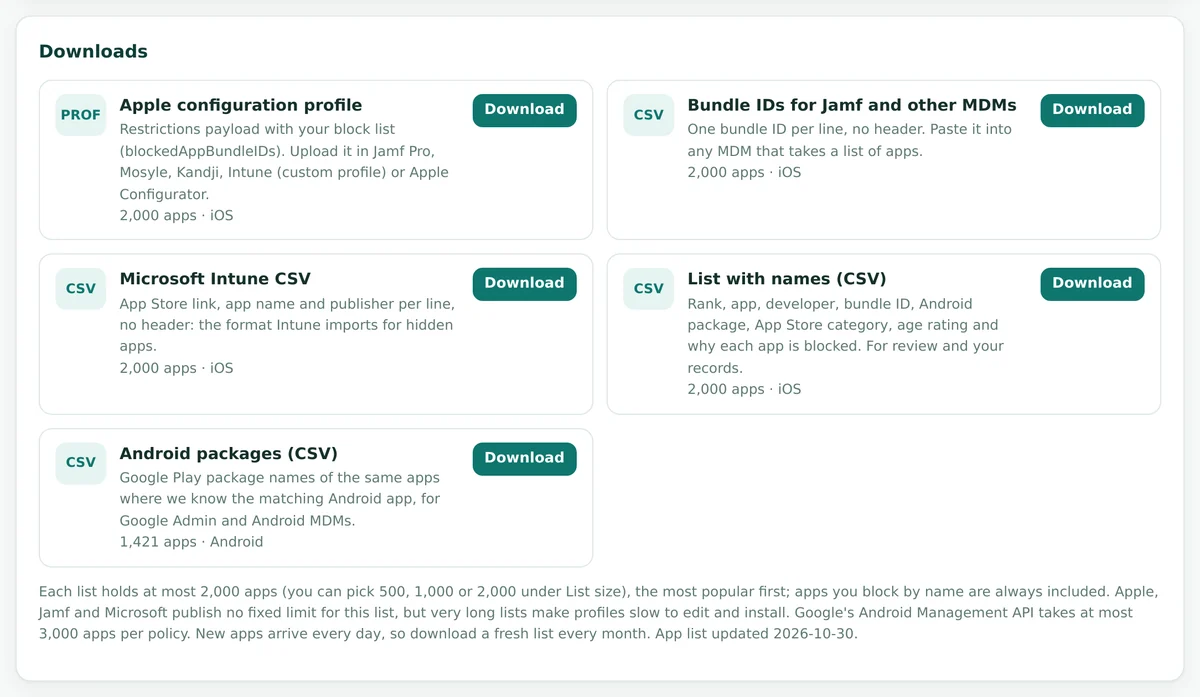
Five files, ready for your device management
Every file comes from the same rules, so the profile, the CSV lists and the Android list always match. File names carry your account and the date, which makes old and new versions easy to tell apart.
Apple configuration profile
A Restrictions payload with the bundle IDs of every blocked app. Blocked apps are hidden from the Home Screen and cannot be opened.
Jamf Pro, Intune custom profiles, Apple Configurator and other MDMsBundle IDs for Jamf and other MDMs
One bundle ID per line and no header row, ready to paste into any MDM that takes a list of apps.
Jamf and any MDM with an app list fieldMicrosoft Intune CSV
The App Store link, app name and publisher on each line: the format Intune imports for hidden apps.
Microsoft Intune device restrictionsList with names
Popularity rank, app, developer, bundle ID, Android package, App Store category, age rating and the reason it is blocked.
Review, board packets and your recordsAndroid packages
Google Play package names of the same apps, plus Android AI apps from the verified list that your rules cover.
Google Admin and Android MDMsClean updates
Each new profile has its own identifier, so it installs next to the old one. Restrictions add up, so there is no gap: upload the new file, then remove the old one.
Download fresh files every monthPut the lists on your devices
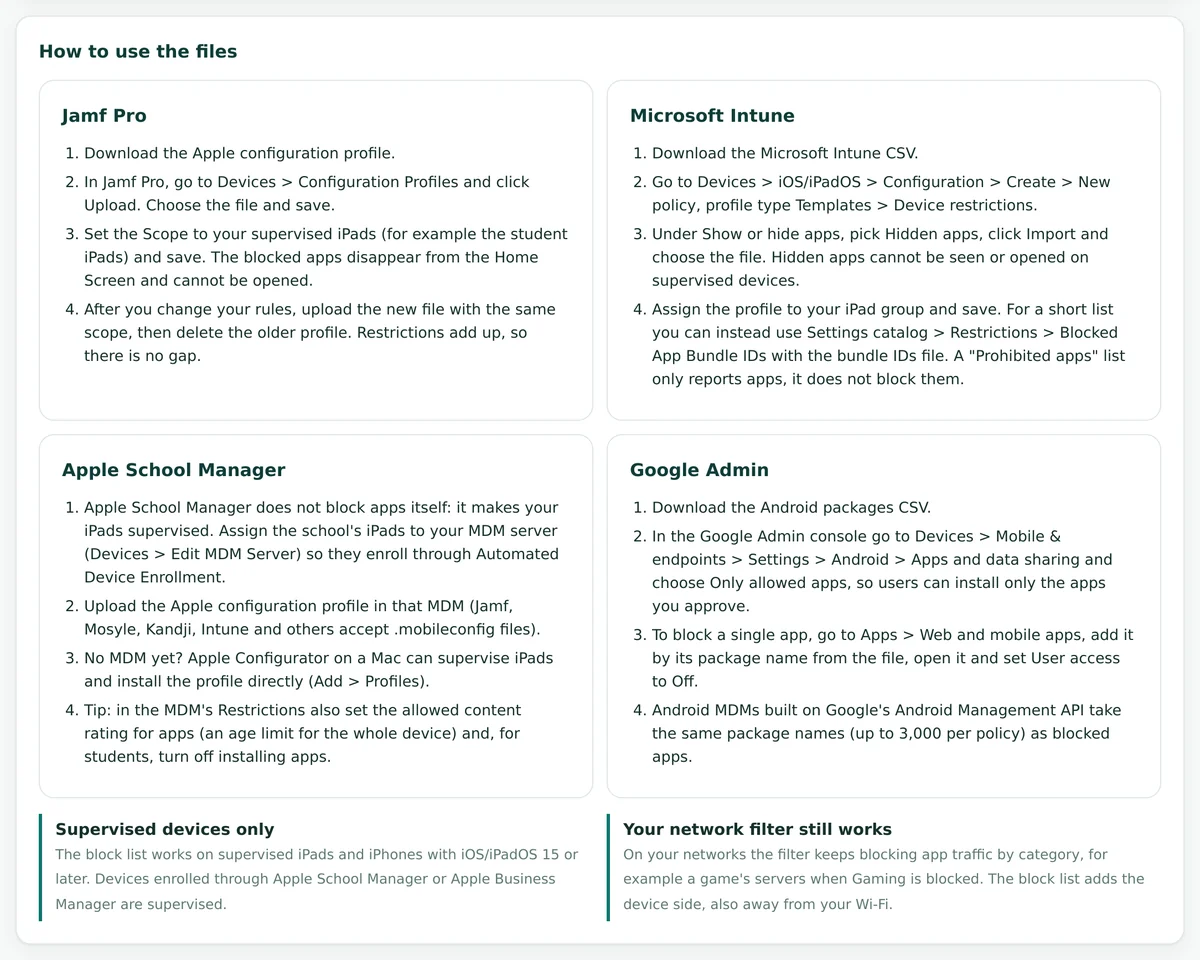
Download the file for your tool from the Mobile/iPad blocking page, then follow the steps for your MDM. The dashboard shows the same steps next to the downloads.
Jamf Pro
- Download the Apple configuration profile.
- In Jamf Pro, open Devices > Configuration Profiles and choose Upload. Pick the file and save it.
- Scope the profile to the supervised iPads it is meant for, such as a student group or the lending iPads, and save.
- The blocked apps leave the Home Screen and will not open. When your rules change, upload the new profile with the same scope, then delete the old one.
Microsoft Intune
- Download the Microsoft Intune CSV.
- Create a profile under Devices > iOS/iPadOS > Configuration > Create > New policy, using the Device restrictions template.
- Under Show or hide apps choose Hidden apps, then import the CSV. Hidden apps cannot be seen or opened on supervised devices.
- Assign the profile to your iPad group. For a short list, the Settings catalog entry Blocked App Bundle IDs takes the bundle ID file. A prohibited apps list only reports apps and does not block them.
Apple School Manager
- Apple School Manager does not block apps itself; it makes your iPads supervised. Assign them to your MDM server (Devices > Edit MDM Server) so they enroll through Automated Device Enrollment.
- Upload the Apple configuration profile in that MDM.
- No MDM yet? Apple Configurator on a Mac can supervise a small set of iPads and add the profile directly.
- While you are in the MDM restrictions, set the allowed app content rating for the whole device and, for students, turn off app installs.
Google Admin
- Download the Android packages CSV.
- In the Google Admin console, open Devices > Mobile & endpoints > Settings > Android > Apps and data sharing, and choose Only allowed apps so users install only what you approve.
- To block one app, add it under Apps > Web and mobile apps by its package name from the file, open it and set User access to Off.
- Android MDMs built on Google's Android Management API take the same package names as blocked apps, up to 3,000 per policy.
The network filter and App Control work together
Neither one replaces the other. The network filter covers every device on your Wi-Fi, including phones you will never manage. App Control covers the devices you own, wherever they go.
- Set once on your router or firewall
- Covers personal phones and tablets of students, patrons and guests, with nothing installed on them
- Blocks app traffic in blocked categories, for example a game's servers when Gaming is blocked
- Your category settings, lists and staff PIN stay as they are
- Stops at the edge of your network
- Blocked apps are hidden and will not open
- Works at home, on the bus and on public Wi-Fi
- Needs your MDM and supervised iPads or managed Android devices
- Rules and files in the same dashboard as the network filter
- Saving App Control rules never changes your network filter
Lists built on data we keep current
A block list is only as good as the app data behind it. These are the numbers behind every file you download.
App Store apps counted
Every app in the catalogue counted by category and age rating, so the totals you see cover the whole store, not a sample.
Ranked by real use
Apps carry a popularity rank, so each list starts with the apps people actually use.
AI apps checked by hand
933 iPhone and iPad apps and 899 Android apps, each tied to its tool and type in our list of 11,800+ AI tools.
Android twins, confirmed
An Android package goes on the list only when it is confirmed as the same app. We never guess a match.
Classroom apps protected
The school and children's presets keep the main classroom and library apps open by name.
Fresh lists
New apps arrive every day. The page shows when the app list was last updated, and new downloads include the latest apps.
Lending iPads, children's tablets and 1:1 iPads
The same page serves all three, but each kind of device needs a different starting point. Most sites run two or three device groups, each with its own file and scope in the MDM.
| Topic | Library lending iPads | Library children's tablets | School 1:1 iPads |
|---|---|---|---|
| Who uses them | Adult patrons and staff | Children in the children's area or on family loan | Students, at school and at home |
| Preset to start from | Library adults / staff | Library children's devices | K-12 students |
| Age rule | Off | Block 12+ and 17+ | Block 17+, or 12+ and 17+ for younger grades |
| AI apps | Library adults rules | Children's area rules | K-12 rules |
| Usually blocked | VPN, proxy and remote access apps | Social media, chat, dating, gambling, other browsers | Games, social media, chat, streaming, VPN apps, other browsers |
| Usually kept open | Everything else, including Libby, Hoopla and Kanopy | Libby, Epic and PBS KIDS Games; add Hoopla or Kanopy by name, as they are rated 12+ | Google Classroom, Canvas, Schoology, Seesaw and your own apps |
| Away from the network | Taken home by patrons, so the device list matters | Often stay in the building | Home use is the norm, so the device list matters most |
| When to refresh | Monthly | Monthly | Monthly, and before each term |
What you need
- A hosted filter plan from us, with the App Control add-on
- An MDM, such as Jamf Pro, Microsoft Intune or another tool that accepts configuration profiles or bundle ID lists
- Supervised iPads and iPhones for app blocking, enrolled through Apple School Manager or Apple Business Manager, or supervised with Apple Configurator
- iOS or iPadOS 15 or later
- For Android: Google Admin or an MDM built on the Android Management API
Good to know
- App Control installs nothing itself; your MDM applies the list
- Unsupervised and personal devices cannot take the block list; on your Wi-Fi the network filter covers them
- Lists work by app, not by content inside an app
- Apps that open the web are handled by the other browsers group and by the network filter
- Your network filter rules never change when you save App Control rules
From first preset to every device
A careful rollout takes a couple of weeks and keeps surprises away from classrooms and the children's desk.
- 1
Group your devices
List each device group, such as student iPads, children's tablets and lending iPads, and pick a preset for each.
- 2
Review the top apps
Read the most popular blocked apps and their reasons. Exempt anything a class, program or story time depends on.
- 3
Share the name list
Download the list with names and send it to teachers or the children's librarian for a quick check.
- 4
Test on a few iPads
Upload the profile scoped to a small test group of supervised iPads and confirm the right apps disappear.
- 5
Roll out
Widen the scope to the whole group. Tell staff what changed and how to ask for an app to be opened.
- 6
Refresh monthly
Download fresh files, upload the new profile, then remove the old one. There is no gap in between.
An add-on to any hosted filter plan
App Control is added to your hosted filter, so the device lists, the AI rules and the network filter all come from one dashboard. Tell us how many sites and managed devices you have, and tick App Control on the form.
Using the AI tools setting already? The AI app rules follow the same ready policies, so your iPads match your network.
Questions
Short answers to the questions IT staff and librarians ask most.
Which devices can App Control block apps on?
Supervised iPads and iPhones with iOS or iPadOS 15 or later, managed by your MDM. Android phones and tablets managed through Google Admin or an Android MDM take the matching package list.
Do we need an MDM?
Yes. App Control builds the block lists and your device management puts them on the devices. With no MDM, Apple Configurator on a Mac can supervise a small number of iPads and install the profile directly.
What about students' and patrons' own phones?
App Control only reaches devices you manage. On your Wi-Fi, the network filter still blocks app traffic in blocked categories for every device, including personal phones, with nothing installed on them.
How many apps go into a list?
You pick 500, 1,000 or 2,000 apps. Each list holds the most popular apps first, and apps you block by name are always included. Android lists never go above 3,000 apps, the most Google's Android Management API accepts in one policy.
Will classroom apps be blocked by mistake?
The K-12 and children's presets put 15 classroom and library apps on the exempt list, such as Google Classroom, Canvas, Seesaw, Khan Academy and Libby. You can exempt any other app by name, and an exempt app is never blocked.
How do the AI app rules relate to the AI tools setting?
They use the same ready policies: K-12 students, Library children's area and Library adults. App Control applies them to our verified list of AI apps, so a tool blocked on the network is also blocked as an app.
How do age ratings work now that iOS 26 shows new labels?
The rules use the App Store ratings 4+, 9+, 12+ and 17+. Since iOS 26 the App Store shows 13+, 16+ and 18+ in place of 12+ and 17+, and the dashboard notes this next to the age setting.
How often should we update the lists?
New apps arrive every day, so download fresh files every month. A new profile installs next to the old one, so you upload the new file first and then remove the old one, with no gap.
Do App Control rules change our network filter?
No. Saving App Control rules only changes the files you download. Your network filter keeps its own category settings and keeps working as before.
Can we block one app that no rule covers?
Yes. Search by app name, developer or bundle ID and block that app by name. Each named list holds up to 500 apps.
Can a student remove the profile?
No. A profile installed by your MDM stays until the MDM removes it, and our profile is also marked as not removable on the device.
How do we buy App Control?
App Control is an add-on to any hosted filter plan. See the hosted filter plans, or ask for a quote and tick App Control on the form.
Ready block lists for the iPads you manage
Tell us about your sites and managed devices. We will reply with a quote for the hosted filter with App Control.
Ask for a quoteSee the plans