App vetting for school districts, with every decision enforced
Teachers request apps through one link. Reviewers check privacy, agreements and age ratings with the app facts already filled in. When you approve or deny an app, the filter and your managed devices follow.
No student data is asked for or stored.
- RequestTeachers send one short form through a link you share.
- ReviewApp facts filled in, your checklist next to them.
- DecideApprove, approve with conditions or deny, with a note.
- EnforceAllow or block on the filter, export lists for your MDM.
- RenewAgreements on file, reminders 60 and 30 days before expiry.
App Vetting add-on: $79 a month per school, or $1,490 a year for a whole district
Added to the hosted CIPA filter. One school also pays $790 a year with two months free. Larger districts get a written quote.
Most vetting stops at the decision. Students do not.
Districts put real hours into every review. The result usually lands in a spreadsheet that the network and the devices never read.
Requests arrive everywhere
Email, chat, a question in the hallway. Many leave out the grade band, the number of students or what the app is for, so the first reply only asks for basics.
The same lookups, every time
Who makes the app, its App Store age rating, whether it has AI features, whether it carries ads. Reviewers look these up again for each request.
Denied apps still open
A denial in a tracker does not stop anything. Students reach the app on the network and on managed iPads until someone blocks it by hand.
Approved apps get blocked
The filter does not know an app was approved. A category rule can stop a tool the district reviewed and signed for, and a teacher loses a lesson.
Agreements expire quietly
Data privacy agreements have end dates. Without a reminder, the first sign of a lapse is a renewal notice or a question from a parent.
Some apps are never requested
Many apps reach classrooms without anyone asking. Without usage data, the review team never hears about them.
Request, review, approve, enforce, renew
Five steps in one place: the filter dashboard your IT team already uses. Each step has its own page, and each decision carries through to the next step.
Teachers request an app through one link
You get a request link to share on the staff intranet or in a staff email. Teachers need no account. You can replace the link or switch it off at any time.
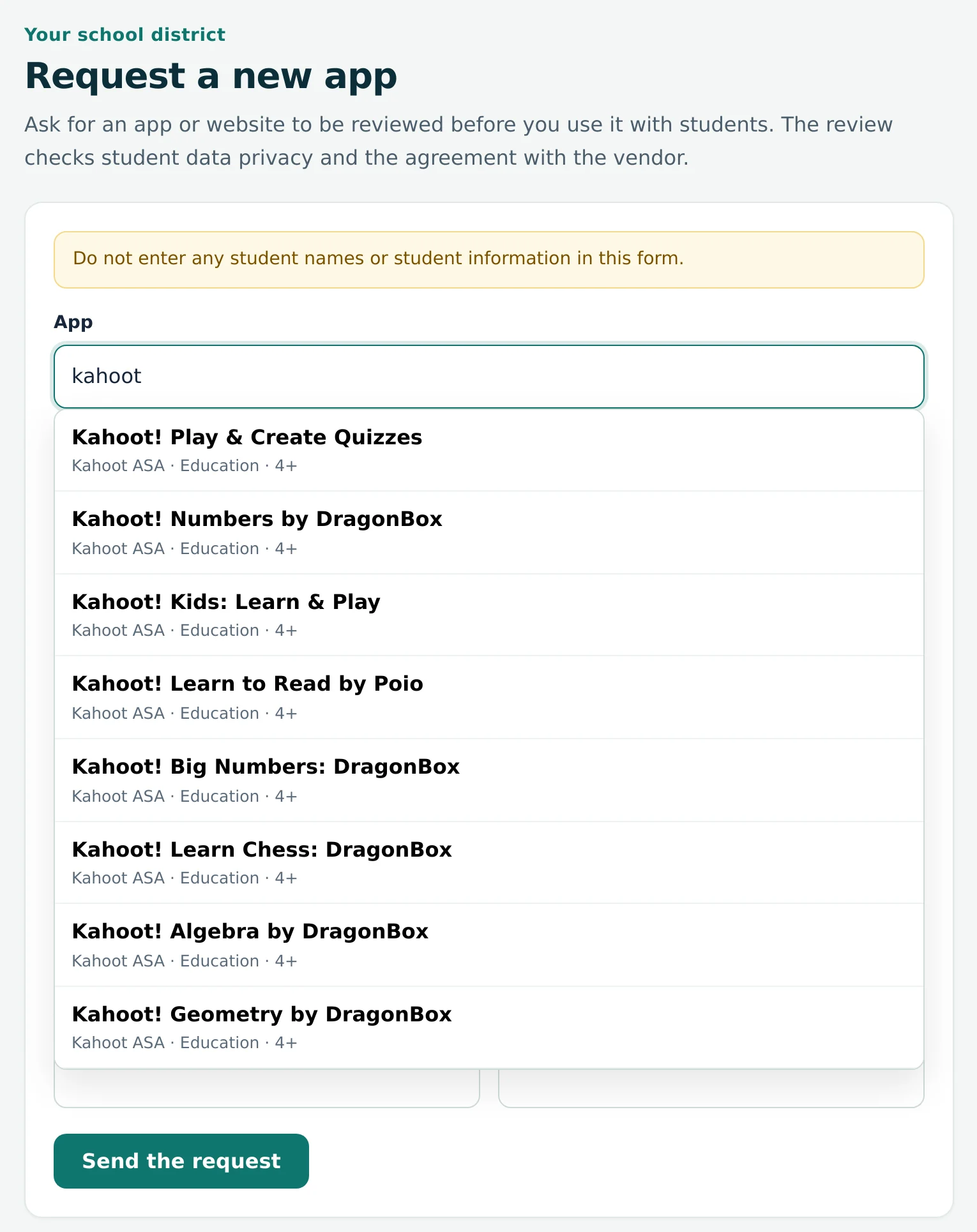
The form takes a few minutes and asks only what reviewers need to start:
- App: search box or website address
- Purpose
- Subject
- Grade band
- Number of students
- Staff name
- Staff email
No student fields. The form has no place for a student name, ID, roster or class list, so nobody can type one in by mistake.
Reviewers start with the facts already filled in
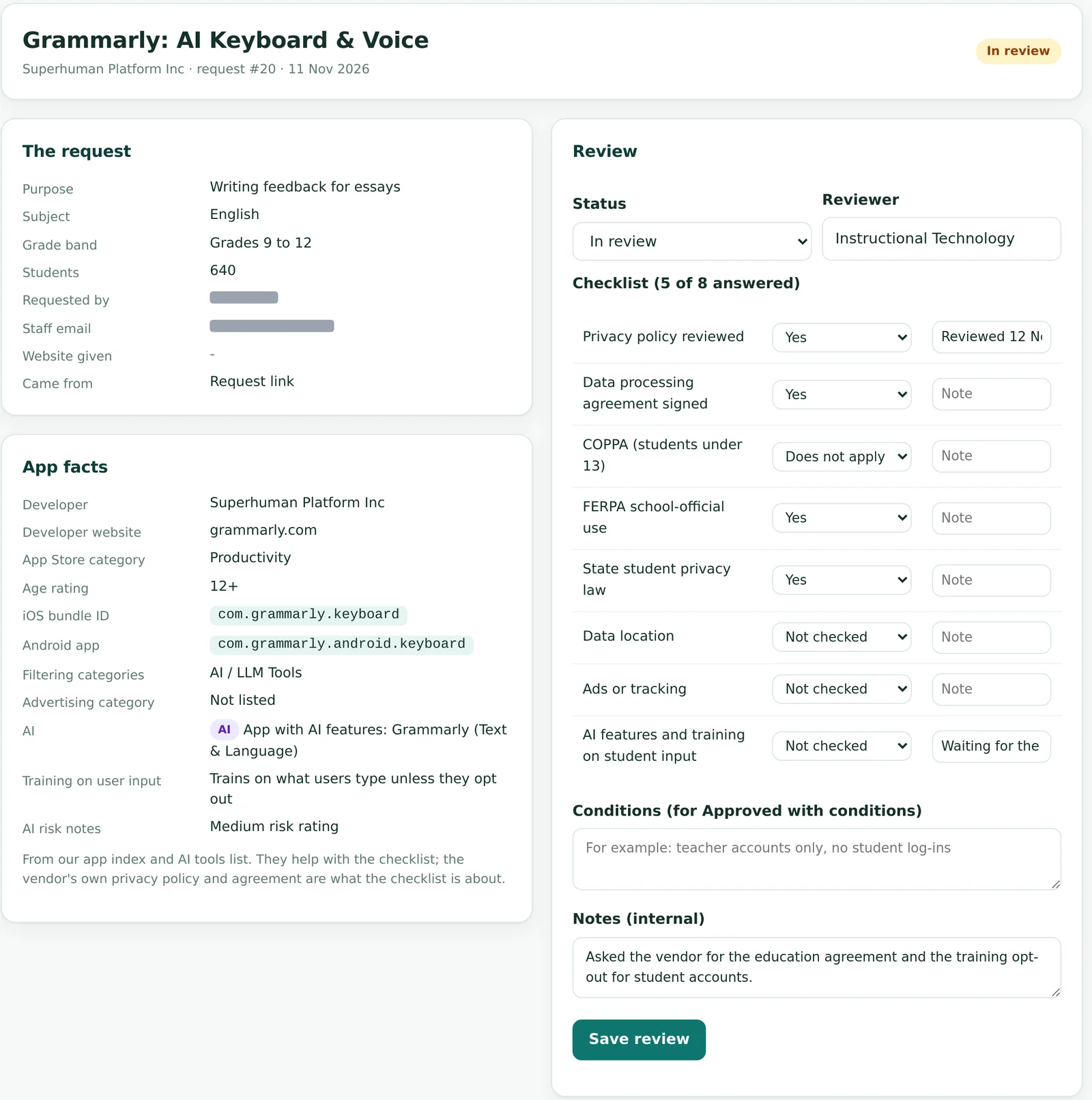
Each request opens with facts from our app index of the 100,000 most popular iPhone and iPad apps, and from our list of 12,000+ AI tools:
- Developer and developer website
- Age rating as listed in the App Store
- Filtering categories, the same ones your policy uses
- Whether it is an AI tool, and whether it trains on what users type
- Whether it falls in an advertising category
- The Android version, where the same app is on Google Play
We show what we know about the app. We do not summarize privacy policies or state facts we have not checked. The judgment stays with your reviewers.
Next to the facts sits your checklist, with a reviewer, dates and notes on every request. The list view shows each request's status at a glance.
Decide, and publish the approved list
Approve, approve with conditions or deny, with a note for the record. Conditions are short and practical, such as teacher accounts only or grades 9 to 12.
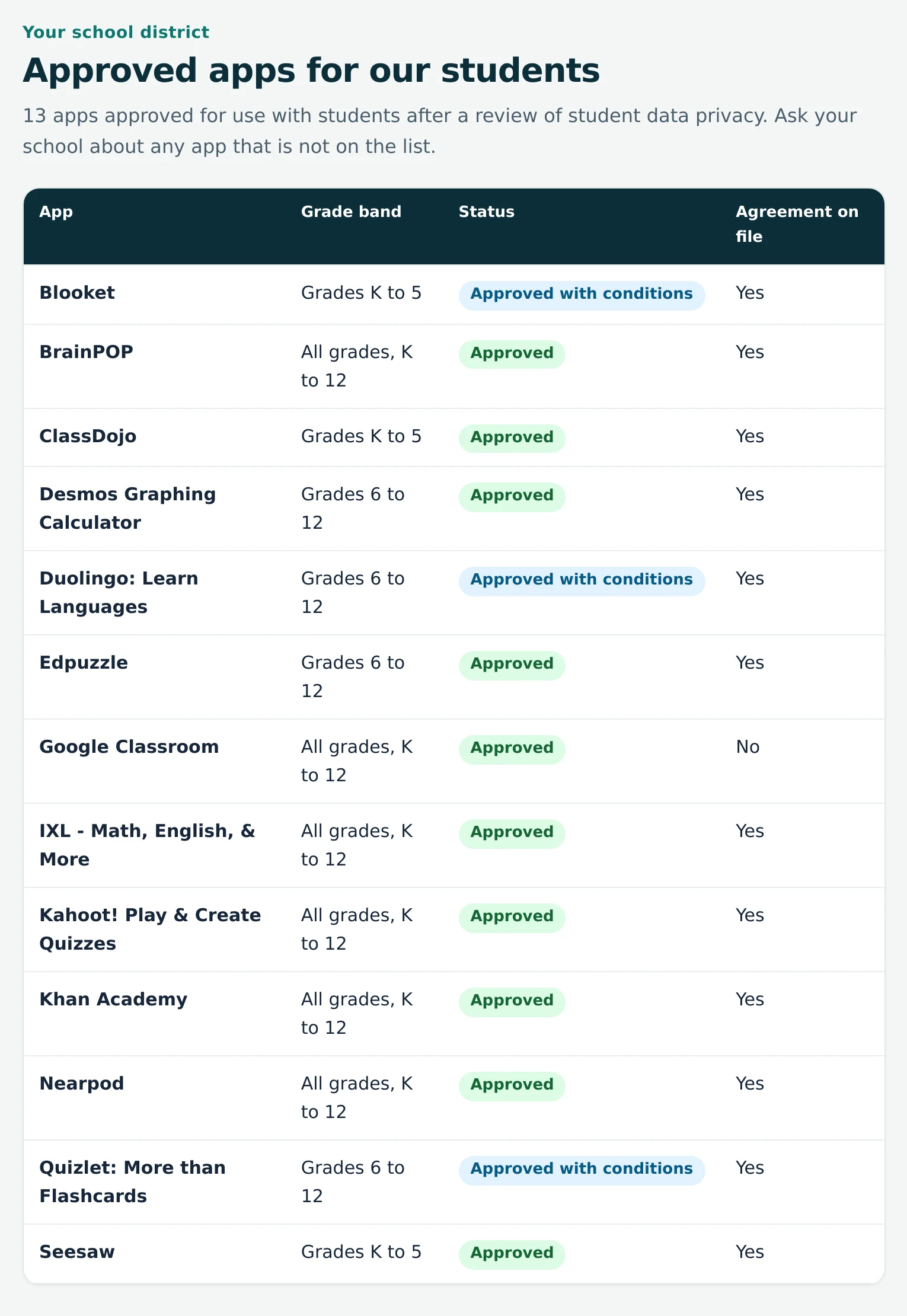
Approved apps go into an internal list for staff. If you want, they also go to a public page for parents, under your district's name, that shows four things for each app:
- App name
- Grade band
- Status
- Agreement on file: yes or no
The page updates from your decisions, so there is no second document to keep in line. Its link can be replaced or switched off at any time.
Apply the decision on the filter and on devices
Each decision has its own switches. Nothing changes on the filter until an admin confirms, and every change goes into the change log with who made it and when.
- Approved: the app's web addresses are allowed on your networks, through your allow list or, for an AI tool, by allowing that tool by name.
- Denied: the app's web addresses are blocked on your networks.
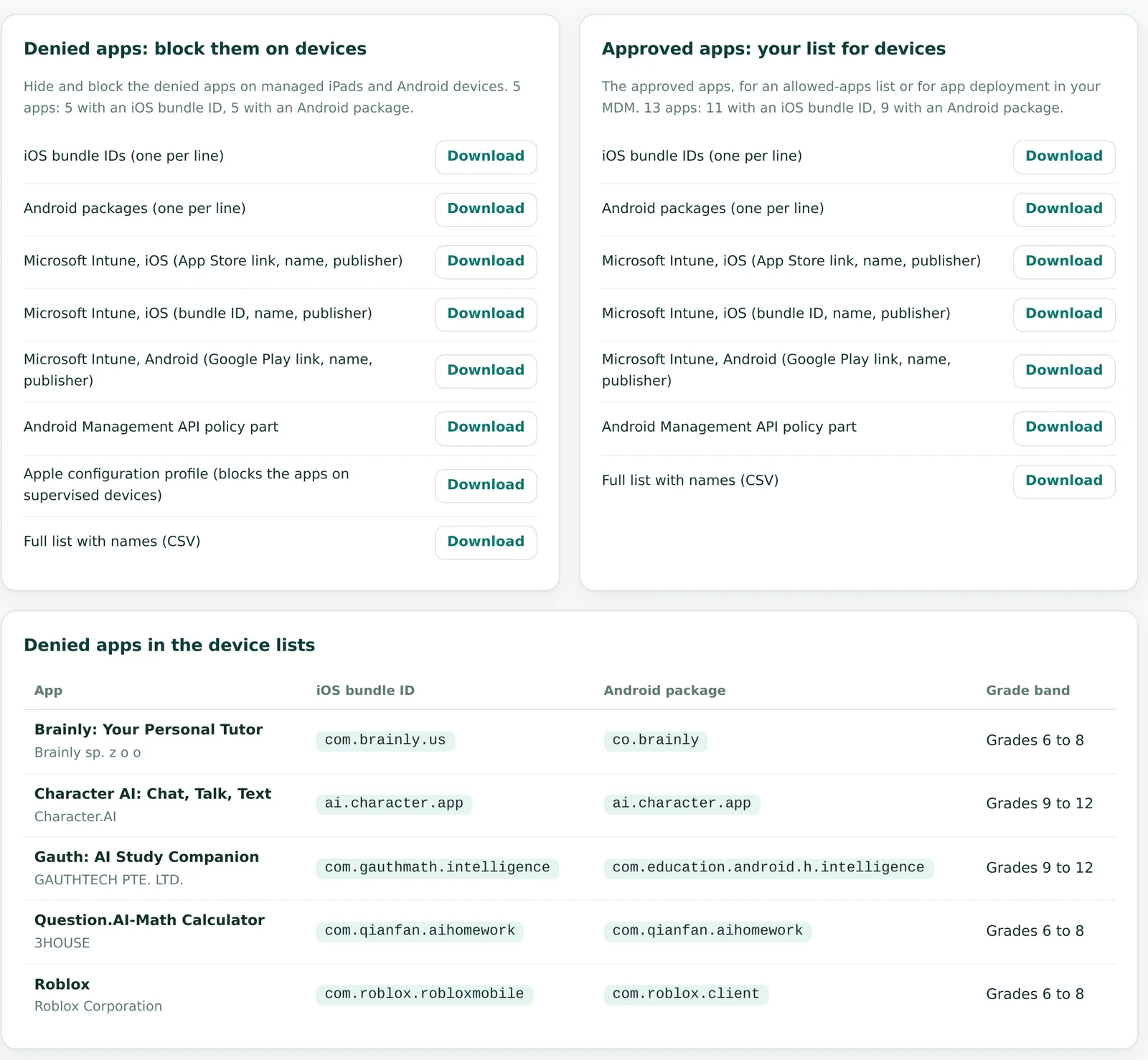
- Devices: approved and denied apps export as lists for your device management: a CSV of iOS bundle IDs and Android package names, an Apple configuration profile and a list ready for Microsoft Intune.
Blocking apps by bundle ID works on supervised iPads and iPhones. Check your MDM's current console for where each list goes.
Keep agreements current without a calendar
Upload the signed agreement for each app as a PDF and enter its expiry date. Switch on reminders and they come 60 days and 30 days before it runs out, by the same alert email the filter already sends you.
When an approved app's agreement ends, the app shows as Expired until it is renewed or decided again. Nothing changes on the filter without an admin's confirmation, so a missed renewal never cuts off a class in the middle of a lesson.
One PDF per app
The signed agreement sits with the app's review, in private storage. Only signed-in staff of your district can open it.
60 and 30 days
Two reminders before each expiry date, by the alert email your team already reads.
Expired stands out
Lapsed agreements get their own status, so the renewal list is one filter away.
History kept
Who reviewed, who decided and when stays with each app for the next review.
Decisions that enforce themselves
A tracker records what the district decided. App Vetting sits inside the filter, so the decision also reaches the network, the devices and the parents page.
| A tracker on its own | App Vetting in your hosted filter | |
|---|---|---|
| Where requests arrive | Email, chat and forms in different places | One request link for the district |
| App facts | Looked up by hand for each request | Filled in from the app index and the AI tools list |
| Denied apps | Open until someone blocks them by hand | Blocked on the network after confirmation, and exported for your MDM |
| Approved apps | Can still be caught by a category rule | Allowed on the network after confirmation |
| Apps nobody requested | Not visible | Listed from the filter's own usage data, with edtech and AI marked |
| Agreements | Dates in a spreadsheet column | PDF on file, reminders at 60 and 30 days |
| Parents | A document someone updates by hand | A live page from the same decisions |
On the network
Approved apps stay open even when a category rule would catch them. Denied apps are blocked for every device on your school networks.
On managed devices
The same decisions export as lists your MDM can import, so iPads and phones follow the review too.
In use, never requested
The filter already sees which services each network reaches, so the apps nobody asked about come to you.
See the apps students use that nobody has reviewed
App Vetting compares the services seen on your networks with your decisions. Anything with no approval and no denial goes on one list, with the services that look like edtech or AI marked so you can start with them.
- Built from the filter's usage data for your networks
- Edtech and AI services marked
- Services, not students: no names and nothing on devices
With Weathervane reports, the EdTech apps section of the monthly board report shows each app's use next to your review status.
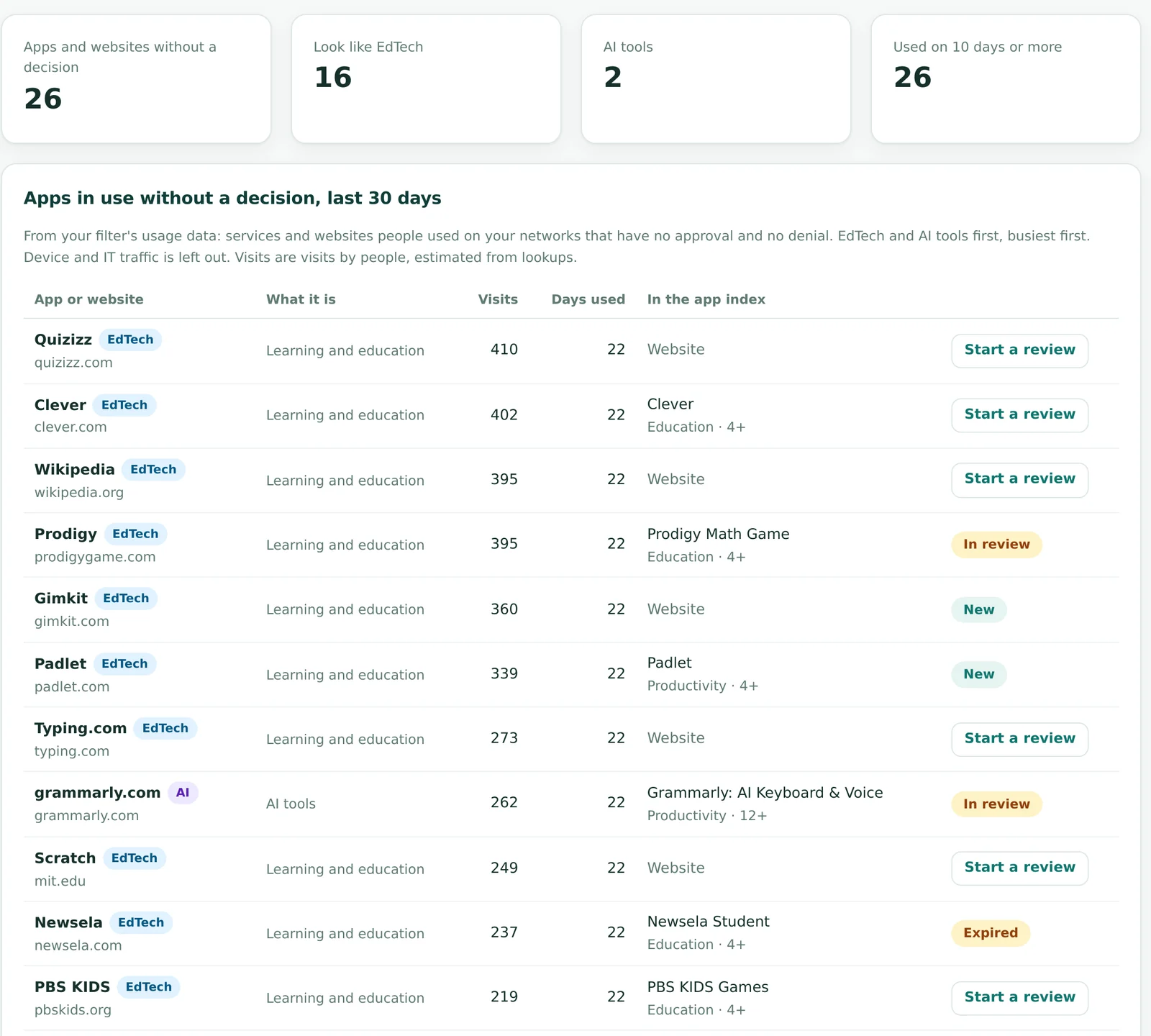
Start with the marked ones
Edtech and AI services are the ones most likely to hold student work or accounts, so review them first.
Ask the schools that use it
A service seen at one school is often one teacher's tool. A request from that teacher gives you the purpose and grade band.
Decide and enforce
Once decided, the app leaves this list and follows the same allow, block and export switches as any other request.
Built so student data never enters it
App Vetting is a record of decisions about apps. It holds staff details and documents about vendors, and nothing about individual students.
Staff details only
The request form asks for the staff member's name and staff email, plus facts about the app and how it will be used.
No student records
No student names, IDs, rosters or grades. The number of students on a request is a count, nothing more.
Agreements stay private
Agreement PDFs are stored privately and open only for signed-in staff of your district. They are never on a public link.
Four facts for parents
The parents page shows the app name, grade band, status and whether an agreement is on file. It never shows who asked or who reviewed.
Links you control
The request link and the parents page link can each be replaced or switched off from the dashboard.
Every change on record
Decisions and filter changes go into the change log with the person and the time, ready for an audit or a board question.
Eight default items, and what each one asks
The checklist starts with the questions most districts already ask. Rename items, add your own or remove the ones that do not apply. It records your review; it is not legal advice.
| Item | What the reviewer confirms | What App Vetting puts next to it |
|---|---|---|
| Privacy policy reviewed | Someone read the app's current privacy policy and noted any concerns. | A note field and the review date |
| Data processing agreement signed | A signed agreement covers this app, or one is on its way. | PDF upload with an expiry date and reminders |
| COPPA (under 13) | For students under 13, whether the school can consent for this use or parents must. | The grade band from the request and the App Store age rating |
| FERPA school-official use | The vendor works under the district's direct control for any education records it receives. | A note field, with the agreement on file |
| State student privacy law | The agreement meets the terms your state requires. | Your own wording for your state |
| Data location | Where student data is stored and processed. | A note field |
| Ads or tracking | Whether the app shows ads or tracks users for advertising. | The advertising category flag |
| AI features and training | Whether the app has AI features and whether it trains on what students type. | The AI tool flag and the training flag from our AI tools list |
Background reading: COPPA and schools, FERPA and edtech apps and student data privacy agreements.
Six statuses, one meaning each
Every request carries one status. The status says where the review stands; the switches decide what happens on the network.
Request received
A teacher sent the form and nobody has picked it up yet.
Filter: no change.
A reviewer is on it
The checklist is in progress, with notes and dates as the work goes on.
Filter: no change.
Cleared for the grade band
The app goes on the approved list and, if you want, on the parents page.
Filter: allowed after you confirm. In the approved export.
Cleared, with limits
For example teacher accounts only, or grades 9 to 12. The conditions stay with the app.
Filter: allowed after you confirm. In the approved export.
Not cleared
The note explains why, so the next request for the same app gets a quick answer.
Filter: blocked after you confirm. In the denied export.
Agreement past its end date
An approved app whose agreement has ended. It stands out in the list until it is renewed or decided again.
Filter: no change without your confirmation.
Lists your device management can import
The network covers every device on your school networks. Managed iPads and phones that go home need the decision on the device as well, so the same approved and denied apps export in three forms.
CSV of IDs
Each app with its decision, its iOS bundle ID such as com.google.Classroom and its Android package name where the app is on both stores. Opens in any spreadsheet.
Apple configuration profile
A .mobileconfig file with the denied apps' bundle IDs, for MDMs and Apple Configurator. App blocking by bundle ID needs supervised devices.
Intune list
Bundle IDs and package names in a plain list, ready to paste into the app settings of a Microsoft Intune device profile.
One place for everyone in the process
App vetting crosses several desks. Each person sees the part they need, and the record is the same for all of them.
Teachers
Send one short form from a link, without an account. The answer comes back with the status and any conditions.
Privacy or data officer
Works the checklist, keeps agreements on file and gets the renewal reminders before anything lapses.
Curriculum leads
See the purpose, subject and grade band of each request, and set conditions where an app fits only some classes.
IT and device team
Confirm the filter switches, download the device lists and read the change log when something needs explaining.
Principals and the board
Get one current approved list for the district, instead of a different spreadsheet in each school.
Parents
See which apps are approved for which grades, and whether an agreement is on file, from the public page.
Federal and state privacy rules, and where App Vetting helps
App Vetting does not decide what the law requires of your district. It keeps the work those rules create in one place, with dates and documents attached.
COPPA
For apps used by children under 13, reviewers record whether the school can consent for this use. The grade band on each request shows when the question applies. See COPPA and schools.
FERPA
The school official item and the agreement on file show how each vendor works under the district's control. See FERPA and edtech apps.
State student privacy laws
Some states ask districts to publish which operators they work with under an agreement. The parents page keeps that list current from your decisions. Our Illinois SOPPA guide shows one example.
CIPA
CIPA does not require app vetting, and your CIPA filtering works the same with or without this add-on. App Vetting adds decisions on named apps to the category policy you already have.
App Vetting prices
App Vetting is added to the hosted CIPA filter, in the same dashboard and for the same networks. It works with every hosted filter plan, from one school to a whole district.
App Vetting
Added to the hosted CIPA filter you have. Monthly plans can be cancelled at any time.
- Request link for teachers
- Review page with your checklist
- App facts from the app index
- AI tool and training flags
- Six statuses with notes and dates
- Approved list and parents page
- Agreement PDFs with expiry dates
- Reminders at 60 and 30 days
- Allow and block on the filter
- CSV, profile and Intune lists
- Unapproved apps in use
- Change log for every decision
App Vetting FAQ
What is App Vetting?
App Vetting is an add-on for the hosted CIPA filter that runs a district's edtech app process in one place: teacher requests, reviews with a checklist, approvals and denials, data privacy agreements with expiry dates, and a parents page. Each decision can then be applied on the filter and exported as lists for your device management.
Do we need the hosted CIPA filter to use App Vetting?
Yes. App Vetting is an add-on to the hosted CIPA filter, because the filter is what turns a decision into an allow or block rule and what shows the apps in use that nobody has reviewed. It works with every hosted filter plan, from one school to a whole district.
Does App Vetting store student data?
No. The request form asks for the staff member's name and staff email and for details about the app: purpose, subject, grade band and the number of students. There is no field for a student name, ID or class list.
Who can see our signed agreements?
Only signed-in staff of your district in the dashboard. Agreement PDFs are stored privately and are never published on a public link. The parents page only shows whether an agreement is on file.
What does the parents page show?
Four things for each app: the app name, the grade band, the status and whether an agreement is on file. It shows nothing about who asked for the app or who reviewed it. The link can be replaced or switched off at any time.
Does a decision change the filter right away?
Only after an admin confirms it. Approving or denying an app records the decision. The switch to allow or block the app's web addresses asks for confirmation first, and every change is written to the change log with who made it and when.
Which device management tools can use the export?
The export gives a CSV of iOS bundle IDs and Android package names, an Apple configuration profile and a list ready for Microsoft Intune. Any MDM that accepts a list of bundle IDs or package names, or a configuration profile, can use them. Blocking apps by bundle ID needs supervised iPads and iPhones.
Can we change the review checklist?
Yes. It starts with eight items: privacy policy, data processing agreement, COPPA for students under 13, FERPA school official use, state student privacy law, data location, ads or tracking, and AI features with training on student input. You can rename, add or remove items.
What if a teacher asks for an app that is not in the app index?
The teacher enters the app's website address instead. The request goes through the same review, and reviewers fill in what the index could not.
How much does App Vetting cost?
One school costs $79 a month or $790 a year. A district pays $1,490 a year, one flat price for all its schools. Larger districts get a written quote within one business day. App Vetting is added to the hosted CIPA filter and bought on its own page.
Larger district, or a question first?
Tell us how many schools and devices you have and which options you want. We reply with a written quote within one business day.
Useful to include
- Number of schools and roughly how many students
- Whether you already use our hosted filter
- Your MDM: Jamf, Intune, Google Admin or another
- How requests reach you now
- Roughly how many apps you review in a year
- Who reviews: IT, privacy, curriculum or a committee
Guides for the people who vet apps
Practical background for each part of the process, from the first request to the renewal.
Apple, iPad, iPhone and App Store are trademarks of Apple Inc. Google Play, Android and Google Classroom are trademarks of Google LLC. Microsoft and Intune are trademarks of Microsoft Corporation. Jamf is a trademark of JAMF Software, LLC. Other app names shown are trademarks of their owners.
Names are used only to identify the products discussed. CIPAWebFiltering.com is not affiliated with, sponsored or endorsed by these companies.