How to Block Snapchat on School Chromebooks
Snapchat is mostly a phone app, so many admins assume it is not a Chromebook problem. It is: there is a browser version, and the Android app runs on many managed Chromebooks. Work through these five phases in order and the block will hold at school and at home.
Why schools block Snapchat
Snapchat's design choices make sense for friends sharing moments. On a school device those same choices make supervision and incident follow-up hard. These are the reasons districts give most often.
Disappearing messages
Messages and images are designed to vanish. When a student reports bullying or harassment, there is often little left to review.
Location sharing
The map feature can show a student's location to friends. Settings vary, and younger students may not understand who can see them.
Contact from outsiders
Friend suggestions and quick adds can connect students with people they do not know in real life.
Image sharing
Private image sharing raises the risk of explicit images being sent or requested, which a school must take seriously.
Streaks and attention
Features that reward daily use pull attention during lessons, even on a laptop.
Minimum age 13
The platform's terms set a minimum age of 13, so it has no place on elementary devices at all.
CIPA and E-Rate context
CIPA requires an internet safety policy that covers minors' safety in direct electronic communication, and E-Rate schools must educate students about social networking behavior and cyberbullying. Snapchat sits at the center of both.
State law context
Some states now require districts to limit student social media access on school networks; Florida's HB 379 from 2023 is one example. Rules differ by state, so check yours. Our Ohio SB 29 school compliance page covers a student data law that also shapes device policy.
Decide the scope per grade band
| Unit | Typical decision | Reasoning |
|---|---|---|
| Elementary | Blocked at all times | Below the platform's minimum age; no educational use |
| Middle school | Blocked at all times | Many students under 13; highest rate of peer conflict reports |
| High school | Blocked on school devices | No classroom purpose; families decide on personal phones |
| Staff | Usually allowed | Communications teams may run official accounts |
| Library or guest devices | Follow public device policy | Often blocked with other social media for minors |
How Snapchat reaches a Chromebook
Browser version
- Chat and calls in a Chrome tab after signing in.
- Follows the Chrome URL blocklist and browser filters.
- Blocked by the domain entries in phase 2.
Android app
- Installs from Google Play where students are allowed to browse it.
- Does not reliably follow the Chrome URL blocklist.
- Blocked by app control in phase 2.
- Can students in each unit browse managed Google Play freely?
- Is Snapchat already installed on any student Chromebook?
- Which units allow students to add Chrome extensions?
- Is incognito mode or guest mode allowed for students?
- Does your filter follow the device off campus?
- What does board policy say about social media on school devices?
Stop Snapchat at the name lookup, app and browser alike
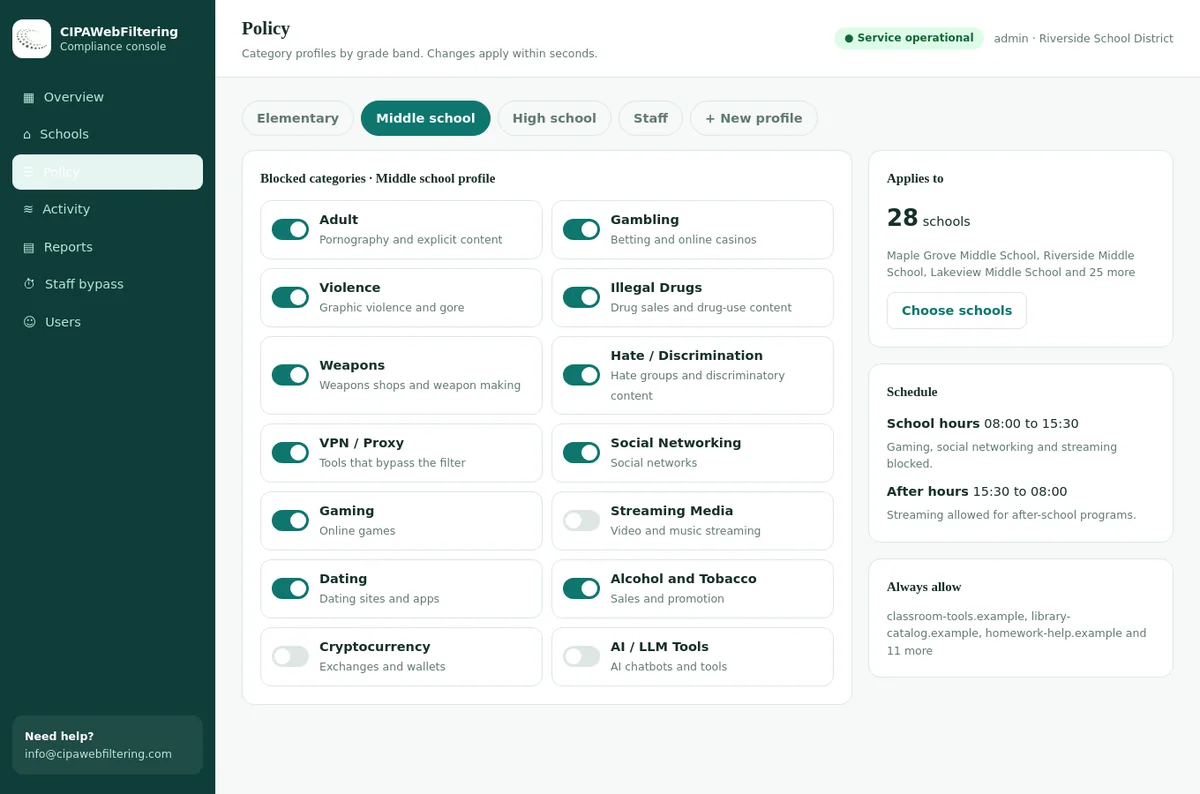
The Android app ignores Chrome rules, but both routes still need DNS to find Snapchat. Our hosted CIPA filter is the DNS service we run for your schools, so a Social Networking switch refuses the lookup whichever door the student uses.
- The same rule reaches phones on school Wi-Fi when the router uses the filter.
- Communications staff can have their own settings at their school.
- Nothing is installed, and a change reaches every device in seconds.
Block Snapchat in the Google Admin console
Two settings do the core work: the URL blocklist for the browser version and Google Play control for the app. Apply both to the student organizational units only.
- Select the student unit in the left panel.
- Add the domains below to Blocked URLs, one per line.
- Leave Blocked URL exceptions empty for these domains.
- Save, then copy the entries into any child unit that overrides this list.
snapchat.comsc-cdn.netA bare domain covers its subdomains, including the web chat host.
- For the student unit, choose a mode where only approved apps install.
- If you use a blocklist mode instead, add the Snapchat app to it.
- Remove existing Snapchat installs and check force-install lists.
- Set Chrome Web Store access to approved extensions only.
Settings that protect the block
| Setting | Student value | What it prevents |
|---|---|---|
| Incognito mode | Disallowed | Sessions that hide browsing from review |
| Guest mode | Disabled | Browsing without any user policy |
| Sign-in restriction | School domain only | Personal accounts on school devices |
| DNS-over-HTTPS | Set by the district | Switching Chrome to an outside resolver |
| Developer tools | Restricted for students | Tampering with pages and policies |
Configuration mistakes to avoid
Editing the top unit
Adding the block at the top of the tree reaches staff accounts, including communications staff who manage official school accounts.
Forgetting override units
A child unit that overrides URL blocking ignores the parent list. Its students keep Snapchat until you add the entries there too.
Blocking shared cloud hosts
Chasing every Snapchat host can lead admins to block large shared cloud domains, which then breaks unrelated school tools.
Leaving old installs
Changing the Play mode does not always remove apps already installed. Check device app reports after the change.
Testing on staff devices
An admin account on a staff Chromebook shows nothing useful. Always test with a student test account in the right unit.
No change record
Note the date, unit and reason for every change. It answers parent and board questions months later.
Related sites that sit in other categories than the app
Snapchat and its parent company are Social Networking. A story saver site is filed under File Sharing/P2P, and the developer kit under Developer Tools, so the extra categories matter next to the social switch.
| Domain | Category labels |
|---|---|
| snapchat.com | Social Networking |
| snap.com | Social Networking |
| bitmoji.com | Social Networking, Web-based Applications |
| storysaver.net | File Sharing/P2P, Web-based Applications |
| snapkit.com | Developer Tools / Code Hosting, Computers & Technology |
Extend the block with categories, off-campus coverage and bypass controls
Phase 2 blocks Snapchat by name. Phase 3 makes the block resilient: it covers new hosts and similar apps, follows the device home and closes the routes students use to get around it.
Category settings for a social messaging block
| Category | Student setting | Note |
|---|---|---|
| Social Networking | Blocked | Covers Snapchat and the platforms students move to next |
| VPN / Proxy / Anonymizers | Blocked | Main bypass route for every social block |
| Email and Messaging | Allowed with exceptions | Blocking it fully would stop district email |
| Dating | Blocked | Part of the CIPA-relevant set for minors |
| Adult | Blocked | Required under CIPA for minors |
Category filtering reaches Chromebooks through a force-installed filtering extension, a DNS filter or a cloud gateway. Compare them in category filtering on managed Chromebooks, and see the broader view in social media filtering for schools.
Off campus and bypass: four places to look
Policies on the account
Admin console URL and app settings follow the school account on enrolled devices. Network-only rules do not leave the building.
Category, not list
Proxy sites change daily. Block the proxy category and review attempts in logs rather than adding sites by hand.
Apps and extensions
Approved-only app and extension settings stop VPN tools from installing in the first place.
Separate policy
Personal phones on mobile data are outside device controls. That is a phone policy question, not a Chromebook one.
Plan for the next app, not only this one
Ephemeral messaging
Other apps copy disappearing messages. An approved-apps list stops them without you naming each one.
Anonymous Q&A
Apps that let users send anonymous questions often link from social profiles. These usually fall under social networking.
Web-only clones
Browser chat sites appear and vanish quickly. Newly registered domains are categorized daily, so they do not wait for a manual list.
Chat inside games
Game chat is a common replacement. The Gaming category and app control keep it in check on school devices.
School Wi-Fi and personal phones
Personal phones are the part of the Snapchat question a Chromebook policy cannot answer. Treat them as a separate decision, made with school leaders and families, and keep the two policies consistent so students hear one message.
If your policy also covers personal phones on the school network, a DNS or network filter can block Snapchat for them while they are connected. Once a phone switches to mobile data, that control ends. Districts that want phones out of the picture during lessons usually rely on a phone policy, not on the network.
Keeping the block when a student looks elsewhere
A private encrypted link keeps the same rules on a laptop away from the school network, and VPN / Proxy / Anonymizers is blocked as part of the CIPA preset. Public encrypted DNS and browser settings that skip the filter are blocked by default.
Test the Snapchat block on real devices
Use one enrolled Chromebook and a test student account in the same unit as real students. Test the day you make the change, and again after each major ChromeOS update.
chrome://policy, reload and confirm the Snapchat entries appear under URLBlocklist with status OK.Keep the test account and a test device set aside for this purpose all year. When a parent reports that Snapchat still works, you can reproduce the exact situation in minutes instead of guessing from a description.
When a test fails
| Symptom | Likely cause | Fix |
|---|---|---|
| Website still loads | Test account in another unit, or a configuration group override | Move the account or adjust the group, then reload policies |
| App still opens | Installed before the policy changed | Remove the app and confirm the Play mode for the unit |
| Works only at home | Block exists only on the school network | Add the Admin console entries or a device-level filter |
| Staff also blocked | Change made at the top-level unit | Move the entries down to student units |
Tell families, staff and students what changed
Most Snapchat use happens on phones, so parents may wonder why the school mentions it at all. Be precise about devices, hours and what the school can and cannot see.
To families
Snapchat is now blocked on school Chromebooks while students are signed in with their school account, at school and at home.
This follows our internet safety policy. It does not affect your family's phones or computers.
If you want to manage Snapchat at home, the app has its own family settings.
To staff
Students cannot reach Snapchat on Chromebooks. Bitmoji and our learning platform are unaffected.
If a student reports a problem from Snapchat, follow the safeguarding procedure. Do not ask students to show or forward images.
Questions about the block go to the technology office.
For older students
Explain the reason in a sentence and point to the digital citizenship lesson rather than leaving them to guess.
For the board
Record the decision, date and policy basis. It helps when the question comes up at a public meeting.
For your policy
Reference the block in your acceptable use policy and the review in your CIPA compliance checklist.
Questions parents ask, with short answers
| Question | Answer |
|---|---|
| Can the school see my child's Snapchat messages? | No. The block stops access on school devices; it does not read messages on personal phones. |
| Why block it if my child uses a phone anyway? | School devices are for learning, and the school is responsible for what they can reach. |
| Does this apply during evenings? | Yes, whenever the student is signed in to the school Chromebook with the school account. |
| Who do I contact with a concern? | The school office, which will pass technical questions to the district technology team. |
Snapchat blocking by the five phases: what a hosted filter replaces
Some phases stay with your own team, and a few become a setting.
| Part of the plan | Doing it in the console | Hosted CIPA filter |
|---|---|---|
| Browser version | URL blocklist entries | Social Networking category |
| Android app | Google Play app control | Same DNS rule applies |
| Story saver and add-on sites | Found and added later | Blocked when their category is switched on |
| Staff with an official account | Separate organizational unit | Their own school settings or a logged PIN bypass |
| Off-campus coverage | Account policy on enrolled devices | Private encrypted link keeps the filter active |
| Evidence for the E-Rate file | Dated screenshots | Activity reports, policy record and log export |
Snapchat on school Chromebooks: FAQ
Can students use Snapchat on a Chromebook?
Yes, in two ways: a browser version, and the Android app on Chromebooks that allow Google Play. A school block needs to cover both.
Which Snapchat domains should I block in Google Admin?
Start with snapchat.com and sc-cdn.net. Snapchat uses other hosts too, some on shared cloud platforms, so add category filtering rather than blocking broad shared domains.
Will blocking Snapchat break Bitmoji for teachers?
No. Bitmoji runs on its own domain. Decide on it separately, since many teachers use it in classroom materials.
Does a Snapchat block on school Wi-Fi stop phones?
Only while phones are on school Wi-Fi and use your filtered network. Phones on mobile data are not affected.
Why do schools worry about Snapchat in particular?
Disappearing messages, location sharing and contact from people outside school make supervision hard. The platform also sets a minimum age of 13.
How do I test that Snapchat is blocked?
On an enrolled Chromebook with a test student account, reload policies, open the website, search the Play Store, try a proxy and repeat on a home network.
Should staff be allowed to use Snapchat on school devices?
Many districts allow it for staff units, especially communications teams that run official accounts. Keep staff and students in separate organizational units so the student block never depends on staff settings.
Does blocking Snapchat affect Google Classroom or other school tools?
No. Blocking the Snapchat domains does not touch Google Classroom, district email or common learning platforms. Avoid blocking broad shared cloud domains, which could.
What if Snapchat changes its domains?
Domain entries in the Admin console only match what you typed. Category filtering keeps coverage when the platform adds hosts, because new domains are categorized as they appear.
Can I block Snapchat only during school hours?
The Admin console URL list is not time based. Schedules usually come from your filtering service. Most districts block Snapchat at all times on school devices, which is simpler to explain and test.
Pricing depends on the number of schools and devices you manage, and the quote comes within one business day. A pilot on one site lets you watch the Snapchat blocks and reports before committing.
Make the social media block self-updating
We help districts put category filtering behind their Chromebooks so Snapchat, its look-alikes and new proxy sites are covered without weekly list edits.
Snapchat and Bitmoji are trademarks of Snap Inc. Google, Google Admin console, Chrome, ChromeOS, Chromebook, Google Play and Android are trademarks of Google LLC. These names are used here only to identify the products discussed. CIPAWebFiltering.com is not affiliated with, sponsored or endorsed by Snap Inc. or Google LLC.