How to Block Spotify at School Without Silencing the Music Room
Spotify is rarely a safety emergency, but it is a steady drain on attention, bandwidth and the help desk queue. This guide shows district IT teams how to block it where it hurts learning and keep it where teachers have a real use for it.
Why schools block Spotify in the first place
The answer shapes the method. A district worried about bandwidth needs a different rule from a school worried about explicit podcasts on student devices.
Attention in class
A student with one earbud in is half in the lesson. Teachers report that music apps are among the most common background tabs during independent work time.
Shared bandwidth
One stream is small. Several hundred students streaming at lunch on the same building uplink is not, and it competes with testing platforms and video lessons.
Explicit lyrics and podcasts
The catalogue includes explicit tracks and adult podcast shows. These are not CIPA image categories, but many board policies treat them as inappropriate for minors.
Sharing and profiles
Playlists, public profiles and shared links can carry names, photos and messages between students. That raises privacy questions for younger grades.
Age terms
Streaming services set minimum ages in their terms of use. Elementary students are often below them, so districts block for the youngest grades as a matter of course.
Help desk load
Student accounts, password resets and "why does it not load" tickets cost staff time. A clear rule, written down, removes most of that noise.
CIPA context: CIPA requires a technology protection measure against obscene images, child sexual abuse material and material harmful to minors. Blocking Spotify is a local policy decision on top of that, so write it into your acceptable use policy for schools rather than citing CIPA as the reason.
Write the matrix once and let the filter hold each row
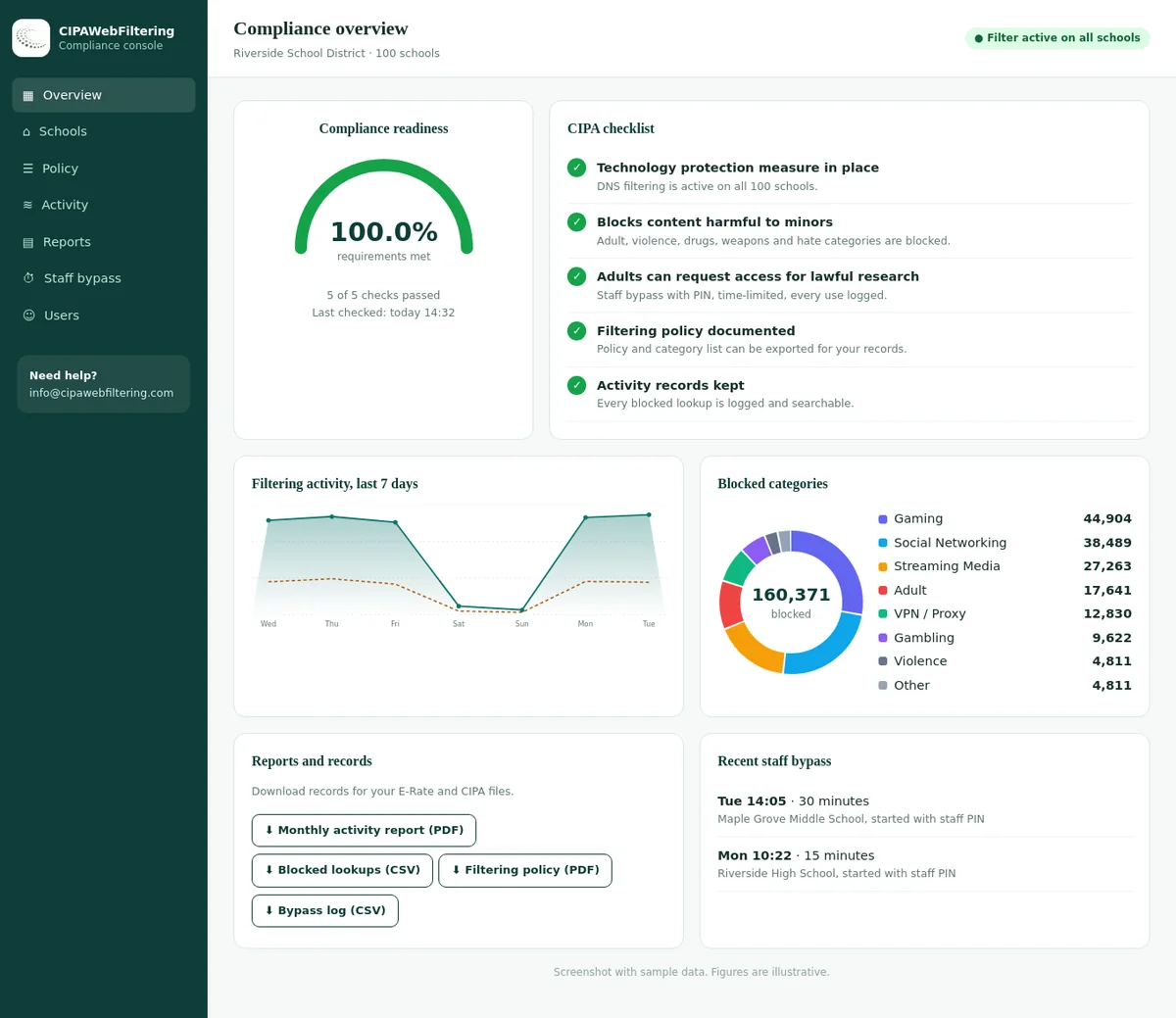
The hosted CIPA filter is a DNS service that we run, with separate settings for each school or branch in one console. The Streaming Media rule you choose for a middle school does not have to be the rule at the music academy.
- Always-allow and always-block lists per school sit on top of the category switches.
- The app on a phone resolves through DNS too, so guest Wi-Fi is covered with the same rule.
- Changes apply in seconds, and no software is added to any device.
A decision matrix for Spotify by group
Most districts land on a mix rather than one rule for everyone. Use the matrix below as a starting point for a conversation with principals and the music department.
| Group | Typical choice | Reasoning | Control that fits |
|---|---|---|---|
| Elementary students | Block | Below typical age terms, little classroom use, explicit content risk. | Category block on Streaming Media and Podcasts for the student group. |
| Middle school students | Block during school hours | Distraction is the main issue; some families expect access at home. | Time-based rule on the filter, or block on campus only. |
| High school students | Block or allow with schedule | Older students may use it for study music; bandwidth still matters. | Allow at lunch, block in class periods, or keep a full block. |
| Music and media classes | Allow for a named group | Teachers use playlists for listening exercises and analysis. | Separate filter group or organizational unit with Spotify allowed. |
| Teachers and staff | Allow | Adults, classroom audio, low risk. | Staff policy without the streaming block. |
| Guest Wi-Fi | Rate limit or block | Bandwidth protection during events. | Firewall or DNS rule on the guest network. |
Category or domain?
A domain block stops Spotify only. A category block on Streaming Media also stops other audio and video services, which may be what you want for younger grades but can surprise teachers who use other platforms.
Write the exception path
Decide now how a teacher asks for access for a unit of work, who approves it, and how long the exception lasts. A written path stops the same debate repeating every semester.
Spotify is filed as Podcasts as well as Streaming Media
Several music services share that pair of labels, while others are plain Streaming Media. A rule that only names the Streaming Media category would still match all of these.
| Domain | Categories in our data |
|---|---|
| spotify.com | Podcasts, Streaming Media |
| deezer.com | Podcasts, Streaming Media |
| audiomack.com | Podcasts, Streaming Media |
| soundcloud.com | Streaming Media |
| pandora.com | Streaming Media |
| youtube.com | Streaming Media, Social Networking |
Six ways to block Spotify, from quickest to most complete
Each method covers a different part of the problem. In practice you combine two or three of them so that the browser, the app and the network all agree.
Google Admin console URL blocking for Chromebooks
For managed Chromebooks, the built-in URL blocklist is the fastest way to stop the web player. It follows the device and the signed-in user, on and off campus.
- Sign in to the Admin console and open Devices > Chrome > Settings > Users & browsers.
- Select the student organizational unit on the left, not the top level, so staff are unaffected.
- Under Content, open URL blocking and add the Spotify domains to the blocked URLs field.
- Save, then restart a test Chromebook in that unit to pull the new policy.
Google's admin menus are renamed from time to time, so check the current help pages if a label differs. Our guide to blocking websites on Chromebook with Google Admin covers the blocklist and allowlist rules in more depth.
Block the Android app on Chromebooks
Many Chromebooks can run Android apps. If Google Play is enabled for students, the Spotify Android app becomes a second door that the URL blocklist does not close.
- Open Devices > Chrome > Apps & extensions > Users & browsers for the student unit.
- Set Google Play to allow only apps the school has approved, so unlisted apps cannot be installed.
- If Spotify was already installed, set it to blocked and confirm it is removed at the next sync.
Category filtering on your web filter
A category filter blocks Spotify together with the domains it relies on, and keeps up when new ones appear. Look for Spotify under Streaming Media, with podcast hosts often under Podcasts.
- Block Streaming Media and Podcasts for student groups that should not stream.
- Add a domain-level allow for Spotify on the music class group if needed.
- Use our domain category checker to see how a given address is categorized before you rely on it.
See category filtering on managed Chromebooks for how category rules apply across a 1:1 fleet.
DNS filtering on the district network
A DNS filter answers lookups for blocked domains with a block page or no address. It covers every device on school Wi-Fi, including personal phones, without installing anything.
- Point DHCP scopes at your filtering resolver and block outbound DNS to other resolvers at the firewall.
- Block the Streaming Media category or the Spotify domains for student networks.
- Remember that encrypted DNS in browsers can skip your resolver; see bypass handling below.
Read more in DNS filtering for education.
Firewall application control
Next-generation firewalls identify applications by traffic patterns as well as names. An application rule for Spotify catches the desktop app on lab PCs, which may not use the browser at all.
- Create an application rule for Spotify on the student VLAN or zone.
- Combine it with TLS inspection only where your policy and privacy rules allow it.
- Log the rule hits for two weeks before tightening other settings.
Windows lab PCs and Microsoft Store
On Windows, the Spotify desktop app can come from the Microsoft Store or an installer. Your device management tool can block both.
- Restrict Microsoft Store installs to approved apps for student devices.
- Use application control policies to block the Spotify executable.
- Keep standard users without local admin rights so they cannot install software.
Domains commonly used by Spotify
Spotify does not publish an official list for network administrators, so treat this as a starting point. Domain sets change, which is why category-based blocking is the long-term answer.
| Domain | Role | Block note |
|---|---|---|
| spotify.com | Main site, web player and account pages | Include subdomains such as open.spotify.com. |
| scdn.co | Static content and media assets | Without it the web player loads poorly or not at all. |
| spotifycdn.com | Content delivery | Add it to stop cached content from playing. |
Audio is also served through large shared delivery networks. Do not block a whole shared network domain, because many unrelated sites depend on it. Let category rules and application control do that work.
Common mistakes when blocking Spotify
These are the patterns that cause most of the follow-up tickets after a streaming block goes live.
| Mistake | What happens | Better approach |
|---|---|---|
| Blocking at the top organizational unit | Teachers and office staff lose access too, and the music department files urgent tickets on day one. | Apply the rule to student units only and keep a separate unit for music classes. |
| Blocking only the main domain | The page fails to load but cached sessions and the app keep playing for some users. | Block the content domains as well, or use the category rule. |
| Forgetting Android apps | The web player is blocked while the Play Store app works fine. | Move Google Play to an approved-apps-only setting for students. |
| No announcement | Families assume something is broken and call the school office. | Send a short note before the change, with the reason and the exception path. |
| Blocking shared delivery networks | Unrelated learning sites break because they use the same delivery provider. | Never block a shared network domain; use categories and application rules instead. |
Off-campus coverage for take-home Chromebooks
A firewall rule ends at the school gate. If your board wants Spotify blocked on school devices at home too, the control has to live on the device.
On campus
The DNS filter, firewall and device policy all apply. This is the easiest place to enforce and test.
On the bus and at the library
Other networks do not use your resolver. Only device-level rules, such as Admin console URL blocking or a filtering extension, still apply.
At home
Many districts relax streaming rules after school hours while keeping safety categories blocked at all times. Decide whether Spotify is a school-hours rule or a full-time rule.
Weekends and holidays
If the rule is full time, it stays on. If it is school hours only, make sure the schedule follows your local time zone and holiday calendar.
For the full picture on take-home devices, read how to enforce CIPA on off-campus student devices and our page on Chromebook 1:1 device filtering.
Handling bypass attempts
Students who want music will look for another route. You do not need to anticipate every trick, you need the categories that cover the routes.
Proxies and VPN extensions
Block the VPN / Proxy / Anonymizers category for students, and allow only approved Chrome extensions. This closes the most common route around any streaming block.
Encrypted DNS
Browsers can send DNS over HTTPS to public resolvers. Manage the browser DNS setting through policy and block known public DNS-over-HTTPS endpoints at the firewall for student networks.
Alternative music sites
Lesser-known streaming and lyric sites appear constantly. A Streaming Media category block catches most of them, including domains registered last week.
Phone hotspots
A phone hotspot takes the device off your network entirely. Device-level rules still apply on Chromebooks, and phone rules in your school policy cover the rest.
Treat repeated bypass attempts as a conversation, not only a ticket. A short chat with a student about why the rule exists often works better than another layer of technology.
A proxy does not bring the web player back
VPN / Proxy / Anonymizers is on in the CIPA preset, and public encrypted DNS and browser settings that skip the filter are blocked by default. If the music teacher needs an exception for a lesson, the PIN bypass lasts 15, 30 or 60 minutes and is logged.
Testing your Spotify block
Test from a real student account on a real device, not from an admin laptop. Admin accounts usually sit in a different policy group.
- Open the web player while signed in as a test student; expect the block page.
- Try a shared playlist link pasted into the address bar.
- Check Google Play on the Chromebook; the app should not be installable.
- Repeat on school Wi-Fi from a personal phone to test the DNS layer.
- Take the test Chromebook to a home network and test again.
- Sign in as a music teacher and confirm access still works.
- Review filter logs to confirm the block events appear with the right user.
- Repeat after every major policy change or new school year.
Use our school web filter test to check category coverage across the wider set of categories your policy blocks, not only streaming.
Communicating the Spotify rule to parents
Parents ask two questions: why, and does it apply at home. Answer both in plain words and point to the policy.
Say what changes
Name the service, the devices and the hours. "Music streaming is blocked on school Chromebooks during the school day" is clearer than a list of categories.
Say why
Focus on learning time and network capacity. Avoid suggesting students are doing something wrong by listening to music.
Say what is allowed
Mention teacher-led use in music classes and how teachers request access. Parents like to know the rule is thoughtful, not blanket.
Sample note to families
From next week, music streaming services such as Spotify will not open on school Chromebooks during the school day. This keeps class time focused and protects the network for lessons and assessments.
Teachers can still use music in class, and students in music courses may have access for set activities. If you have questions, please contact the school office or our technology team.
Why a category database keeps the block working
Domain lists age quickly. New delivery hosts, regional domains and lookalike music sites appear every week.
Broad coverage
Our database categorizes 120 million domains. The 20 million most visited domains cover 99.99% of web traffic, so the sites students actually visit are covered.
New domains daily
About 300,000 newly registered domains are categorized every day and checked again after a week and a month, as many sites add content after launch.
Several categories per domain
A domain can carry more than one category, ranked by how much of the site they describe, so a music blog with podcasts is not mislabeled.
Explore the web filtering categories taxonomy, the streaming filtering options for schools, or try the hosted CIPA filter. If you are also reviewing video services, see how to block Netflix and streaming on school networks.
Music rules by group: stitching tools together or setting them per school
Every row in the matrix needs somewhere to live, and the table shows where it lands.
| Matrix row | Several separate tools | Hosted CIPA filter |
|---|---|---|
| Elementary block | Console list plus a firewall rule | Streaming Media switched on for those schools |
| Music academy allowed | Another unit with exceptions | Different settings for that school |
| Other streaming apps | A new entry each time | Same category covers them |
| Guest Wi-Fi | Firewall or DNS rule to maintain | One DNS setting on the router |
| Chromebook at home | Account policies only | Private encrypted link keeps the rules |
| Reporting to principals | Logs from several places | Activity reports and log export |
Spotify at school: FAQ
Is Spotify a CIPA issue?
Not directly. CIPA targets obscene images, child sexual abuse material and content harmful to minors. Spotify is usually blocked for bandwidth, distraction and explicit lyrics or podcasts, which are local policy choices rather than CIPA duties.
Can we block Spotify for students but keep it for teachers?
Yes. Apply the block to student organizational units or filter groups and leave staff groups allowed. Most category filters and the Google Admin console support different rules per group.
Why does Spotify still play after we blocked spotify.com?
The app and web player load audio and assets from other domains, and an already-signed-in session can keep working for a while. Block the related content domains or the Streaming Media and Podcasts categories, then sign out and test again.
Will blocking Spotify break other music sites?
Blocking by domain affects only Spotify. Blocking the whole Streaming Media category also affects other audio and video services, so check which ones teachers rely on before you switch the category on.
Does a block at school apply when Chromebooks go home?
Only if the control travels with the device. Google Admin URL blocking, extension-based filters and enforced DNS settings travel with a managed Chromebook. A firewall rule on the school network does not.
A quote is built from your schools and device counts, and we send it within one business day. One school as a pilot shows how Spotify is blocked and what the reports contain before you commit.
Talk to us about your district
Tell us how your devices, networks and groups are set up, and we will show you how category data can keep streaming, safety and policy rules consistent across all of them.
Talk to us about your districtSpotify is a trademark of Spotify AB. Google, Chromebook, ChromeOS and Google Play are trademarks of Google LLC. Microsoft and Windows are trademarks of Microsoft Corporation. These names are used here only to identify the products discussed. CIPA Web Filtering is not affiliated with, sponsored or endorsed by any of these companies.