How to Block Netflix and Streaming Sites on School Networks
Entertainment streaming eats bandwidth and attention, and pirate streaming sites bring malware and adult pop-ups with them. Here is how district IT teams block it on the network and on managed Chromebooks, while classroom video keeps working.
Why one stream matters
Relative load for illustration, not measured figures.Why schools block Netflix and streaming video
Streaming is rarely blocked for content alone. It is blocked because one popular show can slow a whole building, and because the free alternatives are risky.
Bandwidth during the day
Video streams run for the full length of an episode. When a class streams at once, testing platforms and video calls suffer first.
Attention in class
A series left playing in a background tab competes with every lesson. Teachers often cannot see it from the front of the room.
Mature ratings
Subscription libraries mix children's titles with adult-rated films. Profile settings on a personal account are not a school control.
Pirate sites and malware
When a paid service is blocked, students look for free copies. Those sites are full of malicious ads, fake downloads and adult pop-ups.
Shared accounts
Students sign in with a family member's account on a school device. That mixes personal data with district equipment.
Policy and licensing
Most acceptable use policies already exclude entertainment streaming, and classroom screening has its own licensing rules.
Turn off the six kinds of streaming where the lookup happens
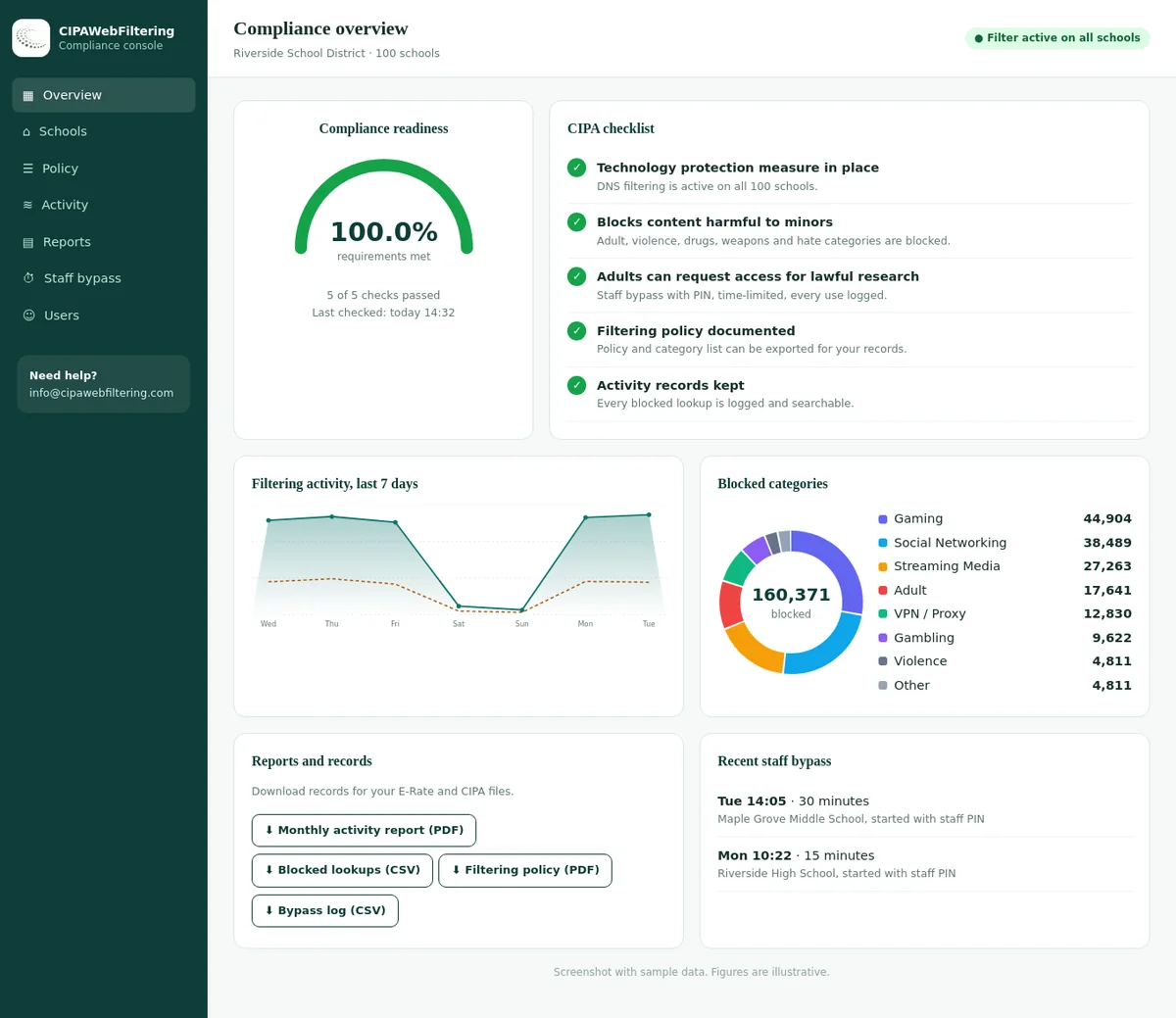
With our hosted CIPA filter, a video site is refused when the device asks for its address, so no stream starts and no capacity is used. We run the DNS filter and you choose the categories for each school.
- Subscription, ad-supported and pirate streaming can all be handled by category rather than by name.
- An always-allow list per school lets a licensed classroom video library stay reachable.
- Reports show which schools were still trying to stream, so the block can be tuned with evidence.
Streaming is not one thing: six kinds to plan for
A single "block streaming" switch either blocks too little or breaks teaching. Decide on each kind separately.
Subscription video
Paid film and series services such as Netflix.
Usual rule: block for studentsFree ad-supported TV
Free channels and catch-up services with ads.
Usual rule: block for studentsLive sports streams
League and broadcaster streams, popular on game days.
Usual rule: block, open for eventsPirate streaming
Unlicensed copies on short-lived domains.
Usual rule: block for everyoneVideo platforms
YouTube and similar, mixing teaching and entertainment.
Usual rule: separate policyEducation video
Licensed classroom libraries and district media.
Usual rule: allowVideo platforms deserve their own decision. Our guide to YouTube and streaming filtering in schools covers Restricted Mode and approved channels. Live streaming of games is covered in how to block Twitch on school Chromebooks.
Netflix domains: why blocking netflix.com is not enough
The website you visit and the servers that deliver video are on different domains. Block only the main site and the app may still play video it has cached links for.
| Domain | What it does | Block for students? |
|---|---|---|
netflix.com | Main website, sign-in and browsing | Yes |
nflxvideo.net | Video delivery from Netflix's own content network | Yes |
nflxso.net | Images and artwork delivery | Yes |
nflxext.com | Site assets such as scripts and styles | Yes |
The same pattern applies to other services. Each has a main site plus one or more delivery domains, so category blocking is less work than chasing hosts one by one.
Why a delivery domain can slip past a Streaming Media rule
Most services below are labelled Streaming Media, but the Netflix delivery host nflxvideo.net is filed under Arts & Entertainment. That is why a host list written from memory leaves gaps that a category review exposes.
| Domain | Categories in our data |
|---|---|
| netflix.com | Streaming Media |
| nflxvideo.net | Arts & Entertainment |
| hulu.com | Streaming Media |
| pluto.tv | Streaming Media |
| crunchyroll.com | Streaming Media |
| 9anime.to | Streaming Media, Community Sites, Arts & Entertainment |
Five ways to block streaming, from network to device
Open each method to see the steps. Most districts use at least three: a network category block, the Google Admin blocklist and a device filter for take-home Chromebooks.
1. Streaming Media category in your web filter
Set the Streaming Media category to block for student policies. Add Malware / Phishing / Suspicious and VPN / Proxy / Anonymizers so pirate sites and workarounds are caught too.
- Open your filter's policy for student groups or OUs.
- Block Streaming Media. Leave Education/Reference and Webinars/E-learning allowed.
- Decide YouTube separately so the category rule does not decide it for you.
- Add exceptions for licensed classroom video services.
Categories are ranked by how much of a site they describe, so a news site with a video section is not blocked as streaming. See the school web filtering categories.
2. URL blocking in the Google Admin console
The Admin console blocklist follows the student account on managed Chrome, at school and at home.
- Go to Devices > Chrome > Settings > Users & browsers.
- Select the student organizational unit.
- Under URL blocking, add the main sites and delivery domains, for example netflix.com and nflxvideo.net.
- Add licensed classroom video services to the exceptions list if needed.
- Save, then confirm on a device at chrome://policy.
Our guide to blocking websites on Chromebook with Google Admin explains the entry format.
3. Android apps on Chromebooks
Streaming services publish Android apps that run on many Chromebooks. A browser block does not stop them.
- Go to Devices > Chrome > Apps & extensions > Users & browsers.
- Set managed Google Play to allow only approved apps for student OUs.
- If a streaming app is already installed, set it to Block to remove it.
- Set the Chrome Web Store to approved extensions only, since some extensions add streaming features.
4. DNS filtering on the school network
DNS filtering blocks streaming for every device on school Wi-Fi, including personal phones on guest networks.
- Point DHCP on student and guest networks to your filtering resolver.
- Block the Streaming Media category in that policy.
- Block outbound DNS to other resolvers at the firewall.
- On managed Chrome, set the DNS-over-HTTPS mode in Users & browsers so the browser does not bypass your resolver.
Read more about a CIPA DNS filter for education.
5. Firewall rules and bandwidth shaping
Most firewalls can block streaming through their URL filtering profile or limit it through traffic shaping.
- In the web filtering profile for student zones, block the streaming category.
- For staff networks, consider a bandwidth cap on streaming instead of a block.
- Apply the profile to every student SSID and VLAN, not only the main one.
- Review reports weekly in the first month to see what still gets through.
Network controls
- Cover every device on campus
- Easy to roll out to guest Wi-Fi
- Stop at the school gate
- DNS sees host names only
Device controls
- Follow Chromebooks home
- Can see full URLs in the browser
- Only cover managed devices
- Need side doors closed
Who gets which streaming rule
Streaming rules work best when they differ by group. Students, staff and guests have different needs, and the network has different capacity at different times of day.
| Group | Subscription and free TV | Live sports | Pirate sites | Education video |
|---|---|---|---|---|
| Elementary students | Block | Block | Block | Allow approved |
| Secondary students | Block | Block, open for school events | Block | Allow approved |
| Teachers | Allow or limit bandwidth | Limit during teaching hours | Block | Allow |
| Staff offices | Bandwidth cap | Bandwidth cap | Block | Allow |
| Guest Wi-Fi | Block or heavy cap | Block or heavy cap | Block | Allow |
| Library public computers | Per library policy | Per library policy | Block | Allow |
Common mistakes that reopen streaming
Only the main domain blocked
The site shows a block page, but the app or cached links keep playing video from delivery domains.
Guest network forgotten
Students switch their phones to the guest SSID, which had no streaming rule at all.
Encrypted DNS left on
The browser uses its own DNS resolver and skips the school DNS filter entirely.
Teacher exception on the wrong OU
An exception added at the top of the tree lets every student in the school reach the service.
Keeping classroom video working
The fastest way to lose staff support is to break the video in a lesson. Plan exceptions before you switch the block on.
List services
Ask departments which video services they use for teaching.
Check licences
Confirm classroom screening rights with the library or curriculum office.
Scope access
Allow for staff accounts or classroom display devices, not all students.
Test hosts
Check every delivery domain each service loads, not only the main page.
Teacher account exceptions
Put teachers in an OU where Streaming Media is allowed or limited. Students in the same room stay blocked.
Display device exceptions
A classroom display connected to a staff device can play licensed films without opening the service to student Chromebooks.
Off-campus coverage for take-home Chromebooks
Bandwidth is not an issue at home, but your acceptable use policy may still apply to school-owned devices. Decide which rules follow the device after school hours.
| Control | On campus | At home | Notes |
|---|---|---|---|
| Firewall category block | Yes | No | Network only |
| School DNS filter | Yes | No, unless pushed to the device | Check device DNS settings |
| Admin console URL blocklist | Yes | Yes | Follows the signed-in account |
| Device category filter | Yes | Yes | Force-install, close Incognito and guest |
| App store restrictions | Yes | Yes | Stops streaming apps everywhere |
See enforcing CIPA on off-campus devices and Chromebook 1:1 device filtering for a fuller plan.
Handling bypass attempts
When streaming is blocked, some students look for another route. Focus on the categories and settings that close whole families of workarounds.
Free and pirate copies
Short-lived domains that change weekly. Close with the streaming, malware and parked domain categories plus daily updates for new domains.
Proxies and VPNs
Block the VPN / Proxy / Anonymizers category and keep extensions on an approved list. See blocking VPN extensions on Chromebooks.
Guest and Incognito
Turn off guest browsing and Incognito for students in the Admin console, so extension filters always apply.
Downloaded video files
Students may copy video files to a device. Watch the File Sharing/P2P and Cloud Storage / File Hosting categories.
Pirate streams and VPNs are blocked in the same console
When a paid service is blocked, students go looking for free copies and for ways to hide the lookup. VPN / Proxy / Anonymizers is part of the CIPA preset, and public encrypted DNS stays blocked, so those routes do not reopen the stream.
Testing the streaming block
Test as a student, on a managed Chromebook, on and off the school network. Keep a short record so you can repeat it after changes.
| Test | Expected result | If it fails |
|---|---|---|
| Open netflix.com | Block page | Check OU, policy sync and URL entry |
| Play a title from a cached link | Video does not load | Add delivery domains, check category |
| Search Play Store for streaming apps | Not available | Review Google Play mode |
| Open a free streaming site not on your list | Block page via category | Check category rule and update feed |
| Open licensed class video as a teacher | Plays | Check teacher OU exception |
| Repeat at home | Same results | Check device filter and DNS settings |
The school web filter test gives a full test plan you can reuse every term. Run it again after any change to OUs, filter policies or network hardware, since those are the moments when blocks quietly fail.
Communicating with parents
Most families agree with a streaming block on school devices. Explain it in plain terms and be clear that home devices are the family's choice.
Sample wording you can adapt
School Chromebooks and the school network block film and TV streaming services for students. This keeps the network fast for learning and protects students from unsafe free streaming sites.
Teachers can still show licensed video in class. The block applies to school devices at home too, but not to your family's own devices.
Include in the message
What is blocked, why, when it starts and who to contact. Link it to your acceptable use policy.
Leave out
Technical details of the filter and lists of domains. Parents want the effect, not the configuration.
Offer help for home
Point families to the parental controls on their own router or streaming profiles, without recommending products.
Give a contact
Name one office for questions, so parents do not email individual teachers about the filter.
A two-week rollout plan
Rolling out a streaming block in stages gives you time to catch broken lessons before the whole district notices. This plan fits most mid-sized districts.
Baseline
Pull a week of filter or firewall reports and note the top streaming domains and peak hours.
Survey staff
Ask departments which video services they rely on and when.
Build rules
Create the category block, URL entries and teacher exceptions on a pilot OU.
Pilot
Apply to one school or grade. Run the test table from a student account.
Fix gaps
Add missed delivery domains and adjust exceptions from pilot feedback.
Notify
Send the parent and staff messages a few days before the district rollout.
Roll out
Apply to all student OUs and the guest network. Watch reports closely.
Review
Compare bandwidth and block reports with the baseline and report results to leadership.
Stopping streams: a hand-kept blocklist or a category you switch on
Streaming services keep moving their hosts, so the comparison turns on who tracks the moves.
| Question | Hand-kept blocklist | Hosted CIPA filter |
|---|---|---|
| A service adds a new video host | Stays open until noticed in the logs | Handled by category once the domain is filed |
| Pirate streaming sites | A list that is never complete | Streaming Media and proxy categories on |
| Licensed class video to keep working | Allowlist you maintain per unit | Always-allow list for each school |
| Different rules at the high school | Separate lists | Separate settings per school in one console |
| Chromebook streaming from home | Only the account policies apply | Private encrypted link carries the rules |
| Evidence of what was blocked | Firewall exports | Activity reports and a log export for the CIPA file |
FAQ: blocking streaming in schools
If we block netflix.com, is Netflix fully blocked?
Usually not. Video is delivered from separate Netflix content delivery domains, and the app can use them directly. Block the main site and its delivery domains, and use the streaming media category so related domains are covered as they change.
Will blocking the streaming category break YouTube in class?
It depends on your filter. Treat YouTube as its own decision with its own controls, such as Restricted Mode and approved channels, rather than letting a broad streaming rule decide for you.
A teacher wants to show a film from a subscription service. What do we do?
Allow the service for the teacher's staff account or the classroom display device, not for students. Check licensing terms for classroom screening with your library or curriculum office.
Do streaming blocks work on Chromebooks at home?
Network blocks do not. Google Admin URL blocking, app store restrictions and a device-based category filter keep the block on school devices at home.
Why block pirate streaming sites if Netflix is already blocked?
Pirate sites are a bigger risk. They carry aggressive ads, malicious redirects and adult pop-ups. Block them through the streaming, malware and suspicious categories together.
Is blocking Netflix required for CIPA?
No. CIPA covers obscene images, child sexual abuse material and material harmful to minors. Streaming entertainment is blocked for bandwidth, focus and policy reasons.
The quote depends on the schools and devices you have, and it arrives within one business day. A pilot on a single site shows the streaming blocks and the reports before you commit to the rest.
Streaming domains change. Your block should not.
Our Streaming Media, malware and proxy categories are updated daily, so new streaming and pirate domains are covered without manual edits.
Netflix is a trademark of Netflix, Inc. YouTube, Google, Chrome, Chromebook and Google Play are trademarks of Google LLC. These names are used here only to identify the products discussed. CIPA Web Filtering is not affiliated with, sponsored or endorsed by Netflix, Inc. or Google LLC.