Block YouTube on School Chromebooks, or Restrict It Safely
YouTube is both a distraction and one of the most used teaching resources in K-12. Before you block it, pick the model that fits each grade. This guide covers all three, with Google Admin console steps, channel allowlisting and the gaps admins usually miss.
Full block
No YouTube for the unit. Simple, but teachers lose embedded lesson videos unless you plan around them.
Restricted Mode
Students see YouTube with mature content and comments filtered. Approved videos stay watchable.
Approved only
Students can watch only videos and channels that staff have approved. Fits early grades.
Handle video at the DNS layer, not only inside the YouTube settings
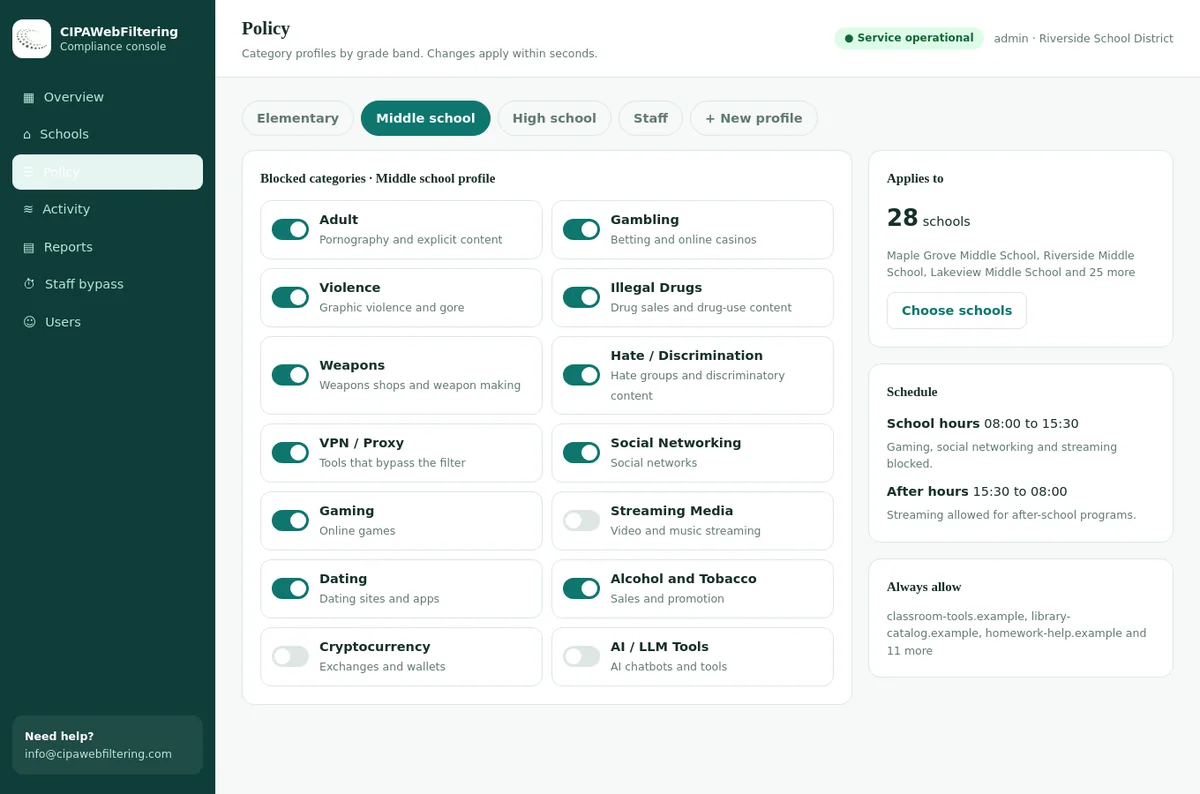
Restricted Mode shapes what shows up on YouTube, but it says nothing about the other video and game sites a student can open next. Our hosted CIPA filter sits at the network and makes the broader call by category.
- Streaming Media can be closed for one school and left open for another
- Teachers can use the staff PIN when a lesson needs a blocked page
- Educational channels stay reachable through the always-allow list
Why schools block or restrict YouTube
The arguments for limiting YouTube on student Chromebooks are rarely about one bad video. They are about scale: millions of uploads a day, recommendations that pull students away from the lesson, and comment threads nobody supervises.
Inappropriate content
Violent, sexual or self-harm related videos can surface through search or recommendations. Restricted Mode reduces this but does not remove it.
Comments and contact
Comment sections and live chat expose students to strangers. Restricted Mode hides comments, which is one reason many schools choose it.
Attention and bandwidth
Autoplay and short videos pull focus. On busy school networks, high-resolution streaming across hundreds of devices also costs bandwidth.
CIPA and policy
CIPA asks for a measure that blocks obscene and harmful-to-minors images. Video sites are a common route to that content, so they belong in your internet safety policy.
State rules on student social media use can also touch YouTube, because some laws define social media broadly. Check how your state defines it, and read our general page on YouTube and streaming filtering in schools for the wider context.
Pick a YouTube model for each grade band
Settings attach to organizational units, so you can treat a kindergarten class and a senior media class differently. A typical district pattern looks like this.
Teachers pick the videos. Nothing else plays.
Approved channels plus strict restricted access.
Search allowed, mature content filtered, approvals as needed.
Wider access for research, still filtered.
Full access and the right to approve videos for students.
| Question | Full block | Restricted Mode | Approved only |
|---|---|---|---|
| Embedded lesson videos play | No | Mostly | If approved |
| Students can search | No | Yes | Results limited |
| Comments visible | Not applicable | Hidden | Hidden |
| Teacher workload | Low, but many exception requests | Low | Ongoing approvals |
| Works off campus | Yes, via account policy | Yes, when signed in | Yes, when signed in |
What the category data says about YouTube and its neighbours
Looked up in our database, with the domains that are not in it left out. YouTube Kids is the one that reads as Education/Reference.
| Site | Category |
|---|---|
| youtube.com | Streaming Media, Social Networking |
| youtubekids.com | Education/Reference, Streaming Media |
| vimeo.com | Streaming Media |
| netflix.com | Streaming Media |
| khanacademy.org | Education/Reference |
Set YouTube Restricted Mode in the Google Admin console
There are two places to set this, and districts usually use both. The YouTube service settings control what signed-in school accounts may watch. The Chrome setting enforces Restricted Mode in the browser itself.
1. YouTube permissions for signed-in users
- Make sure the YouTube service is turned on for the student unit. The permission settings only apply to users whose YouTube service is on.
- Under content settings, turn on the option that limits signed-in users to restricted and approved videos.
- Open Permissions, choose the student unit and select a strict or moderate restricted access level. Use Override for a child unit, or Inherit to fall back to the parent.
- For staff who should approve videos, assign the permission that allows approving videos and channels.
2. Restricted Mode enforcement in Chrome
Find the YouTube Restricted Mode setting next to SafeSearch and choose to enforce at least moderate, or strict. This applies in Chrome even if a student is not signed in to YouTube itself.
Set it on the student units only. Staff units usually keep it off so teachers can preview material, and an approver needs unrestricted access to judge a video before approving it for students.
Which setting wins? For signed-in school accounts, the Admin console YouTube permissions take priority over network or device settings. Signed-out sessions, including incognito, do not get those permissions, which is another reason to disable incognito for students. Menu labels shown here are from October 2026; check the current console if one differs.
Allowlist educational YouTube channels and videos
Restricted Mode filters by automated signals, so some good teaching videos are hidden too. Approvals fix that. Once a staff approver approves a video or a whole channel, students on restricted settings can watch it.
Name approvers
Give a small group, such as librarians and department leads, the approve permission.
Collect requests
Teachers submit channels they use in a simple form, with the grade and subject.
Review and approve
An approver watches a sample, then approves the channel while signed in.
Re-check each term
Channels change. Review the list and remove those no longer used.
| Approve a | When to use it | Watch out for |
|---|---|---|
| Single video | One-off lesson clip from a general channel | The rest of that channel stays restricted |
| Whole channel | Trusted educational publishers, museums, science outreach channels | New uploads become watchable automatically, so approve only channels you trust |
| Playlist built by a teacher | Unit-based viewing lists | Videos inside still need to be approved or pass Restricted Mode |
Keep approvals educational. Write down what makes a channel approvable, for example curriculum relevance and no unmoderated live chat. It protects approvers when a parent asks why a channel was allowed.
Block YouTube completely on a Chromebook unit
For some units, such as testing kiosks or very young grades without an approval process, a full block is right. Use the URL blocklist and the YouTube service switch together.
youtube.comMain site, mobile site and the web playeryoutu.beShort share linksyoutube-nocookie.comPrivacy-enhanced embeds on other sitesytimg.comThumbnails and page imagesgooglevideo.comVideo delivery; test before blocking, as other Google video features may rely on itAdd these to Blocked URLs under Devices › Chrome › Settings › Users & browsers › Content › URL blocking. Turning the YouTube service off for the unit also stops signed-in viewing. Full syntax rules are in our guide on blocking websites on Chromebook in Google Admin.
Lists change. These are well-known YouTube hosts, not a full inventory. Category filtering for Streaming Media and VPN / Proxy / Anonymizers keeps up with mirrors and viewer sites that a list misses.
Six YouTube setting mistakes that cause district-wide tickets
These come up again and again in school help desks. Each one is easy to avoid once you know to look for it.
Changing the top-level unit
Editing YouTube permissions at the top of the tree applies them to staff too. Teachers suddenly cannot play their own lesson videos.
Forgetting the service switch
If the YouTube service is off for a unit, permission levels do nothing for those users. Check the service status before tuning levels.
Too many approvers
When every teacher can approve, approvals become inconsistent and hard to explain. A small group with a written standard works better.
Approving entertainment channels
Approving a whole channel also approves its future uploads. Approve single videos from general entertainment creators instead.
Ignoring shared carts
Cart devices often run managed guest sessions, which follow device settings rather than a student login. Set Restricted Mode there separately.
No change record
Without a log of who changed which level and why, nobody can answer a parent complaint months later. Keep a simple record of changes.
| Device situation | Which settings apply | What to configure |
|---|---|---|
| 1:1 Chromebook, student signed in | User settings and YouTube permissions for the student's unit | Permission level, Chrome Restricted Mode, app control |
| Shared cart in managed guest session | Managed guest session settings for the device's unit | Restricted Mode and URL blocking on the guest session tab |
| Library or kiosk device | Device and kiosk settings | A short allowlist, often with YouTube blocked |
| Personal device on school Wi-Fi | Only network controls | DNS based Restricted Mode and network filtering |
Close the gaps: Android apps, embeds, DNS and off-campus use
Most "YouTube still works" tickets come from one of these five places. Check each one per unit.
- Android appsThe YouTube Android app can bypass browser rules. Block or approve it deliberately under Devices › Chrome › Apps & extensions › Users & browsers, and decide whether a children's version is allowed for young grades.
- EmbedsLesson sites embed videos through youtube-nocookie.com. If you restrict youtube.com only, those embeds can still play unrestricted.
- Network DNSOn school networks you can force Restricted Mode for every device, including guests, by pointing the YouTube hostnames to restrict.youtube.com (strict) or restrictmoderate.youtube.com (moderate) with CNAME records. This does not travel home with the device.
- Off campusAccount based settings follow the school login on enrolled Chromebooks. Restrict sign-in to school accounts and disable guest mode so the settings cannot be dodged with a personal account. See off-campus CIPA enforcement.
- Secure DNSIf your filter uses DNS, set Chrome's DNS-over-HTTPS policy so students cannot change resolvers in browser settings.
For take-home programs, the device-level design matters more than any single setting. Our page on Chromebook 1:1 device filtering covers it, and category filtering for managed Chromebooks explains how to add categories alongside YouTube controls.
Handle proxy, VPN and viewer-site bypass
Students who want unrestricted YouTube look for sites that play videos through another server, or for a VPN. These are known patterns and can be handled with settings rather than daily list edits.
| Bypass attempt | What it looks like | Control |
|---|---|---|
| Alternative front ends | Sites that replay YouTube videos without the YouTube interface | Category filtering; such sites are grouped with streaming or proxies |
| Web proxies | A page with a URL box that fetches any site | Block VPN / Proxy / Anonymizers for all students |
| VPN extensions | An extension that tunnels browser traffic | Allow only approved extensions |
| Downloader sites | Pages that save videos for offline viewing | Category filtering and logs review |
| Signed-out viewing | Incognito or signed-out sessions skip account permissions | Disable incognito; enforce Restricted Mode in Chrome |
A category database groups these sites as they appear, so you do not find out about a new one from a student. Look up any unfamiliar host with the domain category checker.
The proxy route is shut at the filter
VPN/Proxy/Anonymizers stays blocked even for staff with the PIN, so a viewer site or proxy cannot be used to reach video. Public encrypted DNS and browser settings that skip the filter are blocked by default as well.
Test YouTube settings on a real Chromebook
Use one test student account per unit and an enrolled device. Run the same checks after every change and after major ChromeOS updates.
- Open
chrome://policy, reload policies and confirm the Restricted Mode and URL entries are present with status OK. - Search YouTube for a mature topic and confirm results are filtered and comments are hidden.
- Play an approved channel video that Restricted Mode would normally hide. It should play.
- Open a lesson page with an embedded video and confirm it follows the same rules.
- Try the YouTube Android app, an alternative front end and a proxy site from your test list.
- Repeat the first three checks on a home network and with a staff account.
Our school web filter test includes safe search and video checks you can add to this list and repeat each term.
Communicate YouTube rules to parents and teachers
YouTube decisions generate more questions than almost any other block, because families use it at home every day. Be specific about what changes.
For parents
Explain which model applies to their child's grade, that it applies on the school account, and that home devices are their choice.
For teachers
Share how to request a channel, how long reviews take and how to show videos from a staff account on the classroom display.
For students
Tell older students why mature content is filtered and where to ask if a needed video is blocked.
| Common parent question | Clear answer |
|---|---|
| Why can my child still see YouTube? | Their grade uses Restricted Mode, which filters mature videos and hides comments while keeping teaching videos available. |
| Does this apply at home? | Yes, on the school Chromebook while signed in with the school account. Not on family devices. |
| A video for homework will not play | The teacher can request approval for that channel or video through the district process. |
Put the rules in your CIPA internet safety policy so the decision has a documented basis.
YouTube controls compared with a hosted filter
The two do different jobs, and a school usually wants both.
| Need | YouTube settings in Admin | Hosted CIPA filter |
|---|---|---|
| Shape what appears inside YouTube | Yes, Restricted Mode | No, it decides by domain |
| Block other streaming sites | One by one | Streaming Media category |
| Cover phones and non-managed devices | Only signed-in accounts | Whatever uses the network DNS |
| Lessons that need a blocked page | Change the unit policy | Staff PIN for 15, 30 or 60 minutes |
| Keep rules at home on school laptops | Account policy | Private encrypted link |
YouTube on school Chromebooks: FAQ
Should a school block YouTube completely on Chromebooks?
Most districts do not. The common approach is Restricted Mode for students, approved videos and channels for younger grades, and a full block only where policy or age calls for it.
Where is YouTube Restricted Mode in the Google Admin console?
YouTube permissions for signed-in users are under Apps, Additional Google services, YouTube. Chrome also has a Restricted Mode setting under Devices, Chrome, Settings, in Content.
How do I allow one educational YouTube channel when the rest is restricted?
Give teachers or librarians permission to approve videos, then approve the channel. Students on a restricted setting can then watch the approved videos.
Does Restricted Mode work on home Wi-Fi?
Admin console YouTube settings apply when students are signed in with their school account, including at home. DNS based Restricted Mode only applies on networks you control.
Why does a blocked YouTube video still play inside a lesson site?
Embedded players can load from youtube-nocookie.com or through a learning platform. Include those hosts, or use the approval model so embeds follow the same rules.
Is Restricted Mode enough for CIPA?
It is a useful layer, but it covers only YouTube. CIPA expects a technology protection measure across the web, so districts pair it with category based filtering.
Can a teacher show a video that is restricted for students?
Yes. The simplest route is to play it from a staff account on the classroom display. If students need to rewatch it on their own devices, the teacher can ask an approver to approve that single video.
How quickly do YouTube setting changes reach student Chromebooks?
Changes are not always instant. Admin console changes can take some time to spread, and devices fetch Chrome policy in the background. Make changes outside lesson time and confirm them on a test device before announcing them.
Who should be allowed to approve YouTube videos?
Keep the group small: librarians, instructional technology coaches and department leads are typical. Give them a short written standard for approval so decisions stay consistent across schools.
Pricing follows how many schools and devices you run, and our quote comes back within one business day. Putting the filter on one site first shows how video is blocked and how the reports read.
Cover the rest of the web, too
YouTube settings handle one site. We help districts add category filtering for adult, proxy, streaming and AI tool domains across every Chromebook, on and off campus.
YouTube, Google, Google Admin console, Chrome, ChromeOS, Chromebook, Google Play and Android are trademarks of Google LLC. They are used here only to identify the products discussed. CIPAWebFiltering.com is not affiliated with, sponsored or endorsed by Google LLC.