Children's Area Internet Filtering in Public Libraries
The children's room is where filtering questions feel most personal. Parents expect a safe space, youth librarians want rich resources, and CIPA sets a legal floor that applies to every computer minors use.
This guide shows how libraries split the building into zones, which categories they usually add for young children and teens, and how to explain it all to families.
What CIPA requires and what the board adds
A common misunderstanding is that CIPA demands a special setting for the children's room. It does not. The law sets one standard for computers minors use, and anything stricter is your library's own decision.
The CIPA floor
- A technology protection measure on internet-connected computers.
- For minors, it must protect against visual depictions that are obscene, child pornography or harmful to minors.
- CIPA treats anyone under 17 as a minor.
- An internet safety policy adopted after public notice and a hearing or meeting.
- The policy addresses minors' safety with email, chat and other direct communication, unauthorized access, and personal information.
Common local additions
- A stricter profile on devices placed in the children's room.
- Extra categories such as gambling, weapons, dating or alcohol for young children.
- Safe search and restricted video modes forced on children's browsers.
- A curated start page of approved resources and databases.
- A separate teen profile that keeps health and homework sites open.
Some states have their own library filtering laws on top of CIPA. Check your state's rules and your state library agency's guidance. For the policy wording itself, use our public library internet filtering policy template, and for the federal background see what CIPA requires.
Give the youth desks their own rules
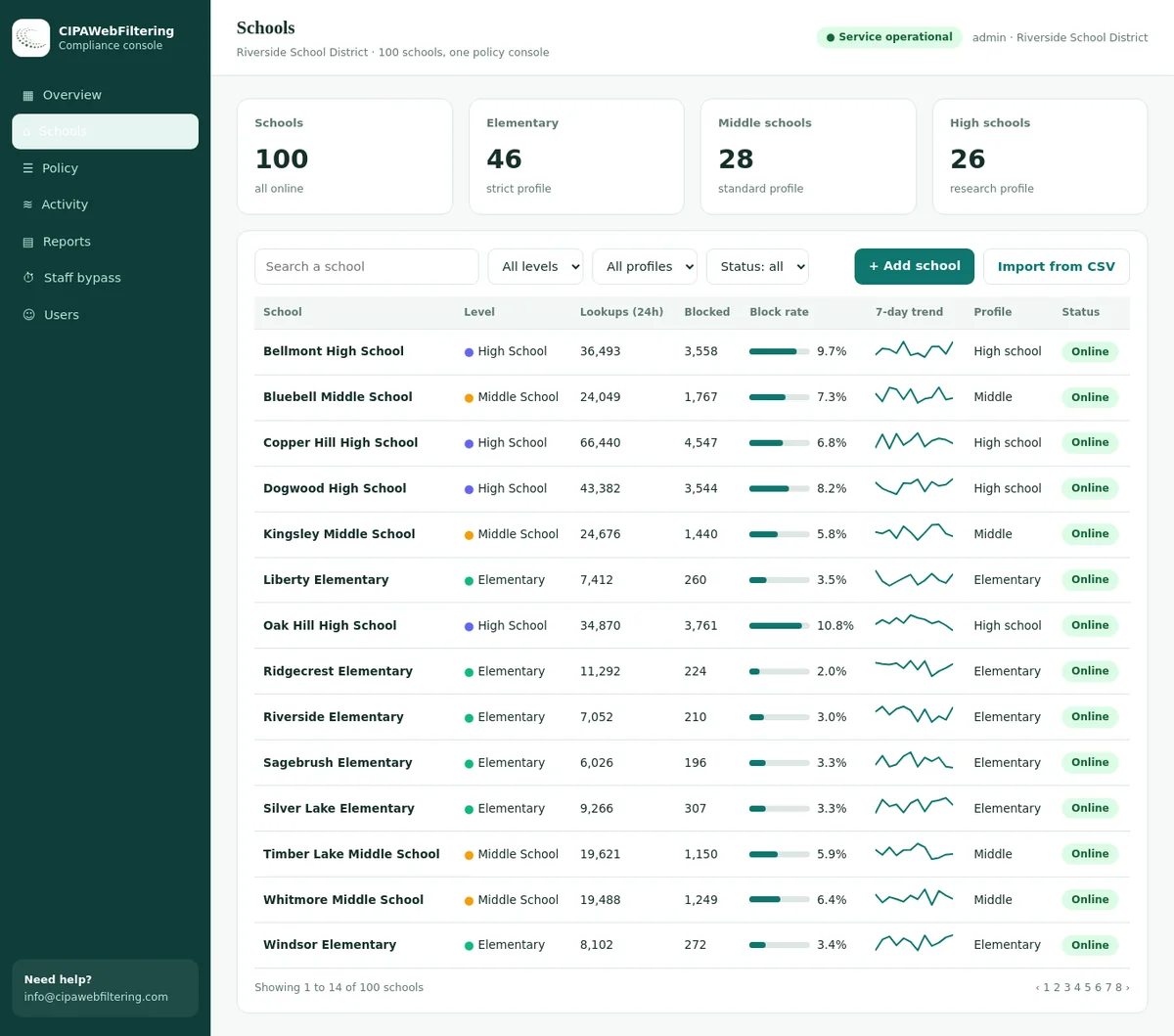
Libraries often want stricter settings in the children's area than elsewhere in the building. The hosted filter lets each branch keep separate settings, and we run the service for you.
- Start from the CIPA preset, with Adult and VPN/Proxy/Anonymizers switched on.
- Gambling, Weapons and Lingerie are optional switches for the board to decide.
- Local always-allow and always-block lists cover the sites families ask about.
Zone settings: one building, three profiles
Filtering by zone lets each space match its audience. Most hosted and on-premise filters support per-device or per-network profiles, which is all you need.
| Setting | Children's room | Teen space | Adult floor |
|---|---|---|---|
| Adult content | Blocked | Blocked | Blocked, adult bypass |
| VPN, proxy and anonymizer tools | Blocked | Blocked | Blocked |
| Lingerie and swimwear imagery | Blocked | Board choice | Usually open |
| Gambling | Blocked | Often blocked | Usually open |
| Dating | Blocked | Board choice | Open |
| Weapons, alcohol, tobacco | Often blocked | Board choice | Open |
| Social networking and messaging | Board choice | Usually open | Open |
| Health and medicine | Open | Open | Open |
| Forced safe search | On | On | Board choice |
| Malware and phishing | Blocked | Blocked | Blocked |
This is an example, not a rule. Your board decides each line. Before adding a category, look up a few sites your children's staff rely on with the website category checker, so you know what the change will catch. The full list is on our web filtering categories page.
Category choices by age
Age bands help staff explain settings to parents. Keep the bands broad, because children of the same age use the internet very differently.
Early years
About ages 3 to 7Young children mostly use apps and stations set up by staff. A locked start page matters more than category depth.
Middle childhood
About ages 8 to 12Homework, games and video take over. Children search on their own, so forced safe search and a strict category set do most of the work.
Teens
About ages 13 to 16Teens research sensitive topics for school and for themselves. Keep health, news, identity and support sites open, and add only what your policy names.
Watch the overblocking trap. A category set built for 7-year-olds will block puberty guides, mental health support and history topics teens are assigned. That frustrates students and generates desk requests all afternoon.
Adults can still reach research material
A staff PIN opens adult research for 15, 30 or 60 minutes, then the setting switches back and the use is logged. VPN/Proxy stays blocked even with the PIN.
Devices in the children's area
The children's room rarely has only desktop PCs. Each device type reaches the internet differently, so check each one against your filter.
Public PCs
Apply the children's profile by device or by a separate network segment. Lock browser settings so they cannot be changed.
Lending tablets
Filter on the library network and again off site, using a device-level link or management profile if tablets go home.
Early literacy stations
Usually locked to installed content. Confirm no general browser or app store is reachable from the menus.
Catalog kiosks
Lock to the catalog. If the catalog links out to the web, those links are in scope for filtering.
Gaming consoles
Consoles on the library network follow its DNS filter. Disable in-console browsers if they are not needed.
Maker and coding kits
Coding sites often sit in developer categories. Allow the specific platforms your programs use.
Children's own phones
On library wifi they get the network profile. On mobile data they do not, which is outside the library's control.
Program room screens
Staff-run screens for storytime or classes can use the adult profile, with staff choosing content in advance.
For devices and wifi beyond the children's room, see our guide to library wifi and patron device filtering. For video sites in particular, our page on safe search enforcement explains how restricted modes are forced at network level.
Filtering is one layer of child safety
A category filter reduces what children can reach on library devices. It is not a supervision tool and does not watch conversations, judge risk or tell you how a child is doing.
Category filtering
Blocks sites by content category on library devices and networks. This is the layer our data and hosted filter cover.
Space and supervision
Room layout, screen visibility, staffing and the library's rules for unattended children.
Child safety policy
Your library's process for concerns about a child, including who to tell and when to contact authorities.
Families and learning
Parents' own rules, plus digital literacy programs that teach children to spot risky situations.
If a staff member is worried about a child's safety, the filter has no role in that decision. Follow your library's child safety or safeguarding procedure, and involve local authorities where the procedure says so.
Be careful with products that promise to flag at-risk children. A library's job is to provide filtered access and a safe space, and judgments about a child's wellbeing belong with trained people and the procedures your board has adopted, not with software settings.
Sites families bring up at the desk
These are real labels from our data for places that come up in conversations with parents.
| Website | Where we file it |
|---|---|
| pbskids.org | Education/Reference |
| scholastic.com | Education/Reference |
| nationalgeographic.com | Education/Reference |
| roblox.com | Gaming |
| tiktok.com | Social Networking, Streaming Media |
| playboy.com | Lingerie/Swimsuits/Intimate Apparel |
Handling requests in the children's room
Children rarely ask staff to unblock a site. Parents, teachers and homeschool families do. A short, predictable path keeps everyone calm.
Note the site
Write down the domain and which device or zone the block came from.
Check its category
Look up the domain to see why it was blocked.
Decide on the spot or refer
Clear mistakes, like a museum site, can go to the allow list quickly.
Offer an adult computer
A parent can use the adult floor and ask for the adult bypass for their own research.
Close the loop
Tell the family what was decided, and review patterns monthly.
Our library staff guide to filter requests has desk scripts, and the CIPA adult unblocking guide explains why the bypass is for adults only.
Talking with parents and caregivers
Most complaints come from expectations, not settings. Families who know what the filter does and does not do tend to trust the library more.
Messages that land well
- Computers in the children's room use a stricter filter than the rest of the library.
- No filter catches everything, and some useful sites may be blocked by mistake.
- Tell staff about a site that should be open or closed, and we will review it.
- You decide what your own child may do online, and we are glad to help you set rules.
Sign wording you can adapt
Match signs with your block page and website so families hear one consistent message.
Publish the category list
Make the children's room category list available on request or on your website. Transparency answers many complaints before they start, and helps the board defend its choices at a public meeting.
Run family programs
Short sessions on safe searching, privacy settings and spotting scams give parents tools that work at home, where the library filter does not reach.
Policy wording for the children's area
Your main internet policy should say that zones exist and who sets them. These draft clauses slot into it. Adapt names and ages, and have counsel review before adoption.
Clause A: Zoned filtering
Keeps the category detail out of the policy text, so staff can adjust it without a new board vote each time.
Clause B: Use of children's devices
Makes clear why the adult bypass is offered on another floor, not in the children's room.
Clause C: Review requests
Gives parents and teachers a route that does not depend on who is on the desk that day.
Clause D: Parental responsibility
A standard line in library policies that sets realistic expectations and supports families' own choices.
The full policy structure, including the CIPA topics and public hearing steps, is in our guide to the CIPA internet safety policy.
A curated start page does more than a long block list
For young children, what they see first shapes where they go next. A friendly start page full of approved resources reduces random searching and keeps the filter in the background.
Library resources
The catalog, e-book app and homework databases your library already pays for.
Reference picks
A few encyclopedias, dictionaries and maps chosen by youth staff.
Learning sites
Science, math and reading sites suited to each age band.
Local links
Museums, parks, local history and the library's own event calendar.
Habits that work
- Review the start page every term with youth staff.
- Ask children which sites they use for homework and check them.
- Keep a short allow list for school platforms in your area.
- Test the children's profile with real search terms children use.
Habits that backfire
- Blocking every new category a parent mentions without review.
- Copying a school district's settings without asking what they cover.
- Hiding the category list, which makes every block look arbitrary.
- Treating the filter as a substitute for staff on the floor.
Children's area filtering checklist
Review these with youth services and IT before each school year.
The wider set of records is in our CIPA compliance checklist. Library IT teams comparing approaches can read web filtering vs DNS filtering.
Whole building or per zone
Library filtering options for a youth area
| Need | One setting for the whole building | Per-branch settings in our filter |
|---|---|---|
| Stricter rules for children | Adults get them too | Separate settings for each branch |
| A site a parent flags | Edit a general list | Add it to a local block list in seconds |
| Adult research request | Turn the filter off | Staff PIN for 15, 30 or 60 minutes |
| Proof of CIPA settings | Screenshots | Policy record and log export |
| Setup on public PCs | Often per machine | Nothing installed on computers |
Children's area filtering FAQ
Does CIPA require stricter filtering in the children's area?
No. CIPA sets one baseline for computers used by minors: block visual depictions that are obscene, child pornography or harmful to minors. Stricter settings in a children's room are a local policy choice made by the library board.
Can the children's area filter be turned off for a parent?
The CIPA disabling clause covers use by adults. A parent can ask for unfiltered access on an adult computer. Children's area devices are usually kept filtered because they are set up for children's use.
Should teens have the same settings as young children?
Most libraries say no. Teens need access to health, identity, news and homework sources that a setting built for young children may block. A separate teen profile closer to the CIPA baseline is common.
Does a filter keep children safe online?
A filter is one layer. It reduces exposure to certain content on library devices. It does not watch conversations or judge risk. Child safety concerns go through the library's child safety policy and, where needed, local authorities.
Do we need to filter catalog kiosks and early literacy stations?
If a device can reach the open internet over the library's funded connection, treat it as in scope. Kiosks locked to the catalog or to installed apps carry less risk, but confirm they cannot open a general browser.
Who decides which categories are blocked for children?
The library board, through its internet policy, usually with a recommendation from the director and youth services staff. The category list should be available on request so parents can see it.
Can children use social media on library computers?
That is a board decision. CIPA does not require blocking social networking. Many libraries block it in the children's room for younger ages and leave it open in the teen space, where teens use it for school groups and clubs.
What happens when a homeschool family needs a blocked site?
Treat it like any other review request. Look up the site's category, and if it is educational and caught by mistake, add it to the children's allow list so every family benefits.
How often should the children's settings be reviewed?
Once a year at minimum, ideally before the school year starts, plus a quick look at the most blocked sites each month. New sites and apps appear constantly, and children's habits change faster than policies.
Do we need parental consent for children to use library computers?
CIPA does not require it. Some libraries ask for consent as part of a youth card or computer agreement under their own policy. Check your state law and your existing card rules.
Related guides
- Public Library Internet Filtering Policy (Template and Guide)
- CIPA Adult Unblocking in Libraries: Law, Procedure, Records
- Library Wifi Filtering and Patron Devices: A CIPA Guide
- Intellectual Freedom and Library Filtering: Balancing Access and CIPA
- Library Internet Filtering: CIPA Compliance for Public Libraries
- Web Filtering for Pre-K and Early Childhood Programs
Cost follows your count of branches and devices, and a written quote arrives inside one business day. Pilot a single site and review the blocks and reports before you go further.
Set a children's profile in minutes, not weeks
Our hosted filter gives each branch or zone its own category settings, allow list and staff PIN, all from one dashboard. Tell us about your building and we will suggest a starting setup.
Talk to us about your library Hosted filter for librariesMore for library teams: web filtering solutions for libraries.