How Do Schools Block Websites?
If your child came home asking why a game site is blocked, or a lesson stalled on a "this site is blocked" page, this guide explains what is going on. No jargon, and nothing you need to install.
The short answer
- Schools run a web filter on their network, their devices or both.
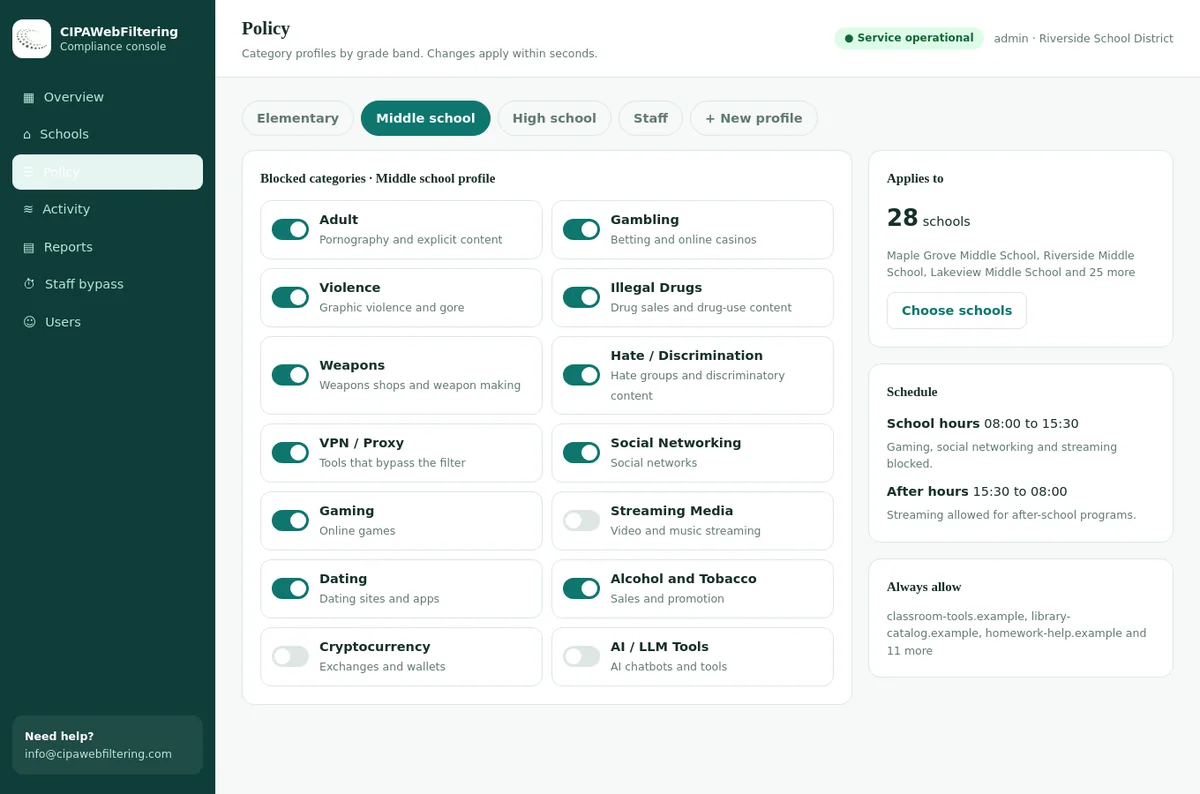
- The filter looks up each website in a category list, such as Adult, Gambling or Gaming.
- The school decides which categories are blocked for each age group.
- US schools that get E-Rate funding must filter certain content by law.
- Teachers can usually request access to a blocked site for lessons.
How we block, in one paragraph
The guide describes the idea in general. Our hosted filter is that idea as a service: a DNS filter we run for you, blocking by category.
- One DNS setting on the router or firewall.
- The lookup is answered in milliseconds.
- Staff can request access, and the lists are editable per school.
What happens when a student clicks a link
It feels instant, but several checks happen between the click and the page appearing. The filter sits in the middle, asking one question: is this kind of site allowed for this student?
The click
A student opens a link on a school laptop or tablet.
The lookup
The filter checks which category the website belongs to.
The rule
It compares that category with the rules set for the student's grade.
The result
The page loads, or a block page explains it is not allowed.
The record
Many filters note the visit or the block for school safety reviews.
What do schools use to block websites?
There are four common tools. Most districts use two or more together, so that a gap in one is covered by another.
The school firewall
A security device where the school network meets the internet. Many include a web filter that checks every site requested from inside the building.
Works on the school network onlyA DNS filter
Before a device can open a website it asks for the site's address, a bit like looking up a phone number. A DNS filter simply refuses to give out the address of blocked sites.
Network wide, fast, sees site names onlyA Chromebook or device extension
A small add-on the school installs on its own devices. It checks pages inside the browser, so it can keep working when the device goes home.
Follows school devices everywhereA cloud filtering service
Internet traffic is passed through an online service that applies the school's rules. It suits districts with many buildings and take-home devices.
Any network, if the device is set up for itCategories: how a filter knows what a website is
Nobody at your school types in millions of website names. Filters rely on a category database, where each site has been sorted by what it contains. The school then switches whole categories on or off.
Sites a school filter usually decides on
Behind the block page is a category label. Here is how a few well known sites are filed in our data.
| Site a student tries | Labels |
|---|---|
| tiktok.com | Social Networking, Streaming Media |
| roblox.com | Gaming |
| reddit.com | Social Networking, Forums / Message Boards, Community Sites |
| netflix.com | Streaming Media |
| bet365.com | Gambling, Sports & Recreation |
| nordvpn.com | File Sharing/P2P, VPN / Proxy / Anonymizers |
Why do schools block websites at all?
There are legal reasons and local ones. Parents often hear only "it is blocked", so here is the fuller picture.
The law requires some of it
The Children's Internet Protection Act applies to US schools and libraries receiving E-Rate discounts. They must filter obscene images and images harmful to minors.
A written safety policy
The same law requires an internet safety policy, adopted after public notice. It covers safe use of email and chat, hacking and personal information.
Security
Phishing and malware sites target students and staff. Blocking them protects school accounts, devices and student records.
Focus in lessons
Games, video and social feeds compete with teaching. Many schools limit them during the school day, not as a judgement on the sites.
Age appropriateness
Content that is fine for a 17-year-old may not suit a 7-year-old. Schools often set different rules by grade.
State rules
Some states add their own requirements for schools. Check your state's education department for current guidance.
Why is a harmless site blocked?
Filters are good, but not perfect, and the rules are set by people making judgement calls. These are the usual reasons a reasonable site ends up behind a block page.
| What you see | The likely reason | What usually helps |
|---|---|---|
| A whole video site is blocked | The school blocks Streaming Media for that grade, even though some videos are educational. | Ask the teacher to request the specific video, or to share it through the class platform. |
| A brand new website will not open | New sites can wait for a category, and some schools block uncategorized sites by default. | A short wait often fixes it. Teachers can also request a review. |
| A health or history page is blocked | The page touches topics like violence or the body, and the site's category is blocked. | Report it. Older students often have more open settings for research. |
| A page loads but parts are missing | The images or video come from another site in a blocked category. | IT can allow the supporting site without opening the whole category. |
| It works at home but not at school | Home networks have no school filter, or a different one. | Nothing is broken. The school network applies the school's rules. |
| It works at school but not at home | The family's own router or app has its own filter. | Check your home controls or ask your internet provider. |
How to request access to a blocked website
Asking through the right channel works far better than a workaround, and it keeps the school's policy honest. Here is how each group can raise it.
Teachers
- Copy the full address of the page, not only the site name.
- Note the lesson: class, grade, date and what students will do on the site.
- Use the district form or help desk your school provides, so the request is tracked.
- Ask for the narrowest fix: one page or one site, for one grade or for staff only.
- Plan a backup for the first lesson, in case the review takes a day or two.
- Report back if the site is still blocked after approval, since devices can take time to update.
Parents and carers
- Start with the teacher, who knows whether the site is needed for schoolwork.
- Share the address and a screenshot of the block page, if your child has one.
- Ask to read the policy: the internet safety policy and acceptable use policy are public documents.
- Raise broader concerns with the principal or technology director, in writing.
- Use board meetings if you want a policy changed, since CIPA policies are adopted after public notice.
- Talk with your child about why rules exist, and agree how the family handles home devices.
Common myths about school web filters
Filtering attracts strong opinions. These are the misunderstandings we hear most from families and staff.
Rules that follow the school laptop
A private encrypted link keeps the same rules on devices off the network. Browser settings that skip the filter are blocked by default.
School devices at home: what parents should know
Many students now bring a school Chromebook or laptop home. The filter often comes with it, which surprises some families.
Rules may still apply
If filtering runs on the device or the school account, the same categories are blocked on home Wi-Fi.
Evening rules can differ
Some districts relax game or video limits after school hours. Ask what your district does.
Logs and privacy
Browsing on a school device may be recorded. The district should explain what is kept, and for how long.
Personal phones are separate
The school filter does not reach your child's own phone on mobile data. That is a family decision.
Work together
When home and school rules point the same way, children get a consistent message about safe use.
Ask questions
The technology office can explain how take-home devices are set up. Most are happy to.
Planning lessons around the school filter
Teachers who check sites ahead of time rarely lose a lesson to a block page. A few habits make the filter almost invisible in class.
Test as a student
Staff accounts often have looser rules. Ask IT for a student test login, or ask a student to open the link a day early.
Two minutes, a day before the lessonRequest early
Send unblock requests when you plan the unit, not the morning of the lesson. Reviews and device updates both take time.
Ideally a week aheadShare through the class platform
Files and videos posted in the school's learning platform usually load even when the original site is in a blocked category.
Works for one-off resourcesExplain blocks to the class
When students hit a block page, a calm explanation of why helps more than frustration. It is a chance to talk about safe browsing.
A teachable momentQuestions to ask your school about its web filter
Parents and staff are entitled to understand how filtering works in their district. These questions get clear, useful answers from most technology offices.
- Which categories are blocked for my child's grade?
- Many districts can share the category list by grade band, even if they do not publish every individual site.
- Does filtering continue on take-home devices?
- The answer tells you whether evening use on a school laptop follows school rules.
- What is recorded, and who can see it?
- Ask about logs, retention periods and which staff roles can view browsing reports.
- How do I report a wrong block?
- There should be a simple route, whether a form, an email address or a link on the block page.
- How are AI tools handled?
- Policies on chat and writing tools are changing quickly, so ask what applies this school year.
- When is the policy reviewed?
- Internet safety policies should be revisited as tools change. Ask how families can take part.
A few words you might hear from the IT team
These terms come up in emails and meetings about blocked sites. Short definitions make those conversations easier.
- Web filter
- Software that decides which websites can load, based on rules set by the school.
- Category
- A label describing what a website is about, such as Gaming or News/Media.
- Block page
- The message shown instead of a blocked site, often with a link to request a review.
- Allowlist
- A list of sites that are always permitted, even when their category is blocked.
- Blocklist
- A list of specific sites that are always blocked, whatever their category.
- DNS
- The internet's address book. A DNS filter refuses to look up blocked sites.
- Proxy or VPN
- Services that hide where traffic is going. Schools block them because they sidestep the filter.
- Technology protection measure
- The legal term in CIPA for the filter a school must run.
- Organizational unit
- A group of accounts or devices, such as one grade, that shares the same filter settings.
- Uncategorized site
- A website that has no category yet, often because it is very new. Some schools block these until they are sorted.
Block page or the whole picture
What a school filter handles
| Part of blocking | What the idea says | What our hosted filter does |
|---|---|---|
| Check the website | Compare to a list | Look up its category from 120M+ domains |
| Decide | Allow or block | By category, with local lists |
| Request access | Ask IT | Staff PIN for 15, 30 or 60 minutes where policy allows |
| Stay in place | Rules fade | VPN/Proxy blocked even with PIN |
| Show the work | Hard | Reports and log export |
Questions parents and teachers ask
What do schools use to block websites?
Most use a web filter, running on the firewall, as a DNS filter, as a browser extension on school devices or as a cloud service. Nearly all block by category rather than by a hand-made list.
Why do schools have to block websites?
US schools and libraries receiving E-Rate discounts must follow CIPA, which requires filtering of obscene images and images harmful to minors, plus a safety policy. Schools also block other content under local policy.
Why is a harmless website blocked at school?
Usually its category is blocked, part of the site shares a domain with blocked content, or it is new and not yet reviewed. Teachers can ask IT to take another look.
How can a teacher get a website unblocked at school?
Send the full address, class and lesson purpose through the district's request form or help desk. Many schools can open a site for staff or one grade only.
Does the school filter work at home?
On a school-issued device it often does, because the filter runs on the device or account. Family devices are not covered unless you set up your own controls.
Can schools see everything my child does online?
Not everything. A filter usually records which sites were visited or blocked on school networks and devices. The district's policy says what is kept and who can see it.
Are AI chat tools blocked at school?
It depends on the district. Some block them for younger students and allow approved tools for older ones. Read our balanced look at whether ChatGPT should be allowed in schools.
Related guides
Your quote is based on schools and devices, and we return it within one business day. A first pilot on one site puts the blocks and reports on your screen before any commitment.
Work in a school or district IT team?
We provide the category data behind school web filters and help districts get blocking right without blocking lessons. Tell us about your setup and we will point you to the right option.
Chromebook and Google Admin are trademarks of Google LLC and ChatGPT is a trademark of OpenAI. They are used here only to identify the products discussed. CIPAWebFiltering.com is not affiliated with, sponsored or endorsed by Google LLC or OpenAI.