Web filtering for after-school and summer programs
When the bell rings, the building often stays busy: clubs, tutoring, childcare, sports and summer camps. The students are the same, but the staff, devices and rules around them change, and filtering has to keep up.
Who runs the program changes who owns the filter
Out-of-school-time programs come in many shapes. The first question is always whose network and whose devices students use.
District-run programs
Extended day, summer school and district clubs. School network, school devices, school policy.
Partner programs in school buildings
Nonprofits and community groups using classrooms. Often on the school network, sometimes with their own laptops.
Grant-funded learning centers
Programs funded by federal or state after-school grants, run by a district or a partner.
Parks and recreation camps
City-run programs, sometimes in school buildings, sometimes in their own centers with their own wifi.
Library programs
Homework help and summer reading at public libraries, covered by the library's own CIPA policy if it takes E-Rate.
Virtual summer programs
Online courses students take at home on school devices, where the device filter does all the work.
One DNS setting that works after the last bell
Point the router or firewall at the hosted CIPA filter once and the same rules apply to every program that uses the building. Staff running a club can adjust things themselves without waiting for the district office.
- Separate settings per school or branch, so a camp site can differ from the main building.
- Always-allow lists open the sites a club needs, and changes apply in seconds.
- Nothing has to be installed on the devices a program brings in.
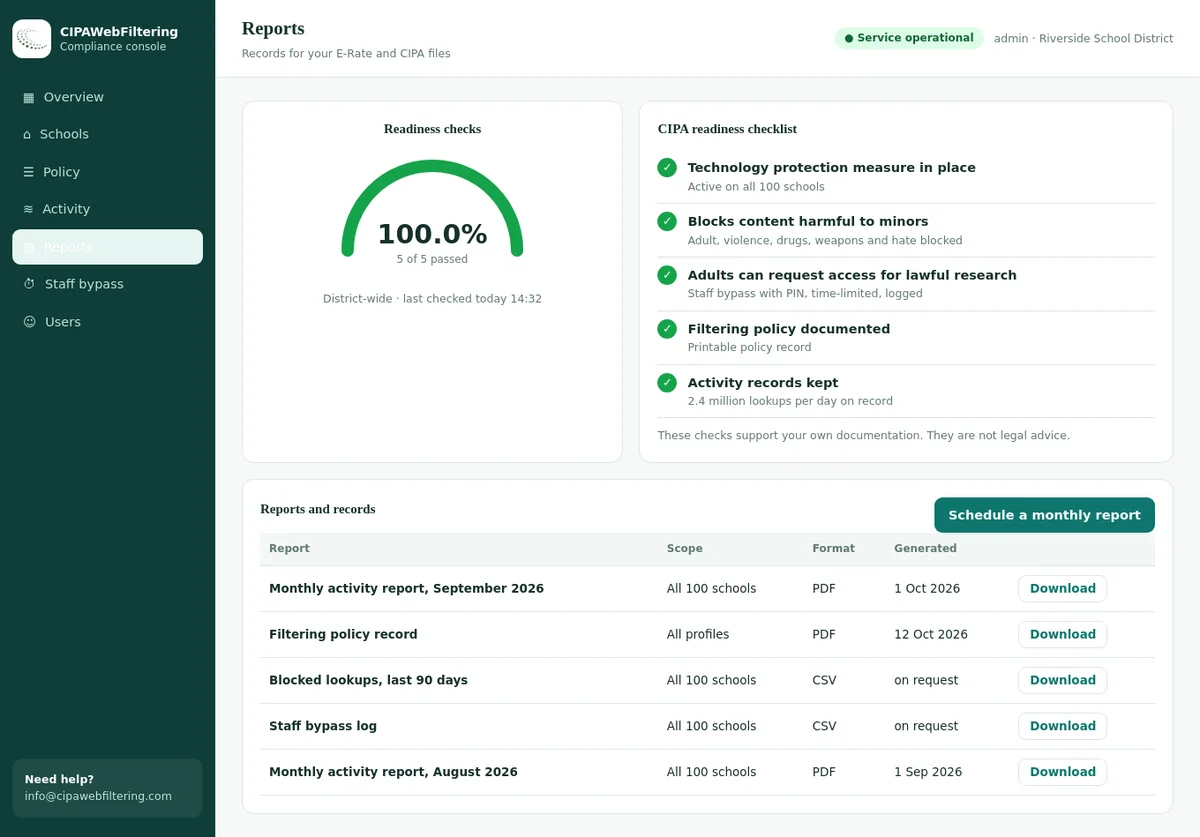
CIPA after the school day ends
CIPA follows the E-Rate funded network and the school's devices, not the clock. Out-of-hours use does not switch it off.
For the basics of who CIPA covers and what it requires, start with what CIPA is and the CIPA compliance checklist.
What makes after-school filtering harder
The filter itself does not change at 3 pm. Almost everything around it does.
| Challenge | Why it happens | What helps |
|---|---|---|
| Mixed ages in one room | Programs group kindergarten to grade 8 together, or several grades of teens. | Use the settings of the youngest group on shared devices, and older-group profiles on assigned ones. |
| Seasonal and part-time staff | Program leaders may not have had school technology training. | A one-page briefing and a named contact for problems. |
| Different activities | Coding clubs, video projects and esports need sites blocked in the day. | Program profiles that open only what each activity needs. |
| Partner devices | Partners bring laptops or tablets that are not managed by the district. | A separate network segment with network-level filtering. |
| No technology staff on site | IT staff work school hours; programs run into the evening. | Clear escalation rules and a way to log problems for the next morning. |
| Summer maintenance | Networks and devices are upgraded while camps are running. | Schedule changes and tell program leads before switching anything. |
Four filter profiles for out-of-school time
Most districts need only a few profiles. Each keeps the CIPA core blocked and changes the rest to suit the program.
- Youngest age group sets the rules
- Video limited to approved channels
- Games limited to learning games
- Social networking blocked
- SafeSearch enforced
- Opens what the club needs, such as developer tools for coding
- Video allowed for media clubs
- Game platforms only for an approved esports club
- Time-bound to club hours
- Same as the school-year student profile
- Course platforms allowed
- Test-time rules during exams
- AI tools follow the district AI policy
- Network-level category filtering
- CIPA core always blocked
- VPN and proxy blocked
- No access to internal school systems
The categories behind these profiles are explained in our school web filtering categories guide. SafeSearch settings are covered in SafeSearch enforcement for schools.
Typical program sites and how our data labels them
Pulled from our category data, these are the kinds of sites a club leader asks about on day one.
| Website | Categories in our data | Usual treatment |
|---|---|---|
| minecraft.net | Gaming | Allowed when it is the club activity |
| coolmathgames.com | Education/Reference, Gaming | Often allowed, mixed content |
| pbskids.org | Education/Reference | Allowed for younger groups |
| youtube.com | Streaming Media, Social Networking | Depends on the program |
| roblox.com | Gaming | Usually blocked on school networks |
| twitch.tv | Streaming Media, Gaming | Streaming and gaming, usually blocked |
What common clubs and camps need opened
Most unblock requests in out-of-school time come from a handful of activities. Planning for them in advance avoids a club stalled on its first day.
| Activity | Usually needs | Keep blocked |
|---|---|---|
| Coding and app clubs | Developer tools and code hosting sites, package downloads, online code editors. | Remote access tools and file sharing beyond what the club uses. |
| Robotics and STEM camps | Robot vendor software sites, simulation tools, technical video tutorials. | General game downloads and unrelated streaming. |
| Media and video clubs | Video platforms for upload and review, royalty-free music and image libraries. | Adult content, social networking chat features for younger groups. |
| Esports clubs | Only the approved titles and their launchers, at club times. | Other game platforms, voice chat with strangers, gambling-style skins sites. |
| Homework help | Course platforms, reference and education sites, the library catalogue. | Answer-sharing sites and unapproved AI tools, per district policy. |
| Language and culture clubs | News and media in other languages, music and video from other countries. | The CIPA core, which applies in every language. |
| Art and design | Design and image editing tools, galleries and museum sites. | Unfiltered image generators, per the district AI policy. |
Open these through the club's profile and hours, not by changing the school-day student profile. That way the change ends when the club ends.
Ask club leaders for their site list a week before the club starts, and test it with a program account before day one.
A fix without calling the district
Staff PIN bypass runs for 15, 30 or 60 minutes and then switches back by itself, with each use logged. Public encrypted DNS and browser settings that skip the filter are blocked by default.
Handling an incident when IT staff have gone home
Something will go wrong at 5 pm on a Friday. A short escalation route means program staff know exactly what to do.
Setting up the network for after-hours programs
A little network planning stops partner devices and guests from sharing the student network, and keeps the after-hours profile from leaking into the school day.
Separate the networks
Give partner and guest devices their own wireless network and segment, apart from student and staff networks.
Filter every segment
Apply category filtering to the partner segment, at least at DNS level, with the CIPA core blocked.
Use time-based rules
Switch program profiles on for program hours only, and back to the school profile each morning.
Group program users
Put program student accounts or devices in their own group so their profile can differ without touching others.
Block bypass routes
Block VPN, proxy and anonymizer categories on every segment, including the partner network.
Test at program time
Check the profile at 4 pm, not 10 am, to be sure time rules switch as planned.
Our guide on school guest wifi filtering goes deeper on guest networks, and stopping proxy and VPN bypass covers bypass controls.
Devices: whose are they and how are they filtered?
Programs often mix device types in one room. Each type needs a different way to apply the filter.
| Device | How to filter | Watch for |
|---|---|---|
| School-issued student devices | The device policy and agent already filter on any network. | Program profiles must not weaken the CIPA core. |
| School cart devices lent to a program | Assign them to a program group with its own profile. | Shared logins that hide who used the device. |
| Partner-owned laptops and tablets | Network-level filtering on the partner segment. | Devices that switch to phone hotspots to avoid the filter. |
| Student personal phones | Guest network filtering, if you let them join at all. | Mobile data bypasses the network filter entirely. |
| Program staff devices | Staff or guest network, depending on the agreement. | Staff screens visible to students showing unfiltered content. |
Label program devices clearly and keep a simple sign-out sheet. When something goes wrong, knowing which device a student used is the first thing IT will ask.
For personal devices, see BYOD filtering in schools.
The facility use agreement
When a partner uses school buildings, the facility use agreement is the right place to set internet rules. Write them in before the first session, not after a complaint.
What the district provides
- Which network the partner may use and when
- The filter profile that applies on that network
- Any school devices lent, and the rules for them
- A contact for network problems and unblock requests
- Notice of planned maintenance during the program
What the partner agrees to
- Follow the district's acceptable use rules with students
- Supervise students when they are online
- Not bypass the filter or bring unfiltered hotspots for students
- Report safety concerns through the agreed route
- Make sure staff have read the one-page briefing
Review the agreement each year with the partner. Programs change staff, devices and activities more often than schools do.
The district's acceptable use policy can be attached as a schedule to the agreement, so both sides use the same rules.
A one-page briefing for program staff
Seasonal leaders do not need a technology course. They need to know a few rules and who to call.
- Students use only the devices and network the program has been given.
- The filter blocks harmful sites. Do not try to get around it, and do not share passwords that open it.
- If a student sees something upsetting, close the screen, reassure them and tell the program lead.
- If a learning site is blocked, note the address and send it to the named contact. Do not use a personal hotspot as a workaround.
- Keep screens where staff can see them, especially with younger children.
- Follow the program's safeguarding procedure for any concern about a child.
- Report lost or damaged devices the same day.
The filter decides what loads. It does not watch students for you, so supervision by adults in the room remains part of the plan.
Summer: the season that breaks filtering
Summer combines camps, summer school, device collection and network upgrades. A short plan avoids a camp running on an unfiltered network for a week.
List summer programs
Collect dates, buildings, age groups and device needs for every program using school sites.
Set summer profiles
Create or reuse profiles and time rules. Agree which devices stay out over the summer.
Freeze risky changes
Avoid filter or firewall changes in buildings while camps are running, or test them first after hours.
Spot-check
Visit or test each program network once. Check the partner segment and the bypass blocks.
Reset for the school year
Remove summer rules, re-enrol returned devices and confirm school profiles before students return.
Review
Note what went wrong and keep the plan for next year. Summer repeats itself.
Keep a single shared calendar of programs and network work. Most summer filtering problems start with two teams who did not know about each other's plans.
Students who keep devices over the summer need off-campus filtering. Our guide to filtering off-campus student devices covers how that works.
Funding and grant conditions
Many programs are funded by federal or state after-school grants, such as 21st Century Community Learning Centers awards. Grant rules can add expectations about safety and technology use.
What to check in grant terms
- Whether the grant buys devices, and who manages them
- Any safety or child protection plan the grant requires
- Who owns devices when the grant ends
- Reporting that touches technology use
Practical points
- Grant-bought devices should be enrolled in district management where the district runs the program
- Partner-run programs need their own filter if they use their own network
- Federal after-school funding levels have been debated in recent budgets, so check current awards
- Filtering costs are covered in funding school web filtering beyond E-Rate
Telling families what applies after school
Parents often assume after-school programs run with the same rules as the school day. Tell them clearly what is the same and what is different.
What stays the same
Harmful content is blocked on the school network and school devices at every hour.
What may differ
Some clubs open sites the school day blocks, such as coding tools or approved games.
Who is in charge
Program staff supervise; for partner programs, name the organization responsible.
Personal phones
Explain whether phones may join program wifi and that mobile data is outside the filter.
Who to contact
Give one contact for questions about access and one for safety concerns.
Summer devices
Say whether devices stay filtered over the break and if any rules relax.
Our guide to explaining web filtering to parents has wording you can adapt for program sign-up forms.
Running filtering for a program: shared network or its own filter
Compare the options for an after-school or summer site.
| Need | Leaving the school filter as it is | Hosted CIPA filter per site |
|---|---|---|
| Different rules for a camp | One policy for everyone | Separate settings per school or branch |
| Adding an allowed site fast | Wait for the IT office | Always-allow list, applied in seconds |
| Visiting devices | Cannot be configured | Filtered at the network with one DNS setting |
| Proof for a grant file | Gaps outside school hours | Reports and log export for CIPA files |
| Staff needing an exception | Disable the filter | Timed PIN, switches back, logged |
| Setup effort | Software on every device | Nothing installed on computers |
After-school and summer filtering FAQ
Does CIPA apply to after-school programs?
If the program uses an E-Rate school's network or devices, the school's CIPA duties still apply to that use. A partner on its own network and devices is outside CIPA unless it takes E-Rate.
Can community groups use the school's E-Rate funded internet after hours?
Yes, under FCC rules since 2010, with students and staff keeping priority, no extra services bought for it and no charges for discounted services.
Should summer camp use the same filter settings as the school year?
Keep the CIPA core the same and adjust the rest to the program and the youngest age group present.
How do we filter partner organizations' devices on our network?
Use a separate network segment with network-level filtering, and write it into the facility use agreement.
Who supervises internet use in an after-school program?
Program staff. Give them a one-page briefing and a named contact for problems.
What about program devices sent home over summer?
Keep the device filter active off campus and tell families what is filtered and who to contact.
Related guides
Pricing follows the number of sites and devices, and a quote comes within one business day. A pilot on a single program site shows the blocks and reports before you commit.
Talk to us about your district
Tell us which programs use your buildings after hours and over the summer. We will suggest profiles and network settings that keep every group filtered.
Talk to us about your district See the hosted CIPA filter