Stop Proxy and VPN Bypass in Schools
Students rarely beat a school filter by breaking it. They walk around it: through a proxy site, a VPN app, an encrypted DNS setting, a phone hotspot or a page served from somebody else's domain.
This page maps every common route and shows which control closes it, so you can see the gaps in your own setup at a glance.
The eight ways students get around a school filter
Each route below works for a different reason. Some hide the destination, some hide the lookup, and some leave the school network entirely. Knowing which is which tells you where the fix has to sit.
Web proxy sites
A page with a URL box that fetches other sites for the student. The filter sees only the proxy's own domain, which is often days old.
VPN apps
Installed apps that tunnel all traffic to an outside server. On an unmanaged phone they are one tap away; on managed devices they depend on your app policy.
VPN and proxy extensions
Browser add-ons that reroute traffic from inside the browser. They are the most common route on school Chromebooks when the extension store is open.
Encrypted DNS
DNS over HTTPS or TLS sends lookups to an outside resolver. A DNS filter on the school network then never sees which site was requested.
Hotspots and cellular data
A phone shares its mobile data with a laptop. Traffic never touches the school network, so network controls have nothing to inspect.
Cached and archived pages
Stored copies of a page served from an archive or cache service. The blocked site's content arrives under a different, often allowed, domain.
Translation and reader tools
Some translation and reading services load the whole target page through their own address. They behave like a proxy that happens to be useful in class.
Remote desktops and cloud browsers
A browser running on a remote machine streams only pixels back to the student. The filter sees one connection to the remote service.
Start closing bypass routes with the network layer
Of the eight routes below, the proxy, VPN and encrypted DNS ones are handled where the lookup happens. Our hosted CIPA filter blocks all three by default or by category, with nothing to install.
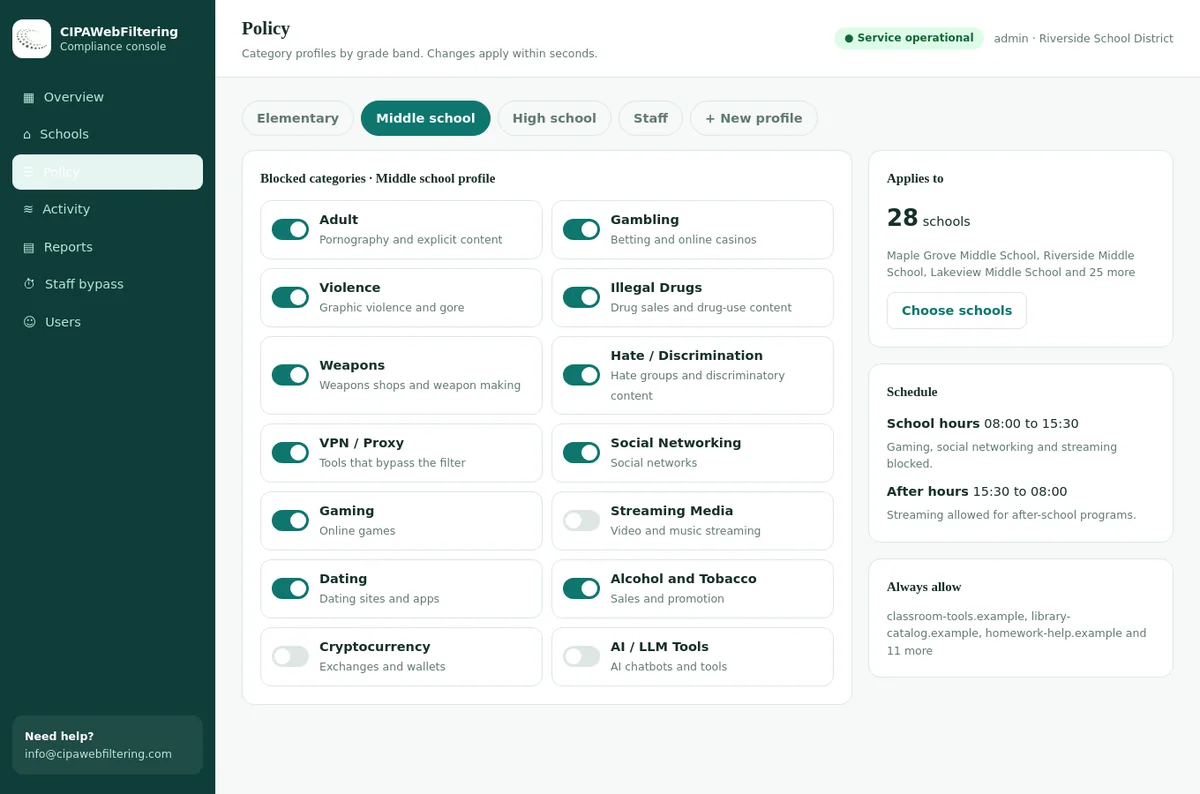
- VPN/Proxy/Anonymizers is on in the CIPA preset and stays on with a staff PIN
- Public encrypted DNS and browser settings that skip the filter are blocked by default
- A private encrypted link keeps the rules on devices off the network
What each control closes
No single tool covers every row. Read across a route to see which layers you need, or read down a column to see what a tool you already own is really doing for you.
| Bypass route | Category filter on school network (DNS or proxy) | Filter on the device (follows it home) | Device and browser policy (admin console, MDM) | Firewall egress rules | Policy, supervision and teaching |
|---|---|---|---|---|---|
| Web proxy sites | Closes, if the category is fresh | Closes, on and off site | Little effect | Little effect | Reduces sharing of new links |
| VPN apps | Partly: blocks known VPN domains and sign-up pages | Partly, depending on platform | Closes on managed devices (app allow list) | Partly: block common VPN protocols and ports | Covers personal phones |
| VPN and proxy extensions | Partly: blocks the store pages and the service endpoints | Partly | Closes (extension allow list or block list) | Little effect | Approval process for requests |
| Encrypted DNS | Partly: block known public encrypted DNS resolvers | Closes, if the agent controls DNS | Closes (turn off or pin to school resolver) | Partly: block outbound DNS over TLS port | Little effect |
| Hotspots and cellular | Cannot see it | Closes on managed devices | Partly: restrict which Wi-Fi networks a device can join | Cannot see it | Main control for personal phones |
| Cached and archived pages | Partly: archive and cache services can be categorized | Partly | Little effect | Little effect | Staff report and request review |
| Translation and reader tools | Partly: block the page-translation endpoint, keep text translation | Partly | Partly: browser policy on built-in translation | Little effect | Teach the allowed use |
| Remote desktops and cloud browsers | Closes via Remote Access Tools category | Closes | Closes on managed devices (no install) | Partly: block remote desktop ports | Staff exceptions by request |
Reading the matrix: the network filter and the device policy carry most of the weight. The filter catches what students visit; the device policy decides what students can install and change. Neither replaces the other.
Four layers that work together
Think of bypass prevention as four layers stacked on top of each other. A student has to get past all four, and each layer is cheap to run once it is set up properly.
Network
A category filter at DNS or proxy level on staff, student and guest Wi-Fi. It blocks the VPN / Proxy / Anonymizers, Remote Access Tools and URL Shorteners categories, plus known encrypted DNS resolvers.
Device
A filter that runs on managed Chromebooks, iPads and laptops so the same rules apply at home, on a bus hotspot or on a relative's Wi-Fi.
Account and policy
Admin console and MDM settings: extension and app allow lists, encrypted DNS off, developer mode off, incognito off, guest browsing off, no unknown networks.
People
An acceptable use policy that names bypass tools, a calm response process, teaching about why the rules exist, and a way for staff to ask for a site to be reviewed.
Proxy sites carry a label, encrypted DNS hosts do not
Proxy and VPN services are filed under VPN / Proxy / Anonymizers in our data, so one category switch covers them. Public DNS hosts are labelled as ordinary technology sites, which is why the filter blocks them separately.
| Domain | Category in our data |
|---|---|
| croxyproxy.com | VPN / Proxy / Anonymizers |
| proxysite.com | VPN / Proxy / Anonymizers |
| protonvpn.com | VPN / Proxy / Anonymizers |
| dns.google | Computers & Technology |
| cloudflare-dns.com | Computers & Technology |
Encrypted DNS: the quiet bypass most filters miss
Encrypted DNS is a privacy feature, not a cheating tool, and it is switched on by default in some browsers and operating systems. That is exactly why it slips past DNS filters without anyone noticing.
Browsers
- On managed Chromebooks and Chrome, set the DNS over HTTPS policy to off, or to a template that points at the school resolver.
- Firefox checks a canary domain on the network before turning on encrypted DNS by default. A DNS filter can answer that check so the browser keeps using the school resolver.
- Lock policy settings so students cannot change them in browser settings.
Operating systems
- Android "Private DNS" can send lookups to any resolver the user types in. Restrict it through your device management where the platform allows.
- On Apple devices, iCloud Private Relay hides browsing from the network. Apple documents that networks can signal it is not allowed by returning no answer for its two test hostnames.
- On supervised devices, MDM can restrict the relay and DNS settings directly.
At the network edge
- Block the domains of well-known public encrypted DNS services through your filter category for anonymizers and infrastructure.
- Block outbound DNS over TLS on its standard port for student VLANs.
- Force plain DNS on port 53 to your own resolver, so a student who hard-codes another server gets nothing back.
How to test it
- On a test student device, turn on every encrypted DNS option the user can reach and try a blocked category.
- Repeat on guest Wi-Fi and a staff device, since policies often differ per group.
- Log the result in your annual filter review so the next person can repeat it.
For background on why DNS-level and page-level filtering behave differently, see web filtering vs DNS filtering.
Skipping DNS settings that students change on their own
Our filter blocks public encrypted DNS and browser settings that skip it, so the quiet bypass described above is shut by default. For laptops that leave the building, the private encrypted link carries the same rules.
Hotspots, cellular data and personal phones
This is the route where IT tools hand over to school policy. Once traffic leaves through a phone's mobile data, nothing on the school network can see it.
What IT can do
- Run a filter on managed devices, so a school Chromebook tethered to a phone still applies school rules.
- Where your platform supports it, limit managed devices to approved Wi-Fi networks during the school day.
- Filter guest and bring-your-own-device Wi-Fi so personal phones on the school network are covered too.
- Watch for devices that stop reporting to the filter during school hours, which can signal tethering.
What policy has to do
- Say plainly whether phones may be used, and whether hotspots are allowed, in the acceptable use policy.
- Align with the school's phone rules. In England, the DfE has published non-statutory guidance on mobile phones in schools.
- Explain to parents that cellular data is outside school filtering, and point them to home controls.
- Make sure staff know who to tell if a student shows them something worrying from a phone.
Related reading: BYOD filtering in schools, school guest Wi-Fi filtering and enforcing CIPA filtering on off-campus student devices.
Cached copies, archives and translation tools
These routes are awkward because the services involved are legitimate and often useful for research or language learning. The goal is to keep the useful part and close the page-relay part.
Archives and caches
- Web archive services keep historic copies of pages, including blocked ones. Decide whether students need them; many districts allow them for staff only.
- Text-only and "lite" views from search engines and readers can carry the full content of a page. Test a blocked page through each one you allow.
- Enforce safe search across all search engines, so cached previews and image results stay filtered.
Translation
- Text translation, where a student pastes a sentence, is not a bypass. Whole-page translation that loads the site through the translator's domain can be.
- Many filters can treat the page-translation address separately from the text tool. Check how yours handles it, then test with a blocked site.
- Language teachers often need translation. Agree the rule with them first so the block does not land in the middle of a lesson.
Tip: keep a short list of "relay-capable" services your district allows, who they are allowed for, and the date you last tested them. It turns a recurring argument into a two-minute check.
The two deep-dive guides
Proxy sites and VPN extensions are the two routes schools ask about most. Each has its own full guide, so this hub stays a map rather than repeating them.
How to block proxy sites in schools
The families of proxy routes, why proxy domains outrun static lists, configuration across filter, admin console, DNS and firewall, a weekly log routine and how to respond when a student uses one.
Block VPN extensions on school Chromebooks
A Chromebook hardening audit, choosing allow list or block list for the extension store, running an approval process and an incident playbook when a VPN gets through.
If you manage devices in Google Admin, the step by step guide to blocking websites on Chromebooks in Google Admin covers the console screens. For fleet-wide design, see 1:1 Chromebook device filtering.
A 30-day plan to close the gaps
Most districts can close the majority of bypass routes in a month without new hardware. The order below starts with the cheapest, highest-impact changes.
- Week 1: inventory. List every network (student, staff, guest, BYOD), every device platform, and where filtering runs for each. Note any group that is filtered only at the network.
- Week 1: categories. Confirm VPN / Proxy / Anonymizers, Remote Access Tools and URL Shorteners are blocked for students on every network and every device filter.
- Week 2: device policy. Switch extension and app stores to allow list mode for students, turn off encrypted DNS settings users can change, and remove developer mode, guest mode and incognito where your platform allows.
- Week 2: DNS edge. Force DNS to your resolver, block outbound DNS over TLS for students, and answer the browser and relay canary checks.
- Week 3: relay services. Decide the rules for archives, page translation and text-only views. Test a blocked site through each one.
- Week 3: off site. Take a managed device home or onto a phone hotspot and repeat the tests. Fix any policy that only works on campus.
- Week 4: people. Update the acceptable use policy to name bypass tools, brief staff on how to report a suspected bypass, and send a short note to parents.
- Week 4: record. Write down what you tested and the results. Repeat the tests each term, because browsers and apps change their defaults.
A structured way to run these tests is in the school web filter test. For policy wording, see the acceptable use policy guide for schools.
Why bypass tools outrun static blocklists
A proxy domain can be registered, shared in a group chat and used by half a year group before anyone adds it to a manual list. The fix is fresher category data, not longer lists.
About 300,000 newly registered domains are categorized every day and delivered as daily delta files.
Each new domain is checked again after a week and after a month, because many sites add their proxy or VPN content after launch.
A domain can carry several categories, ranked by how much of the site they describe, so a "games" site that is really a proxy still lands in the anonymizer category.
120 million categorized domains. The 20 million most visited cover 99.99% of web traffic and usage.
Delivered as files that run inside your own systems, with export formats such as DNS RPZ, hosts files and firewall lists for licensed customers.
Regular manual validations measure accuracy, and licence holders receive validation reports for the CIPA-relevant categories.
See how the categories fit together in the web filtering categories taxonomy, or look up a suspicious domain with the domain checker. Schools that want the filtering run for them can use the hosted CIPA filter.
Measuring whether bypass is going down
You cannot manage what you do not count. These measures come from logs you already have and show whether the layers are working.
A falling count after the plan is a good sign. A sudden spike often means a new proxy link is circulating.
Share of managed devices reporting the current extension, app and DNS policy. Aim for the whole fleet.
Share of managed devices that reported to the device filter from home in the last week.
Number of extension or app requests and average time to decision. Slow approvals push students toward workarounds.
Lookups to domains your filter cannot categorize. A high share points to stale category data.
Students with repeated bypass attempts, handled through the behaviour or safeguarding process, not only by IT.
Responding to bypass attempts fairly
Most bypass attempts are curiosity or boredom. A small number point to something more serious. Your response process should tell the two apart.
A proportionate ladder
- First attempt: a conversation about why the filter exists and what the policy says.
- Repeated attempts: involve the class teacher or head of year and the parent, following the behaviour policy.
- Persistent or organised bypass: restrict device privileges for a period, with a clear route back.
- Sharing proxy links widely: treat it as you would any other rule broken on behalf of others.
When it is a safeguarding matter
- Website category filtering is one layer. It blocks routes and records requests; it does not read messages or judge a student's wellbeing.
- If a bypass attempt was made to reach harmful content, or anything else worries staff, it goes to the designated safeguarding lead or equivalent under the school's safeguarding process.
- Keep IT tickets factual: the time, the device and the category. Leave judgments to trained staff.
For how filtering, monitoring and classroom tools differ, see web filtering vs monitoring vs classroom management. Schools in England can read the DfE filtering and monitoring standards guide.
Bypass routes against what our hosted filter does about each
No single control closes every route, and this table shows where the filter fits.
| Route | Typical gap | Hosted CIPA filter |
|---|---|---|
| Web proxy sites | New ones appear daily | Blocked as a category across 120M+ categorized domains |
| VPN services | Staff PIN opens everything | VPN/Proxy stays blocked, even with a PIN |
| Encrypted DNS in a browser | Filter never sees the lookup | Blocked by default |
| Laptop away from school | No filter at home | Private encrypted link with the same rules |
| Phone hotspot or personal phone | Outside school control | Not covered; this needs a school policy |
FAQ: stopping proxy and VPN bypass in schools
Can a school completely stop students from bypassing the web filter?
No single control does that. Schools get close by layering a category filter at the network, device policies on managed Chromebooks, iPads and laptops, rules for encrypted DNS, and a clear acceptable use policy. Each layer closes routes the others miss.
Is blocking VPN apps legal for a school?
Schools can set rules for their own networks and the devices they manage. Blocking anonymizers also supports the technology protection measure that CIPA requires for E-Rate funded schools in the US, and the filtering expectations that apply to schools in England.
How do students bypass filters with encrypted DNS?
If a browser or device sends DNS lookups over an encrypted channel to an outside resolver, a DNS-based filter on the school network never sees those lookups. Schools close this with browser and device policies that turn the feature off or point it at the school resolver, plus blocking known public encrypted DNS services.
What about students using their phone as a hotspot?
A network filter cannot see traffic that never touches the school network. The answer is a filter that runs on managed devices wherever they connect, blocking unknown Wi-Fi on managed devices where your platform allows it, and a phone policy that covers tethering.
Why do new proxy sites keep getting through?
New proxy domains appear daily and spread between students quickly. A static blocklist falls behind. A category feed that checks newly registered domains every day, and checks them again later as content is added, narrows the gap.
Should we punish every bypass attempt?
Most schools treat a first attempt as a teaching moment and escalate repeated or harmful attempts under the acceptable use policy. If an attempt points to a safeguarding concern, it goes through the school's safeguarding process, not the IT ticket queue.
Related guides
We price by the number of schools and devices and send a quote within one business day. A pilot on one site would show you the bypass blocks and the reports before you commit to more.
Close the bypass routes in your district
Tell us how your networks and devices are set up. We will show you where fresh anonymizer and remote access categories fit into the tools you already run.
Talk to us about your districtGoogle, Chrome, Chromebook and Android are trademarks of Google LLC. Apple and iCloud are trademarks of Apple Inc. Firefox is a trademark of the Mozilla Foundation. They are used here only to identify the products discussed. CIPA Web Filtering is not affiliated with, sponsored or endorsed by any of these companies.