Self-harm and violence content filtering for schools
Some websites promote self-harm, describe suicide methods or celebrate extreme violence. Schools have good reason to keep them off student devices.
This guide explains how to filter them with care, and how to make sure help is never the thing that gets blocked.
If you are worried about a student right now, follow your school's crisis procedure. In the US, anyone can call or text 988 to reach the Suicide and Crisis Lifeline, free and at any hour. In an emergency, call 911.
What website filtering does, and what it does not do
Being exact about this protects students. A filter that is believed to do more than it does can leave a struggling child unnoticed.
We filter websites by category
- Each website domain carries one or more categories, such as Violence or Weapons.
- Your settings decide which categories are blocked for which group.
- The filter answers or blocks the lookup before the page loads.
- Your always-allow list overrides every category rule.
- Logs show which domains were looked up and which were blocked.
We do not read or watch students
- We do not read messages, chats, emails or documents.
- We do not read search terms or what is typed on a page.
- We do not analyze behaviour or score students.
- We do not identify students who may be at risk.
- We do not replace counsellors, nurses or your safeguarding team.
Protective settings that keep the help pages open
In our hosted CIPA filter the always-allow list is set per school, so a crisis line stays reachable while harmful categories stay off. The filter works by domain and does not read messages, chats or searches.
- Violence and Weapons can be switched on beside the CIPA preset
- An always-allow list sits on top of every category rule
- Each school or branch keeps its own settings
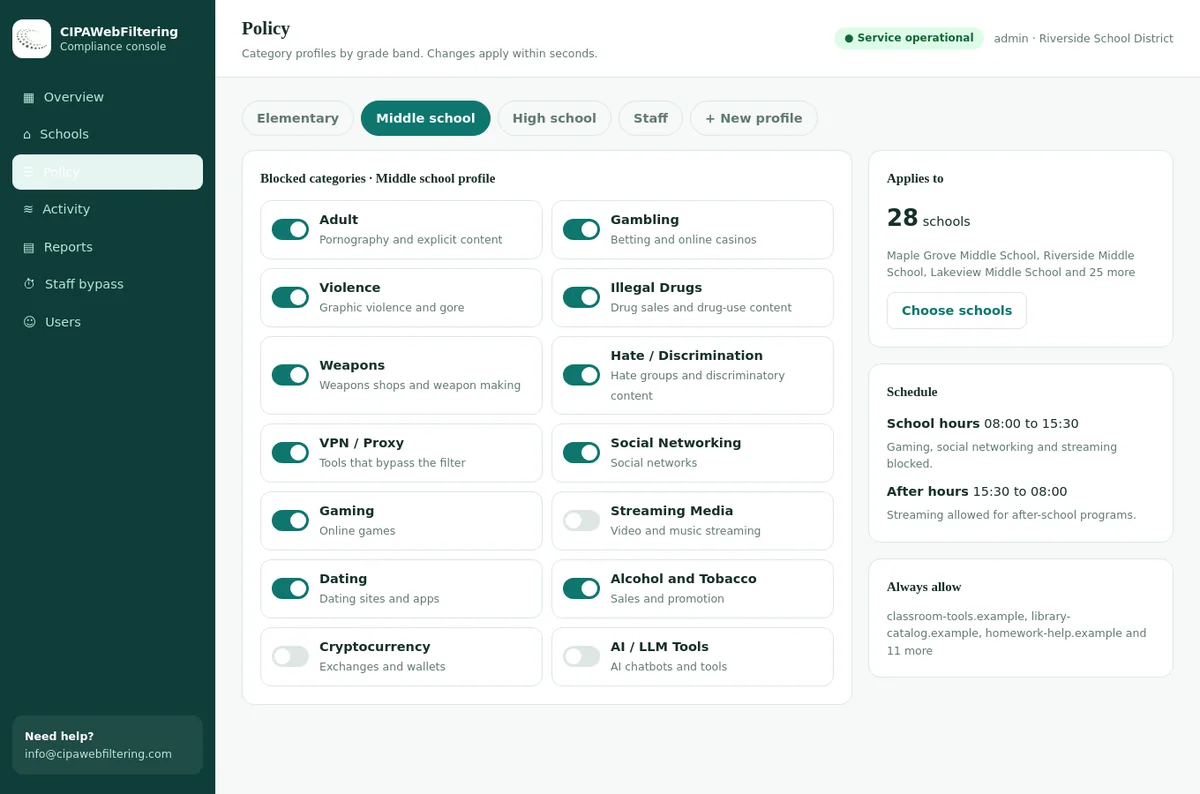
Which categories to block for harmful content
These categories from our set do most of the work. Our data has no separate self-harm label, so schools pair them with a short custom block list kept with their safeguarding lead.
Violence
Sites centred on graphic violence, gore, cruelty and content that glorifies harming people. Usually blocked for all students.
Typical setting: block for studentsWeapons
Sites selling or promoting firearms, knives and other weapons, and sites with weapon-making instructions. Common in district block lists.
Typical setting: block for studentsIllegal Drugs
Sites about buying or using illegal drugs. Relevant because some self-harm content overlaps with overdose information.
Typical setting: block for studentsHate/Discrimination
Sites that attack groups of people. Hate content and violent content often travel together, so most districts block both.
Typical setting: block for studentsVPN / Proxy / Anonymizers
Without this block, every other rule can be skipped. See blocking proxy sites in schools for the full picture.
Typical setting: block for everyone except ITYour custom block list
Forums or communities that promote self-harm or eating disorders, added when your counsellors or safeguarding lead identify them.
Typical setting: always blockCheck how any site is categorized before adding it with the school web filter domain check. For the full category list, see our web filtering categories taxonomy.
How to keep help resources always allowed
A student searching for help at a hard moment must never hit a block page. Your always-allow list is the tool for this, because it beats every category rule.
| Resource type | Examples to allow | Why it matters | Where it sits |
|---|---|---|---|
| National crisis lines | The 988 Suicide and Crisis Lifeline website (988lifeline.org) and its online chat | Lets a student reach trained counsellors by chat from a school device | Always allow |
| Text-based crisis support | Crisis Text Line (crisistextline.org); texting HOME to 741741 also works from any phone | Many young people prefer text to a call | Always allow |
| Your own district pages | Counselling page, anonymous reporting form, nurse office page | Local help with real names and room numbers | Always allow |
| State and county services | Your state's youth crisis and mental health service sites | Local follow-up and referral routes | Always allow |
| Health education | Government health agencies and curriculum providers your teachers use | Lessons on mental health, first aid and substance misuse | Health & Medicine, keep open |
| Safe reporting on suicide | Guidance pages your staff use when discussing loss in school | Helps adults talk about suicide safely | Education/Reference, keep open |
About 988
The 988 Lifeline went live nationwide on July 16, 2022. People can call, text or chat, free and at any hour, and the old National Suicide Prevention Lifeline number still connects.
Phones bypass the network
Calling or texting 988 uses the phone network, so no school filter affects it. The allow list matters for web chat and information pages.
Test it, then test again
Open each help site from a student account on campus and on a school device at home. Repeat after every major filter change.
How well-known support services are categorized
All of these are filed under Health & Medicine, so a block on harmful content does not touch them. Your allow list can still name them as a safeguard.
| Support site | Category |
|---|---|
| 988lifeline.org | Health & Medicine |
| crisistextline.org | Health & Medicine, Community Sites |
| nami.org | Health & Medicine |
| teenlineonline.org | Health & Medicine |
Humane filtering principles for harmful content
These six principles come from conversations with district IT and student services teams. They keep the filter protective without making it punitive.
Block the promotion, not the topic
Block sites that encourage or instruct harm. Keep open the pages that explain warning signs, recovery and where to get help.
Prefer categories over keywords
Keyword rules catch health lessons, news and help pages. Category decisions at the site level are far less likely to block support.
Never shame on the block page
A block page should be calm and point to help. Wording like "violation" or "reported" can push a student away from adults.
Do not treat a block as a diagnosis
A blocked lookup can come from a class project, a news story or curiosity. It is not evidence that a student is at risk.
Fix wrong blocks fast
When a teacher reports a blocked health or help page, check it and allow it the same day. Note the reason in your policy file.
Keep adults in the loop
IT should not decide alone. Counsellors and nurses know which sites students mention and which help pages they hand out.
A block page that points students to help
Most students never see the block page. The few who do may be having the worst day of their year, so the wording deserves the same care as a counsellor's poster.
This site is not available on school devices
If something is on your mind, you do not have to deal with it alone.
Call or text 988, any time Talk to your counsellorThink this page was blocked by mistake? Ask your teacher to request a review.
Lead with care
Open with what the student can do next, not with what they did wrong.
Give two routes to help
A national line and a named adult in school. Both should be visible without scrolling.
Offer a review path
A simple way to say "this was a mistake" keeps trust high and helps you find wrong blocks.
Remember DNS limits
On encrypted sites, a DNS filter often shows a browser error instead of your page. Put help details on posters and in the student portal too.
Why DNS filters cannot always show a custom page on HTTPS sites is explained in SSL inspection for schools and web filtering vs DNS filtering.
How IT and student services share the work
The filter belongs to IT. The response to a student belongs to people trained for it. This simple flow keeps the roles clear.
Student services name the risks
Counsellors and nurses tell IT which kinds of sites and communities they see in their work, without naming students.
IT sets categories and lists
IT blocks the matching categories, adds specific domains to the custom block list and puts help resources on the always-allow list.
Both test from a student view
Check that harmful examples are blocked and every help resource opens, on campus and at home, using the school web filter test.
Concerns go to people, not to logs
When a teacher, peer or parent raises a concern, it goes straight into the crisis or safeguarding procedure. IT supports with records only when that process asks.
Review each term
Meet briefly each term to add new sites, remove wrong blocks and check that help links still work.
Filtering extreme violence and weapons content without over-blocking
Violence appears across the curriculum, from history and literature to current events. These cases show where a careful setting helps and where blunt blocking causes problems.
Shock and gore sites
Sites that exist to share graphic footage of injury and death have no classroom use. They are a clear block for every student group.
Block for studentsNews coverage of violent events
News sites report on attacks and wars. Keep News/Media open and let teachers guide discussion, rather than blocking whole outlets.
Keep openHistory and Military
Museums, archives and military history sites support social studies. The Military category is separate from Weapons for this reason.
Usually keep openHunting and sport shooting
In some rural districts, hunter safety and sport shooting clubs are part of school life. Use allow-list exceptions for named sites instead of opening Weapons.
Allow by exceptionVideo platforms
Violent clips often sit on large video sites a DNS filter cannot split by video. Use the platform's restricted mode, covered in SafeSearch enforcement for schools.
Restricted mode, not domain blockViolent games
Game sites are better handled through the Gaming category and your device rules than through Violence. See blocking online games on school networks.
Gaming category policyAfter hours and off campus
Hard moments often come late at night, at home. What a school can do there depends on the device and the network.
| Situation | Can the school filter apply? | What helps |
|---|---|---|
| School Chromebook on home wifi | Yes, if the device sends lookups to the school filter | Same categories and allow list as on campus. See enforcing CIPA off campus. |
| School laptop on a public hotspot | Yes, with an encrypted device link to the filter | Test help sites from outside the network after setup |
| Personal phone on mobile data | No | Parent controls at home, and making sure students know 988 by heart |
| Family computer at home | No | Share plain guidance with families on home filters and warning signs |
The same settings on a laptop away from school
A private encrypted link keeps your rules on laptops and phones that leave the network, so a block set in August still applies in the evening. Nothing is installed on the computer.
Start-of-year checklist for harmful content filtering
A short list to run each August, ideally with one person from IT and one from student services in the room.
1. Confirm categories
Violence, Weapons, Illegal Drugs, Hate/Discrimination and VPN / Proxy / Anonymizers blocked for each student group.
2. Refresh the custom list
Add sites student services have flagged since last year, and remove any that no longer exist.
3. Check the allow list
Every crisis line, district help page and health resource opens from a student account.
4. Review the block page
Help details are current, contact names are right and the wording is calm.
5. Test off campus
Take a school device home and repeat the tests on a home connection.
6. Record the review
Note the date, who took part and what changed. Keep it with your CIPA documents.
Where this fits in CIPA and district policy
CIPA's technology protection measure is about visual depictions that are obscene, child pornography or harmful to minors. Blocking violent or self-harm content goes beyond that minimum, as a local policy choice.
Write it down
- Name the extra categories you block and why, in your internet safety policy.
- State that help and health resources are kept open on purpose.
- Say who can approve an allow or block request.
- Set how long filter logs are kept.
Protect privacy
- Treat logs linked to a named student as sensitive records.
- Share them only through your formal process.
- Check your duties under FERPA and state privacy law.
- See student data privacy and filtering.
What to tell parents about harmful content filtering
Parents often assume the school can see everything. Clear, honest communication avoids false comfort and helps them take the right steps at home.
What is covered
School devices and the school network are filtered by website category. Explain which kinds of sites are blocked, in plain words.
What is not covered
Personal phones on mobile data and home computers are outside the school filter. Messages and chats are not read by the filter.
Where to get help
Share the 988 number, your counselling contacts and how to raise a concern with the school, at any hour.
Warning signs
Point families to health guidance on warning signs from trusted public health sources, and invite them to talk with the school counsellor.
Home settings
Suggest turning on device parental controls and search safety settings at home, and talking openly about what children see online.
Questions welcome
Name one contact for filtering questions. Parents who can ask easily are more likely to share a worry early.
Setting this up: by hand, or on a filter run for you
The comparison below is about the workload for IT and student services.
| Step | Hand-kept block list | Hosted CIPA filter |
|---|---|---|
| Choosing categories | Build and update lists yourself | Switch categories on per school from 120M+ categorized domains |
| Keeping help sites open | Remember to exempt each one | Always-allow list that sits on top of the categories |
| Adding a custom blocked site | Edit a file or ask a vendor | Always-block list, effective in seconds |
| Staff research on sensitive topics | Switch the filter off | Logged PIN for 15, 30 or 60 minutes that then reverts |
| Reading student messages | Not part of a filter | Not offered; decisions are by domain |
Self-harm and violence filtering FAQ
Does your web filter read student messages or searches to detect self-harm?
No. We filter websites by category at the domain level. We do not read messages, chats, documents or search terms, we do not analyze behaviour and we do not identify students at risk. Concerns about a student's wellbeing belong with your counsellors and safeguarding process.
How do we make sure students can always reach the 988 Lifeline?
Put the 988 Lifeline website and other crisis services on your always-allow list, which overrides every category rule. Test from a student account on campus and at home. Calling or texting 988 from a phone does not use the school network at all.
What is the 988 Suicide and Crisis Lifeline?
988 is the US three-digit number for the Suicide and Crisis Lifeline. It went live nationwide on July 16, 2022, and people can call or text 988 or chat online, free and at any hour.
Will blocking self-harm content also block health lessons?
It can if you rely on keyword blocking. Category filtering plus an allow list for health education and help services avoids most of this. Check any page a teacher reports as wrongly blocked and allow it the same day.
Is there a separate self-harm category in your data?
Our 58-category set does not have a dedicated self-harm label. Schools usually combine Violence, Weapons and Illegal Drugs with a short custom block list kept with their safeguarding team, plus an always-allow list for help resources.
What should a block page say?
Keep it calm and short. Say the page is blocked by the school filter, give the 988 number and a trusted adult at school, and avoid wording that shames the student.
A quote reflects the number of schools and devices, and it reaches you within one business day. We suggest a pilot on one site so your team sees the blocks and reports first.
Related pages
Talk to us about your district
We can help your IT and student services teams set categories, build a help allow list and test it from a student view, on the hosted DNS filter or with our category data in your own system.
Talk to us about your district