Filtering and Monitoring Annual Review Checklist for Schools
A working checklist for the filtering and monitoring annual review: who sits round the table, what evidence to collect, how to test the filter and where reviews usually fall short.
Tick items as you go and add notes. Everything stays in your browser, and you can print the finished list as your review record.
The review in five moves
- Name the people and their roles
- Refresh the risk picture
- Gather the evidence
- Test filtering and monitoring
- Agree actions, owners and dates
Why the filtering and monitoring annual review matters
For schools and colleges in England, the statutory guidance Keeping Children Safe in Education on filtering and monitoring expects provision to be reviewed at least once a year, with a record kept. The 2026 edition, in force from September 2026, puts more weight on that record and on every staff member knowing their part.
It proves proportion. The review shows you have weighed safety against access to learning, rather than blocking by habit.
It catches drift. Settings change, devices change and pupils find new routes. A yearly look spots what has moved.
It builds evidence. Inspectors, governors and parents may ask how you know the system works. The record answers that.
It joins up roles. IT staff see the logs, the DSL sees the concerns. The review puts both views together.
It sets next steps. Each review ends with actions that feed the next one, so progress is visible year on year.
It anchors the standards. The DfE filtering and monitoring standards make the review one of four core expectations.
Walk into the annual review with the settings already written down
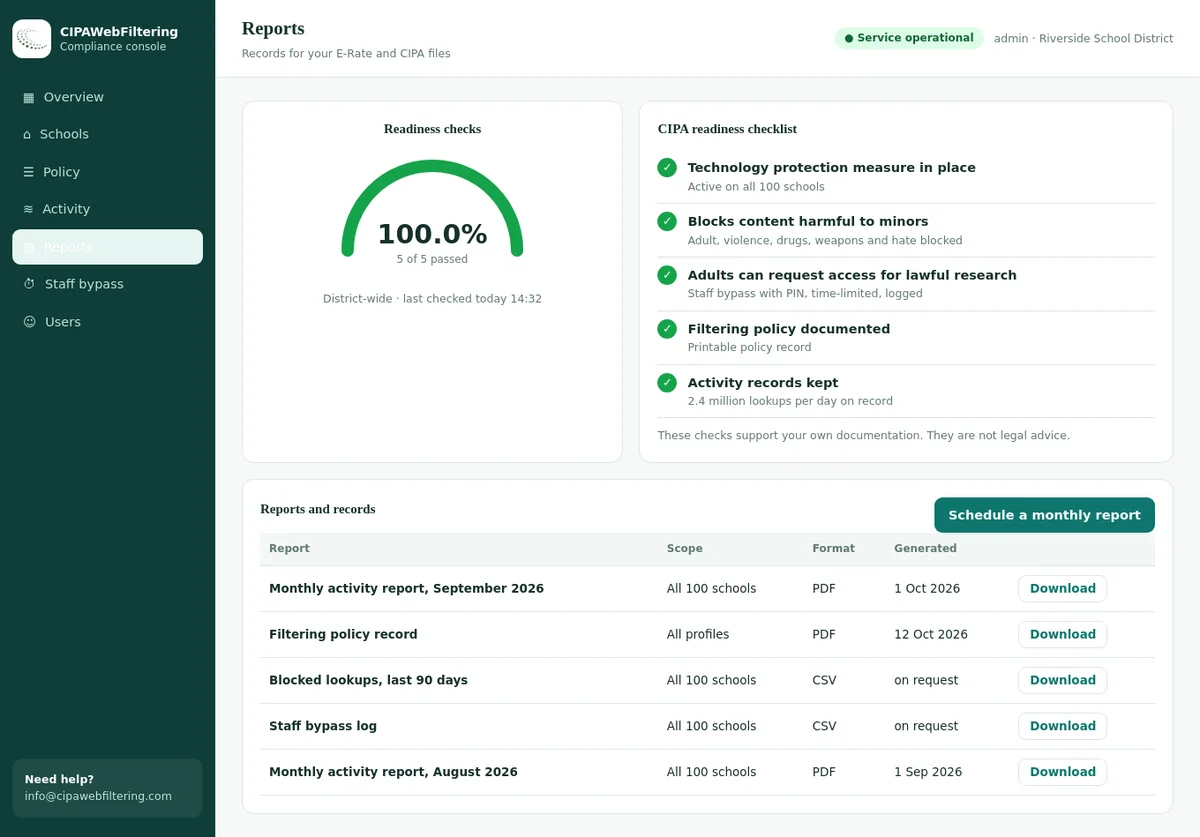
The hosted CIPA filter keeps a policy record and activity reports, so the meeting starts from what the filter did, not from memory. The same console shows each school separately, which helps a trust or a single school run the same check.
- Reports and the readiness checklist are in one place for the DSL and the governor
- The log export can go straight into the evidence folder
- Changes after a gap is found apply to the school in seconds
Who should be involved in the review
A review run by one person tends to check only what that person can see. Bring together the four roles the DfE standards describe, then add voices that know how the system feels in daily use.
Senior leadership lead
The member of SLT given responsibility for filtering and monitoring. Chairs the review and signs off decisions.
- Owns the action plan
- Approves budget or provider changes
Designated safeguarding lead
Brings the safeguarding picture: concerns raised, patterns in alerts, local risks and pupil needs.
- Reviews monitoring reports
- Links findings to the risk assessment
IT service provider
The network manager, technician or managed service. Explains how the system is configured and runs the tests.
- Exports settings and logs
- Confirms device coverage
Governor or trustee
The board member who oversees online safety. Holds the school to account and checks the review actually happened.
- Challenges assumptions
- Reports back to the board
The interactive filtering and monitoring in schools checklist
Work through each group in the meeting. Tick what you can evidence today and write a short note where something needs action. Untick anything you are only assuming.
1. Roles and responsibilities 0/5
2. Risk picture and context 0/5
3. Filtering provision 0/7
4. Monitoring provision 0/5
5. Devices and coverage 0/5
6. Testing and checks 0/4
7. Policy, training and communication 0/5
8. Decisions and actions 0/4
Evidence to gather before the meeting
Ask the IT provider and DSL to bring these items. A review without evidence becomes a conversation about impressions.
| Evidence | Who brings it | What it shows | Priority |
|---|---|---|---|
| Filtering policy export and category settings | IT provider | What is blocked, for which groups, and any exceptions | Essential |
| Written confirmation of IWF and terrorist content list use | IT provider | Illegal content lists are applied and cannot be switched off locally | Essential |
| Test results from the last check | IT provider or DSL | The system blocks and alerts in practice, not just on paper | Essential |
| Summary of monitoring alerts and outcomes | DSL | Volume, themes and how alerts were handled | Essential |
| Online safety and Prevent risk assessments | DSL | The risks the provision is meant to answer | Essential |
| Unblock and block request log | IT provider | Whether over-blocking or under-blocking is a pattern | Strongly advised |
| Device and network inventory | IT provider | What should be covered, so gaps can be spotted | Strongly advised |
| Staff training records | Office or HR | Staff know their part in filtering and monitoring | Strongly advised |
| Provider statement against appropriate filtering definitions | IT provider | How the product measures up to the UK Safer Internet Centre definitions | Strongly advised |
| Last year's review record and actions | SLT lead | Whether last year's actions were completed | Strongly advised |
How to run a filtering and monitoring check
Testing is where many reviews are thinnest. A good check uses real pupil conditions and records what happened, including failures.
Log in as a pupil
Use a test pupil account on a pupil device. Staff accounts often have wider access and give a false pass.
Pick your locations
Test in a classroom, the library and, if devices go home, on a home broadband connection. Coverage often differs by location.
Try each harmful category
Use safe test methods designed for schools rather than visiting harmful sites. Note whether the block page appears and is logged.
Try the workarounds
Check proxy sites, VPN apps, alternative DNS settings, translation tools and cached pages. These are what pupils actually try.
Check the learning side
Visit curriculum sites a teacher named as blocked last year. A filter that blocks lessons is not appropriate either.
Trace the alert
Confirm the monitoring system recorded the attempt and that the DSL or delegate received an alert in a reasonable time.
Look up borderline domains
For sites that surprised you, check how they are categorised. Our domain category checker helps you see the category a site sits in.
Write it down
Record date, tester, device, network, each result and any failure. Attach the sheet to the review record.
Domains worth trying when you check each category
A review test works better with names you know are in the data. These labels come from our database, and several sites carry more than one.
| Domain | Categories in our data | What the test shows |
|---|---|---|
| instagram.com | Social Networking | Whether the social switch is really on for pupils |
| telegram.org | Email and Messaging, Social Networking | If messaging apps are caught by both labels |
| reddit.com | Social Networking, Forums / Message Boards, Community Sites | A site that sits in three categories |
| omegle.com | Social Networking | A chat site a DSL would want closed |
| psiphon.ca | VPN / Proxy / Anonymizers | Whether a circumvention tool is reachable |
| character.ai | AI / LLM Tools, Web-based Applications | If AI is part of your policy yet |
Common gaps a filtering and monitoring review uncovers
These come up again and again. If you recognise one, it is a normal finding, and the review is exactly the place to fix it.
Testing only from staff accounts
The IT team tests from an admin login, which bypasses pupil rules.
Fix: keep a dedicated test pupil account.Off-site devices forgotten
Laptops that go home fall outside the network filter entirely.
Fix: confirm device-level filtering and test at home.Alerts nobody reads
Monitoring sends emails to an inbox that is not checked in holidays.
Fix: name a reader and a backup for each period.One policy for all ages
Primary and secondary pupils get the same settings, which is either too loose or too tight.
Fix: set group policies by key stage.Over-blocking accepted as normal
Teachers stop asking for unblocks and use workarounds instead.
Fix: track requests and review them each term.New domains slipping through
Fresh sites appear daily and older category lists lag behind them.
Fix: ask how quickly new domains are categorised.AI tools not considered
Image generators and chat tools arrive without any decision on access.
Fix: agree a position and filter the AI category accordingly.No governor involvement
The board hears that filtering is "fine" but never sees evidence.
Fix: share the review summary at a board meeting.Record kept in someone's head
The review happened, but nothing was written down.
Fix: print this checklist with notes and file it.Closing the gap that reviews find most often
A private encrypted link keeps the same rules on laptops and phones used away from the school network, and nothing is installed on the computers. Public encrypted DNS and browser settings that skip the filter are blocked by default.
A year of filtering and monitoring at a glance
The annual review is a point in a cycle, not a one-off event. Many schools spread the work across the year like this.
Full annual review
Run the checklist early in the year, after summer device changes and staff induction.
Spot check
Repeat the filtering and monitoring check and review unblock requests from the autumn.
Governor report
Share progress against actions and agree what to change for September.
Triggered review
Run a focused review after an incident, a new provider or a big device rollout.
Triggers for a review outside the annual cycle
A safeguarding incident involving online content or contact
Changing filtering or monitoring provider
A new device scheme, such as one-to-one Chromebooks
Network changes, new sites or merged trusts
Updated statutory guidance, such as a new KCSIE edition
A new type of tool spreading among pupils
Where category data fits into the review
Your filter is only as good as the categories behind it. When you look at under-blocking or over-blocking, the real question is often whether sites are in the right category.
Breadth
Our database categorises 120 million domains. The 20 million most visited cover 99.99% of web traffic, so common sites are rarely unknown.
Freshness
About 300,000 newly registered domains are categorised each day and rechecked after a week and a month, as many add content after launch.
Nuance
A domain can carry several ranked categories. That helps a school allow the education side of a site while handling a riskier part.
Category data supports, but never replaces, the IWF and terrorist content lists that come through accredited filtering providers. If you build or run a filter, see the school web filtering category database. If you are a school, start with the UK schools filtering and monitoring hub.
Where the review finds gaps and what the hosted filter does about them
The rows follow common findings from the section above.
| Gap found in a review | Usual cause | Hosted CIPA filter |
|---|---|---|
| Off-site devices forgotten | The filter stops at the school network | Private encrypted link keeps the same rules on devices away from school |
| One policy for all ages | Single shared rule set | Separate settings per school or branch in one console |
| New domains slipping through | Lists built by hand | 120M+ categorized domains, switched by category |
| Over-blocking accepted as normal | No quick way to fix it | Always-allow lists per site, applied in seconds |
| Staff exceptions left open | Rules changed and forgotten | PIN bypass reverts by itself and is logged |
| Record kept in someone's head | Nothing written at the time | Policy record, activity reports and a log export |
Filtering and monitoring annual review: questions schools ask
Short answers. For the legal detail, check the current DfE guidance.
How often should a school review filtering and monitoring?
At least once each academic year, with a record kept. Review sooner when something significant changes, such as a new risk, new devices or a new provider.
Who should carry out the review?
The SLT lead for filtering and monitoring, the DSL, the IT service provider and the responsible governor or trustee. Add teachers and pupil voice where you can.
Does this checklist send my answers anywhere?
No. It runs only in your browser. Nothing is uploaded or stored on a server. Print the page or save it as a PDF to keep your record.
Is a filtering and monitoring check the same as the annual review?
No. The check tests whether blocks and alerts work. The review is wider and covers roles, risks, policy, training and actions. The check is one input.
What evidence should we keep from the review?
The dated record, attendees, the risk assessment, test results, filtering settings, alert summaries, training records and the action plan with owners and deadlines.
Can a multi-academy trust run one review for all schools?
A trust can run a shared process, but each school's context, pupils and devices differ. Many trusts use a central template with a short local section per school.
Should we test using real harmful websites?
No. Use test methods built for schools, such as a structured filter test, so staff are not exposed to harmful material during the check.
Related UK guidance on this site
Read alongside the checklist for the wider picture.
Pricing is based on how many schools and devices you filter, with a quote sent inside one business day. Putting one school on a pilot lets you retest the gaps and read the reports before you decide anything.
Found gaps in your review?
Talk to us about your school or trust. We can explain how category coverage, new-domain handling and group policies would look for your setting.