Schools and colleges in England

DfE Filtering and Monitoring Standards for Schools and Colleges, Explained

The Department for Education filtering and monitoring standards describe what good provision looks like in four parts. This guide explains each standard in plain English, what it means day to day, and the evidence worth keeping for inspection.

Context

Where the filtering and monitoring standards come from

The standards are one part of the DfE digital and technology standards for schools and colleges. They were first published in 2023, and the DfE page was last refreshed in September 2026, where filtering and monitoring is listed as a core standard.

Linked to KCSIE

Keeping Children Safe in Education, which is statutory, expects schools and colleges to meet these standards. Read our KCSIE filtering and monitoring guide for that side.

Already expected

There is no future start date. Each standard is described as one schools should already be meeting, so gaps are gaps today.

All responsible bodies

The standards speak to governing bodies and proprietors, and to trusts and local authorities where they hold responsibility for several schools.

The filtering half, made practical

Give the named lead a filter they can actually operate

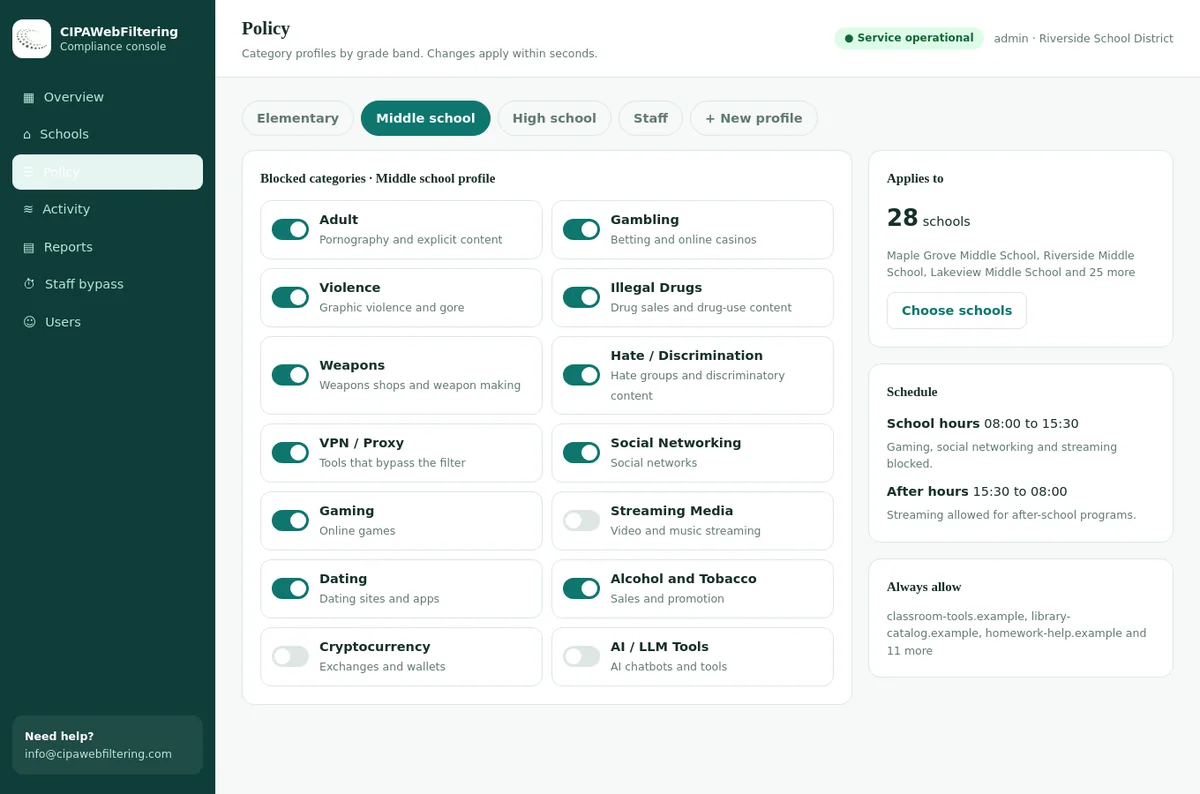
Our hosted CIPA filter takes care of the filtering side of the standards, and the monitoring side stays with your safeguarding systems. The lead you name gets one console, the category switches and the reports.

  • Adult and VPN/Proxy/Anonymizers start switched on in the CIPA preset
  • Always-allow and always-block lists per school handle the local exceptions
  • A change made by the lead applies within seconds
Category switches the named filtering lead sets for a school in the hosted filter
120M+
domains already categorized, so there is no list to write
1 DNS setting
is the whole network change, handled by your IT provider
15, 30 or 60 min
is how long a staff bypass lasts before it switches back
1Standard one
Roles and responsibilities

Name the people who manage filtering and monitoring

In plain terms

Everyone involved should know exactly which part of the job is theirs. Shared jobs with no owner are the most common reason things slip.

Governors assign

The governing body or proprietor names a senior leader and a governor who make sure the standards are met.

Senior leaders decide

The senior team scopes what is needed, buys systems, records what is blocked or allowed and why, and oversees reporting.

The DSL acts

The DSL acts on reports and concerns, and tells governors whether the systems are doing their job.

IT maintains

In-house or external IT support keeps systems running, produces reports and carries out agreed changes.

Scope includes AI

When senior leaders scope requirements, the use of generative AI by staff and pupils should be part of the picture.

Roles can be part-time

These do not need to be new posts. They can sit inside existing jobs, as long as the responsibilities are written down.

What good looks like

  • Named senior leader and governor recorded in governing body minutes.
  • A short roles document covering SLT, DSL, IT support and any external provider.
  • Contracts with IT providers that mention filtering and monitoring duties.
  • A clear route for staff to raise concerns or request changes.

Evidence to keep

  • Minutes naming the responsible senior leader and governor.
  • The roles and responsibilities document, with a review date.
  • A written record of what is blocked or allowed, and the reasoning.
  • Supplier details and the support agreement.
2Standard two
Annual review

Review your provision at least once a year, and after big changes

In plain terms

Risks, devices and pupils change every year. A recorded review makes sure your settings still match the school you have now, not the one you had at purchase.

As well as the yearly review, these events should prompt an extra check:

A new safeguarding risk New technology or devices Changes to remote access Changes to bring your own device Major software updates Network changes

The right people

The senior team, the DSL, IT support and the responsible governor should all take part in the review.

Real tests

Check that illegal child abuse material, terrorist content and adult content are blocked, on each type of device and connection.

Modern content

Ask whether the system copes with real-time, personalised and AI-generated content, not only fixed web pages.

What the review should cover

  • The school's risk profile: ages, vulnerabilities, special educational needs.
  • What the filter blocks, and what it should block that it does not.
  • How monitoring works on site and off site.
  • Staff knowledge, training and reporting routes.
  • Over-blocking reported by teachers during the year.

Evidence to keep

  • The review record: date, attendees, findings and actions.
  • A check log: date, who checked, what was tested, the result.
  • Actions from last year, marked done or carried forward.
  • Notes of extra reviews after trigger events.

Our filtering and monitoring annual review checklist turns this standard into a meeting agenda and record you can reuse.

3Standard three
Filtering

Block harmful and inappropriate content without getting in the way of learning

In plain terms

Filtering is the preventative layer. It should stop pupils reaching illegal and harmful content while leaving the resources teachers need open.

Layer 1: illegal content

Child sexual abuse material and unlawful terrorist content, blocked through IWF and police-assessed lists. Nobody can switch this off.

Layer 2: inappropriate content

Categories such as adult, gambling, violence, hate and bypass tools, set by age group. This is where category data does the work.

Layer 3: local decisions

Extra blocks or allowances the school adds for its own pupils, recorded with the reason for each one.

Different profiles

Use separate rules for pupils and staff, and ideally by age group, rather than one blanket setting for everyone.

Every device

Filtering should cover school devices on and off site, personal devices on the school network, and guest access.

Stop workarounds

Block VPNs, proxies and other bypass tools, and keep safe search switched on by default.

Useful logs

Logs should show the device, the user where possible, the time, and the search term or content that was blocked.

Staff reporting

Staff should be able to report suspected misuse, sites wrongly blocked, and gaps such as misspelled searches that get through.

Data protection

Complete a data protection impact assessment and check the provider's privacy information.

Questions for your filtering provider

  • Are you an IWF member, and do you integrate the police-assessed terrorism list?
  • Can we set different rules for different year groups and staff?
  • How do you handle new websites that have no category yet?
  • Do rules follow school devices home?
  • How do you detect VPN and proxy use?

Evidence to keep

  • Provider confirmation of illegal content list integration.
  • Exported filter profiles showing categories blocked per group.
  • A log of local blocks and unblocks, with reasons.
  • Test results for each device type, including off site.
  • The DPIA and provider privacy notice.

See the full web filtering categories taxonomy to plan profiles, and our guide to testing a school web filter for test ideas.

4Standard four
Monitoring
Harmful sites in the data

Examples of what the blocking categories hold

Blocking harmful content starts with each site having a clear label. The rows below are real entries from our database.

DomainCategoriesWhich switch it falls under
pornhub.comAdultOn in the CIPA preset
bet365.comGambling, Sports & RecreationGambling, which a school can add
williamhill.comGamblingGambling again, kept separate from sport
nordvpn.comFile Sharing/P2P, VPN / Proxy / AnonymizersVPN/Proxy/Anonymizers, on in the preset
hide.meVPN / Proxy / AnonymizersThe same switch as the line above

Monitor in a way that fits your school's safeguarding needs

In plain terms

Monitoring does not block anything. It shows staff what pupils are doing so the DSL can step in early, and it runs alongside filtering rather than replacing it.

In-person supervision

Staff watching screens in class and in shared spaces. Most useful for younger pupils and small settings.

Device monitoring

Software on devices that flags worrying activity, including off site. Common in secondary schools and colleges.

Network log review

Regular checks of filter and network logs, grouped by category so trends are easy to spot.

Bars are illustrative only: the right mix depends on pupil age, risk and setting.

Regular reports

Plan for weekly monitoring reports, with immediate alerts for high-risk incidents.

Tell users

Make sure pupils and staff know monitoring is in place, for example with a message at login.

A response plan

Write down who leads on an incident, what happens next and how outcomes are recorded.

What good looks like

  • The DSL handles safeguarding concerns raised by monitoring.
  • IT support keeps monitoring working on and off site and passes concerns on promptly.
  • IT staff have safeguarding training appropriate to their role.
  • The acceptable use policy and privacy notices mention monitoring.

Evidence to keep

  • The monitoring strategy, with the reasons for the chosen mix.
  • Sample anonymised weekly reports.
  • An incident log with responses and outcomes.
  • A screenshot of the login notice and the updated policies.
  • The monitoring DPIA.

For how the tools differ, read web filtering vs monitoring vs classroom management, and update your acceptable use policy for schools to match.

Joining it up

How the standards relate to other filtering and monitoring guidance

The standards rarely stand alone. This table shows which document answers which question, so you know where to look when you update a policy.

QuestionMain sourceWhat it adds
Do we have to do this?Keeping Children Safe in EducationThe statutory expectation that systems exist and are reviewed every academic year.
What does good provision look like?DfE filtering and monitoring standardsRoles, review, filtering and monitoring broken into practical actions.
What should our filter be able to do?UK Safer Internet Centre definitionsIllegal content requirements, inappropriate content areas and expected features.
How do we handle extremist content?Prevent duty guidanceRisk assessment of radicalisation, staff awareness and filtering of terrorist material.
What are platforms doing to protect pupils?Online Safety Act and Ofcom codesDuties on large services, which change what pupils meet outside school filters.
How should AI tools be treated?DfE generative AI product expectationsSafety expectations for AI products used in education, including filtering and monitoring.
Trusts and colleges

Applying the standards across several schools or a college

Multi-academy trusts, local authorities and further education colleges face the same four standards, but at a larger scale and with a wider age range.

Central policy, local detail

Set a trust-wide baseline of blocked categories, then let each school add local blocks it can justify and record.

Named leads in every school

A central IT team does not remove the need for a senior lead and DSL in each school who understand the settings.

Stagger the reviews

Reviewing one school at a time through the year spreads the load and lets lessons from one site improve the next.

Adult learners in colleges

Colleges serve learners from 16 to adult. Profiles should protect younger and vulnerable learners without treating adults as children.

Compare across sites

Category-level reports make it easy to see whether one school has far more blocked Gambling or Violence traffic than others.

One evidence standard

Use the same review record and test log in every school, so trustees can compare like with like.

Independent schools follow the same standards. See web filtering for independent schools for single-site choices.

Several schools, one view

Separate settings per school without separate systems

A trust or college group can hold every school in one console, each with its own category settings and its own allow and block lists. Activity reports and the policy record then feed the evidence folder from one place.

Inspection ready

An evidence folder for filtering and monitoring

Keep these eight items together, on paper or in a shared drive. When an inspector, auditor or new governor asks, you can answer in minutes.

Roles

Who owns what.

  • Roles document
  • Minutes naming leads

Policies

What the school says it does.

  • Child protection policy
  • Online safety and AUP

Filter settings

What the filter really does.

  • Profiles per group
  • Local block log

Test log

Proof the filter works.

  • Dated tests per device
  • Who tested and results

Monitoring

How concerns surface.

  • Strategy document
  • Sample reports

Incidents

What happened next.

  • Incident log
  • Outcomes and learning

Training

What staff know.

  • Training content
  • Attendance records

Reviews

How it improves.

  • Annual review record
  • Trigger reviews
Self-check

Where are you against each filtering and monitoring standard?

Use this as a quick conversation tool with your senior team and governor. Move each row one column to the right before your next review.

StandardStarting outIn placeEmbedded
1. RolesIT handles everything; no named governor.Senior lead and governor named; roles written down.Roles reviewed yearly; all staff know who to tell.
2. ReviewChecked at purchase only.Yearly review held and recorded.Trigger reviews too; actions tracked to completion.
3. FilteringOne profile for all; devices unprotected off site.Separate profiles for pupils and staff; off-site coverage.Profiles by age; over-blocking reports acted on quickly.
4. MonitoringLogs exist but nobody reads them.Weekly reports to the DSL; urgent alerts set up.Mix fits each age group; learning shared after incidents.

The DfE also runs a self-assessment service that lets schools check their technology against the standards. Use it alongside your own review record.

Getting ready

Five steps to meet the filtering and monitoring standards this term

If you are starting from a low base, this order gets the most important pieces in place first.

1

Name owners

Agree the senior lead and governor and write the roles down.

2

Confirm illegal blocking

Get written confirmation from your provider and test it yourself.

3

Split profiles

Set separate rules for pupils and staff, then by age if possible.

4

Route reports

Make sure monitoring reports and alerts reach the DSL.

5

Book the review

Put the annual review in the calendar with all four roles invited.

Where our category data fits

Standard three asks for filtering that blocks harm without blocking learning. That balance depends on knowing what each website is about.

We do not supply the IWF list or the police-assessed terrorism list; those come through filtering providers that meet the requirements. Our data covers the much larger second layer of inappropriate content.

Look up any site with the domain checker, or read about the category database and its coverage.

  • 120 million domains categorised, so fewer sites fall into "uncategorised".
  • 58 web filtering categories for building separate pupil and staff profiles.
  • About 300,000 new domains a day categorised and checked again after a week and a month.
  • 11,800+ AI-tool domains in 18 categories, for the generative AI part of the scope.
  • Validation reports with measured accuracy for licence holders, useful for the review record.

The four standards and what the hosted filter adds to each

The filter helps with the filtering parts and does not claim the monitoring ones.

StandardWhat it asks of youWhat the hosted CIPA filter gives you
Assign rolesName who is responsibleOne console that the named lead and IT provider both use
Review each yearCheck provision and keep a recordActivity reports, a policy record and a log export
Block harmful contentWithout blocking learningCategory switches, plus always-allow lists applied in seconds
Bypass routesClose the usual workaroundsVPN/Proxy/Anonymizers blocked, and encrypted DNS that skips the filter blocked by default
Devices off siteKnow what is not coveredA private encrypted link for laptops and phones away from the network
MonitoringFit your safeguarding needsNot offered, since it is not a monitoring tool
FAQ

Filtering and monitoring standards: common questions

How many DfE filtering and monitoring standards are there?

There are four. They cover assigning roles and responsibilities, reviewing provision at least once a year, filtering that blocks harmful content without unreasonably affecting teaching, and monitoring strategies that meet the school's safeguarding needs.

Are the filtering and monitoring standards mandatory?

The standards are departmental guidance, but Keeping Children Safe in Education, which is statutory, expects schools and colleges in England to meet them. The DfE describes them as standards schools should already be meeting.

Who should carry out the annual review?

The senior leadership team, the designated safeguarding lead, IT support and the responsible governor should be involved. The outcome and any actions should be written down.

Can a school switch off the IWF or terrorism blocklists?

No. The blocking of illegal child sexual abuse material and unlawful terrorist content should not be possible for any user to disable or override, including administrators. These lists are delivered through filtering providers that meet the membership and integration requirements.

Do the standards apply to bring your own device?

Yes. The standards expect filtering to apply to school-owned devices, personal devices connected to the school network, and guest access, with appropriate rules for each.

More UK guidance: the UK school filtering and monitoring hub, Prevent duty web filtering and the Online Safety Act for schools.

The cost follows the number of schools and devices in your group, and a quote is with you within one business day. One school as a pilot would let your named lead check the blocks and the reports before a wider roll-out.

Talk to us about your school or trust

Whether you are reviewing filtering for one school, a trust, or a product sold to UK schools, we can show how category data supports the second layer of standard three.

Talk to us