How to Block Adult Content on School Networks
Blocking sexually explicit material is the core of CIPA. It is the one filtering duty every E-Rate school and library certifies to, and the one parents assume is already handled.
This guide is for IT teams who want that assumption to be true: on every network, every device, in search results, and on Chromebooks that go home at night.
What CIPA actually requires
CIPA names three kinds of visual depictions that the technology protection measure must block or filter. The wording is narrow and deliberate.
Obscene
Material that meets the legal definition of obscenity. It must be blocked for everyone, adults included.
Blocked for all usersChild sexual abuse material
Called child pornography in the statute. It must be blocked for everyone, without exception, and is illegal to possess.
Blocked for all usersHarmful to minors
Material that is inappropriate for minors under the law's definition, even if it is legal for adults.
Blocked on computers used by minors| User | Obscene | Child sexual abuse material | Harmful to minors |
|---|---|---|---|
| Students and other minors | Must block | Must block | Must block |
| Adult staff and patrons | Must block | Must block | Local choice |
| Adult with an authorized research exception | An authorized person may disable the filter for an adult for bona fide research or other lawful purposes. Write a procedure and log each case. | ||
For the full legal picture, read what CIPA is and our CIPA compliance checklist. Confirm specifics with your E-Rate adviser or counsel.
Start from a preset built for the adult content duty
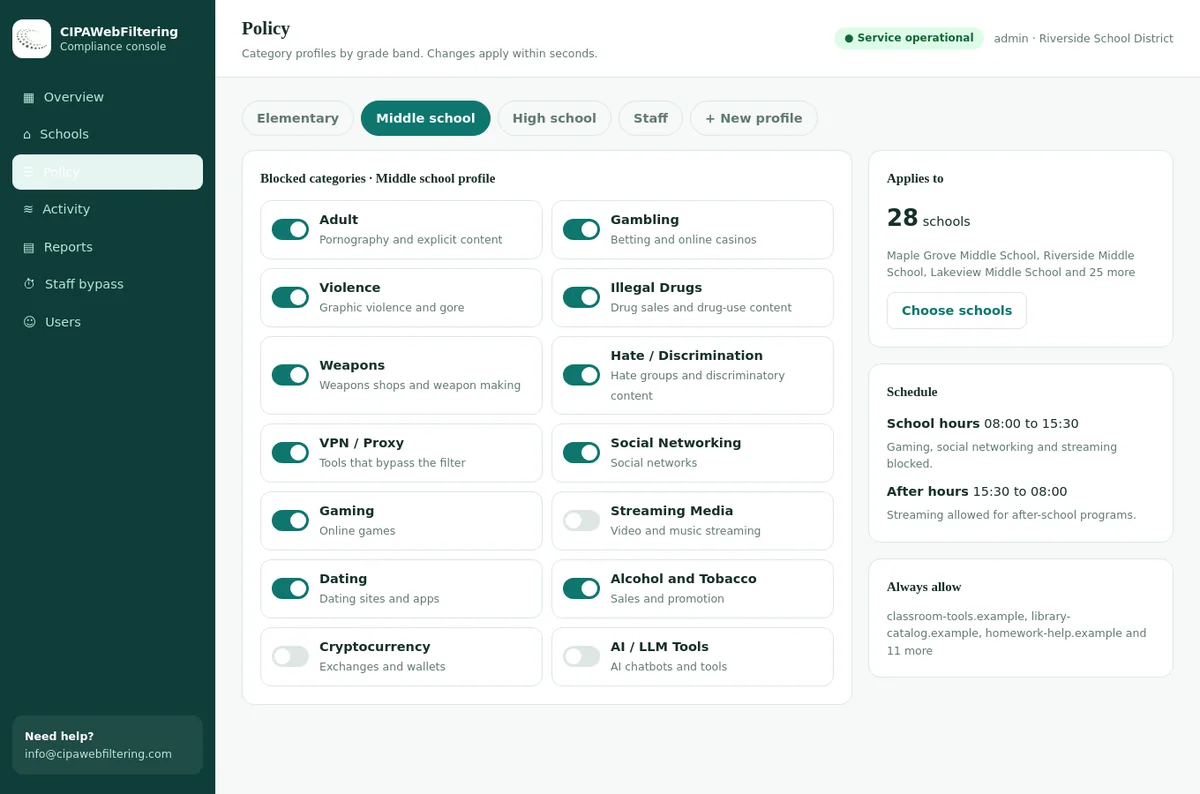
Our hosted CIPA filter arrives with Adult and VPN/Proxy/Anonymizers already switched on. We run it for you, so you are not rebuilding a block list every time a new site appears.
- Lingerie, Gambling and Weapons are optional switches you can add school by school.
- Public encrypted DNS and browser settings that skip the filter are blocked by default.
- The filter decides by domain, not by page, so it does not read what students type.
The category set that does the work
No filter decides "obscene" or "harmful to minors" page by page in real time. In practice, schools meet the duty with categories that contain that material, and with categories that lead to it.
Sites whose main content is sexually explicit. This is the category that carries most of the CIPA duty.
Suggestive imagery that many districts treat as harmful to minors, especially for younger grades.
Adult dating and hook-up services, where explicit images and contact with adults are common.
The most common route around any adult block. Without it, the Adult category is easy to step around.
Peer-to-peer and file locker sites that distribute explicit material outside the web pages a filter sees.
Expired domains that may later be bought and turned into adult sites, often with old school links still pointing at them.
Explicit pop-ups and fake download pages often sit on suspicious domains that also carry malware.
Short links hide the destination. A filter that checks the final address handles them; otherwise review this category.
A domain can carry several categories, ranked by how much of the site each describes. A general image host with some explicit sections can carry Adult as a secondary category, which lets you block it for minors without mislabeling the whole site. See the category taxonomy.
Adult and neighbouring categories, with real sites
The optional switches matter because adult-adjacent sites do not always sit in Adult. These entries show where a few well-known sites land.
| Website | Filed under | In the CIPA preset |
|---|---|---|
| pornhub.com | Adult | On |
| onlyfans.com | Adult | On |
| playboy.com | Lingerie/Swimsuits/Intimate Apparel | Optional |
| victoriassecret.com | Lingerie/Swimsuits/Intimate Apparel | Optional |
| bet365.com | Gambling, Sports & Recreation | Optional |
| smith-wesson.com | Weapons | Optional |
Five layers of protection
Each layer catches what the one before misses. The order below is also a good order to check them in when something gets through.
Category filtering on every network
Your DNS or web filter blocks the Adult category and the supporting categories above for every student network, including guest Wi-Fi if students can join it.
- Point all student DHCP scopes at the filtering resolver.
- Block outbound DNS to other resolvers at the firewall.
- See DNS filtering for education and web filtering vs DNS filtering.
Device-level filtering on school devices
A filtering extension, agent or enforced DNS setting on each Chromebook and laptop, applying the same categories wherever the device connects.
- Force-install the filtering extension for student units and block its removal.
- Turn off guest mode or give it the same rules.
- Read category filtering on managed Chromebooks.
Search engine safety settings
Search results and image search are where most accidental exposure starts. Lock safe search on at both the device and the network.
- In the Google Admin console, set the SafeSearch and Restricted Mode setting under Devices > Chrome > Settings > Users & browsers to always on for students.
- At DNS, map search domains to their safe variants, for example forcesafesearch.google.com for Google and strict.bing.com for Bing.
- For YouTube, use restrict.youtube.com or the moderate variant, or the Admin console restricted mode setting.
App and extension control
Apps and extensions can open content outside the browser's filtered path.
- Set Google Play to approved apps only for students.
- Allow only approved Chrome extensions.
- On Windows and Mac, keep students as standard users and restrict store installs.
Bypass controls
Proxies, VPNs and encrypted DNS are the standard ways around any adult block. Close them as a set.
- Block VPN / Proxy / Anonymizers for every student group.
- Manage the browser's secure DNS mode by policy.
- Block known public DNS-over-HTTPS endpoints on student networks.
Google renames Admin console menus from time to time. If a label above differs, search for the setting name in the console. Our guide to blocking websites on Chromebook with Google Admin covers the browser settings in detail.
The new domain problem
Adult sites register new domains all the time, to replace blocked ones, to target search traffic and to spread across many small sites. A list that was complete last month is not complete today.
300,000 per day
Our database categorizes about this many newly registered domains every day.
Rechecked
Each new domain is checked again after a week and after a month, because many sites add content after launch.
120M domains
The 20 million most visited cover 99.99% of web traffic, so the sites students actually reach are covered.
Validated
Regular manual validations measure accuracy, and CIPA category accuracy reports are available to licence holders.
Ask any filter provider how quickly new domains are categorized and how they handle sites that change content after launch. The answer matters more for the Adult category than for any other.
The new domain problem, handled on our side
Adult sites change address constantly, and our category data takes in new domains every day. You switch the category on once instead of keeping a list.
Gaps that are easy to miss
Most adult content that reaches students does not come from a site whose name gives it away. These are the routes school IT teams find in logs.
Mixed-content platforms
- Social networks that allow adult content under their own rules.
- Image and file hosts with explicit sections.
- Forums and communities with adult areas.
Secondary categories and platform rules handle these. See our guides on X on school Chromebooks and social media at school.
Generated and altered images
- AI image tools that can produce explicit images on request.
- Apps that alter photos of real people, including classmates.
- Sites that host the results.
Read about deepfake and NSFW AI filtering for schools and the AI tools blocklist for schools.
Translation and cache routes
- Pages loaded through a translation service.
- Cached or archived copies of pages.
Use a filter that evaluates the embedded address, and keep image categories blocked so the images fail to load.
Shared and guest devices
- Guest mode on Chromebooks without student policy.
- Library and lab machines with a second browser.
- Teacher laptops left signed in.
Apply policy at the device level as well as the user level for shared machines.
Settings by group
The Adult category is the same for every student, but the supporting categories often vary by age. This is a common starting point; your policy decides the final settings.
| Category | Elementary | Secondary | Adult staff |
|---|---|---|---|
| Adult | Block | Block | Block |
| Lingerie/Swimsuits/Intimate Apparel | Block | Block | Local choice |
| Dating | Block | Block | Local choice |
| VPN / Proxy / Anonymizers | Block | Block | Block, with IT exceptions |
| File Sharing/P2P | Block | Block | Local choice |
| Health & Medicine | Allow | Allow | Allow |
Keep Health & Medicine open. Students research puberty, sexual health and safety for school and for themselves, and over-blocking that information is a common complaint about school filters. CIPA targets explicit images, not health education.
Training staff in fifteen minutes
Teachers do not need to know how the filter works. They need to know what to do when it misses something, and how to ask for a site that was blocked by mistake.
Close, do not share
Close the screen and move on. Never forward or capture the content.
Note and report
Note the time and device, then report to IT and the designated administrator.
Request a review
If a learning site is blocked by mistake, send the address to IT for review rather than using a workaround.
Talk with students
Reassure the student they are not in trouble for seeing something, and remind the class how to report it.
Off-campus coverage for take-home devices
CIPA's filtering duty attaches to the school's E-Rate-funded internet access, but most districts apply the same protection to take-home devices. Parents expect it, and so do boards.
| Layer | At school | At home |
|---|---|---|
| Network DNS and web filter | Applies | Does not apply |
| Device filtering extension or agent | Applies | Applies |
| Admin console SafeSearch and Restricted Mode | Applies | Applies |
| Google Play and extension control | Applies | Applies |
| Enforced browser DNS settings | Applies | Applies |
The adult category should be on around the clock, unlike gaming or streaming rules that some districts relax after school. Read how to enforce CIPA on off-campus student devices and Chromebook 1:1 device filtering.
Testing safely
Testing an adult content filter must never involve browsing adult sites. There are safer ways to prove the filter works.
Do
- Use the category test pages your filter provides, which return a block for a named category without hosting any content.
- Run our school web filter test from a student device.
- Check policy exports to confirm the Adult and supporting categories are on for every student group.
- Search a neutral word with a student account and confirm SafeSearch is locked on and cannot be switched off.
- Repeat on a home network with a take-home device.
Do not
- Browse real adult sites "to see if they are blocked".
- Ask students to test the filter.
- Keep lists of explicit addresses in shared documents.
- Test only from an admin account.
- Assume a passing test last year means a passing test now.
You can also check how any specific domain is categorized with our domain category checker, without visiting it.
When something gets through
No filter is perfect. A calm, written procedure protects the student, the staff member and the school.
Immediately
The staff member closes the screen and moves the student to another task. Nobody forwards, screenshots or shares the content.
Within the hour
Record the time, device, account and a short neutral description. Do not reopen the content to describe it.
Same day
IT checks filter logs to find the domain and the reason it was not blocked: wrong policy group, missing category, bypass route or new domain.
Same day
If the material may involve a minor, follow your legal reporting procedure immediately, which in the United States usually includes a report to the NCMEC CyberTipline. Do not copy, store or share the material.
Within a week
Fix the gap, rerun the tests, and record what changed. The counselor or administrator decides on contact with the family under your safeguarding procedures.
Communicating with parents
Parents rarely ask about adult content filtering until something goes wrong. Telling them about it in advance builds trust.
What to say
"School devices and networks block sexually explicit material at all times, as required by federal law. The same protection stays on when Chromebooks go home."
"Search engines on school devices are locked to safe mode. No filter catches everything, so please talk with your child about what to do if they see something upsetting."
What to offer
- A short guide on enabling safe search and filtering on home networks and family devices.
- A contact for reporting a concern about something seen on a school device.
- Information from your digital citizenship lessons, so conversations at home match what is taught at school.
Your internet safety policy should describe this protection in plain words. See our guide to the CIPA internet safety policy.
Evidence for E-Rate and board reviews
When you certify CIPA compliance on FCC Form 486, or Form 479 as a consortium member, you are stating that the filter is in place. Keep the evidence that it is.
Policy
The adopted internet safety policy, with the date of the public meeting where it was discussed.
Configuration
Dated exports showing the Adult and supporting categories on for each student group and network.
Tests
A test log per site and device type, using safe test methods.
Exceptions
A log of any adult research exceptions: who, why, when and who approved.
Our guide to E-Rate and CIPA funding explains how certification fits into the funding cycle.
Maintaining the adult content filter yourself or hosting it with us
The duty is the same, but the weekly work is not.
| Part of the duty | In-house list | Run for you |
|---|---|---|
| Catching new adult domains | Staff add them after complaints | Categorized in our data, so the switch already covers them |
| Setting up VPN and proxy blocks | Another list to keep growing | VPN/Proxy/Anonymizers is part of the preset |
| Alternative DNS to dodge the filter | Chase it device by device | Public encrypted DNS and skip-the-filter browser settings blocked by default |
| A teacher needs a blocked page | Whitelist it and remember to remove it | PIN bypass for 15, 30 or 60 minutes, logged, then it switches back |
| Take-home Chromebooks | Home networks are outside your control | Private encrypted link keeps the rules on the device |
| Evidence for E-Rate review | Collect screenshots | Activity reports, a policy record and a log export for the CIPA file |
FAQ: blocking adult content at school
What does CIPA require schools to block?
CIPA requires a technology protection measure that blocks or filters visual depictions that are obscene, child sexual abuse material, or harmful to minors, on computers used by minors. For adults, obscene material and child sexual abuse material must still be blocked.
Is a blocklist of adult domains enough?
No. Adult sites register new domains constantly, and images also reach students through search engines, image hosts and proxies. Use a maintained adult category, enforce SafeSearch, and block proxies and anonymizers alongside it.
How should we test our adult content filter?
Never test by browsing real adult sites. Use your filter's category test pages or a school filter test tool, check that the Adult category is enforced for each student group, and confirm SafeSearch is locked on.
Can staff turn the filter off?
CIPA allows an authorized administrator to disable the filter for an adult for bona fide research or other lawful purposes. Write a procedure for this, log each case, and never apply it to student accounts.
Will blocking adult content stop students finding health information?
It should not. Keep the Health & Medicine category open and review blocked requests from health sites. CIPA targets explicit images, not sexual health education, and over-blocking health resources is a common complaint about school filters.
Does the adult block apply to staff?
Obscene material and child sexual abuse material must be blocked for adults too. Material that is only harmful to minors may be allowed for adults under your policy, and an authorized person may disable the filter for an adult's bona fide research.
What do we do if a student reaches explicit content?
Close the screen, support the student, record the time and device without reopening the content, have IT check logs and fix the gap, and follow safeguarding procedures. If the content may involve a minor, follow your legal reporting procedure immediately and do not copy it.
We price by schools and devices and send a quote within one business day. Running a pilot on one building first shows you the adult content blocks and the reports side by side.
Talk to us about your district
Tell us how your networks and devices are set up. We will show how the CIPA categories, updated daily and validated regularly, can run inside the systems you already use.
Talk to us about your districtGoogle, Chromebook, ChromeOS, Google Play and YouTube are trademarks of Google LLC. Bing is a trademark of Microsoft Corporation. These names are used here only to identify the products discussed. CIPA Web Filtering is not affiliated with, sponsored or endorsed by these companies.