Block Minecraft at School, Keep Minecraft Education Working
Many districts license Minecraft Education for science, history, coding and design lessons. The same districts often want the consumer game, with its open servers and chat, kept off school devices.
The two editions share parts of the same sign-in and online services, so a simple domain block can break the lesson. This guide shows how to separate them cleanly.
The goal in one picture: allow this, block that
Write this table into your policy before touching any settings. It is the reference every later rule is checked against.
The key idea is that you are not blocking a word or a brand. You are allowing one licensed classroom service and blocking a consumer service that happens to share its name, its sign-in system and some of its servers.
Allow for students
- The Minecraft Education app on school devices.
- Sign-in with school Microsoft accounts.
- The lesson library and teacher resources.
- Classroom multiplayer hosted by a teacher or classmate.
- Coding features used inside the Education app.
Block for students
- The consumer game on Chromebooks, Windows and other devices.
- Public consumer multiplayer servers.
- Consumer store pages and purchases.
- Unofficial browser copies of the game.
- Mod and download sites for the consumer game.
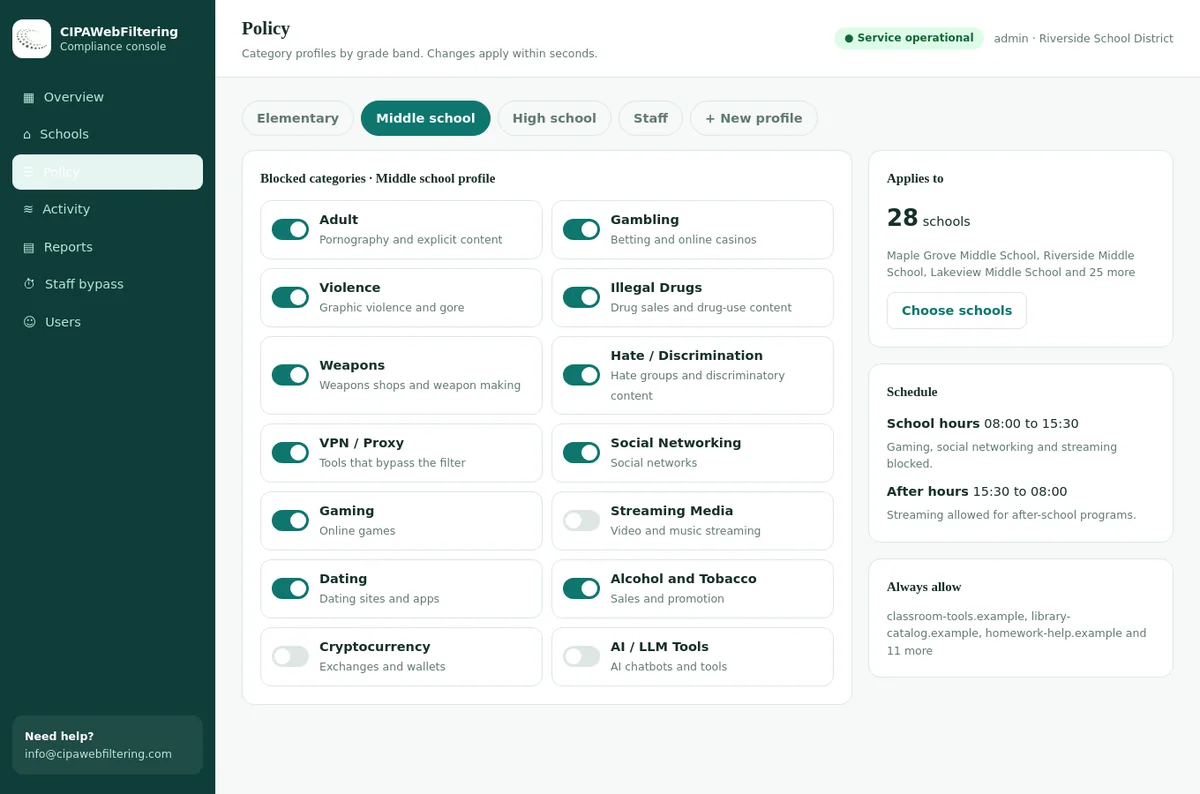
A Gaming switch for the long tail around Minecraft
Server lists, mod sites and browser copies are the part of this job that never ends, and it is the part our hosted CIPA filter takes off your desk. We run the DNS filter, you decide per school which categories are on and which sites are always allowed.
- An always-allow list per school keeps the lesson services you need from being caught by the Gaming switch.
- Server listing and mod sites are blocked by category as they get categorized.
- One console holds separate settings for each school, so the esports room can differ from the elementary building.
Why schools block the consumer edition
The consumer game is popular and generally well regarded by parents. The issues are about what surrounds it on a school device.
Open servers
Public servers are run by anyone, with their own rules, chat and moderation standards. A school cannot vet them.
Chat with strangers
In-game and server chat put students in contact with adults they do not know.
Purchases
Marketplace content and server perks can be bought, which families do not expect on school equipment.
Mods and downloads
Unofficial mod and client sites are a frequent source of malware on lab computers.
Lesson time
A personal survival world is more tempting than the lesson world the teacher set up.
Network load
Updates and server play add traffic that has no learning purpose.
Minecraft Education vs the consumer game
The differences that matter to an IT team, in one place. Check the vendor's current documentation before a rollout, since details change between versions.
| Topic | Minecraft Education | Consumer Minecraft |
|---|---|---|
| Who signs in | Users with a school Microsoft account and an Education licence | Anyone with a personal Microsoft account |
| Multiplayer | Classroom worlds joined by code within the school setup | Public and private servers, plus friends' worlds |
| Content | Lesson library, teacher tools, coding features | Survival and creative play, marketplace, community servers |
| Chromebook delivery | Android app deployed through managed Google Play | Android app from Google Play |
| Windows delivery | App deployed by IT through device management or installer | Store app or launcher installed by the user |
| Who controls it | School licence admin and teachers | The account holder and server owners |
On Chromebooks, Google's setup guidance for Minecraft Education says the device must support Google Play, and it recommends devices with at least 4 GB of memory assigned to one student rather than shared carts, because worlds are stored on the device.
The overlap problem: shared services
This is where most school rollouts go wrong. A rule meant for the consumer game catches a service the Education app depends on.
Do not block Xbox Live domains or Microsoft sign-in to stop the consumer game. Minecraft Education's IT guidance lists Xbox Live domains and Microsoft sign-in among the services it needs, for example for the library and demo lessons.
Blocking them produces the classic ticket: "Minecraft opens but the lessons will not load."
A block on minecraft.net covers its subdomains. The Education library sits on education.minecraft.net, so a blanket block on minecraft.net blocks it too.
In the Google Admin console, the URL allowlist takes precedence over the blocklist. That lets you block the consumer site and still allow the Education subdomains.
Endpoints to allow for Minecraft Education
These appear in Minecraft Education's IT admin guidance. The list is updated by the vendor, so check the live page before you configure anything.
| Endpoint | Used for |
|---|---|
| *.minecrafteduservices.com | Sign-in, multiplayer and coding services |
| *.minecraft-services.net | Multiplayer and library services |
| education.minecraft.net | Lesson library |
| *.xboxlive.com, *.playfabapi.com | Library and demo lesson services |
| login.microsoftonline.com, aadcdn.msauth.net | School account sign-in |
| meedownloads.blob.core.windows.net | Updates |
Game sites we file, and one Microsoft host that looks different
Most of the Minecraft family is labelled Gaming, with server lists picking up Community Sites and Forums as well. The Xbox Live sign-in host is filed under Social Networking, so a Gaming switch will not touch the service the Education app needs.
| Domain | Our categories |
|---|---|
| minecraft.net | Gaming |
| mojang.com | Gaming |
| curseforge.com | Gaming |
| minecraftservers.org | Gaming, Community Sites |
| hypixel.net | Gaming, Community Sites, Forums / Message Boards |
| xboxlive.com | Social Networking |
Recipes: step-by-step setup
Each recipe builds on the one before. Console menus are renamed from time to time, so search for the setting name if a label differs.
Chromebook apps
Deploy Education, block the consumer app
- Confirm that managed Google Play is turned on for your domain.
- In Devices > Chrome > Apps & extensions > Users & browsers, select the student unit.
- Add Minecraft Education from managed Google Play and force-install it for classes that use it.
- Set Google Play to approved apps only, so the consumer Minecraft app cannot be installed.
- If the consumer app was installed before, block it so it is removed.
Chrome URLs
Block consumer pages, allow Education pages
- Open Devices > Chrome > Settings > Users & browsers for the student unit.
- Under URL blocking, add minecraft.net to the blocklist.
- Add education.minecraft.net and the Education support pages your teachers use to the allowlist.
- Save and test both from a student account.
See blocking websites on Chromebook with Google Admin for how the two lists interact.
Windows
Deploy Education, block the consumer launcher
- Deploy the Education app through your device management tool.
- Keep students as standard users so they cannot install the consumer launcher.
- Block consumer Minecraft executables with application control.
- Restrict store installs to approved apps for student devices.
Network
Block consumer servers on school networks
- Consumer servers commonly listen on TCP 25565 (Java) and UDP 19132 (Bedrock). Block these outbound on student networks.
- Servers can use other ports, so add the Gaming category on your DNS and web filter as well.
- Keep the Education endpoints above on an allow rule so the category does not catch them.
- Check how a server domain is categorized with the domain checker.
Categories
Use Gaming for the long tail
Browser copies of the game, server listing sites and mod sites appear constantly. The Gaming category covers them as they are categorized; add File Sharing/P2P and Freeware/Software where mod downloads are a problem.
For more on category rules on a 1:1 fleet, read category filtering on managed Chromebooks.
Licences, accounts and teachers
Most Education support tickets are account problems, not filter problems. Sort these out first.
Licence per user
Each student and teacher who signs in needs an Education licence assigned. Check your licensing agreement for how they are allocated.
School Microsoft account
Students sign in to the Chromebook with Google and then to the app with a school Microsoft account. Personal accounts should not work for Education.
Teacher controls
Teachers create the worlds, share join codes and manage chat and permissions inside class sessions.
A short help sheet for teachers, explaining which edition is which, saves many tickets. Students will often say "Minecraft is blocked" when the Education app is working fine and they tried the consumer one.
Troubleshooting the common tickets
When a teacher reports that Minecraft is "not working", it is usually one of these. Check them in order before changing filter rules.
| Symptom | Likely cause | Fix |
|---|---|---|
| App opens, sign-in fails | No licence assigned, or sign-in endpoints blocked | Check licence assignment first, then the sign-in domains in the allow rule. |
| Signed in, library will not load | Library or Xbox Live services caught by a gaming or domain block | Add the library endpoints to the allow rule and retest. |
| Students cannot join the class world | Multiplayer services blocked, or students on different networks with different rules | Allow the multiplayer endpoints on every student network the class uses. |
| Works for teacher, not for students | Teacher in a staff unit without the Gaming block | Test with a student account; add the allow rule to the student policy. |
| App missing from some Chromebooks | Device does not support Google Play, or unit not set to install it | Check device model support and the force-install setting for that unit. |
| Worlds lost between lessons | Shared cart devices store worlds locally | Assign devices to one student, or export worlds at the end of each lesson. |
A rollout checklist before the first Minecraft unit
Run this with the teacher two weeks before the unit starts. It prevents the first lesson from turning into a help desk session.
Accounts and licences
Confirm the class list, assign licences and check that every student can sign in to a school Microsoft account. Fix password problems now, not in the lesson.
Devices and app
Confirm the Chromebook models support Google Play and have the app installed. On Windows, confirm the app is in the lab image or deployed by your management tool.
Network test
From a student account in the actual classroom, sign in, load the library and join a test world. Fix any blocked endpoint before the unit starts.
Teacher run-through
The teacher creates the lesson world and checks the join code works for two test students. IT stays on call for the first lesson.
Off-campus coverage
The Education app keeps working at home. The question is whether the consumer block should too.
| Control | On campus | At home |
|---|---|---|
| Google Play approved apps only | Applies | Applies |
| Chrome URL blocklist and allowlist | Applies | Applies |
| Device filter with Gaming category | Applies | Applies, by schedule if you choose |
| Windows application control | Applies | Applies on managed laptops |
| Server port blocks on the firewall | Applies | Does not apply |
Because the consumer app cannot be installed on the managed device, the block follows the Chromebook home regardless of network. See Chromebook 1:1 device filtering and enforcing CIPA on off-campus devices.
Bypass handling
Minecraft is one of the most searched games in schools. Expect students to look for other ways in, and cover the routes rather than the sites.
Browser copies
Unofficial versions that run in a browser tab appear on new domains weekly. The Gaming category catches them as they are categorized.
Servers on odd ports
Some servers move away from default ports. Gaming category rules on server domains, plus outbound restrictions on student networks, cover most of them.
Proxies and VPNs
Block VPN / Proxy / Anonymizers and restrict extensions to an approved list.
Portable clients
On Windows labs, application control and removable storage rules stop clients run from USB drives.
Personal accounts in Education
Education sign-in is limited to licensed school accounts, so personal accounts do not open a route into consumer play.
Guest Wi-Fi
Apply the same Gaming and port rules to any network students can join.
See blocking online games on school networks for the wider gaming picture, and blocking Steam and Epic Games at school for PC launchers.
Proxy tunnels to a game server stay closed
VPN / Proxy / Anonymizers sits in the CIPA preset, and public encrypted DNS and browser settings that skip the filter are blocked by default. A teacher can open a restricted page with a PIN for 15, 30 or 60 minutes without turning that proxy block off.
Testing: both sides of the rule
A Minecraft test has to prove two things: that the consumer game is blocked, and that the Education app still works. Test both with a student account.
- Minecraft Education opens and signs in with a school account.
- Consumer Minecraft cannot be installed from Google Play.
- The lesson library loads inside the app.
- The consumer website shows the block page.
- A teacher-hosted classroom world can be joined by code.
- A public server address cannot be reached from student Wi-Fi.
- Coding features inside the app load.
- A browser copy of the game is blocked by the Gaming category.
- Education still works on a home network.
- The consumer launcher will not run on a Windows lab PC.
Then run the school web filter test from the same device to confirm your wider category set.
Communicating with parents
Parents hear "Minecraft" and assume one thing. Explain that there are two editions and what each is for.
What students can use
- Minecraft Education, the classroom edition, for lessons set by teachers.
- It uses school accounts and classroom worlds, not public servers.
- It works on the school Chromebook at home for homework the teacher sets.
What is blocked
- The consumer game on school devices and school Wi-Fi.
- Public servers and chat with people outside the class.
- Your family's own devices are not affected.
Keeping the rules current
Game copies, server lists and mod sites change constantly. Category data keeps the consumer side blocked without breaking the classroom side.
120M domains
Categorized and reviewed, with the 20 million most visited covering 99.99% of web traffic.
New domains daily
About 300,000 categorized every day, rechecked after a week and a month.
Multi-category
A domain can carry several categories, so an education resource about the game is not mislabeled as pure gaming.
Explore the category database and the category taxonomy.
Two editions of one game: console rules compared with a hosted filter
The split between lesson and play is where each approach shows its strengths.
| Job | Console and firewall by hand | Hosted CIPA filter |
|---|---|---|
| New server list and mod sites | Added after students find them | Blocked once filed under Gaming |
| Keeping lesson services reachable | Allowlist entries that you maintain | Always-allow list for each school |
| Browser copies of the game | One domain at a time | Gaming category |
| Esports room with other rules | A separate unit and list | Separate settings for each school or branch |
| Education app at home | Works through the account | Private encrypted link keeps the same rules on the device |
| Proof for reviewers | Screenshots of rule pages | Activity reports, policy record and log export |
FAQ: Minecraft at school
Can we block consumer Minecraft without breaking Minecraft Education?
Yes, but not with a single domain rule. The editions share sign-in and some online services. Block the consumer app with app controls, block consumer multiplayer servers, and add allow rules for the Education service domains so a broad block on minecraft.net does not catch them.
Should we block xboxlive.com to stop consumer Minecraft?
No. Minecraft Education's IT guidance lists Xbox Live domains among the services it needs. Blocking them breaks parts of the classroom edition. Use app control to stop the consumer game instead.
Does Minecraft Education run on Chromebooks?
Yes, as an Android app on Chromebooks that support Google Play. Admins deploy it through managed Google Play, and each user needs a Minecraft Education licence and a school Microsoft account to sign in.
What about browser-based Minecraft copies?
Unofficial browser copies of the game appear on many small sites. They fall under the Gaming category, which covers new copies as they are categorized, so a category block works better than a list.
Do teachers need a different policy from students?
Teachers usually sit in a staff unit without the Gaming block, but they should test lessons from a student account. A lesson that works for the teacher can still fail for the class if the student policy is missing an allow rule.
Can students play the Education edition at home?
Yes, on the school Chromebook with their school account, for work the teacher sets. Classroom worlds and the library work on home networks because the device rules, not the school network, decide what is allowed.
Is Minecraft a CIPA concern?
The game itself is not adult content. The concern with the consumer edition is open multiplayer servers and chat with strangers, which an internet safety policy should address. The Education edition limits play to classroom worlds set up by teachers.
We price by the number of schools and devices and send a quote within one business day. If you pilot one school, you will see both the game blocks and the reports before you decide anything.
Talk to us about your district
Tell us which learning apps you rely on and which games you want blocked. We will show how category data and allow rules keep both sides of the line working.
Talk to us about your districtMinecraft and Minecraft Education are trademarks of Microsoft Corporation and Mojang AB. Microsoft, Windows and Xbox Live are trademarks of Microsoft Corporation. Google, Chromebook, ChromeOS and Google Play are trademarks of Google LLC. These names are used here only to identify the products discussed. CIPA Web Filtering is not affiliated with, sponsored or endorsed by these companies.