App Management on School Devices
A web filter decides which sites students can reach. App management decides what students can install and run. On modern school devices you need both, because a blocked website is often one app install away.
This guide covers Chromebook extensions and Android apps, iPads under MDM and Windows laptops, then shows how to make app control and web filtering cover each other's gaps.
Why app control matters for school filtering
Many of the ways students get around a filter start with an install: a VPN extension, a game, a remote desktop app, a chat client. Stopping the install closes the route before it opens.
Bypass tools
VPN and proxy extensions and apps reroute traffic around the filter. App control is the most reliable way to keep them off managed devices.
Distraction
Games and social apps installed on a school device are there in every lesson. Blocking the website alone does not remove an installed app.
Student data
Every app a student signs into may collect personal data. An approval step lets the privacy lead check terms before pupils use it.
Security
Unvetted extensions can read pages, capture data or inject ads. Malicious or hijacked extensions are a known risk on any browser.
Fairness
A consistent set of apps means every student has the same tools in class and in assessments.
Support load
Fewer, known apps mean fewer help desk tickets and faster fixes when something breaks.
Back up your app policy with a filter that knows what each service is
An approved-app list controls what installs, yet most apps and sites still talk to servers you never listed. Our hosted CIPA filter checks those requests against 58 categories, so a game or chatbot is caught even when it arrives as a web page.
- Categories such as Gaming and AI / LLM Tools are switched per school
- Always-allow entries keep approved learning tools working
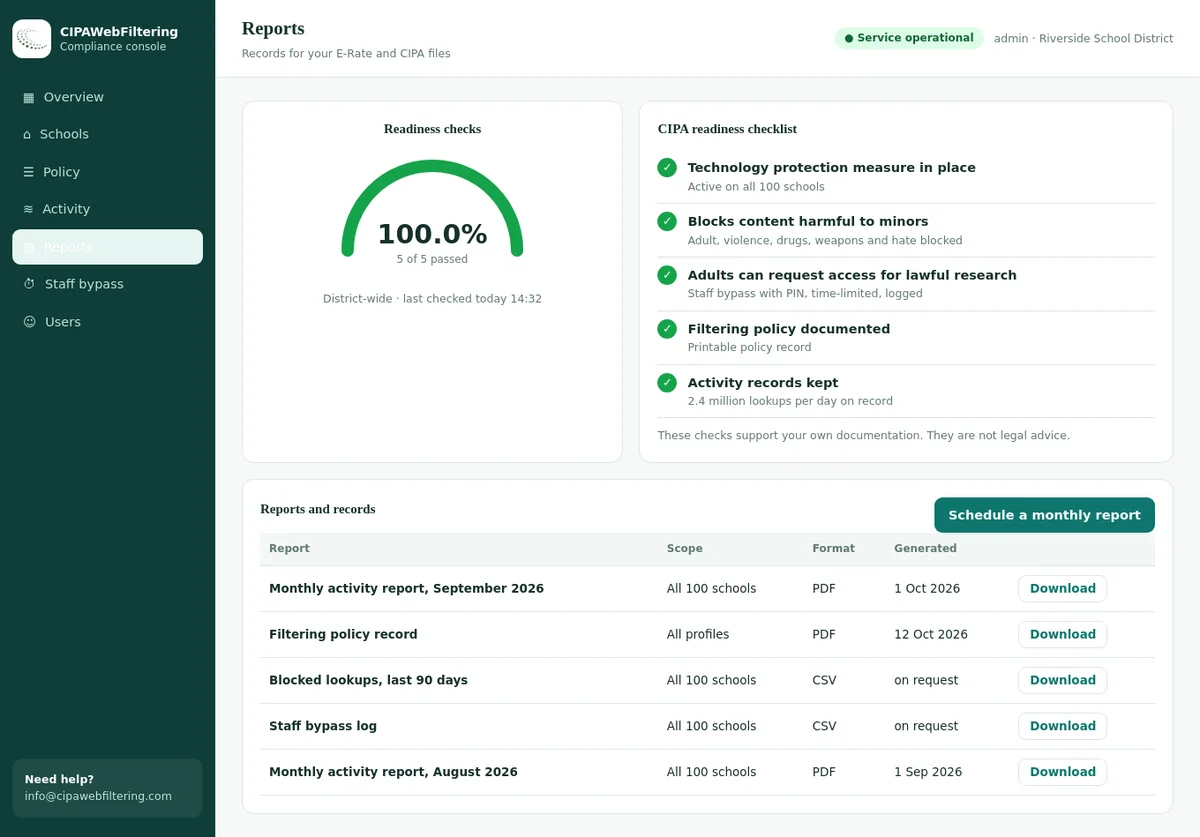
- The result is reported, so you can show what the policy did
Platform by platform: where app control lives
Each platform has its own console and vocabulary. The principles are the same: enrol the device, decide the install mode, push the approved set, and lock the settings that would undo it.
Extensions and Chrome apps
- In the Google Admin console, app settings are made per organisational unit, so students, staff and test groups can differ.
- Choose the Chrome Web Store mode: allow everything except a block list, or block everything except an allow list.
- Force-install the extensions every student needs, such as accessibility tools.
- Restrict extensions by the permissions they request, so a new extension that wants to read all sites is held back.
Android apps from Google Play
- The same two modes apply to Play Store apps on ChromeOS: allow all except blocked, or block all except allowed.
- Force-install or make apps available per organisational unit.
- Remember that a filter running only inside the Chrome browser may not see Android app traffic. A DNS-level filter does see the lookups.
- Turn off developer mode and sideloading for student devices.
Step-by-step console guidance is in block websites on Chromebooks with Google Admin and category filtering on managed Chromebooks.
Enrolment and supervision
- School-owned iPads are enrolled through Apple School Manager into your MDM, which makes them supervised.
- Supervision unlocks the restrictions schools rely on, including control of app installation and the App Store.
- Students sign in with school-managed accounts, which have some consumer features turned off.
Apps and restrictions
- Buy or assign apps in volume through Apple School Manager and push them from the MDM.
- Hide or restrict the App Store so students cannot install their own apps.
- Use single-app or assessment modes for tests where your MDM and the test app support them.
- Restrict settings that affect filtering, such as VPN configuration and private relay, where available.
Shared iPads in younger classes often use a fixed app set per cart. One-to-one iPads usually use a core set plus apps assigned per class.
Accounts and installs
- Give students standard accounts, not local administrator rights. This alone blocks most desktop installs.
- Deploy approved apps through your endpoint management tool, such as Microsoft Intune, instead of letting users install them.
- Restrict or hide the Microsoft Store for students, or allow only apps the school publishes.
Application control
- Windows includes application control features, such as App Control for Business and AppLocker, that allow only trusted apps to run.
- Start in audit mode to see what would be blocked, then move to enforcement.
- Block portable apps and scripts from user-writable folders, a common route for running unapproved tools.
- Control browser extensions through browser policy, as on Chromebooks.
Console names and options change. Check your platform's current admin documentation before making changes to a whole fleet.
Allow list or block list?
This is the biggest single choice in app management. It decides whether new apps start as "no" or as "yes".
Allow list Usual for students
Students can install only what the school has approved.
- New bypass tools and games are blocked by default.
- Every app has passed a privacy and learning check.
- Needs a quick request process, or teachers feel stuck.
- Best for primary, middle school and most secondary devices.
Block list Staff and older students
Anything can be installed except what the school has blocked.
- Flexible for staff and senior students doing independent work.
- Always behind: a new VPN or game is allowed until someone notices.
- Relies on the web filter to catch what the list misses.
- Best paired with permission-based extension rules.
| Group | Suggested mode | Notes |
|---|---|---|
| Primary and elementary students | Allow list, small set | Force-install everything they need; hide stores |
| Middle and lower secondary students | Allow list | Add apps per subject; keep a request form |
| Upper secondary students | Allow list, larger set | Consider a wider catalogue with permission limits |
| Teaching staff | Block list with permission limits | Block known risky categories and extensions that read all sites |
| Shared and test devices | Fixed allow list | Lock to the apps required for the lesson or exam |
How common classroom and recess apps are labelled
Real entries from our data. A teacher-approved app and a distraction can sit side by side, so the category tells them apart.
| Service | Category we assign |
|---|---|
| duolingo.com | Education/Reference |
| kahoot.com | Education/Reference, Webinars/E-learning |
| canva.com | Web-based Applications, AI / LLM Tools |
| epicgames.com | Gaming |
| supercell.com | Gaming |
How app control and web filtering work together
App control and web filtering each have a blind spot. Paired correctly, each covers the other's.
Blocked app, open website
Most services have a web version. If you block the app, block the matching category or domains in the filter too, or students simply open a browser tab.
Allowed app, blocked content
An approved app may load content from domains the filter blocks. Test approved apps with the filter on, so lessons do not break on the day.
Apps call home
Installed apps look up their own servers. A DNS-level filter can block those servers by category, which also stops the app on unmanaged devices using school Wi-Fi.
Install pages
The filter can block download and store pages for categories you never allow, such as VPN / Proxy / Anonymizers and Remote Access Tools.
Installable web apps
Some websites can be "installed" as a web app without any store. App control may not see these, but the web filter still applies to their domain.
Off campus
App policies travel with managed devices. Pair them with a filter that also runs off site so home use matches school use.
| Type of app | App control action | Matching filter category |
|---|---|---|
| VPN and proxy apps and extensions | Block; never on allow list for students | VPN / Proxy / Anonymizers |
| Remote desktop and screen sharing tools | Staff only, by request | Remote Access Tools |
| Games | Allow only curriculum games | Gaming |
| Social apps | Block for students, review for staff | Social Networking |
| Chat apps | Allow school-approved tools only | Email and Messaging |
| AI assistants and extensions | Allow approved tools per age and policy | AI / LLM Tools |
| File sharing and torrent clients | Block | File Sharing/P2P, Cloud Storage / File Hosting |
See the full web filtering categories taxonomy, the AI tools blocklist for schools, and the bypass map in stop proxy and VPN bypass in schools.
Exceptions that expire on their own
When a teacher needs a blocked site for an hour, the staff PIN opens it for 15, 30 or 60 minutes and then switches back, with the use logged. Changes to policy apply in seconds, and each school keeps its own settings in one console.
An app approval workflow that teachers will use
An allow list only works if adding to it is quick. If approvals take weeks, teachers find workarounds and the list loses its value.
Request
A short form: app name, subject, age group, why it is needed and when.
Privacy check
Terms, data collected, where data is stored, whether a data agreement is needed.
Technical check
Permissions, compatibility, domains it needs, any conflict with the filter.
Decision
Approve for a group, approve with limits, or decline with a reason and an alternative.
Publish and review
Add to the catalogue, tell staff, and review yearly to remove unused apps.
Keep a public catalogue. A simple staff-facing list of approved apps, who they are approved for and when they were reviewed answers most questions before they become tickets. For US districts, privacy checks connect to student data privacy and FERPA; for UK and EU schools see web filtering and GDPR in schools.
Common app management gaps
These gaps turn up in almost every device audit. Each one is quick to check and quick to fix.
| Gap | What happens | Fix |
|---|---|---|
| Test or "new devices" group left on open settings | Students end up in it after re-enrolment and get no restrictions | Default every new device to the strictest student group |
| Extensions allowed by old exceptions | A once-trusted extension changes owner and behaviour | Review the allow list every term; remove unused items |
| Guest mode or secondary accounts allowed | Students sign in without school policy | Restrict sign-in to school accounts on student devices |
| Local admin rights on Windows laptops | Any installer runs | Standard accounts plus application control |
| App blocked but website allowed | The service is used in the browser instead | Match app blocks with filter categories |
| No owner for the approved app list | Requests pile up and teachers stop asking | Name one owner and a target decision time, such as five school days |
| Filter runs only as a browser extension | Installed apps bypass it | Add DNS-level or device-level filtering |
For a full device audit across a fleet, see 1:1 Chromebook device filtering and blocking VPN extensions on school Chromebooks. Personal devices on school Wi-Fi are covered in BYOD filtering in schools.
Locking devices down for tests and exams
Assessment days need tighter rules than ordinary lessons. App management lets you switch a group of devices into a narrow mode for a set time, then switch it back.
Single-app and kiosk modes
Chromebooks can run an approved test app in kiosk mode, and supervised iPads can be locked to one app. Students cannot switch to a browser or another app mid-test.
Test groups
Move devices or users into a dedicated exam group with its own short allow list, rather than editing the everyday student policy under pressure.
Tighter filter profile
Apply a stricter filter profile for the exam window that also blocks AI tools, translation and answer sites, then return to the normal profile afterwards.
Dry run
Test the exam setup on a handful of devices a week before. Most problems are an app update or a domain the test platform needs that the filter blocks.
For the wider academic integrity picture, see academic integrity beyond AI and blocking AI cheating tools in schools.
Rolling out app management in one term
Moving from an open store to an allow list is a change teachers will notice. A planned rollout avoids a flood of tickets in the first week.
| Weeks | What to do | Output |
|---|---|---|
| 1 to 2 | Export the apps and extensions installed across the fleet; rank by number of devices | Inventory of what is really in use |
| 3 to 4 | Ask departments which apps they need; run the privacy and technical checks on the top items | Draft allow list per age group |
| 5 to 6 | Pilot the allow list with one year group and a few willing teachers | List of missing apps and broken lessons |
| 7 to 8 | Fix gaps, publish the staff catalogue and the request form, brief staff | Ready for wider rollout |
| 9 to 12 | Roll out by year group; match each app block with a filter category check | Whole fleet on the new policy |
Tell students and parents too. A short note explaining that only approved apps can be installed, and how teachers request new ones, prevents most complaints. Link it to your acceptable use policy.
Category data underneath app control
App control decides what is installed. The filter decides what those apps and browsers can reach. Accurate, current categories keep that second layer in step with new apps and services.
Broad coverage
120 million categorized domains in 58 filtering categories, plus the IAB Content Taxonomy, in one file.
AI tools set
11,800+ AI-tool domains in 18 categories, updated daily, for schools that allow some AI tools and not others.
Fresh daily
About 300,000 new domains categorized each day, rechecked after a week and a month.
Look up any app's web domain with the domain checker, read about the category database, or let us run filtering for you with the hosted CIPA filter.
Where app management stops and the filter starts
Both belong in the plan, and each answers different questions.
| Question | Device app management | Hosted CIPA filter |
|---|---|---|
| What may be installed | Decided by the app list | Not its job |
| Which web addresses an app can reach | Largely outside its view | Checked by category at DNS |
| Web version of a blocked app | Often still opens | Blocked with the same category |
| Reporting for compliance reviews | Inventory of installed apps | Activity reports and log export |
| Work to cover many schools | Per platform and per unit | One console, separate rules per school |
FAQ: app management on school devices
Should school devices use an app allow list or a block list?
For student devices, most districts use an allow list: students can install only apps and extensions the school has approved. Block lists suit staff devices and older students where flexibility matters more, but they always lag behind new apps.
If we block an app, is the website blocked too?
No. App control stops installation of the app. The same service is usually available in a browser, so the web filter has to block the matching domains or category as well.
Can we control Android apps on Chromebooks?
Yes. In the Google Admin console you choose whether users can install any Play Store app except blocked ones, or only apps you allow. You can also force-install the apps a class needs.
How do schools manage apps on iPads?
Schools enrol iPads through Apple School Manager into a mobile device management system. On supervised iPads the MDM can install apps, hide or restrict the App Store and set restrictions, so students only have the apps the school assigns.
Does a web filter see traffic from apps?
A DNS-level filter sees the domain lookups apps make, so it can block an app's servers on any device using the school resolver. A filter that runs only as a browser extension sees browser traffic, and may not see what installed apps do.
Who should approve new apps for students?
A small group: a teacher or curriculum lead for learning value, IT for technical fit and security, and the data protection or privacy lead for student data. A simple request form with a target decision time keeps the process from becoming a bottleneck.
The price is based on your schools and devices, and a quote reaches you in one business day. A pilot at a single school lets you test how the app and web rules fit together.
Related school filtering guides
Line up your app policy and your filter
Tell us which devices and consoles you run. We will show how category data fills the gaps app control leaves, on campus and at home.
Talk to us about your districtGoogle, Chrome, ChromeOS, Chromebook, Google Play and Android are trademarks of Google LLC. Apple, iPad and Apple School Manager are trademarks of Apple Inc. Microsoft, Windows and Intune are trademarks of Microsoft Corporation. These names are used here only to identify the products discussed. CIPA Web Filtering is not affiliated with, sponsored or endorsed by any of these companies.