How to Block VPN Extensions on School Chromebooks
A VPN or proxy extension can send a student's browsing around the school filter in one click. This hardening guide shows K-12 IT admins how to close that route in the Google Admin console, at the network edge and on take-home devices.
Why VPN extensions matter for school filtering
VPNs are useful tools for adults. On a student Chromebook they are a problem, because they move traffic out of sight of the controls the district relies on for CIPA and student safety.
What changes when a VPN extension is active
CIPA protection is weakened
Your technology protection measure only works if traffic passes through it. A VPN can make the filter blind on that device.
Free VPNs carry their own risks
Many free VPN extensions fund themselves with ads or data collection. Some have been removed from stores for bad behavior.
Safety alerts go quiet
Self-harm and threat alerts depend on visibility. Hidden traffic means alerts that never fire.
Policy and device agreements
Most student device agreements prohibit tools that bypass school controls. Technical controls make that rule real.
Chrome settings can slip, so the VPN category stays blocked underneath them
An extension policy only helps on devices that picked it up. Our hosted filter answers DNS for the whole school, so a VPN or proxy site is refused whatever a student installs.
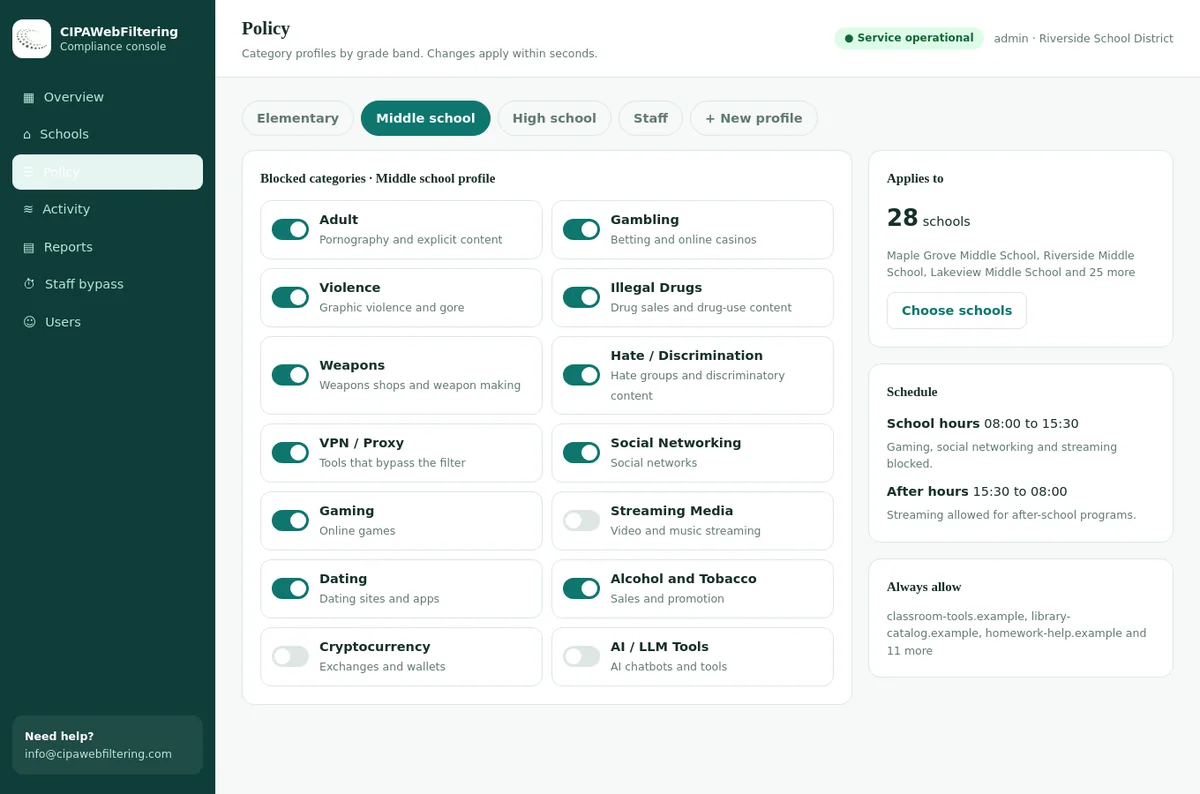
- VPN / Proxy / Anonymizers is a ready-made category you switch on once
- It stays blocked even when a teacher uses the staff PIN
- Nothing is installed on the Chromebooks themselves
The Chromebook hardening audit
Work through these settings for every student organizational unit. Priority 1 items close the largest gaps. Admin console labels change, so search the settings page by keyword if a label differs.
Chrome Web Store: approved extensions only
Switch the store from "allow all except blocked" to "allow only approved" for students. New VPN extensions are blocked by default, so you never need their IDs.
Devices > Chrome > Apps & extensions > Users & browsers
Managed Google Play: approved apps only
Android VPN apps run on many Chromebooks. Allow only the Android apps you have approved for students.
Devices > Chrome > Apps & extensions > Users & browsers
Force-install the filter extension
Use the Force install policy so students cannot remove or disable it. Force-installed items keep installing even when the store is closed.
Block extensions by permission
In the app and extension settings, block permissions linked to proxy and VPN behavior for student OUs. This is a second net if an extension slips onto the approved list.
Block external extensions
Block extensions that are not installed from the Chrome Web Store, so packaged or sideloaded extensions cannot run.
Close Incognito and guest browsing
Disallow Incognito and prevent guest browser logins. Restrict Chrome sign-in to school accounts so policy always applies.
Devices > Chrome > Settings > Users & browsers
Developer tools and developer mode
Set developer tools to never allow for students. In device settings, block developer mode on enrolled Chromebooks.
Proxy mode and DNS-over-HTTPS
Set proxy mode so users cannot configure their own proxy, and set the DNS-over-HTTPS mode so the browser does not pick its own resolver.
Network and VPN settings in ChromeOS
Review the network settings for the OU so students cannot add their own VPN connections where your console offers that control.
Remote access tools
Block the Remote Access Tools category and unapproved remote desktop apps. They can relay a session through a home computer.
Five mistakes that leave the door open
Settings applied at the wrong level
Rules set on one school's OU while new students land in a parent OU with older settings. Check where new accounts are created.
The approved list grows unchecked
An extension approved for one class ends up allowed for the whole district. Scope every approval to the OU that asked.
Android apps forgotten
The Chrome Web Store is locked, but Google Play still allows any app. VPN apps then do what extensions cannot.
Guest mode left on for devices
User policy is perfect, but anyone can start a guest session on the sign-in screen and skip it.
No retest after changes
A console change or new device model quietly resets an assumption. Rerun the device checks after each major change.
Blocklist or allowlist: choosing the extension store mode
This is the single most important choice in this guide. A blocklist chases every new VPN extension. An allowlist ends the chase.
Allow all, block some
- Students can install any extension you have not blocked
- You must find and block each VPN extension by ID
- New VPN extensions work until someone notices
- Fewer teacher requests at the start
Allow only approved
- Only extensions on your list can be installed
- Every VPN extension is blocked, including tomorrow's
- Already installed, unapproved extensions stop running
- Needs a simple request process for teachers
Per-extension install policies
| Policy | What it does | Use it for |
|---|---|---|
| Force install | Installs automatically and prevents removal | The web filter, classroom tools and accessibility tools |
| Allow install | Lets users install it from the store | Optional tools teachers have approved |
| Block | Prevents install and removes it from users who have it | Known VPN and proxy extensions on staff OUs, or as a belt-and-braces step |
Running the extension approval process
An allowlist only lasts if teachers can get good tools approved without waiting weeks. A light, written process keeps the list short and defensible.
One request form
Teacher, course, grade, extension name and what it is for. Requests by email get lost.
Permission review
Check what the extension can read and change. Reject anything asking for proxy control or access to all sites without a clear reason.
Privacy check
Confirm the vendor's data practices fit your student data agreements. See student data privacy and filtering.
Narrow scope
Approve for the OU that needs it, not the whole district. Fewer students, smaller risk.
Watch for ownership changes
Extensions are sometimes sold to new owners who change their behavior. Recheck popular ones each year.
Prune each term
Remove approvals nobody uses. A short list is easier to review and harder to abuse.
User policy vs device policy
| Scenario | Which policy applies | What to check |
|---|---|---|
| Student signs in to a school Chromebook | User policy for the student OU, plus device policy | Extension and app rules sit on the user OU |
| Student signs in to Chrome on a home computer | User policy, if Chrome browser management covers it | Decide whether school accounts may sign in to unmanaged browsers |
| Someone uses guest mode on a school Chromebook | Device policy only | Guest mode should be off on student devices |
| Shared cart Chromebooks | Device policy, plus the user who signs in | Keep sign-in limited to school accounts |
The network layer: VPN, proxy and anonymizer category
Device settings stop the extension. The network and filter layer stops the websites that offer VPN downloads, web proxies and new tunnelling services.
In your web filter
- Block VPN / Proxy / Anonymizers for all student policies
- Block Remote Access Tools for students
- Block Parked / For-Sale Domains, often reused for proxies
- Keep Malware / Phishing / Suspicious blocked for everyone
See the school web filtering categories.
On the firewall and DNS
- Block the VPN category in the URL filtering profile
- Use application control to block common VPN protocols on student networks, if your firewall supports it
- Block outbound DNS to resolvers other than yours
- Apply rules to guest Wi-Fi too
See the CIPA DNS filter for education.
Web-based proxy sites are a related problem with their own playbook. Read how to block proxy sites in schools.
Five VPN brands students ask for, and how we file them
Every site below is a real lookup in our category data. All five land in the same category, which is the one you block.
| VPN site | Filed as |
|---|---|
| surfshark.com | VPN / Proxy / Anonymizers |
| expressvpn.com | VPN / Proxy / Anonymizers |
| windscribe.com | VPN / Proxy / Anonymizers |
| hide.me | VPN / Proxy / Anonymizers |
| torproject.org | VPN / Proxy / Anonymizers |
Off-campus: the filter must survive the trip home
At home, the network layer is gone. Only device policy and the device filter remain, which is exactly where a VPN extension would do the most damage.
| Control | On campus | At home | Why it matters for VPNs |
|---|---|---|---|
| Approved-only extension store | Yes | Yes | Stops VPN extensions everywhere |
| Approved-only Google Play | Yes | Yes | Stops Android VPN apps everywhere |
| Force-installed filter extension | Yes | Yes | Keeps categories on, including the VPN category |
| Proxy mode locked | Yes | Yes | Stops manual proxy settings |
| Firewall VPN protocol rules | Yes | No | Network only |
| School DNS filter | Yes | Only if pushed to the device | Check device DNS settings |
For a full off-campus plan, see enforcing CIPA on off-campus student devices and Chromebook 1:1 device filtering. Category rules by OU are explained in category filtering on managed Chromebooks.
The same VPN rule at the kitchen table
A private encrypted link carries the school policy to laptops and phones that are off the network, and public encrypted DNS or browser settings that skip the filter are blocked by default. Nobody has to remember to turn anything on.
Signals that a VPN or proxy is in use
You will not see the sites a VPN user visits. You can see the shape of the attempt. These signals appear in console, filter and firewall reports.
Blocked install attempts
Extension request or install logs show students trying VPN extensions the store rejected.
Traffic with no categories
A device sends steady encrypted traffic to one address while its category log is nearly empty.
Hits on the VPN category
Blocked requests to VPN download pages and proxy sites, often just after a different block.
Blocked protocols
Firewall logs show denied connections that match common VPN protocols on student networks.
Settings tampering
Devices report attempts to change proxy or network settings, or to enter developer mode.
Clusters by class
Several students in one class show the same pattern on the same day. A workaround is spreading.
Incident playbook when a VPN gets through
Fix the gap first, then deal with the behavior. Students who find one route usually share it, so speed matters more than blame.
Identify
Find the extension, app or site involved from console and filter logs.
Contain
Block it for all student OUs at once, not only the student's.
Close the class
Ask why it was possible: store mode, permissions or a missing category.
Respond
Follow the device agreement, in proportion to intent and history. Involve families for repeat cases.
Record
Log the fix and add the case to your next test run, so the same route is checked every term from then on.
Testing your VPN controls
Test with a student test account on a managed Chromebook. Run it on school Wi-Fi and again on a home network or phone hotspot.
Device checks
- Searching the Chrome Web Store for a VPN extension shows it as blocked
- Managed Google Play does not offer VPN apps
- The filter extension cannot be removed or disabled
- Proxy settings cannot be changed by the user
- Incognito, guest mode and developer tools are unavailable
chrome://policyshows extension and URL policies with status OK
Network checks
- Well-known VPN provider websites show the block page
- A web proxy site not on any manual list is blocked by category
- Remote access tool sites are blocked for students
- Outbound DNS to outside resolvers fails on student networks
- Guest Wi-Fi follows the same VPN category rule
- Results match on and off campus for device-level checks
Our school web filter test includes a full section on bypass categories. Use the domain checker to confirm how any VPN or proxy domain is labeled.
Communicating with parents, students and staff
Some parents use VPNs at work and will ask why they are blocked. Be clear that the rule is about school devices and keeping the safety filter working.
Message to parents
School Chromebooks cannot install VPN or proxy tools. These tools hide internet traffic from the safety filter that federal law requires schools to use for students.
This applies only to school-issued devices. If your child needs a specific tool for a course, the teacher can request it.
Message to students and staff
- Students: VPNs and proxies are not allowed on school devices, as set out in the device agreement
- Teachers: how to request an extension for a lesson, and expected turnaround
- Staff with work VPN needs: they use staff OUs with their own rules
- Everyone: where the rule sits in the acceptable use policy
Extension policy alone or extension policy plus a DNS filter
Both layers have a job when the goal is keeping VPN traffic out of the school.
| Question | Chrome extension rules only | Hosted filter added |
|---|---|---|
| Covers a VPN website opened in a tab | No, the rules only govern installs | Yes, the category is refused at lookup |
| Covers a device with a missed policy | No | Yes, the network answers for it |
| Staff exception for adult research | Manual allow-list edits | PIN for 15, 30 or 60 minutes, VPN still blocked |
| Keeps up with brand new VPN domains | You hunt them yourself | The category data grows daily |
| Evidence for a CIPA file | Screenshots of settings | Activity reports and log export |
| Work for IT | Per organizational unit | One DNS setting, one console |
FAQ: VPN extensions on school Chromebooks
What is the most effective way to stop VPN extensions on Chromebooks?
Set the Chrome Web Store for student organizational units to allow only extensions you approve. That blocks every VPN extension, including new ones, without maintaining a list of extension IDs.
Can we block extensions that ask for proxy permissions?
Yes. The Google Admin console lets you block apps and extensions based on the permissions they request. Blocking proxy-related permissions for students stops many VPN and proxy extensions, but test it against the extensions you approve.
Do VPN apps from Google Play also work on Chromebooks?
On Chromebooks that run Android apps, yes. Set managed Google Play to approved apps only for student organizational units, so VPN apps cannot be installed.
If a VPN extension is already installed, what happens when we change the policy?
Setting an extension to Block removes it from users who have it. Switching the store to approved-only also disables extensions that are not on the approved list once the policy syncs.
Should we also block VPN websites?
Yes. Block the VPN, proxy and anonymizer category in your web filter. That stops students downloading VPN software or using web-based proxy sites, and it covers new services as they launch.
Is it legal for schools to block VPNs?
Schools commonly block VPNs on school-owned devices and networks under their acceptable use policy, because a VPN can bypass the filter the school uses for CIPA. Check your district policy and local requirements.
Related guides
Cost follows the number of schools and devices you manage, and a written quote reaches you within one business day. If you want to see the VPN block working first, a pilot on a single site shows it along with the reports.
Keep the VPN and proxy category one step ahead
New VPN and proxy domains appear daily. Our VPN / Proxy / Anonymizers category is updated every day and can be delivered in formats your filter, firewall or DNS resolver already accepts.
Talk to us about your districtGoogle, Chrome, Chromebook, ChromeOS, Chrome Web Store and Google Play are trademarks of Google LLC. They are used here only to identify the products discussed. CIPA Web Filtering is not affiliated with, sponsored or endorsed by Google LLC.