AI Tools Filter Setup Guide for Libraries and Schools
Chatbots, image generators and AI companions arrive on your network every week. The hosted filter has a separate AI setting for each network profile, so the children's room, the student Wi-Fi and the adult computers can each follow the rule your board or district has set.
This guide is written for the library or school IT person who runs the filter. Every task has numbered steps and a screenshot from the dashboard. Allow about fifteen minutes for the first setup.
Sign in to the filter dashboard
The AI controls are in the same dashboard as your category settings, lists and reports. You open it from your account on this website.
- Go to cipawebfiltering.com/login/ and sign in with the username and password of your website account. Your library or school profile opens with the setup check, your two DNS addresses and the last 24 hours.
- Click the Filter dashboard tile. The dashboard sign-in opens in a new browser tab.
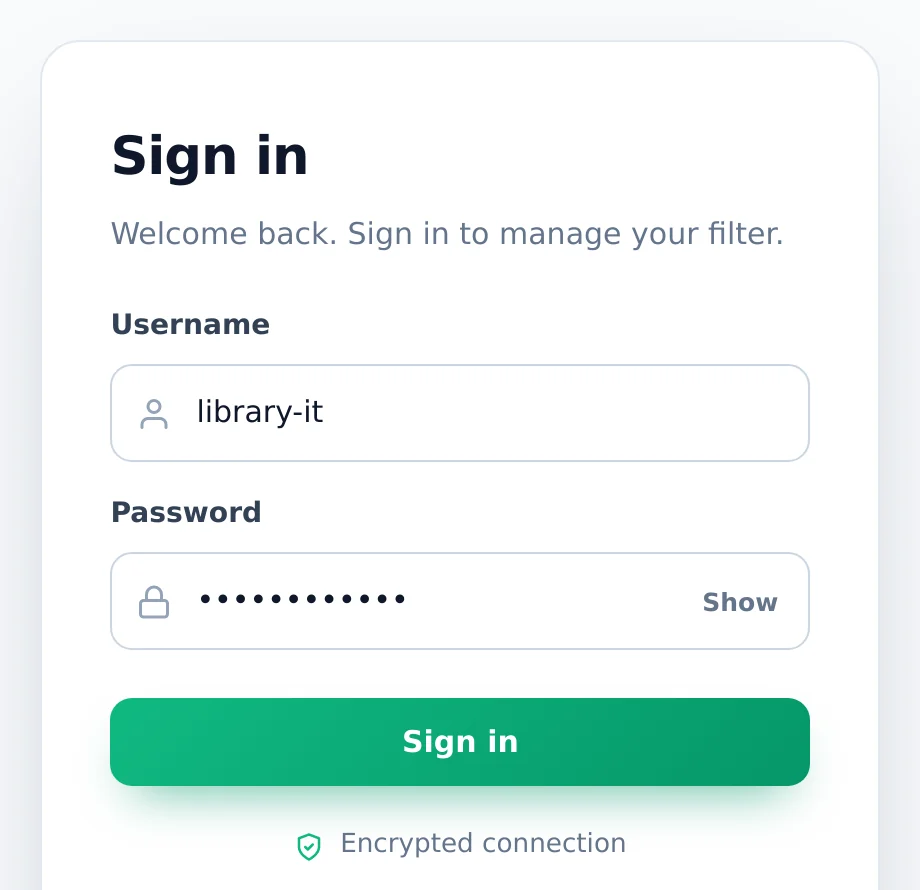
- Enter the Username and Password for the dashboard. These are separate from your website account; we sent them when your filter was set up.
- Use Show to check a long password before you submit, then click Sign in.
- Save the dashboard tab as a bookmark on the PC you use for IT work.
Several people manage the filter? Ask us for a separate login for each of them. That keeps access tidy when staff change.
Check the Compliance overview first
The first page after sign-in answers one question: is the filter on for your network right now? Look at it before you change any AI rule.
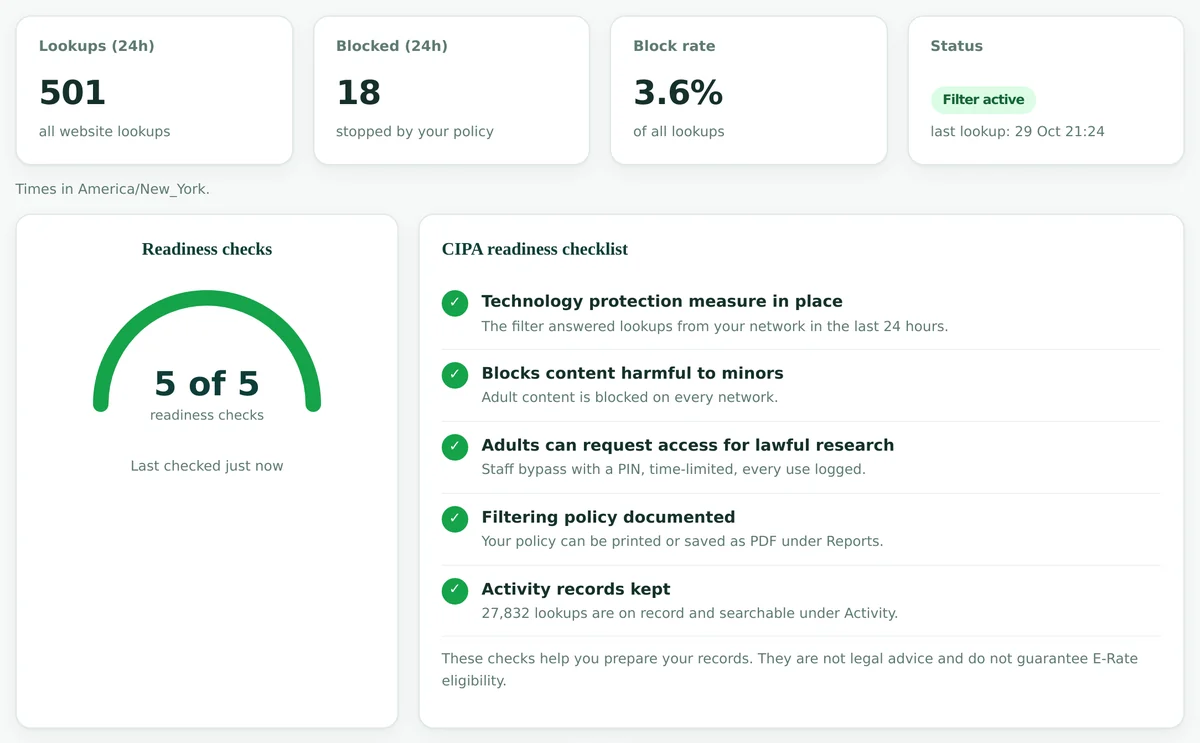
Status
Filter active and a recent last lookup mean your router is sending lookups to the filter.
Block rate
The share of lookups stopped in the last 24 hours. A sudden jump after an AI change is worth a look.
CIPA readiness
Five checks that help you prepare your records. They are not legal advice.
Blocked categories
Further down, blocks made by the AI setting are counted as AI / LLM Tools.
The menu on the left of the dashboard leads to the pages used in this guide: Policy, AI tools, Networks, Staff bypass, Reports and Settings.
Know which profile each network follows
AI rules are saved in a profile. A network such as the children's room PCs or the student Wi-Fi follows one profile, and one profile can serve several networks or branches.
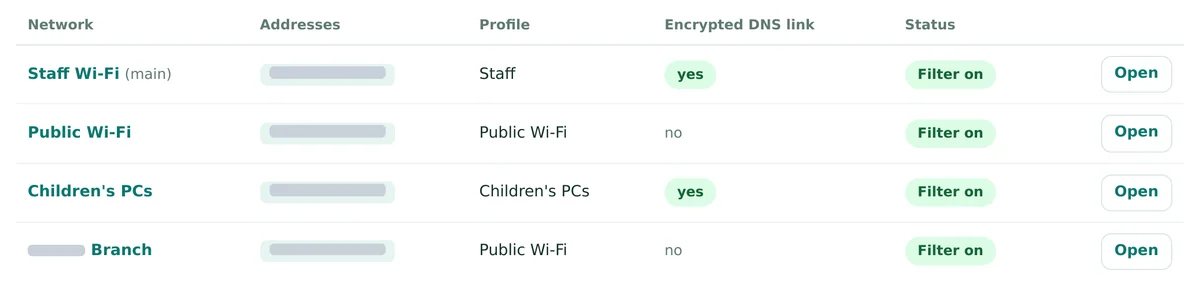
- Open Networks. The Profile column shows which profile each network uses.
- Spot shared profiles. Here, the Public Wi-Fi network and a branch network both follow the Public Wi-Fi profile.
- Open Policy and click the profile's button in the Profiles card.
- Read the Used by label beside the profile name before you change anything. Every network listed there gets the change.
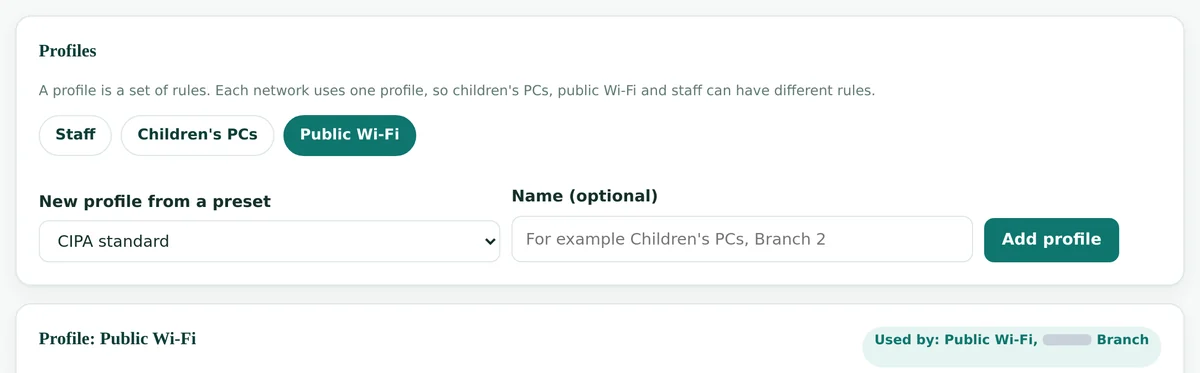
One branch needs other AI rules? Create a profile under New profile from a preset, then switch that branch's network to it on the Networks page. A profile made from the Children's PCs preset already uses the Library children's area AI setting.
Pick an AI policy for each network
Each profile has an AI tools card. You can switch AI rules off, block all AI, or choose one of three ready policies written for students, children and adults. Under each choice the card shows how many tools it blocks, lists for review and allows. Real examples of which well-known AI tools each ready policy blocks are on our AI Controls overview.
- In Policy, select the profile, for example Public Wi-Fi.
- Scroll below the category switches to AI tools.
- Compare the counts under each choice and select the policy your board or district has approved for this audience.
- Click Save profile at the end of the form. Without saving, nothing changes on the network.
- Test from a device on that network in a new tab. The rule is live within seconds; a browser that opened the tool a moment ago can need about a minute.
CIPA and AI. CIPA does not name AI tools. It asks for protection against obscene images, child pornography and images harmful to minors. Which AI tools students and patrons may use is your own policy, usually set in the acceptable use policy or the library's internet policy. The AI setting is how that policy reaches the network.
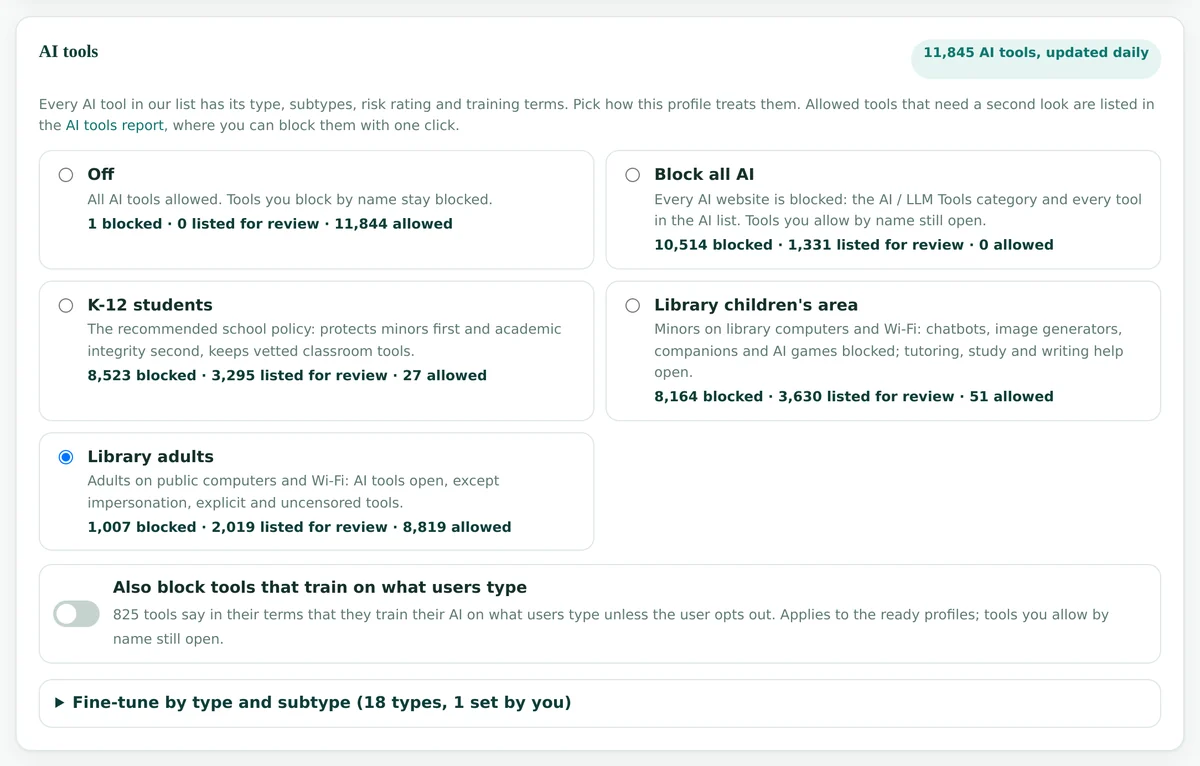
The choices side by side
| Choice | Typical network | Blocked | Listed for review or open |
|---|---|---|---|
| Off | Staff and administration | Only tools you block by name | All AI tools open |
| Block all AI | Testing labs, exam rooms, catalog kiosks | Every AI website, including the AI / LLM Tools category | Tools you allow by name; ordinary apps that only have AI features are listed instead of blocked |
| K-12 students | Student Wi-Fi, Chromebooks, computer labs | General chatbots, essay and paraphrasing tools, image generators, AI companions, AI games, most business tools | Tutoring, study and quiz tools, language learning, reading aloud, transcription and coding help are listed for review; AI-content detectors stay open |
| Library children's area | Children's room PCs and children's Wi-Fi | Chatbots, image generators, companions and AI games | Tutoring and study tools and writing help are listed for review; translation stays open |
| Library adults | Adult PCs and public Wi-Fi | Impersonation tools such as face swap and voice cloning, explicit and uncensored tools | Nearly everything else is open; AI companions and AI text humanizers are listed for review |
Never open by default
In all three ready policies, tools made for explicit images, nudify, deepfakes or uncensored chat, and high-risk tools, stay blocked. Only an allow by name opens one.
Listed for review
Allowed, but placed at the top of the AI tools report so someone looks at them. Nothing is blocked until you decide.
Updated daily
New AI tools join the list every day with a type, so they follow your policy without any action from you.
Stop tools that learn from what people type
Some AI tools state in their terms that they use what people type to train their AI, sometimes unless the user opts out. Children and students rarely change those settings. One switch blocks those tools on a profile.
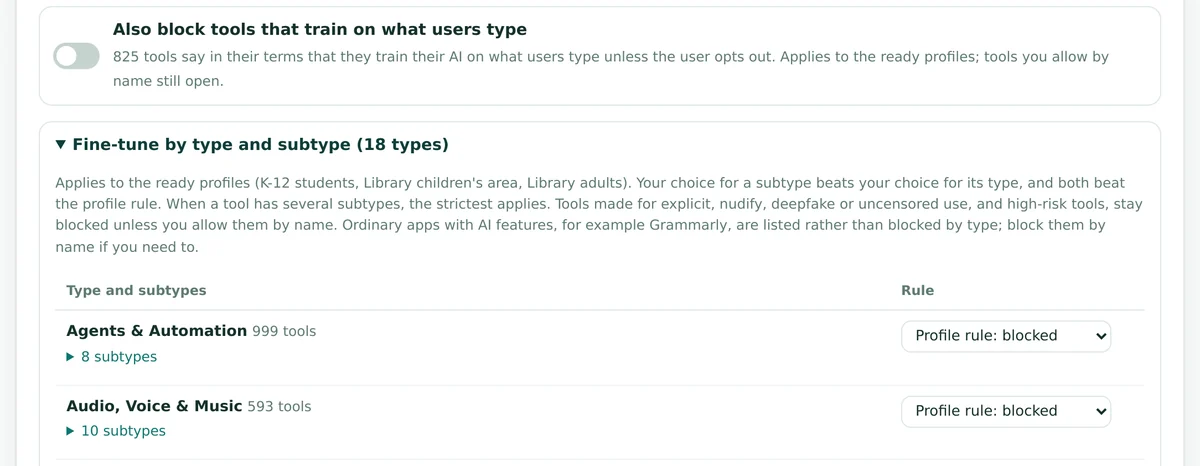
- Select the children's or student profile in Policy.
- Turn on Also block tools that train on what users type in the AI tools card.
- Click Save profile.
- After a day of use, open the AI tools report for that network and check whether a tool teachers rely on is now blocked. If so, allow it by name.
- Works with the K-12 students, Library children's area and Library adults policies.
- Has no effect when AI rules are Off or set to Block all AI.
- An allow by name still wins, so an approved tool keeps working.
- Ordinary apps with AI features are not caught by the switch.
Adjust a policy by type or subtype
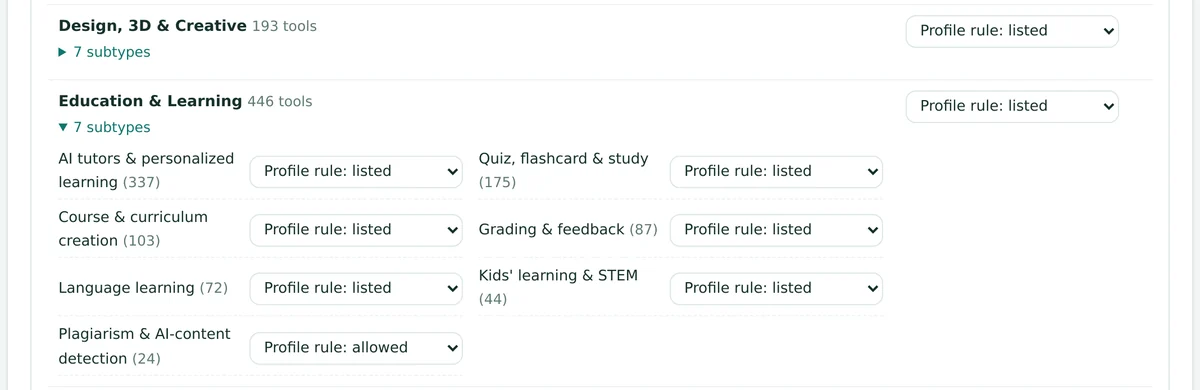
If the ready policy is right except for one kind of tool, change just that kind. Every tool in the list has a type, such as Education & Learning, and one or more subtypes, such as AI tutors & personalized learning.
- In the AI tools card, open Fine-tune by type and subtype.
- Each type shows its tool count and a Rule menu that starts on the profile's own rule, for example Profile rule: listed.
- Choose Block, Allow, list for review or Allow for the whole type, or open its subtypes link and set one subtype.
- Click Save profile. The section heading now shows how many rules you set yourself.
Which rule wins
A subtype choice beats a type choice, and both beat the ready policy. When a tool has several subtypes, the strictest rule applies.
Adjustments schools and libraries make
| Where | What the policy says | Set this |
|---|---|---|
| Student Wi-Fi | The district approved tutoring tools for all grades | Education & Learning, subtype AI tutors & personalized learning: Allow |
| Student Wi-Fi | Slide generators count as unoriginal work | Productivity & Collab, subtype Presentation & slide generation: Block |
| Children's room | Language apps help families who are learning English | Education & Learning, subtype Language learning: Allow |
| Adult PCs | No AI companion apps on public computers | Lifestyle & Entertainment, subtype AI companions & character chat: Block |
Two limits. Type and subtype rules apply to the three ready policies only. Ordinary apps that just have AI features are listed rather than blocked by type; block them by name if your policy requires it.
Allow or block one tool by name
A teacher asks for one tutoring tool. A parent asks about one chatbot. Search for the tool and decide for that profile only.
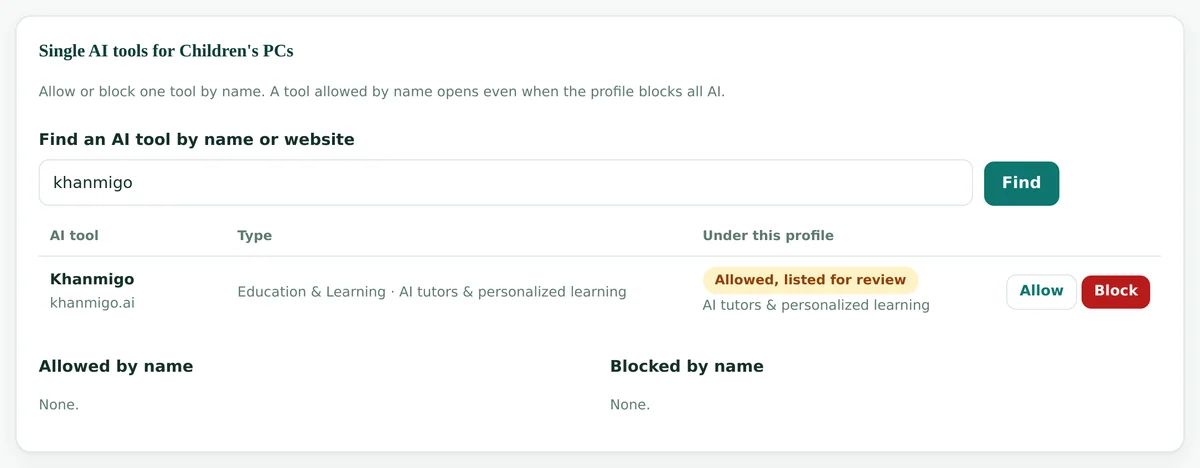
- On the Policy page, with the profile selected, scroll to Single AI tools.
- Type part of the name or website, at least two letters, and click Find.
- Read Under this profile: it says whether the tool is blocked, listed for review or allowed now, and why.
- Click Allow or Block. The tool appears under Allowed by name or Blocked by name straight away.
- Click Remove beside a tool to hand it back to the profile's AI policy.
Allowed by name
Opens even under Block all AI. The right place for tools named in your approved list.
Blocked by name
Stays blocked under every setting, including Off. A profile holds up to 500 tools by name.
Not an AI tool?
For other websites, use the Always allowed and Always blocked lists at the end of the Policy page.
Review the AI tools used report
Settings tell you what should happen. The report tells you what did happen: which AI tools people opened, on which network, how often, and what the filter does with each tool today.
- Click AI tools in the dashboard menu.
- Choose a network, or keep All networks, and a period of 7, 30 or 90 days.
- Start at the top. Tools listed for review come first because they are allowed but need a decision.
- Under each status is the reason, such as a medium risk rating or training on what users type.
AI tools used
Distinct tools seen in the period.
Lookups
How often AI tools were looked up.
Listed for review
Allowed tools that need a second look.
Blocked tools
Stopped by your AI policy or lists.
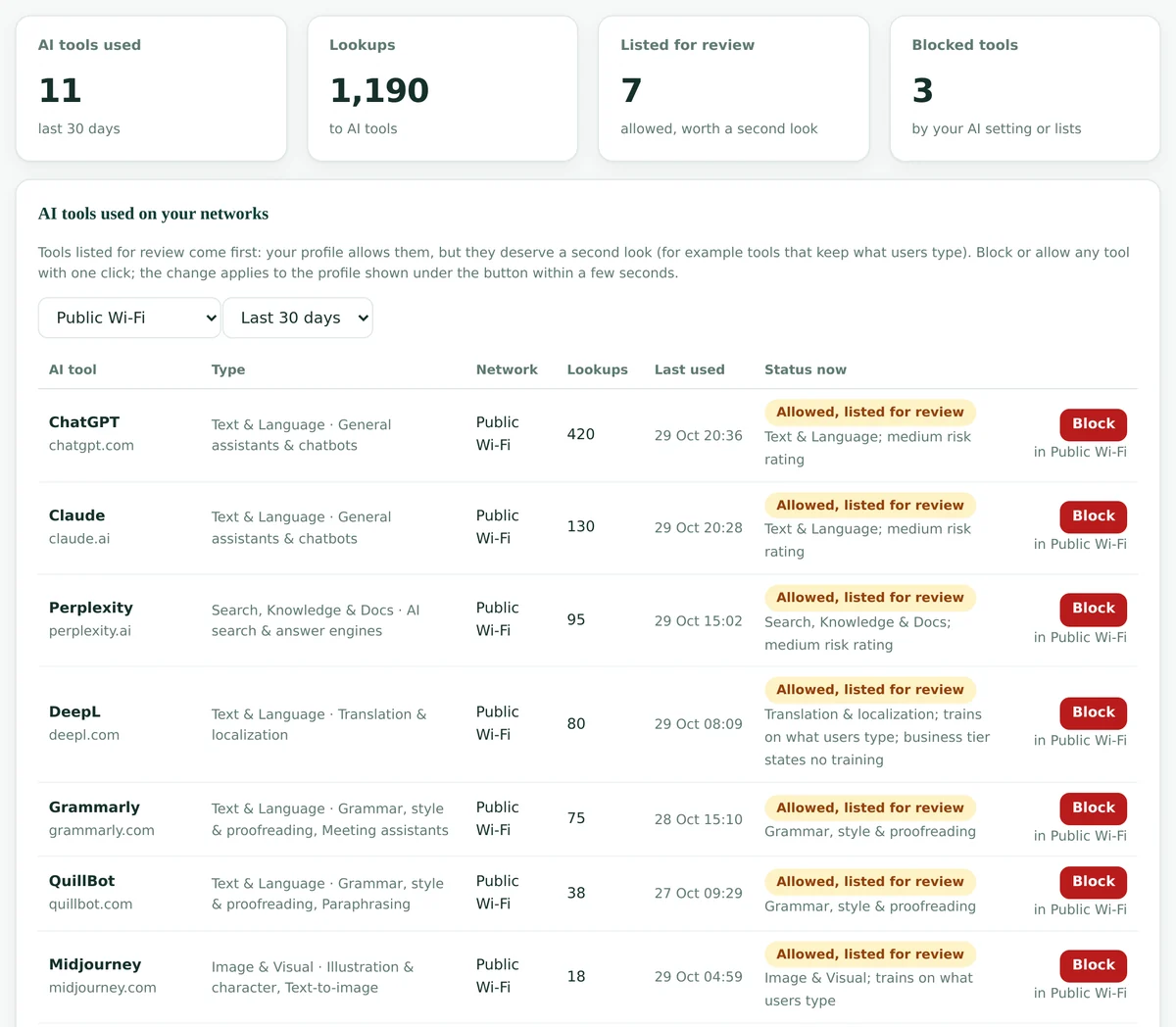
Privacy note for parents and patrons: the filter sees which websites are looked up, not what anyone types or reads. The report shows the tool, the network, the number of lookups and the time of last use.
Block or allow a tool from its report row
Each row has a Block or Allow button, with the profile it changes printed underneath. One click and the decision is live.
- Read the profile under the button, for example in Public Wi-Fi.
- Click Block. The green bar at the top confirms it, for example Midjourney is blocked by name in Public Wi-Fi.
- The tool moves down to the blocked rows with Blocked by name as the reason, and its button becomes Allow.
- To reverse the decision, click Allow on the row, or Remove under Single AI tools.
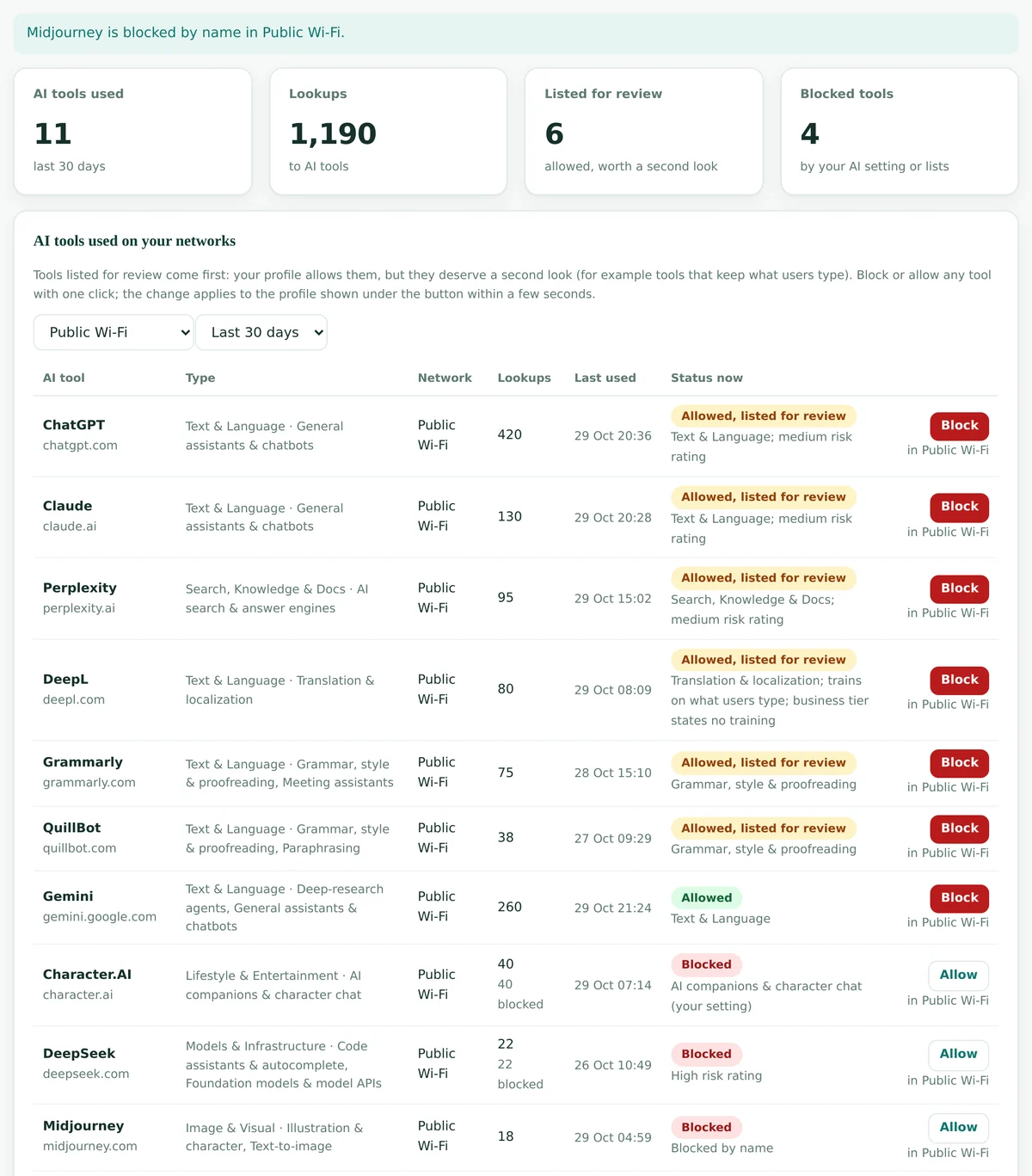
Check the profile first. The button changes a profile, so every network on that profile follows. In the sample, the block on Public Wi-Fi also applies at the branch.
A weekly routine for a busy IT person
- Monday: open AI tools with the last 7 days and all networks.
- Decide on every tool listed for review, starting with the most lookups.
- Switch to the children's or student network and repeat.
- Record decisions in your AI policy notes so colleagues see the reasons.
- Look over the blocked rows for a tool staff requested, and allow it by name if approved.
- Once a term, review the 90-day view with the director or principal.
What students and patrons see
A blocked AI tool does not load. When the browser shows the filter's page, it carries your library or school name, the site, the reason and your contact details.
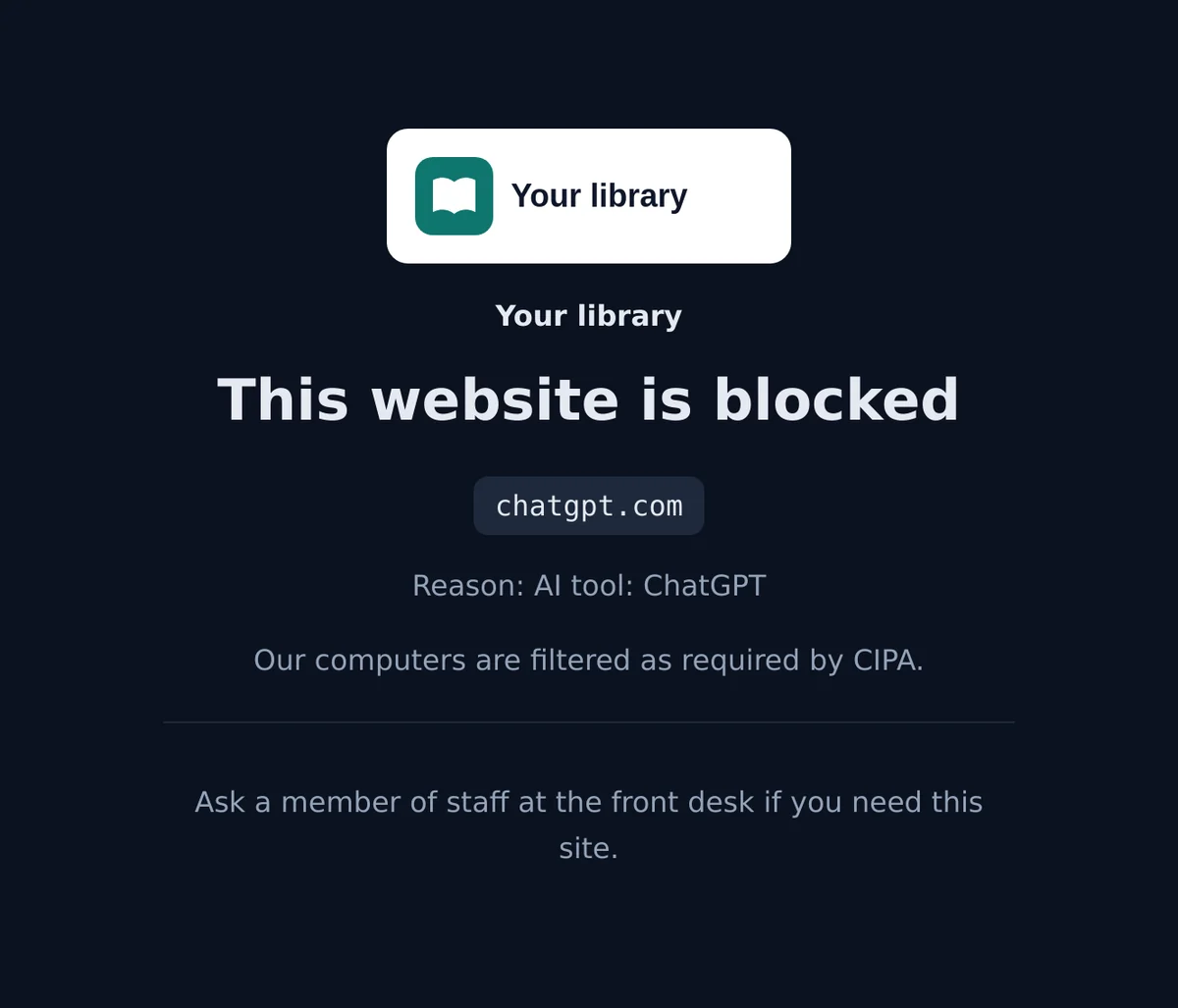
- The reason reads AI tool: followed by the tool's name when the AI setting made the block.
- Name, logo, message and contact are set under Settings, card Block page; Open a preview shows the result.
- Nearly all AI tools use HTTPS. Browsers then show a security warning first, and for well-known sites only the warning. The tool is still blocked either way.
- Plain http sites show your block page straight away.
A line for the desk: "That warning means our filter blocked the site. If you need it for your work or school, tell us the name and we will ask the person who manages the filter."
The staff PIN does not open AI tools
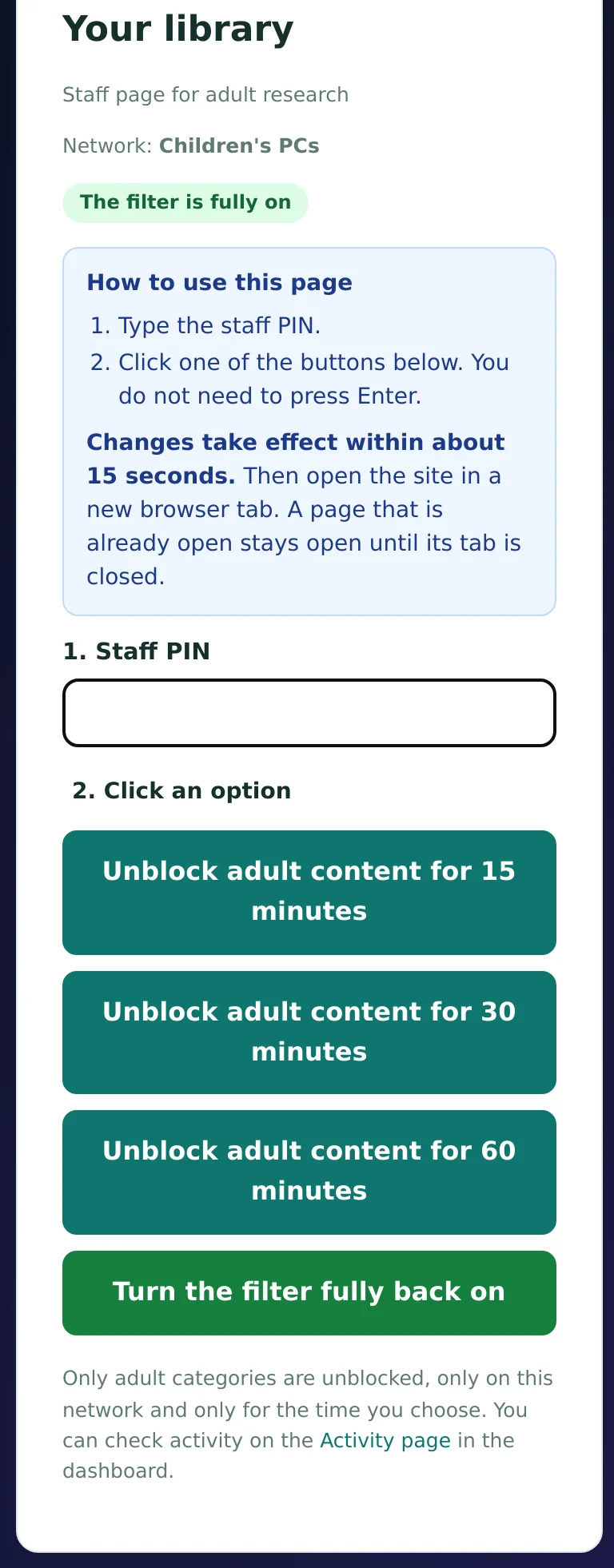
CIPA lets an authorized person disable the filter for an adult's bona fide research. The staff PIN does exactly that for adult content, and nothing more. AI rules stay as the profile sets them.
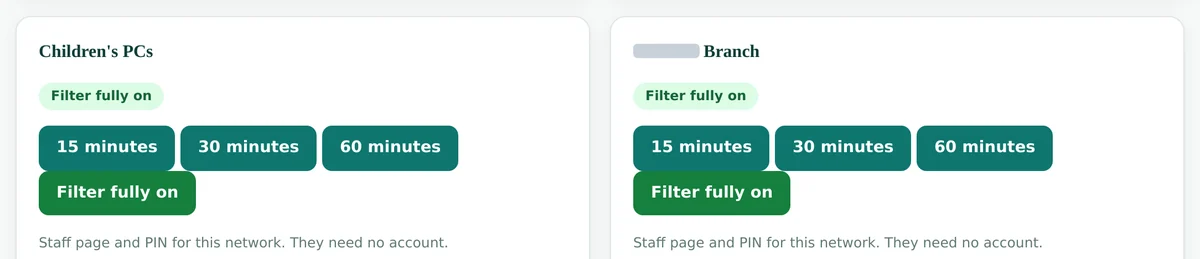
- A staff member opens the network's staff page on a phone or desk PC. No dashboard login is needed.
- They type the Staff PIN and pick 15, 30 or 60 minutes. Adult content opens on that network only.
- The filter closes again by itself, or earlier with Turn the filter fully back on.
- In the dashboard, the Staff bypass page has the same buttons for each network, plus each network's staff link and PIN.
During a bypass
AI tools keep their status. Under a ready policy, explicit and deepfake AI tools stay blocked even while adult content is open.
An adult needs one AI tool
A dashboard user allows the tool by name on that profile and removes it afterwards.
Children's networks
Many libraries never use the PIN on the children's room network, and send adults to the adult PCs instead.
For the desk procedure and the records to keep, see CIPA adult unblocking in libraries.
AI use in the monthly report
Boards, principals and auditors ask the same thing: what is the filter doing about AI? The monthly activity report answers with numbers.
- Under Settings, fill in Monthly report email with the director's or principal's address and yours, separated by commas, then click Save recipients.
- On the first day of each month, last month's report arrives by email, for all networks and for each network, with CSV files.
- For any month, open Reports, choose the month and a network, and click Open report or Download CSV.
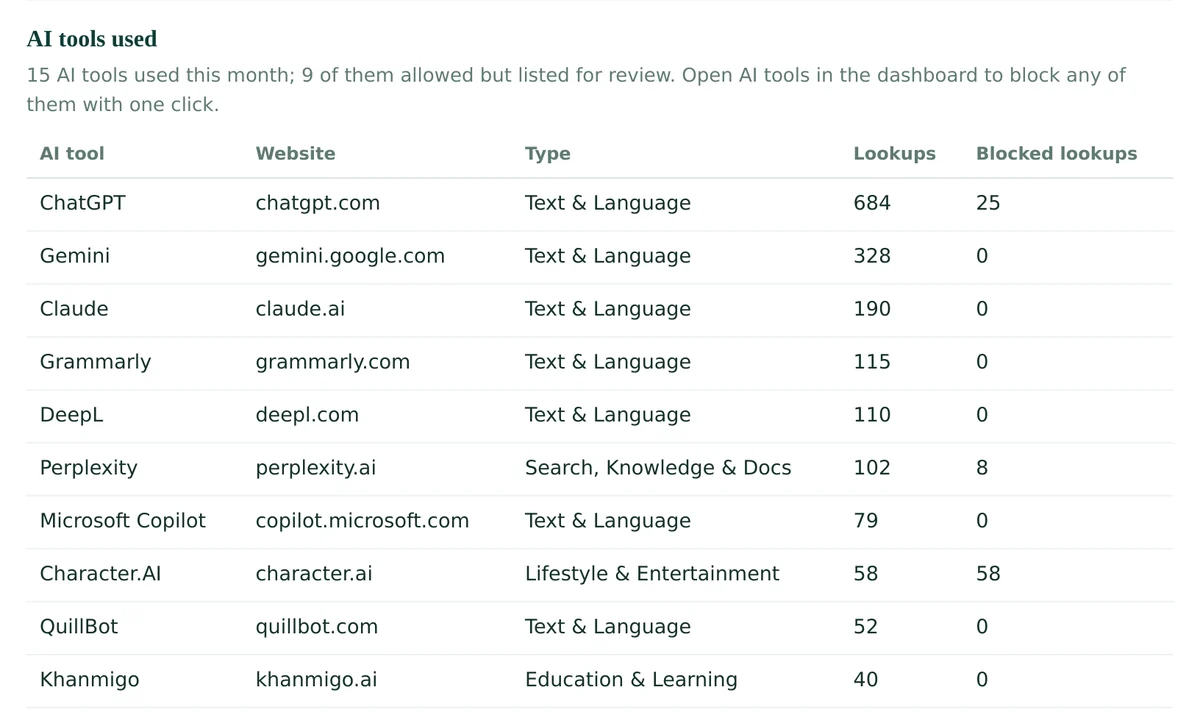
- In the report, find AI tools used: the number of tools used, how many are allowed but listed for review, and the most used tools.
Print or save as PDF
Keep the monthly PDF with your CIPA and E-Rate documents.
CSV for your own analysis
The CSV contains the same AI tool rows: tool, website, type, lookups and blocked lookups.
Our CIPA compliance checklist lists the other records worth keeping in the same folder.
Starting layouts for schools and libraries
Use these as a first draft and adjust them to your own policy. Each row is one profile.
| Profile | AI policy | Training switch | Typical own choices |
|---|---|---|---|
| Children's room | Library children's area | On | Allow approved homework and reading tools by name |
| Teen space | K-12 students or Library children's area | On | Allow language learning and research tools your teen librarian recommends |
| Adult PCs and public Wi-Fi | Library adults | Off | Block AI companions if your board prefers |
| Student network | K-12 students | On | Allow district-approved tutors; block slide generators if your integrity policy says so |
| Testing room | Block all AI | Not used | Allow by name only what the test itself needs |
| Staff network | Off or Library adults | Your choice | Block by name any tool your staff AI policy rules out |
AI only during tests? Keep the student policy and add a time schedule on the Policy page that blocks the AI / LLM Tools category during test hours. Tools allowed by name stay open.
AI tools filtering FAQ
Does CIPA require us to block AI tools?
CIPA does not name AI tools. It requires a technology protection measure against obscene images, child pornography and images harmful to minors. How you treat chatbots and other AI tools is a local policy choice, and the AI setting lets you put that choice into practice per network.
Will the staff PIN open AI tools for an adult patron?
No. The staff PIN opens adult content only. AI tools keep their AI setting during the bypass. If an adult needs one blocked AI tool, a dashboard user can allow that tool by name on the profile.
Can a teacher's approved tool stay open when students have strict rules?
Yes. Search the tool under Single AI tools for the student profile and click Allow. A tool allowed by name opens even when the profile blocks all AI.
How do we see which AI tools students or patrons use?
Open AI tools in the dashboard menu. The report lists every AI tool used on each network over the last 7, 30 or 90 days, with lookups, last use and its status, and a button to block or allow it.
Does the filter record what students type into AI tools?
No. A DNS filter sees which websites are looked up, not what people type or read. The report shows the tool, the network, the number of lookups and the time of last use.
How quickly do new AI tools get covered?
The AI tools list is updated every day. A new tool gets a type and subtypes and follows the rules of each profile from the day it is added.
Can we block AI only during tests?
Yes. Add a time schedule to the student profile that blocks the AI / LLM Tools category during test hours, or give the testing room its own network with Block all AI.
What if I forget my dashboard password?
Write to [email protected] from your library or school address and we will help you sign in again. For your security, the sign-in page also pauses for a few minutes after several wrong passwords in a row.
Related guides
Need a hand with your AI setup?
Tell us which networks you have and what your AI policy says, and we will suggest a starting configuration for each profile. Existing customers can write to [email protected].
Contact us How the hosted filter works