Patron self-unblock: four ways to let adults unblock a website
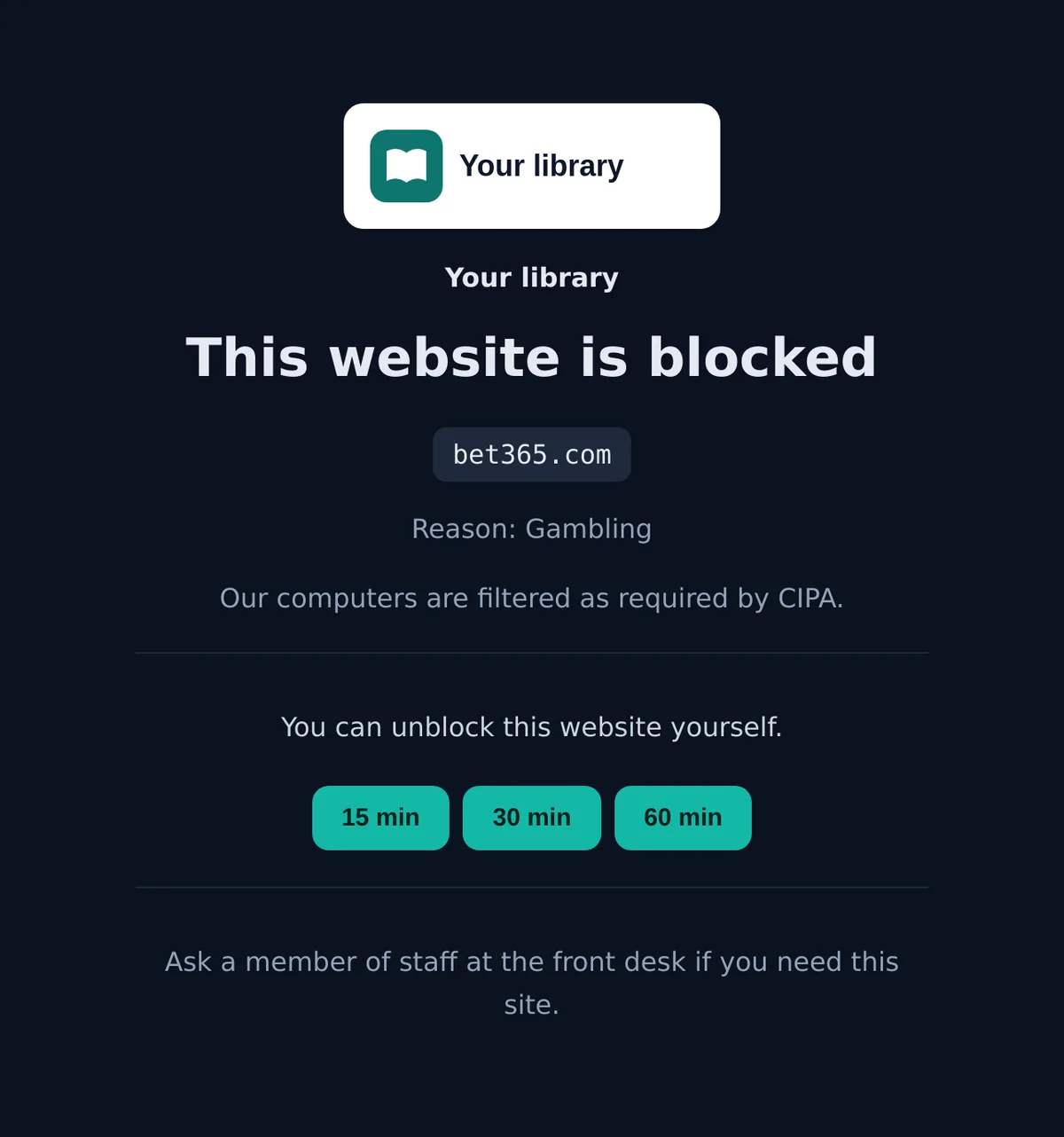
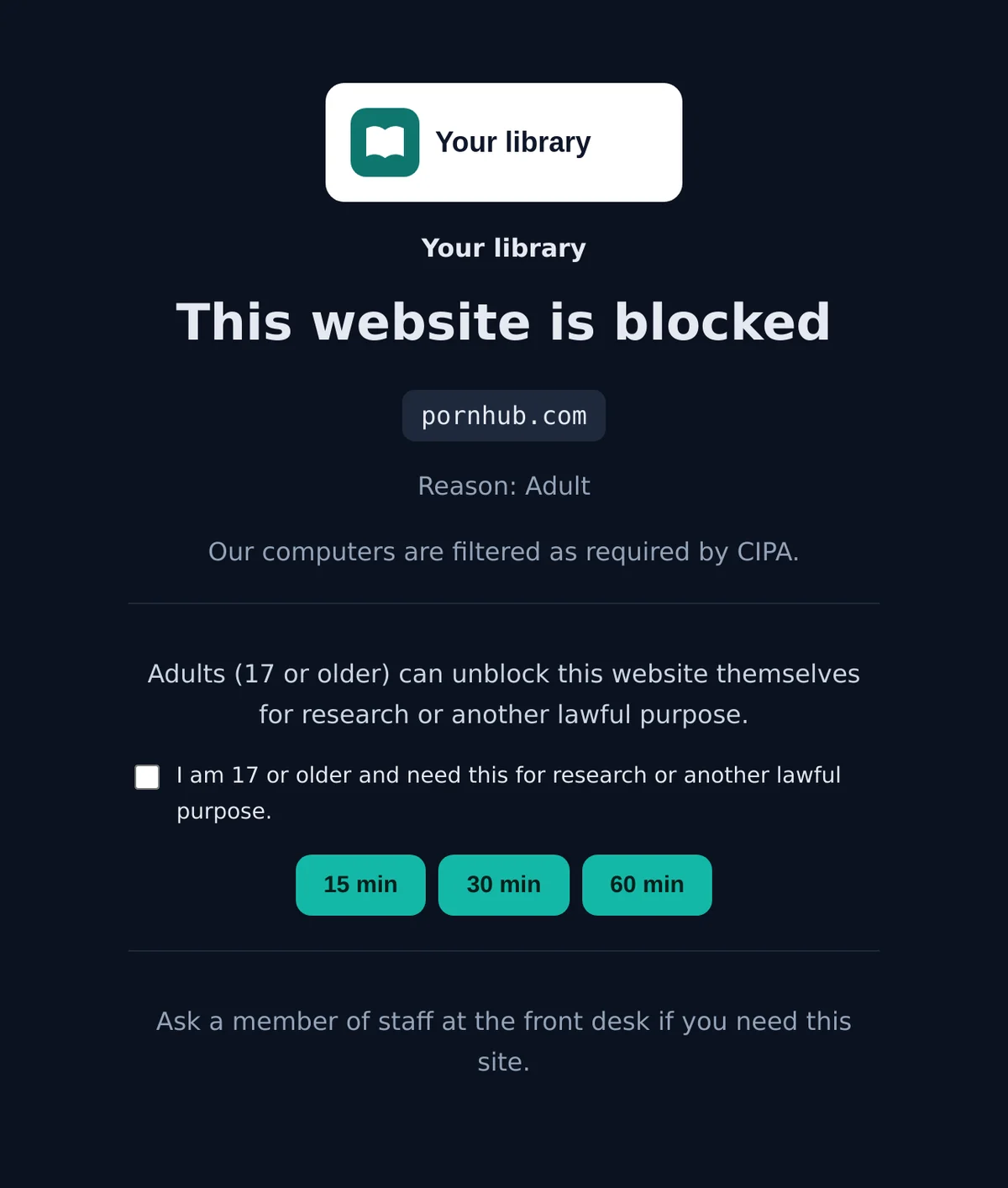
Many libraries do not want adults to queue at the desk for a staff PIN every time a research site is blocked. With patron self-unblock, the adult unblocks the website at the computer: the block page asks them to confirm that they are 17 or older and need the site for research or another lawful purpose, and one click opens it.
This guide explains what patrons can and cannot unblock, the four ways to set it up, how teen computers fit in, and which way suits which library. Everything is switched on per network in your dashboard, with nothing to install on patrons' own devices.
What patrons can and cannot unblock
Patron self-unblock is a setting on each network in your dashboard. When it is on, a patron who meets a blocked website can open it without staff and without a PIN. Every unblock ends by itself: a timed unblock after 15, 30 or 60 minutes, a single website after 60 minutes, and on a computer with its own link also when the patron logs off. The patron can switch the filter back on earlier with one click.
Adult computers
Adult content and the extra categories your library blocks by its own choice, for example gambling, games or social media. The patron confirms that they are 17 or older and need the site for research or another lawful purpose.
Teen computers
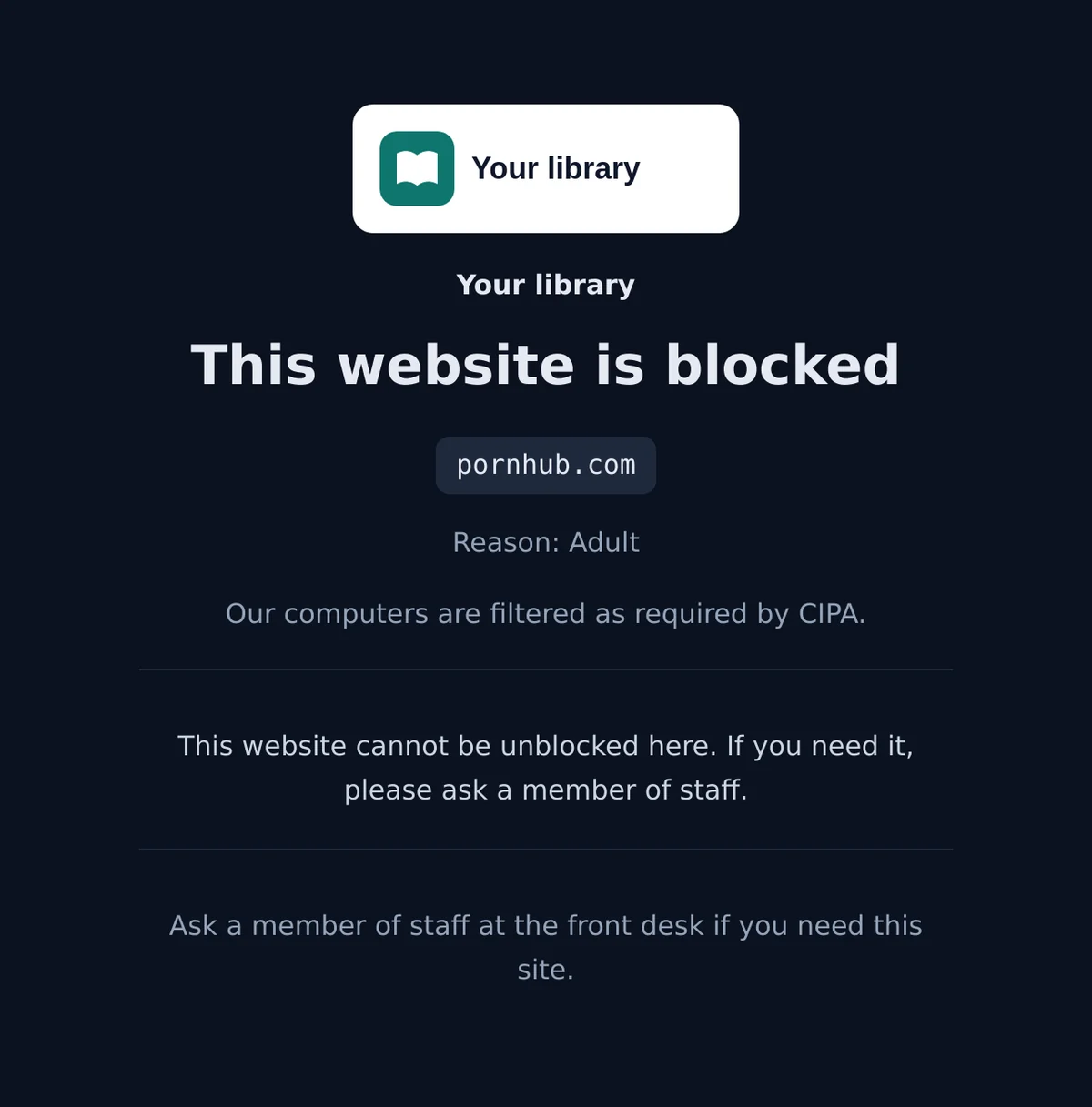
Only the extra categories your library blocks by choice. Adult content stays blocked on teen computers in every case, and the block page tells the patron to ask a member of staff.
Always blocked
VPN and proxy sites, phishing and malware, newly registered domains, your own block list, and AI tools you block by name or type. These protect the filter itself, so no patron can open them.
How this fits CIPA. CIPA lets an authorized person disable the filter during use by an adult, so the adult can do bona fide research or pursue another lawful purpose. Many libraries let the adult do this themselves by confirming age and purpose on screen, which is what the adult setting does. For minors the protection against adult content stays, which is why teen computers can only open the extra categories. Your board's internet policy decides how you use it; our guide to CIPA adult unblocking in libraries covers the background.
The staff PIN and the staff page keep working next to patron self-unblock. Staff can still open adult content for a patron who asks, switch a network fully back on, and change the PIN, exactly as before.
The whole network, for a set time
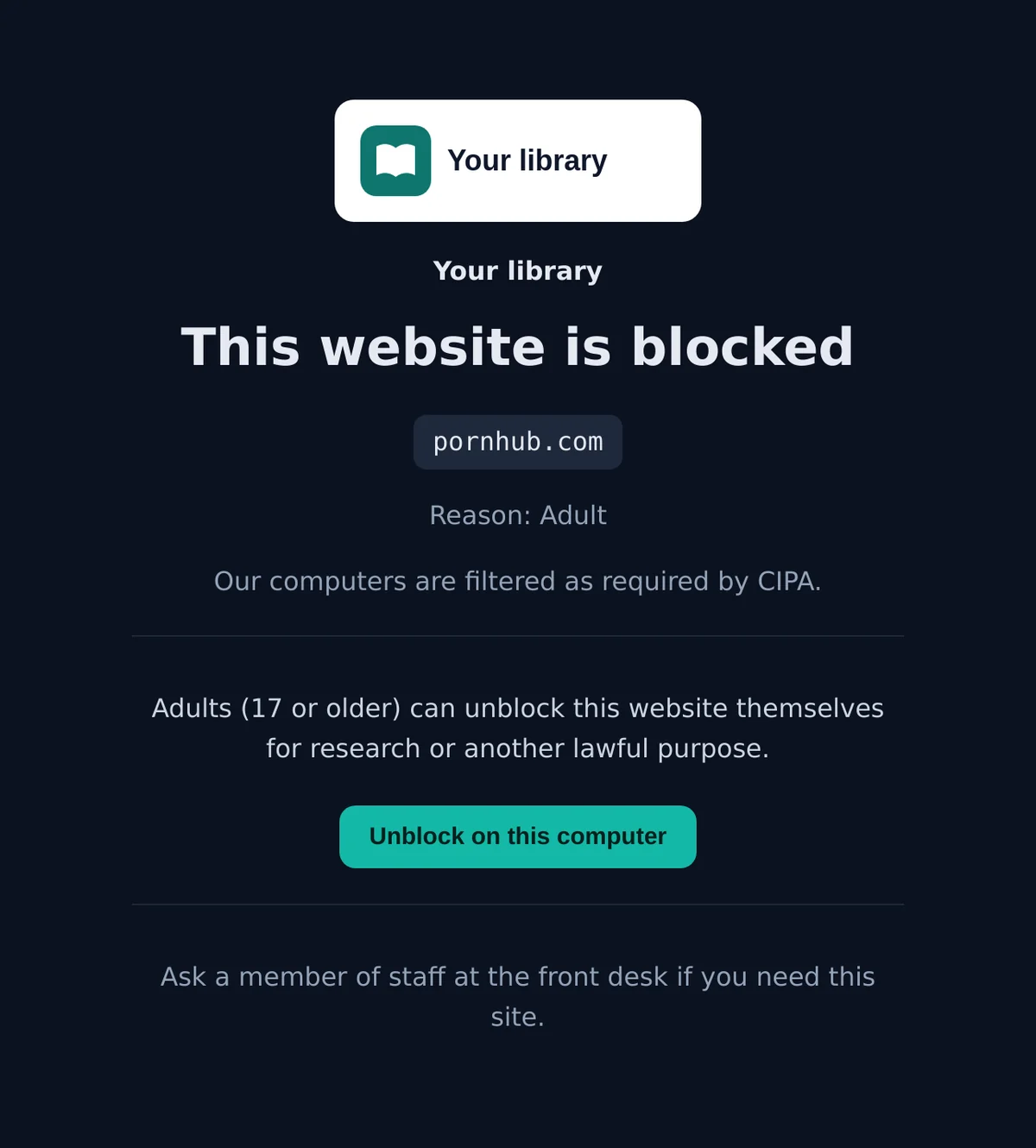
The simplest setup. Your adult computers are on their own network, and the block page on that network shows the age confirmation and three buttons: 15, 30 and 60 minutes. One click opens adult content and the extra categories for every computer on that network for the chosen time.
How it works
- A patron opens a blocked website. The block page names the website and the reason, and shows the self-unblock part below.
- They tick the confirmation and choose a time. The page confirms and tells them to open the website again in a new tab after about 15 seconds.
- The filter switches back on by itself when the time ends, or at once when someone clicks Turn the filter fully back on on the patron page.
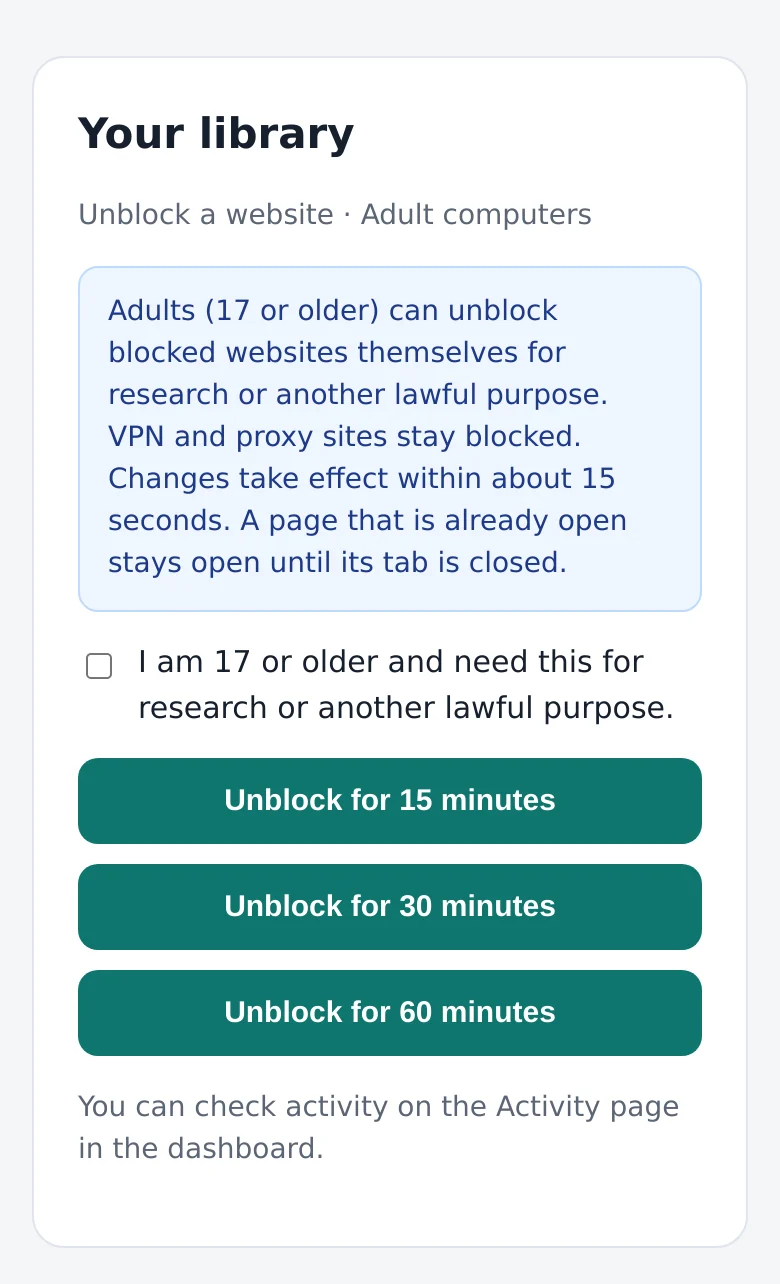
Every network also gets its own patron page with the same buttons. Put a link to it on the desktop or as a browser bookmark on your adult computers, so patrons can unblock before they even meet a block.
What you need
The adult area must reach the internet through its own public address, so the filter can tell it apart from the rest of the branch. That is usually a separate network or VLAN with its own address from your internet provider, or a separate line. If your teen and adult computers share one address, choose Option 2.
One click opens the whole area. While the unblock runs, every computer on that network gets the same answer. That is fine for a room that only adults use. It is not the right choice when adult and teen computers share a network.
Per computer: only the patron's own computer opens
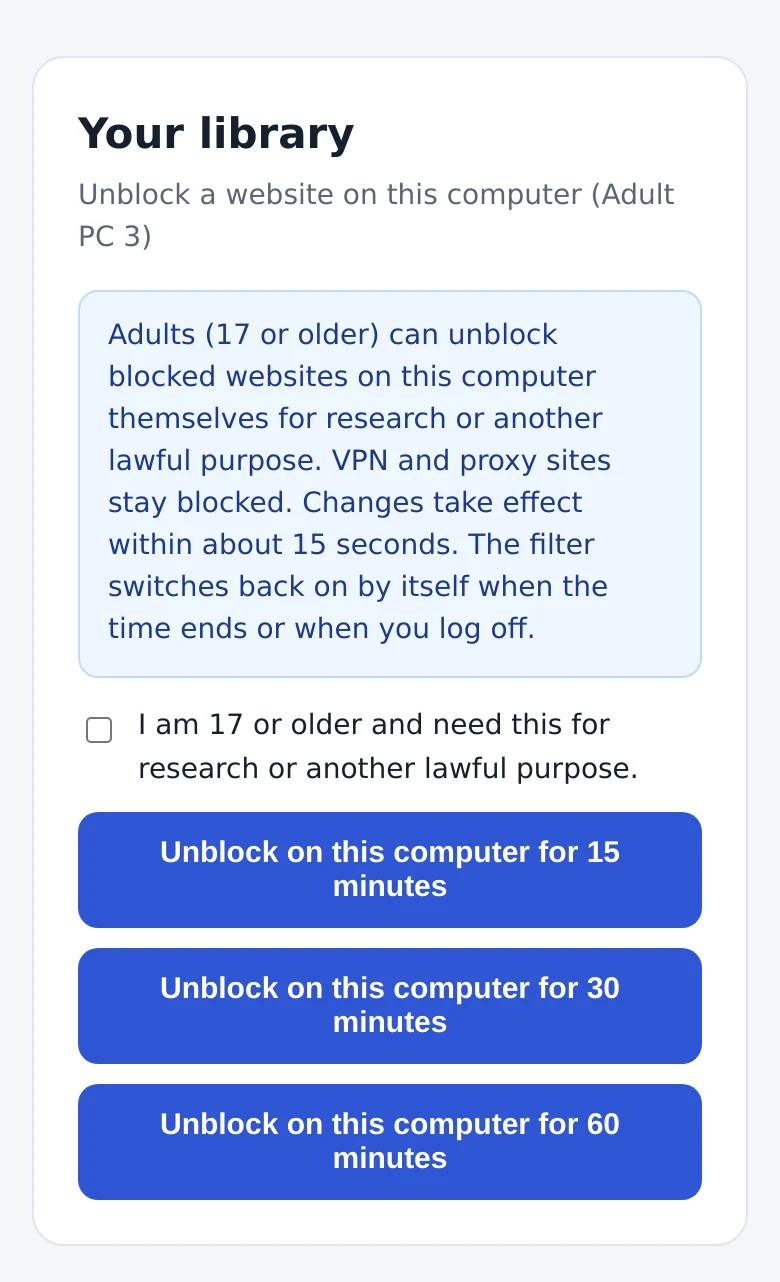
The most precise setup. Each adult or teen computer gets its own encrypted DNS link and an Unblock a website button in the browser. When a patron unblocks, only the computer they are using opens; all other computers stay filtered. It ends when the time runs out or when the patron logs off.
How it works
- We prepare one setup file per computer. It sets the computer's own encrypted DNS link in Chrome, Edge and Firefox, adds the Unblock a website bookmark to all three, and adds a small task that switches the filter back on at every log-on and log-off. You run the file once per computer, or roll out the same settings with Group Policy.
- A patron opens a blocked website. The block page shows Unblock on this computer. It recognizes which computer it is on through that computer's own link, so it opens that computer's unblock page.
- The patron confirms and chooses a time. Only this computer opens. The computers around it stay filtered.
- The next patron starts clean. When the patron logs off, the computer's unblock ends, so a session in your PC reservation system never carries over.
The rest of the network keeps working through your router as before. If the computer's own link is ever unreachable, the browsers fall back to the network filter, so the computer is never left unfiltered.
Why most library systems choose it
- Teen and adult computers can share one network and one public address
- One patron's unblock never opens a neighbour's screen
- It ends at log-off as well as after the time
- It matches CIPA's "during use by an adult" closely
The block page on https websites
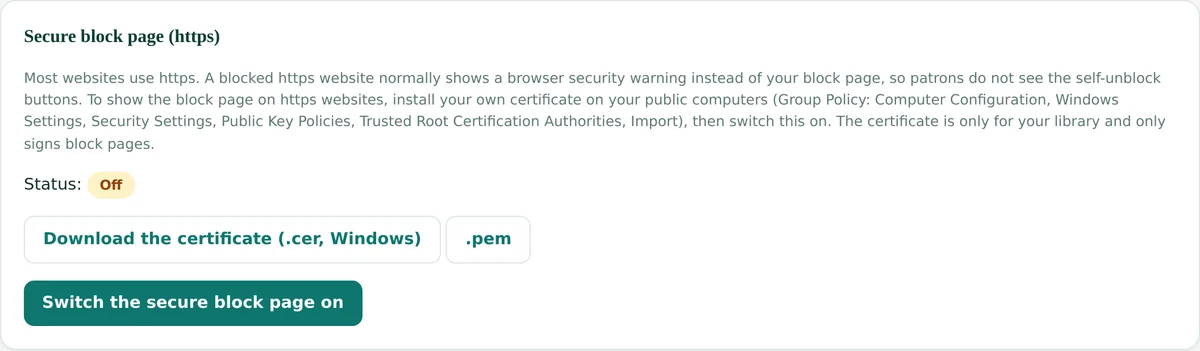
Almost every website uses https today. When the filter blocks an https website, the browser expected the real site and gets the filter's answer instead, so it shows a security warning rather than your block page. The website stays blocked, but the patron does not see the self-unblock buttons. The secure block page fixes that on your own computers.
How to switch it on
- Create your certificate. In the dashboard, open Settings and click Create our certificate under Secure block page. It is made for your library only.
- Download it as a .cer file for Windows.
- Install it on your public computers with Group Policy: Computer Configuration, Windows Settings, Security Settings, Public Key Policies, Trusted Root Certification Authorities, then Import. Computers pick it up at the next policy refresh. Edge and Chrome use it from Windows at once. Firefox uses it once the Firefox policy Import Enterprise Roots is on; our per-computer setup file switches it on for you.
- Switch the secure block page on in the same card. Blocked https websites now show your block page, with the self-unblock buttons, on every computer that has the certificate.
What the certificate does and does not do. It only lets your computers trust your own block page. Its key stays on our filter servers, it is different for every library, and it never touches websites that are not blocked. Patrons' own phones and laptops do not have it, so on them a blocked https website keeps showing the usual browser warning.
You do not need Option 3 for the patron page or the Unblock a website bookmark: those work without any certificate. Option 3 adds the button at the moment a patron meets the block, which is what most patrons expect.
It combines with every other option: the whole network, one computer, and continuing to one website.
Continue to one website only
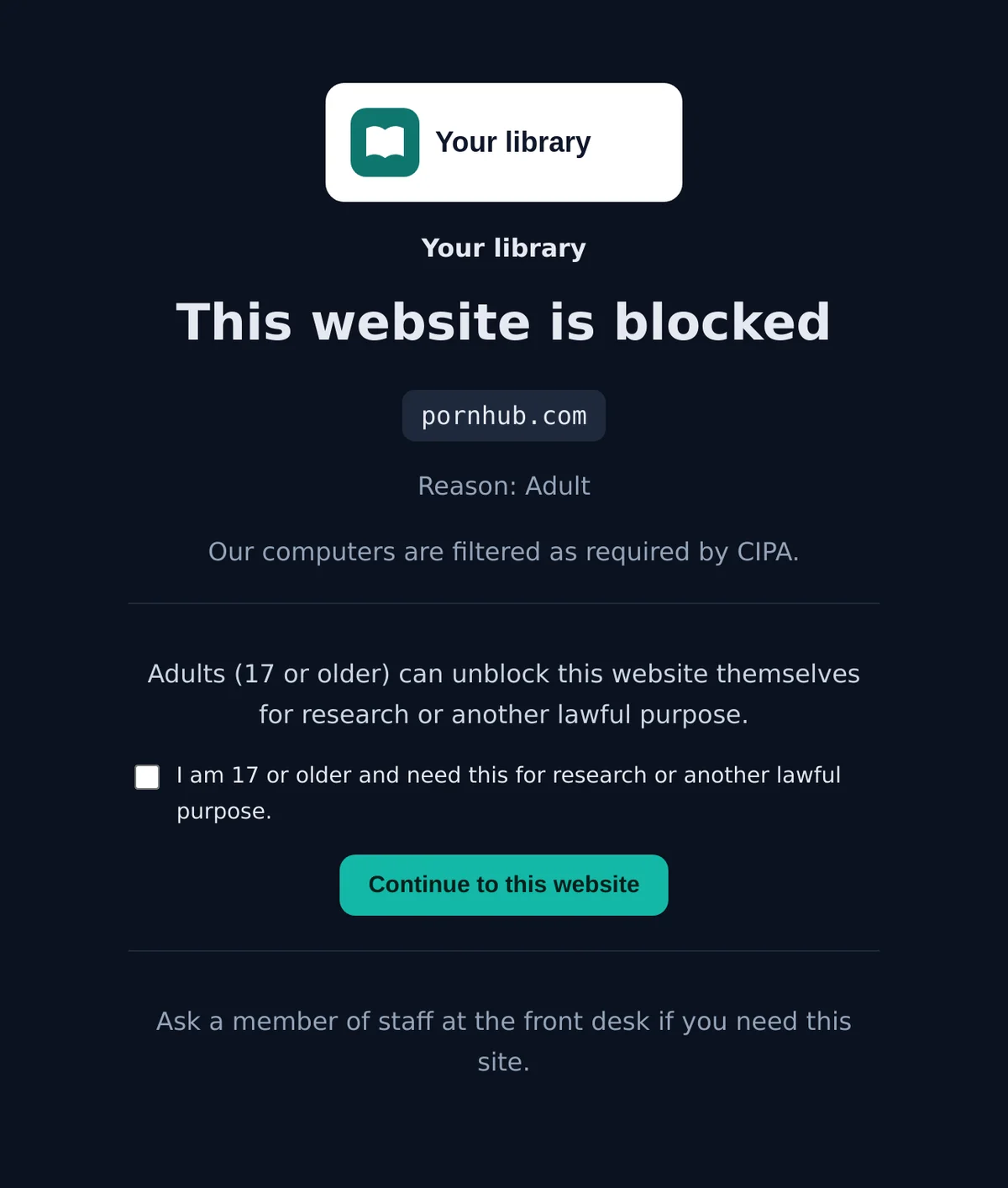
Instead of opening everything for a while, the block page works like a warning: it shows Continue to this website, and the click opens only that website, with its subdomains, for 60 minutes. Every other blocked website stays blocked, so a patron who needs one research site does not open the whole category.
This works on the whole network and on single computers. On teen computers it follows the same rule as before: a website in an extra category can be continued to, an adult website cannot.
Libraries that like a lighter touch often choose this one. The patron sees the reason the website was blocked, decides, and goes on, and your records show exactly which website they continued to.
Good to know
- Opens one website and its subdomains, not a category
- Ends after 60 minutes, or at log-off on a single computer
- Pages from other sites the website loads stay filtered
- Every continue is listed with the website's name
Which option to choose
The options combine. The first decision is where an unblock applies, the whole network or one computer. The second is what it opens, everything allowed for a set time or one website. The secure block page then decides whether patrons see the buttons on https websites too.
| 1. Whole network | 2. Per computer | 3. Secure block page | 4. One website | |
|---|---|---|---|---|
| What opens | Every computer on the network, for 15, 30 or 60 minutes | Only the patron's computer | Nothing by itself: shows the buttons on https websites | Only the blocked website, for 60 minutes |
| Setup at the library | Adult area on its own network and address | One setup file per computer, or Group Policy | Certificate on public computers via Group Policy | None beyond Option 1 or 2 |
| Ends | After the time, or back on | After the time, back on, or log-off | Not applicable | After 60 minutes, or log-off on one computer |
| Teen and adult on one network | Not suitable | Yes | Yes | Yes, with Option 2 |
| Best for | A separate adult room | Most library systems | Managed public computers | Libraries that prefer site by site |
Our suggestion for a library system with several branches: Option 2 on the adult and teen computers, so an unblock never reaches the next screen and ends at log-off, with Option 3 when your IT team manages the public computers with Group Policy. Choose the timed unblock or Option 4 depending on whether your policy prefers opening a category for a while or one website at a time. Staff computers usually keep the staff PIN.
Switching it on and your records
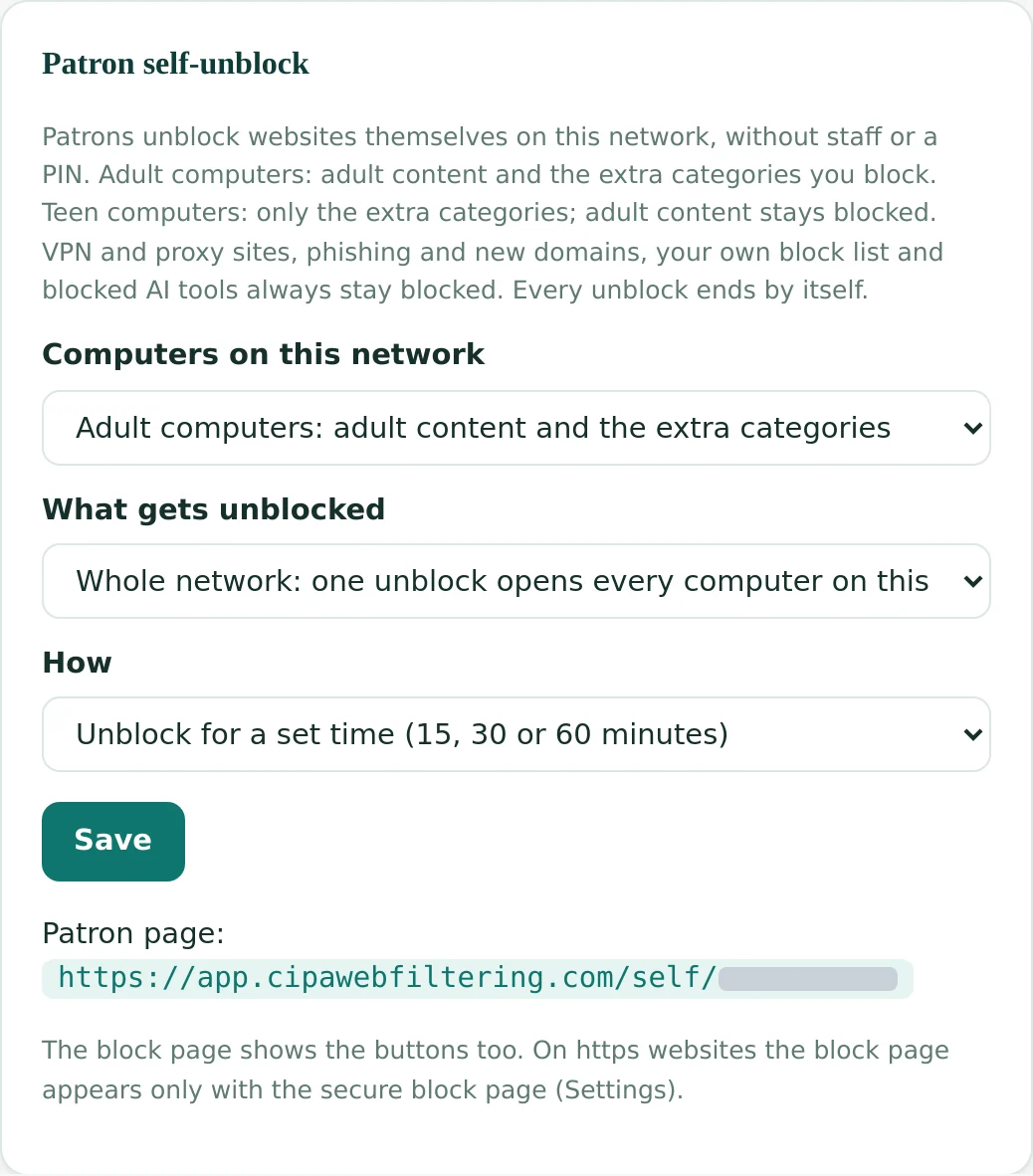
- Open Networks in the dashboard and choose the network, for example Adult computers.
- Pick who uses it under Computers on this network: Adult computers or Teen computers. Off switches self-unblock off for that network.
- Pick where it applies: the whole network, where one unblock opens every computer on it, or per computer, where an unblock opens only the computer the patron is using. For per computer, we prepare the setup files with you.
- Pick how: unblock for a set time, or continue to the blocked website only.
- Save. It applies within a few seconds. The card then shows the patron page for the network.
Records for your files
Every patron unblock is recorded next to the staff bypass events, with the time, the network or computer, and the length or the website. You can check activity on the Activity page in the dashboard, download the bypass log as a CSV file, and find the events in the monthly report, labelled Patron self-unblock started, Patron continued to a website, or Patron switched the filter back on.
Timing
Unblocking works at once. Blocking again needs a browser restart. These are the steps patrons and staff see on the page.
How to unblock a website
- Click the unblock button (on adult computers, tick the 17 or older box first).
- Wait 15 to 20 seconds.
- Open a new tab and enter the website.
How to block it again
- Click Turn the filter fully back on. It also happens by itself when the time is up.
- Wait 15 to 20 seconds.
- Close the browser completely and start it again.
- Open the website: it is blocked.
Why the browser restart: a browser keeps its connection to a website it has already used, even after the tab is closed. While that connection lasts, the website keeps working there without asking the filter again. Every other computer is blocked again within about 15 seconds, and at log-off the browser closes anyway. This works the same way with every DNS filter.
Test options 1, 2 and 4 in your account
Each test takes about five minutes and needs nothing installed. You use two things: an unblock page, which works in any browser and needs no sign-in, and one browser that uses your filter, where you check whether a website opens. For option 2 we create a test computer in your account and send you its two links.
Before you start
- Pick the browser for checking. Put your test link (the encrypted DNS link from your welcome email, also on the Networks page in the dashboard) into that browser's secure DNS setting, as described in Part B of the setup guide. Only this browser uses the filter, so check websites only here.
- Sign in to the dashboard in any browser, also a different one.
- Pick two adult websites that the filter blocks, and a VPN website such as rdvpn.com, which must always stay blocked.
Option 1: unblock for a set time
Switch it on
- In the dashboard, open Networks and click Off, set it up next to your network.
- Choose Adult computers, Whole network and Unblock for a set time, then click Save.
- Open the Patron page link that the card now shows.
Unblock
- On the patron page, tick the box and click Unblock for 15 minutes.
- In the checking browser, wait 15 to 20 seconds, then open a new tab and enter the first adult website. It opens.
- Enter the VPN website. It stays blocked.
Block it again
- On the patron page, click Turn the filter fully back on.
- Wait 15 to 20 seconds.
- Close the checking browser completely and start it again.
- Enter the first adult website. It is blocked.
Option 4: continue to one website
Switch it on
- On the same card, set How to Continue to the blocked site only and click Save.
- Open the Patron page link again.
Unblock one website
- On the patron page, type the first adult website, tick the box and click Continue.
- In the checking browser, wait 15 to 20 seconds, then open a new tab and enter that website. It opens.
- Enter the second adult website. It stays blocked, because only the one website is open.
Block it again
- On the patron page, click Turn the filter fully back on.
- Wait 15 to 20 seconds.
- Close the checking browser completely and start it again.
- Enter the first adult website. It is blocked.
Option 2: unblock only one computer
For this test we create a test computer in your account and send you two links: the computer's own DNS link and the computer's unblock page. If you do not have them yet, write to [email protected]. Your checking browser plays the test computer.
Switch it on
- On the same card, set What gets unblocked to Per computer and How to Unblock for a set time, then click Save.
- In the checking browser, open the secure DNS setting (in Edge: Settings, search for secure DNS) and replace your test link with the computer's own DNS link.
- Close the checking browser completely and start it again.
Unblock
- In any browser, open the computer's unblock page. On a library computer this is the Unblock a website bookmark.
- Tick the box and click Unblock on this computer for 15 minutes.
- In the checking browser, wait 15 to 20 seconds, then open a new tab and enter the first adult website. It opens.
- Enter the VPN website. It stays blocked.
- On the Activity page in the dashboard, the unblock names the test computer.
Block it again
- On the unblock page, click Turn the filter fully back on. A library computer also does this by itself when the patron logs off.
- Wait 15 to 20 seconds.
- Close the checking browser completely and start it again.
- Enter the first adult website. It is blocked.
When you are done, set Computers on this network back to Off on the card if you do not want to keep it on, and after the option 2 test put your test link back in the checking browser. Every step you took is listed on the Activity page in the dashboard, under the staff bypass history.
Why the restart when blocking again? A browser keeps its connection to a website it has already used, even after the tab is closed, and while that connection lasts the website keeps working without asking the filter. Unblocking needs no restart. Other computers are blocked again within about 15 seconds.
Questions libraries ask
Does the patron need an account or a PIN?
No. On a network or computer with self-unblock, the block page and the patron page work without an account or a PIN. On adult computers the patron confirms that they are 17 or older and need the website for research or another lawful purpose.
Can a teen open adult content with it?
No. On teen computers only the extra categories your library blocks by its own choice can be opened. Adult content stays blocked, and the block page asks the patron to see a member of staff.
What stays blocked even for adults?
VPN and proxy sites, phishing and malware, newly registered domains, your own block list, and AI tools you block by name or type. These keep the filter itself working, so no self-unblock can open them.
Why does a patron sometimes see a browser warning instead of the buttons?
On https websites the browser shows a security warning instead of the block page, unless your computers have your library's certificate from the secure block page (Option 3). The patron page and the Unblock a website bookmark work in every case.
Does an unblock end when the patron leaves?
On a computer with its own link (Option 2) it ends at log-off, as well as after the chosen time. On a whole network it ends after the chosen time or when someone clicks Turn the filter fully back on.
Can we keep the staff PIN as well?
Yes. The staff page and PIN keep working exactly as before, for example on staff computers or for a patron who prefers to ask.
Why does a website still open after it is blocked again?
Because the browser on that computer still has its connection to the website from before. A browser keeps that connection even after the tab is closed, so the website keeps working there until the browser is closed and started again. Every other computer is blocked again within about 15 seconds.
Where can we see who unblocked what?
On the Activity page in the dashboard, in the bypass log CSV and in the monthly report. Each event shows the time, the network or computer, and the length or the website. The filter does not record who the patron is.
Want patron self-unblock at your library?
Tell us how your adult and teen computers connect and how they are managed, and we suggest the setup and prepare the files with you. Existing customers can switch it on in the dashboard or write to [email protected].
Contact us Setup guide