How to set up the hosted CIPA filter
This guide takes your library or school through the whole setup of the hosted filter: what you receive, a safe test on one computer, the switch on your router, the staff bypass, and the fixes for the problems people meet in the first week.
It follows the order a real setup takes. Nothing changes for patrons, students or staff until you change the DNS setting on your router, and you can go back at any time by changing that one setting again.
What you receive
When your account is ready, you receive four things. Keep the welcome email somewhere safe, because every step in this guide uses something from it.
A dashboard login
A username and password for the filter dashboard at https://app.cipawebfiltering.com. There you see activity, change the policy, allow sites and print reports.
A private test link
An encrypted DNS link for one browser. It lets you try the filter on your own computer before anything changes on your network. Treat it like a password.
A staff page with a PIN
A web page and a PIN for staff, so they can open adult content for an adult's research for 15, 30 or 60 minutes.
Two DNS addresses
For your router: a main filter and a backup filter in a different data center. They start answering your network once you have sent us its public IP address.
Have this ready before you start
- The welcome email with the test link, the staff page, the PIN and the two DNS addresses.
- One staff or IT computer for the test. Not a public PC and not a student device.
- Admin access to your router or firewall, or the person who has it.
- A short list of sites that must always work, such as your library catalog, your booking system or your student information system.
- About thirty minutes for the test, and a quiet time for the switch, for example before opening.
Who does what. You test in one browser, change the DNS setting on your router and tell us when you switched. We register your network, confirm that your lookups arrive and help with anything that looks wrong.
Signing in. You can also reach the dashboard from your account on this website: sign in at cipawebfiltering.com/login/ and click the Filter dashboard tile. The dashboard login is separate from your website account.
Test on your own computer first, not in production
The private test link sends the lookups of one browser to the filter. Only that browser is filtered. Nothing changes on your networks, nobody else notices anything, and you can undo it in seconds.
- Use a staff or IT computer. Keep public PCs out of the test.
- Copy the test link from your welcome email. It starts with https:// and belongs to your library or school only.
- Put the link into the browser's secure DNS setting as a custom provider, using the steps for your browser below.
- Open a new tab and follow the test plan in Part C.
Chrome
- Open the menu (three dots) and click Settings.
- Click Privacy and security, then Security.
- Scroll to Use secure DNS and switch it on.
- Choose a custom provider. In current versions, open Select DNS provider and pick Add custom DNS service provider. In older versions, select With and then Custom.
- Paste your test link into the box.
Edge
- Open the menu (three dots) and click Settings.
- Click Privacy, search, and services, then Security.
- Switch on Use secure DNS.
- Select Choose a service provider.
- Paste your test link into the Enter custom provider box.
Firefox
- Open the menu (three lines) and click Settings.
- Click Privacy & Security.
- Scroll down to DNS over HTTPS.
- Select Max Protection.
- Under Choose provider, pick Custom and paste your test link.
Only this browser is filtered. Other browsers on the same computer, every other computer and your whole network stay exactly as they were. To end the test, switch Use secure DNS off again in Chrome or Edge, or set Firefox back to its default protection.
Labels move between browser versions. If a menu looks slightly different, type secure DNS or DNS over HTTPS into the search box at the top of the browser's settings. If the setting is greyed out, the computer is managed by a policy; use another staff computer or ask whoever manages that policy.
A short test plan
Run these checks in the browser that has the test link. They show you exactly what patrons and students will see later, so you can explain it to staff before the switch.
- A normal site opens. Open a site such as wikipedia.org. It loads as usual. Try your own website and the sites on your must-work list too.
- An adult site is blocked. On a plain http site you see This website is blocked, with your name, the site and the reason.
- Secure sites show a warning. Most sites use secure https. There the browser shows a security warning instead of the block page. This is normal for DNS filtering: the browser expected the real site and received the filter's answer. If you click past the warning, you only reach the block page, never the site.
- Your lookups are recorded. Sign in to the dashboard and open Activity. Your lookups appear there, allowed and blocked, with the time and the category.
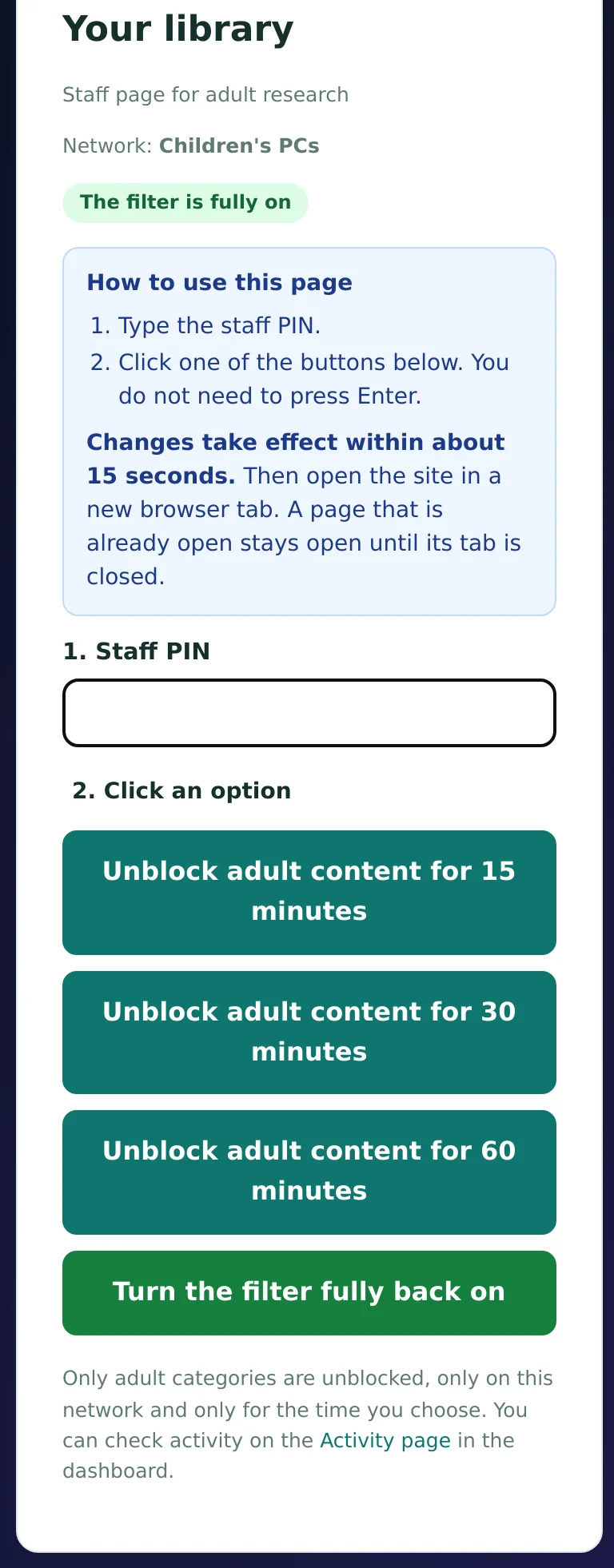
- The staff page works. Open the staff page from your welcome email, type the Staff PIN, then click 15, 30 or 60 minutes. There is no need to press Enter. Changes take effect within about 15 seconds, so wait a moment, then open the adult site again in a new tab: it now loads.
- The filter comes back. It switches back on by itself when the time runs out, or within about 15 seconds when you click Turn the filter fully back on. To check that the site is blocked again, close the browser and start it again first, then open the site: a browser keeps its connection to a website it has already used, even after the tab is closed, and while that connection lasts the website keeps working there without asking the filter again, so a new tab alone is not enough. You can check activity on the Activity page in the dashboard.
| Check | What you should see | If you see something else |
|---|---|---|
| wikipedia.org | The site opens normally | Check that the whole test link was pasted, with nothing missing at the end |
| Adult site, https | A browser security warning; past the warning, only the block page | If the site opens, the browser is not using the test link; open its secure DNS setting again |
| Adult site, http | This website is blocked, with your name and the reason | Same as above |
| Dashboard, Activity | Your own lookups, with time, site and category | Note the time of your test and tell us; we look on our side |
| Staff page | The adult site opens for the chosen time, then is blocked again | A wrong PIN message means a typing error; the PIN is in your welcome email |
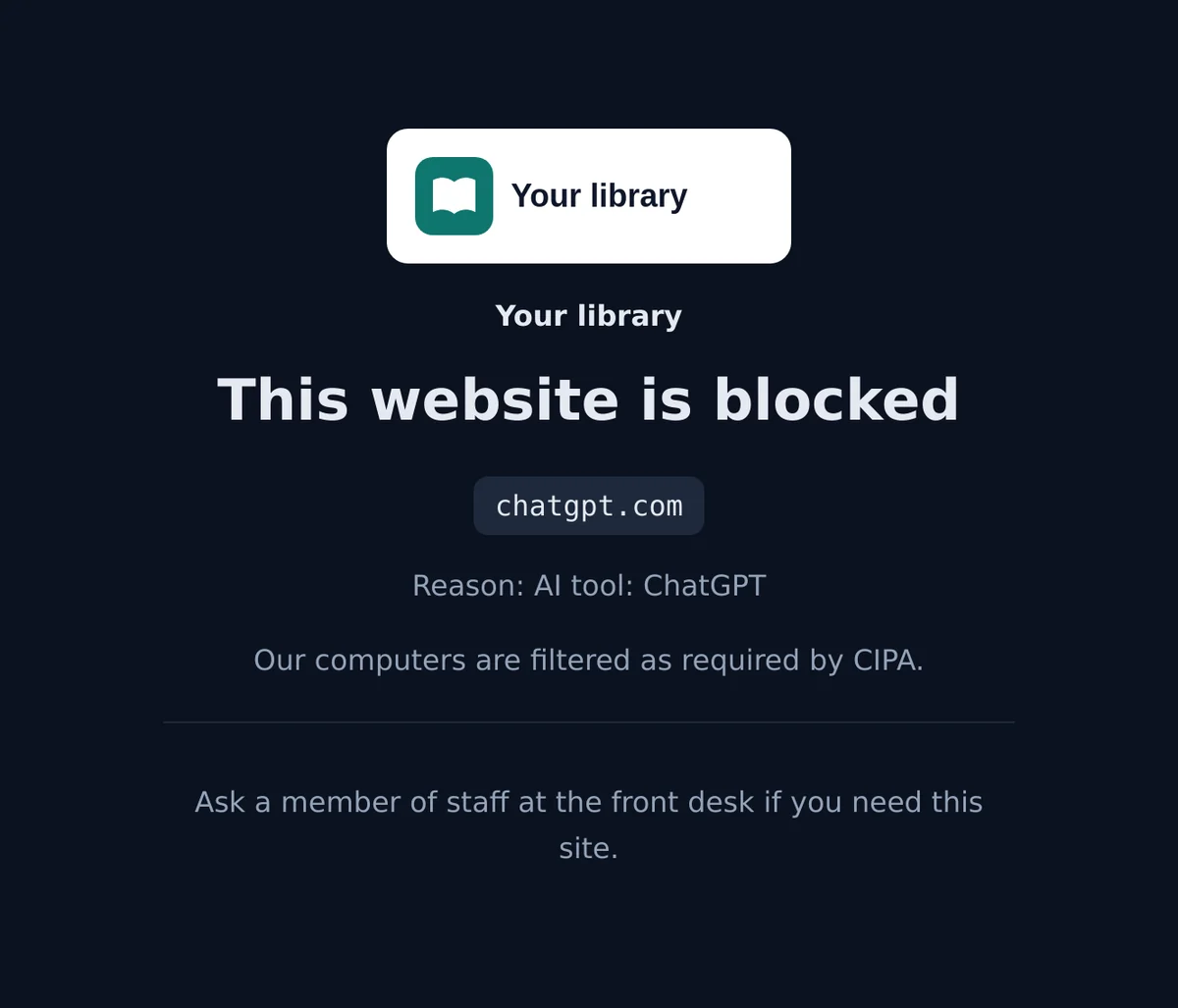
A line for the desk: "That warning means our filter blocked the site. If you need it for your work or research, tell us the name and we will help."
Write down the times. If any check gives an odd result, note the time and the site. With those two facts we can look up exactly what the filter answered.
Going live on your network
When the test looks right, you move the filter from one browser to the whole network. No browser setup is needed on any PC. Every computer, laptop, tablet and phone that uses the network is filtered through your router.
- Find your public IP address. Do this from a computer at the site, not from home. Sign in to the dashboard there and open Networks: the page shows Your public address is followed by the address. Your internet provider can also tell you, and whether the address is fixed.
- Register the address. On the same Networks page, open your network and click Add my current address. It takes effect within a minute. If you prefer, send the address to us and we register it for you. The filter answers only registered addresses and refuses lookups from any other address, so register first and change the router second. With several sites, click the button once at each site, or send us the list of addresses.
- Enter the two DNS addresses. Use the two DNS addresses in your welcome email as the only DNS servers in your router or firewall, the main filter first and the backup filter second.
- Remove every other DNS server. Delete your internet provider's servers and any third entry. A device that can still reach another DNS server can go around the filter.
- Or use your own DNS server. If your PCs ask a DNS server of your own, for example a Windows server for staff sign-ins, leave the PCs pointed at it and enter the two filter addresses in its forwarder settings instead. Remove other forwarders there too.
- Run the same checks again. Restart the router or reconnect a PC, then repeat Part C on a PC without any browser setup.
- Tell us when you switched. We confirm on our side that lookups arrive from your network.
Router or firewall
The DNS setting is often under Internet, WAN, LAN or DHCP. The router then hands the filter to every device that joins.
Your own DNS server
Keep your PCs on it and point its forwarders at the two filter addresses. If it can fall back to root hints when the forwarders do not answer, switch that off.
The backup filter
It runs in a different data center and takes over by itself if the main filter cannot answer. Always enter both addresses.
Going back is one setting. If something looks wrong after the switch, set the DNS on your router or DNS server back to what it was. Filtering stops at once. Then tell us what you saw.
Tidy up the test browser. After you go live, switch the test browser's secure DNS setting back off, so it follows the network like every other PC. Otherwise it can confuse later troubleshooting.
How the staff bypass works
CIPA lets an authorized person disable the filter for an adult's bona fide research or other lawful purpose. The staff page does this with a PIN. Before staff use it, make sure everyone knows exactly what it opens and how it ends.
It opens the whole network
The bypass opens adult content for the whole network for the time chosen: 15, 30 or 60 minutes. It starts within about 15 seconds. Every device on that network gets the same answer while it runs.
It is not tied to a person or a PC
The filter does not know who asked or which PC they used. Logging out of a public PC does not end the bypass.
How it ends
When the time runs out, or at once when staff click Turn the filter fully back on. Within about 15 seconds every device that has not used the site is blocked again. On the computer that used it, the site is blocked again only after the browser is closed and started again: a browser keeps its connection to a website it has already used, even after the tab is closed, and while that connection lasts the website keeps working there without asking the filter again. Ask the patron to close the browser when they are done. You can check activity, with the time and length of each bypass, on the Activity page in the dashboard.
What stays blocked
Only adult categories open. Proxy and VPN sites, your own block list and the other categories you block stay blocked.
In the dashboard, the Staff bypass page has the same buttons for each network, so IT can switch a bypass on or off without the staff page. If your children's area has its own network, many libraries never use the PIN there and send adults to the adult PCs instead.
Want adults to unblock a website without staff? Patron self-unblock lets them do it themselves on the block page, on adult computers, while teen computers can only open the extra categories you block by choice. See patron self-unblock: four ways to set it up.
On request: a bypass for one PC
Libraries with several public PCs in one room often want the bypass on one computer only, and want it to end when the patron logs out. We set this up on request.
- We create a secure link for each public PC and send you the values.
- Each PC gets two Chrome and Edge settings: one switches on secure DNS, the other holds that PC's own link. Set them by hand in about two minutes per PC, or for all PCs at once with a Windows group policy.
- A small task in Windows Task Scheduler ends that PC's bypass when the user logs out, and again at the next sign-in as a safety net.
- Staff then open the PC staff page, pick the PC, type the PIN and choose 15, 30 or 60 minutes. Buttons turn the filter fully back on for one PC or for all of them.
- A PC that is not set up stays on the normal network filter, and so does a PC whose link cannot be reached.
| Network bypass | Per-PC bypass | |
|---|---|---|
| Opens adult content on | Every device on the network | The chosen PC only |
| Ends | When time runs out or staff turn it off | The same, and when the user logs out |
| Setup | Ready with your account | Two browser settings and a logoff task per PC |
| Browsers | All | Chrome and Edge |
| Logged | Yes | Yes |
For the desk procedure and the records to keep, see CIPA adult unblocking in libraries.
Allow a site yourself
A teacher needs a research site, or a patron's job portal falls into a blocked category. You can open it yourself in under a minute.
- Sign in to the dashboard and open Policy.
- Scroll to the Always allowed box near the end of the page.
- Enter the site, one per line, for example example.org. A web address copied from the browser works too: keep only the name, without https:// and the path.
- Click Save lists.
- The site opens within seconds. The entry includes all subdomains, so example.org also covers www.example.org and every other name under it.
Or send it to us
Write the site name to [email protected] and we add it for you.
Always allowed wins
It beats every category, schedule, profile and SafeSearch. Lists for one network only are on that network's page under Networks.
Site still looks broken? Some sites load parts from other domains. Open Activity, find the blocked lookups at the time you tried, and add those domains to the same box.
Troubleshooting
Most problems in the first weeks come from computers that do not ask the filter at all. The checks below find the cause in a few minutes, and none of them needs us.
| What you notice | Most likely cause | Where to look |
|---|---|---|
| A few PCs cannot open a site that works everywhere else | Those PCs do not ask the filter | A few PCs cannot open a site |
| A blocked site opens on one PC | That PC has its own DNS setting | The nslookup check |
| Staff ask for one PC to be treated differently | All PCs share one public address | Why PCs look the same to the filter |
| A kiosk PC behaves differently from the others | Its DNS setting or its list of allowed sites | Kiosk-mode PCs |
| A change in the dashboard does not show | The browser kept an old answer | A change seems not to apply |
| None of the above | We need the time and what you saw | Still stuck |
A few PCs cannot open a site that works everywhere else
For example, your library catalog or booking system works on most computers, but two or three PCs show an error such as "This site can't be reached". The filter gives every PC on the network the same answer, so when the site opens on the other PCs, the filter is not blocking it. Those few PCs are most likely not asking the filter at all. There are two usual causes.
Cause 1: the browser uses its own secure DNS service
Browsers can send their lookups to a secure DNS service of their own instead of the network. The filter blocks such services on purpose, because they would let anyone go around it. A browser that insists on one cannot look up sites, so pages fail to load. Switch the setting off in that browser:
Firefox
Settings, Privacy & Security, DNS over HTTPS: select Off.
Chrome
Type chrome://settings/security in the address bar. Switch Use secure DNS off, or choose OS default.
Edge
Type edge://settings/privacy in the address bar. Switch Use secure DNS off, or choose Use current service provider.
For all PCs at once. With Windows group policy or your device management tool, set the Chrome and Edge policy DnsOverHttpsMode to off, and the Firefox policy DNSOverHTTPS with Enabled false and Locked true. That also stops anyone from switching it back on. Leave out PCs that you set up for the per-PC bypass, because those use secure DNS on purpose.
Cause 2: a fixed DNS address left on the network adapter
A PC can keep a DNS address typed into its network adapter, often from an earlier filter or an old server. It then ignores the router and the filter. Set the adapter back to automatic:
- Press Windows + R, type ncpa.cpl and press Enter.
- Right-click the adapter in use, choose Properties, select Internet Protocol Version 4 (TCP/IPv4) and click Properties.
- Select Obtain DNS server address automatically and click OK. If Internet Protocol Version 6 (TCP/IPv6) also has a fixed DNS address, do the same there.
- Open a command prompt and run ipconfig /all. Next to DNS Servers you should now see your router or the two filter addresses from your welcome email, or your own DNS server if your PCs use one. Anything else is a setting left on that PC.
On PCs that restore themselves on every restart, make the change in the saved image as well, or it comes back the next morning.
The nslookup check
One command tells you which DNS server a PC really asks. It takes ten seconds and works on every Windows PC.
- Open a command prompt: press the Windows key, type cmd and press Enter.
- Type nslookup, a space and the site name, for example nslookup wikipedia.org, and press Enter.
- Read the Server and Address lines at the top. They must show your router, your own DNS server, or one of the two filter addresses from your welcome email.
- Anything else means the PC has its own DNS setting. Go back to Cause 2.
C:\> nslookup wikipedia.org
Server:   UnKnown
Address:  192.168.1.1     <- your router: good

Non-authoritative answer:
Name:    wikipedia.org
nslookup asks the PC's own DNS setting, not the browser. A PC can pass this check and still fail in one browser; then the cause is the browser's secure DNS setting (Cause 1).
Why the filter cannot treat some PCs differently
The filter knows your site only by its public address. All PCs behind your router share that one address, so the filter cannot tell one PC from another. It cannot block a site on some PCs and allow it on others, and it cannot fail on three PCs while answering the rest. When a site behaves differently on a few PCs, the difference is on those PCs.
A second internet line
If your site has a second internet line, for example a separate line for public Wi-Fi or a backup connection, lookups over it come from another public address. Send us that address too, so we can register it.
Different rules for one room
Give that room its own network with its own public address, or use the network's own encrypted link on those devices. The dashboard can then apply a separate profile.
Kiosk-mode PCs
Kiosk mode limits what a person can open on a PC, for example one browser and a list of allowed sites. It does not change how Windows looks up addresses: the PC still asks the DNS server in its normal network settings, like every other PC.
- Sign in to the kiosk PC with an admin account, so you can open a command prompt.
- Run the nslookup check and ipconfig /all. If the Server line is wrong, fix the adapter as in Cause 2.
- If the kiosk uses an Edge list of allowed sites, check that it covers every part of the site. Many sites load from several subdomains, for example a separate name for sign-in or for images. An entry for the main domain covers its subdomains.
- Open edge://policy on the kiosk to see whether a secure DNS policy is set there as well (Cause 1).
A change seems not to apply
Changes in the dashboard are live within seconds. Browsers, however, can keep an old answer for about a minute. Wait a minute and open the site in a new tab. If it still shows the old result, close the browser completely and open it again, or run ipconfig /flushdns in a command prompt to clear the PC's own memory of old answers.
Still stuck
Write to [email protected] and tell us:
- The exact time you tried, with your time zone.
- The site you opened.
- Which PC or network you used.
- What the browser showed. A screenshot helps.
We check those lookups on our side and tell you what the filter answered. If no lookup arrived at that time, the PC did not ask the filter, and we go through Cause 1 and Cause 2 with you.
Setup FAQ
Do we need to install anything on our computers?
No. Once your router or your own DNS server uses the two filter addresses, every computer, laptop, tablet and phone on that network is filtered. No browser setup is needed on any PC. Browser settings are only used for the first test on one computer and for the optional bypass on single PCs.
Can we try the filter before we change the router?
Yes. Put the private encrypted DNS test link from your welcome email into the secure DNS setting of one browser on a staff computer. Only that browser is filtered and nothing changes on your networks. Switch the setting off again to end the test.
Why does a blocked secure site show a browser warning instead of our block page?
On https sites the browser expects the real site and receives the filter's answer instead, so it warns about the connection. This is normal for DNS filtering. The site stays blocked, and clicking past the warning only shows the block page. Plain http sites show the block page straight away.
Does the staff bypass end when the patron logs out?
Not the normal bypass. It opens adult content for the whole network for 15, 30 or 60 minutes and is not tied to a user or a PC. It ends when the time runs out or when staff click Turn the filter fully back on. The per-PC bypass, set up on request, also ends when the user logs out.
Can the bypass open adult content on one PC only?
Yes, on request. Each public PC gets its own secure link through two Chrome and Edge settings and a small logoff task. Staff then pick the PC on the staff page. A PC that is not set up stays on the normal network filter.
A site works on most PCs but not on a few. What should we check?
Those PCs are most likely not asking the filter. Check whether the browser uses its own secure DNS service and switch that off, and whether the network adapter has a fixed DNS address left from an earlier setup. The nslookup check shows which DNS server a PC really asks.
Why are other secure DNS services blocked?
A browser that sends its lookups to its own secure DNS service would go around the filter. The filter blocks those services on purpose, so the rules hold on every device. A browser that insists on one cannot look up sites until its secure DNS setting is switched off.
How quickly does an allowed site start working?
Within seconds of clicking Save lists. A site on the Always allowed list includes all its subdomains. Browsers can keep an old answer for about a minute, so open the site again in a new tab after a short wait.
How do we go back if something goes wrong?
Change the DNS setting on your router or DNS server back to what it was. Filtering stops at once. Then tell us what you saw and we look at it together.
What should we send you when something still does not work?
The exact time you tried, the site, the PC or network, and what the browser showed. We check those lookups on our side and tell you what the filter saw, or that no lookup arrived.
Want a hand with the switch?
Tell us how your site connects to the internet and which DNS servers your PCs use today, and we plan the switch with you. Existing customers can write to [email protected].
Contact us How the hosted filter works