Web filtering for school IT directors
You own the part of CIPA that has a power cable: the technology protection measure. This guide sets out what that means day to day, which questions land on your desk, what to ask a vendor and which records prove the filter did its job.
What the IT director actually owns
The board adopts the policy and the superintendent answers for it. The IT director makes it real on every network and device, and keeps the proof.
The filter itself
A working filter that blocks visual depictions that are obscene, child sexual abuse material or harmful to minors on computers used by minors. This is the core of the Children's Internet Protection Act duty.
Coverage
Every path a student can take to the web: wired, Wi-Fi, guest networks, lab machines, take-home devices and hotspots the district lends out.
Policy by group
Rules that differ for elementary, middle, high school and staff, matching the internet safety policy the board approved.
The request process
A route for teachers and librarians to ask for a site to be reviewed, with a decision log that shows the district acts on over-blocking.
Privacy of the logs
Who can see browsing records, how long they are kept and how they are deleted, in line with district records policy and student privacy law.
Evidence
Dated records that let the person signing the E-Rate certification do so honestly, and let the district answer an auditor quickly.
Run district filtering from a single console
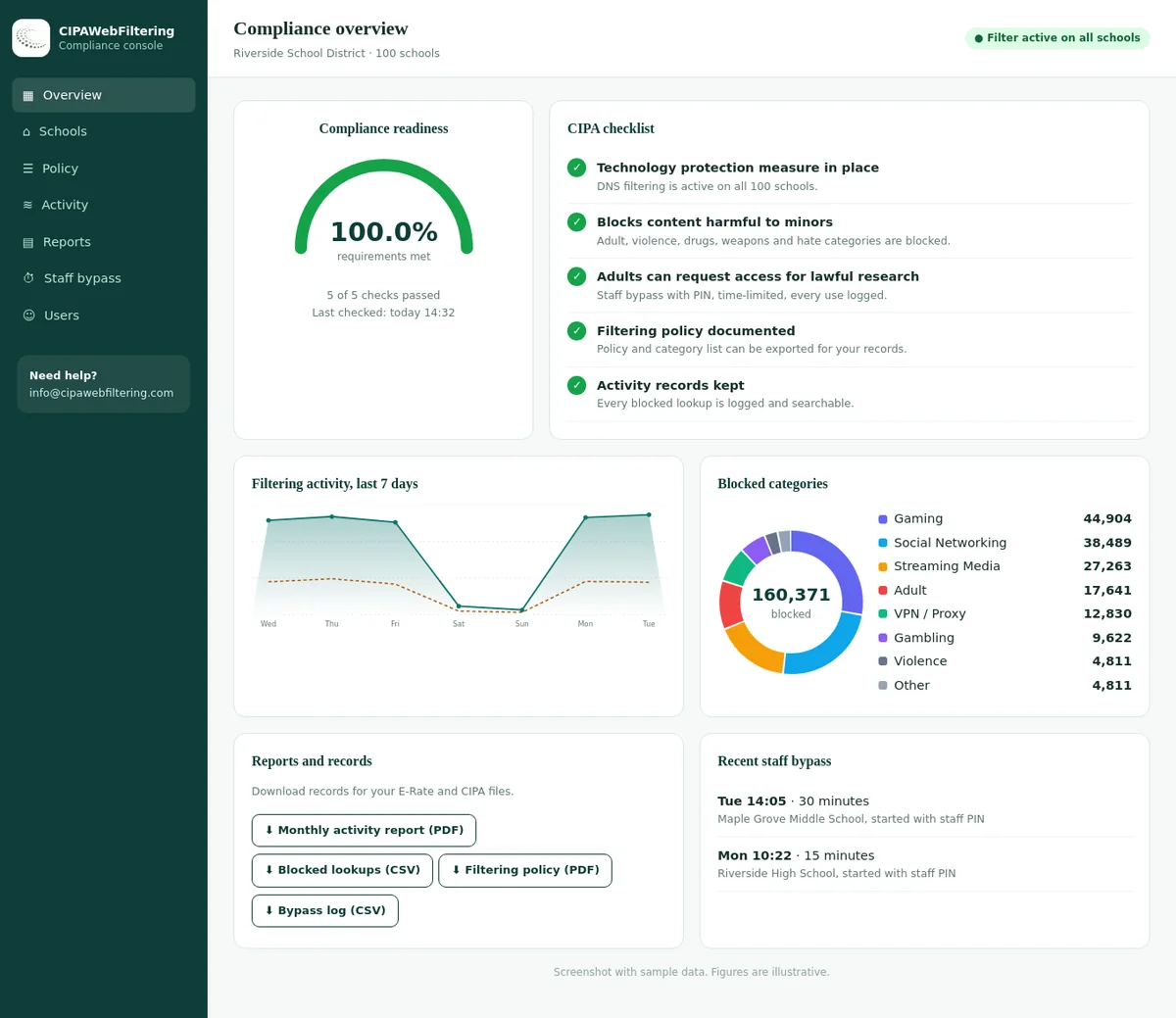
The hosted CIPA filter holds a separate policy for each school in one place. You change a category switch or an allow entry and it applies in seconds, without visiting a building.
- CIPA preset to start, with optional categories added by grade band.
- Public encrypted DNS and browser settings that skip the filter are blocked by default.
- Activity reports and a log export fill the evidence folder.
Accountability map: duty, evidence and cadence
Use this table as your own job description for filtering. Each row is something you may be asked to show, not just to do.
| Duty | What good looks like | Evidence you keep | Cadence |
|---|---|---|---|
| Block CIPA content for minors | Adult and related categories blocked for all student groups, SafeSearch enforced | Configuration export showing blocked categories per group | Each term |
| Block obscene content and child sexual abuse material for everyone | Staff and guest policies also block these categories | Staff and guest policy exports | Each term |
| Cover every device minors use | Device inventory matches enrolment in the filter | Coverage report: devices enrolled versus inventory | Monthly |
| Cover off-campus use of school devices | Filter follows managed devices home | Home network test results with dates | Start of year |
| Handle unblock requests | One route, named reviewers, reasons recorded | Request log with outcome and reason | Ongoing |
| Allow adult unblocking where policy permits | Authorized staff can disable filtering for adults doing lawful research | Record of who may authorize and when it was used | Ongoing |
| Protect log data | Role-based access, set retention, deletion on schedule | Access list and retention setting screenshot | Yearly |
| Test the filter | Sample sites from each blocked and allowed category checked per group | Test sheet with pass or fail per category | Each term |
CIPA certification happens through the E-Rate forms, and audits ask for proof after the fact. Our page on what USAC asks for in a CIPA audit lists the documents reviewers tend to request.
Architecture choices you will be asked to defend
There is no single correct design. The right mix depends on your device fleet, your staff hours and how much page-level control your policy needs.
- Decides by domain before a connection opens
- Light on staff time and network load
- Works on any device that uses your resolver
- Needs bypass controls for encrypted DNS and VPNs
- Cannot see individual pages inside a large site
- Can act on full URLs and page content
- Needs certificates on devices for HTTPS inspection
- More privacy and performance questions to answer
- Strong for labs and wired networks on site
- Off-campus coverage depends on routing traffic back
- Filtering travels with the device
- Groups follow the signed-in student
- Depends on management enrolment staying intact
- Must be checked after operating system updates
- Pairs well with DNS for network-wide coverage
| Situation | Common approach | Watch out for |
|---|---|---|
| 1:1 Chromebooks that go home | Managed browser policy plus agent or enforced DNS | Students signing in with personal accounts; see category filtering on managed Chromebooks |
| Shared lab and library computers | Network filtering plus grade or role groups | Generic logins that land in the wrong group |
| Guest and visitor Wi-Fi | Separate network with its own policy | Minors on guest Wi-Fi still need the CIPA categories blocked |
| Personal phones on school Wi-Fi | Network-level filtering only | Mobile data bypasses the school network entirely |
| Loaned hotspots | Carrier or provider filtering, or device enforcement | Confirm filtering terms in the hotspot contract |
For a deeper comparison see web filtering vs DNS filtering. If you are weighing HTTPS inspection, read SSL inspection for schools before you buy hardware for it.
The bypass and distraction sites IT hears about first
These are real lookups for the sites that generate tickets. The VPN rows matter most, because that category stays blocked even when staff use a PIN.
| Website | Categories in our data |
|---|---|
| nordvpn.com | File Sharing/P2P, VPN / Proxy / Anonymizers |
| protonvpn.com | VPN / Proxy / Anonymizers |
| hotspotshield.com | VPN / Proxy / Anonymizers |
| proxysite.com | VPN / Proxy / Anonymizers |
| discord.com | Email and Messaging, Social Networking, Gaming |
| twitch.tv | Streaming Media, Gaming |
Category policy by grade band
A category database lets you write policy in plain words rather than lists of domains. Our set has 58 web filtering categories, and a domain can carry several, ranked by how much of the site they describe.
- Block CIPA set: Adult, Gambling, Weapons, Illegal Drugs, Violence, Hate/Discrimination
- Block Social Networking, Dating, Streaming Media
- Block VPN / Proxy / Anonymizers
- Allow Education/Reference, Science
- Same CIPA set blocked
- Block Dating, Gaming, File Sharing/P2P
- Allow curated video for class
- Decide AI / LLM Tools by approved list
- Same CIPA set blocked
- Allow News/Media, Political, Health & Medicine for research
- Allow Job Search/Careers
- AI / LLM Tools by course approval
- Block Adult and illegal content
- Allow most research categories
- Block Malware / Phishing / Suspicious
- Log access under the staff policy
These are starting points, not legal requirements beyond the CIPA core. The full list is on our school web filtering categories page, and you can check how any site is classified with the domain category checker.
The questions that land on the IT director's desk
Most filtering work is answering people. Having a ready, honest answer for each group saves hours and builds trust in the system.
Why is my lesson site blocked?
Check the site's categories, then decide through the request route. If the category is wrong for school use, change the policy, not just the one site.
Students got around the filter. How?
Look for VPN apps, proxy sites, encrypted DNS and personal hotspots. Each has its own control, and none is solved by blocking more categories.
Is my child filtered at home on the school laptop?
Answer with what the device does off campus and what it does not do. Avoid promising complete protection.
Are we compliant?
Show the evidence folder: policy adoption, configuration, coverage and tests. Compliance is a set of documents, not a feeling.
Can classes use AI tools?
That is a policy decision first. Once made, apply it by category and approved list; see AI tools policy for schools.
Show the filter was active in that funding year.
Provide dated exports and change records. This is why you export configuration each term rather than only when asked.
What to ask a web filtering vendor
Vendor demos show the dashboard. These questions show how the product behaves in a real district over a full year.
Category data quality
- How many categories do you use, and can a domain carry more than one?
- How are newly registered domains handled, and how soon are they categorized?
- How often are existing domains rechecked?
- Do you measure accuracy, and will you share the results with licence holders?
- Can we look up a domain's categories ourselves before we change policy?
Coverage and operation
- Which device types and operating systems are covered off campus?
- What happens if the agent or profile is removed or fails?
- How are groups synced from our directory?
- How do you handle encrypted DNS, VPN apps and proxy sites?
- What does an outage look like: fail open or fail closed?
Privacy and data
- What browsing data do you store, where and for how long?
- Can we set retention ourselves and delete on request?
- Will you sign our student data privacy agreement?
- Who on your side can see our logs?
Evidence and exit
- Can we export configuration and reports with dates?
- Are there reports that map to CIPA categories?
- How do we get our data out if we leave?
- What notice do you give before changing categories?
Turn these into scored requirements with the school web filter RFP checklist, and run a side-by-side check with the school web filter test before you sign.
The evidence folder: what IT should keep
Store these with the district's E-Rate records, dated and named consistently. Retention rules for E-Rate documents are long, so plan storage for years, not months.
For a full compliance list across all roles, use the CIPA compliance checklist.
A first-90-days plan for a new IT director
Inheriting a filter is common. This sequence finds the gaps before an auditor or a parent does.
- Weeks 1 to 2: inventory
List every network, device type and user group. Compare the list with what the filter actually covers.
- Weeks 3 to 4: read the policy
Get the adopted internet safety policy and check that the filter's settings match its words. Mismatches are your first fixes.
- Weeks 5 to 6: test
Test each category for each group, on site and from a home network. Record results with dates.
- Weeks 7 to 8: fix the request route
Set up one route for unblock requests with a named reviewer. Tell staff how it works.
- Weeks 9 to 10: privacy review
Check who can see logs and how long they are kept. Align with records policy and the district's privacy agreements.
- Weeks 11 to 13: report up
Give the superintendent a one-page status: coverage, tests, open gaps and the decisions you need.
Red flags in an inherited setup
Working with the other roles in the district
Filtering touches almost every department. Agreeing who decides what avoids the common trap where IT ends up making instructional or safeguarding calls alone.
| Role | What they decide | What IT gives them | Guide for that role |
|---|---|---|---|
| Superintendent | Risk appetite, delegation, public statements | A short status report and the evidence folder | Web filtering for superintendents |
| Finance and procurement | Budget, contract terms, E-Rate cost allocation | Technical requirements, user and device counts | Web filtering for school finance and procurement |
| Curriculum and instruction | Which resources and AI tools serve teaching | Category lookups and request log trends | Web filtering for curriculum and instruction leaders |
| Library media specialists | Research access and reconsideration of blocks | Fast review route and category explanations | Web filtering for school librarians |
| Safety and counseling teams | Safeguarding processes and help resources | Assurance that help sites stay reachable | Web filtering for school safety and counseling teams |
Closing the doors students try first
VPN/Proxy stays blocked even with the staff PIN, and public encrypted DNS and browser settings that skip the filter are blocked by default. A private encrypted link keeps the same rules on laptops and phones that leave the network.
Bypass, security and the threats that are not about content
The same filter that applies CIPA policy is often your cheapest security control. Treat both jobs as one design so they do not fight each other.
- VPN apps and browser extensions
- Web proxy sites with fresh domains
- Encrypted DNS set in the browser
- Personal hotspots and mobile data
- Translation and cache pages used as proxies
- Malware / Phishing / Suspicious blocked for all groups
- Parked / For-Sale Domains reviewed for students
- URL Shorteners handled so links are resolved, not trusted
- Remote Access Tools limited to staff who need them
- New domains appear every day
- About 300,000 newly registered domains categorized daily in our data
- Each rechecked after a week and a month
- Other domains refreshed monthly
Read malware and phishing protection for schools for the security side, and blocking proxy sites in schools for the most common student workaround.
AI tools: the newest category on your list
AI chat, writing and image tools appear faster than anyone can list them by hand. Treat them as a category with a policy behind it, not as a blocklist you keep editing.
Category coverage
Our AI tools set covers 11,800+ AI-tool domains in 18 categories and 165 subcategories, updated daily. That lets you allow approved tools and hold back the rest by type.
Policy first
Instruction leaders decide which tools serve learning. IT applies the decision consistently across devices and groups.
Image tools
Image generators carry the most CIPA-relevant risk. Many districts block them for students by default; see blocking AI image generators.
What the IT director owns, by hand or hosted
A quick view for the first 90 days.
| Responsibility | Self-managed filter | Hosted CIPA filter |
|---|---|---|
| Keeping categories current | Update and test lists | Handled in the category data |
| One policy per building | Several configurations | One console, separate settings per school |
| Bypass attempts | Chase each tool | VPN/Proxy blocked, skip-the-filter DNS blocked |
| Off-network devices | Agents on each machine | Private encrypted link, nothing installed |
| Audit evidence | Export from several tools | Reports, policy record and log export |
| Urgent fix | Edit and restart | Change applies in seconds |
School IT director web filtering FAQ
Is the IT director responsible for CIPA compliance?
The district is responsible, and the person who signs the E-Rate certification attests to it. In practice IT owns the filter, its coverage and the evidence.
Do we need HTTPS inspection to comply with CIPA?
CIPA does not name a technology. Many districts reach coverage with domain-level category filtering and SafeSearch enforcement, adding selective inspection only where needed.
How should we handle unblock requests from teachers?
Use one written route, a named reviewer, a response target the district sets, and a log of each decision with its reason. Review the log each term.
Should staff and students have the same filtering policy?
No. Most districts filter students by grade band and staff more lightly, while blocking obscene content and child sexual abuse material for everyone.
How do we filter school devices when they go home?
Use a method that travels with the device, such as an agent, a managed browser setting or an enforced DNS profile. Test from a home network every year.
What evidence should IT keep for a CIPA audit?
Dated configuration exports, blocked categories per group, coverage records, tests, the request log, change records and the adopted policy, stored with E-Rate records.
Pricing depends on the number of schools and devices, and we send a quote within one business day. A pilot on one school shows the blocks and reports so you can judge the workload for yourself.
Talk to us about your district
We can walk through your device fleet, groups and evidence needs, and show how a category-based filter fits. If you want filtering without running appliances, the hosted option is built for schools and libraries.
Talk to us about your district See the hosted CIPA filter